Travel connectivity guide
Oppo Find N3 Flip eSIM: compatibility and setup
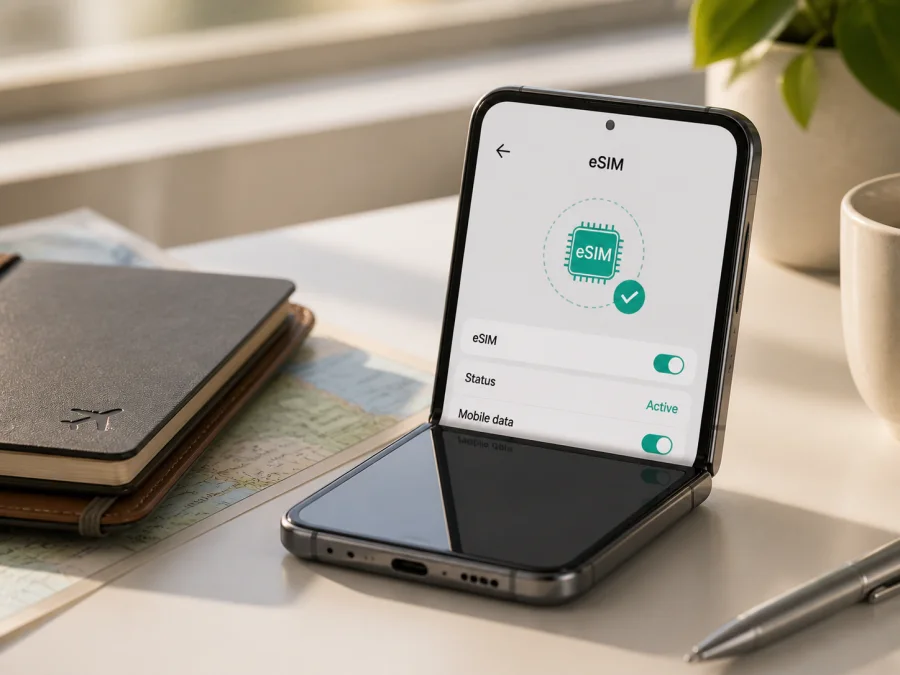
Oppo Find N3 Flip eSIM: compatibility and setup
If you are preparing an overseas trip with an Oppo Find N3 Flip, the short answer is conditional: eSIM is listed for the global version identified by OPPO as CPH2519, but support still depends on the market, carrier and software on the individual phone. OPPO's current global specification lists Nano-SIM plus eSIM and supports a SIM 1 + eSIM combination.
The regional distinction matters. OPPO's China specification for PHT110 lists two physical Nano-SIM cards and does not list eSIM. OPPO's global page also notes that Mexico is a region where dual-SIM operation is not supported. So do not buy a travel eSIM tariff on the model name alone. Check the identifier, EID and mobile-network menu on the exact unit you will take.
On a compatible version, a travel eSIM can provide mobile data while you keep a physical SIM for your usual services, subject to carrier rules. Kaspersky eSIM Store is an app and website that helps you choose, arrange and activate an eSIM with a suitable mobile-data tariff for an overseas trip. It is not a mobile operator, network owner or mobile-internet provider.
Quick answer for Oppo Find N3 Flip
For the global CPH2519 version: yes, the official OPPO specification lists Nano-SIM + eSIM and the dual-SIM combination SIM 1 + eSIM. OPPO explicitly says eSIM support depends on carriers. For the Chinese PHT110 version: do not assume eSIM support, because its official specification lists dual physical Nano-SIM instead. Imported, refurbished and carrier-sold units need an individual check.
Key specifications to check
| Item | Global CPH2519 | China PHT110 | Why it matters |
|---|---|---|---|
| SIM format | Nano-SIM card + eSIM | Dual physical Nano-SIM | The official China page does not list an eSIM profile. |
| Dual-SIM options | SIM 1 + SIM 2 or SIM 1 + eSIM | Two physical Nano-SIM cards | The active combination depends on region and carrier. |
| Official eSIM note | Support depends on carriers | eSIM not listed | Phone capability and tariff availability are separate. |
| Network support | Global 4G LTE and 5G NR bands | Different regional band set | Bands affect service at the destination. |
| Launch software | ColorOS 13.2 | ColorOS 13.2 | Current menus may differ after updates. |
Why regional and carrier versions matter
One commercial name can cover phones with different modem configurations, SIM trays, bands and software. An imported phone or carrier version can therefore behave differently from the global model, even when the hardware is capable.
For CPH2519, OPPO lists SIM 1 + eSIM as a supported dual-SIM arrangement. This does not promise that every carrier supports the same services, so confirm data-line and roaming behavior before travel. For PHT110, the China page lists dual Nano-SIM and no eSIM; compare the About device screen, box label and purchase record rather than applying CPH2519 instructions. OPPO's Mexico note is another reminder that regional operation can override a general specification.
What to check before choosing a tariff
Check the phone before payment. Use this sequence for a new, imported or recently updated device:
- Confirm the exact model identifier. CPH2519 and PHT110 are not interchangeable for eSIM purposes.
- Look for an EID in the phone information screen or in the identification display opened with *#06#. Some builds show only IMEI details, so also check Settings.
- Open the SIM or mobile-network settings and look for Add eSIM, Set up eSIM, Download a SIM or similar wording.
- Confirm that the phone is unlocked for other carriers.
- Connect to reliable Wi-Fi for profile installation.
- Match the tariff's country or regional coverage to the entire route.
- Read its data allowance, validity period, activation conditions, top-up and fair-use terms.
- Decide which line will use mobile data and disable automatic data switching if it could use the home SIM.
- Keep the QR code on a second screen, because the phone cannot normally scan a code displayed on itself.
eSIM compatibility checklist {#kesim-device-compatibility}
- [ ] The exact phone is an Oppo Find N3 Flip unit with the eSIM-capable regional configuration, or the seller/carrier has confirmed it.
- [ ] An EID is visible, or the mobile-network settings contain Add eSIM or Download a SIM.
- [ ] The phone is unlocked and connected to Wi-Fi.
- [ ] The selected tariff covers every destination on the itinerary.
- [ ] The tariff is intended for mobile data if you need internet rather than a number.
- [ ] You know when validity begins, how long it lasts and what happens when data is used.
- [ ] Data roaming is disabled on the home SIM if you want to avoid unexpected charges.
If both EID and the eSIM option are missing, pause the purchase. The likely causes are a regional variant without eSIM, carrier or firmware restrictions, or a differently labelled menu. Ask the seller or carrier to confirm the SKU and software version. Repeatedly scanning a QR code is not a compatibility test. For a quick path through these checks, Check your device before choosing a tariff.
How to install an eSIM on Oppo Find N3 Flip
Install over Wi-Fi with the phone charged and the QR code or activation details ready. For platform-specific preparation, see the Android eSIM installation instructions or the iOS eSIM installation instructions. The Oppo Find N3 Flip uses Android; the iOS link is useful only when helping someone configure another device.
1. Confirm the conditions
Verify the EID or Add eSIM option, an unlocked phone and stable Wi-Fi. If a required condition is missing, stop and resolve compatibility first.
2. Open mobile-network settings
Open Settings and enter Mobile network, SIM card and mobile data, or a similar section. Select the command for adding a mobile plan or eSIM. Do not remove the existing physical SIM while searching.
3. Scan or enter the profile details
Choose Add eSIM and scan the QR code shown on another screen. If the order supplies manual activation details, use them only in the manual-entry form and only as provided.
4. Download and name the profile
Confirm the plan or network name, then download the profile while Wi-Fi remains connected. Give it a label such as Travel data or the destination name so it cannot be confused with the home SIM.
5. Select the data line
In the SIM manager, choose the travel eSIM for Mobile data. Leave automatic data switching off unless you understand when it can move data to the other line. Keep calls and messages on the home line only when its carrier terms suit you.
6. Enable roaming if required
Some travel eSIM tariffs require Data roaming for the eSIM to register on a partner network. Enable it for the travel profile only when the tariff instructions say so, and verify that the home SIM is not the active data line.
7. Wait for registration
Allow several minutes for connection. If the profile is installed but the network is absent, toggle Airplane mode once or restart the phone. Do not delete the profile during the first troubleshooting attempt because some profiles cannot be downloaded again.
Activation and first connection
Installation places the eSIM profile on the phone; activation or the start of the data package may follow separate tariff conditions. Some tariffs start when the profile connects to a supported network, while others have an activation window. Check the order information before installing at home. After arrival, select the travel eSIM for data, enable roaming for that line if needed and test with Wi-Fi off. The phone counter and account balance may refresh at different times.
Using the eSIM during a trip
Arrival and navigation
Activate the travel line when you are ready for the tariff to begin. Set it as the data line before opening maps, translation, transport or booking apps. This reduces reliance on public Wi-Fi in the first hours after landing. If registration is weak indoors, move to an open area before changing several settings.
A multi-country route
Compare the whole itinerary with the tariff's coverage. A regional plan may be convenient, but its included countries, validity and network access remain conditions of that offer. At a border, keep the travel line selected and allow time for registration.
Work and heavier use
Video calls, cloud backup, navigation updates and hotspot use consume more data than messages or light browsing. Estimate usage, monitor the account balance and check that tethering is permitted before using the Oppo Find N3 Flip as a hotspot.
Keeping the home line
The global specification lists SIM 1 + eSIM, but behavior is carrier-dependent. Disable data roaming for the home SIM, select the travel eSIM for data and review these settings after a restart or update. Home-line calls and messages may have separate charges.
Troubleshooting common problems
There is no Add eSIM option
Check the model first. PHT110 may have the dual physical-SIM configuration listed by OPPO rather than eSIM. On CPH2519, restart, update available software and search the mobile-network and SIM-manager screens. If EID is still absent, ask the seller or carrier to confirm the regional SKU and firmware. A working QR code on another unit proves nothing about yours.
The QR code will not scan
Show the full code on another screen, raise its brightness and use the eSIM installation screen rather than the ordinary camera app. If the code has already been used or an error appears, contact support before deleting a profile.
The profile will not download
Reconnect to Wi-Fi, check storage, confirm the activation window and make sure the code was not used already. A carrier lock, unsupported firmware or an existing profile can block download. Keep the error and order details for support.
The profile is installed but there is no data
Select the travel eSIM for mobile data, turn Mobile data on and enable roaming for that profile if required. Check that automatic data switching is off and the destination is covered. Toggle Airplane mode, restart and wait for registration before changing advanced settings.
The connection is slow or disappears
Move outdoors or to a stronger-signal area and leave network selection on automatic. Buildings, congestion, maintenance and local bands affect service. Use only tariff-specific APN instructions.
The eSIM was deleted
Do not assume the QR code can be reused. Some profiles are single-use or have re-download limits. Contact the relevant support channel with the order information and exact model identifier.
FAQ
Does Oppo Find N3 Flip support eSIM?
Yes for the global CPH2519 version listed by OPPO with Nano-SIM + eSIM, subject to carrier support. There is no safe universal answer for every regional unit: the China PHT110 specification lists dual physical Nano-SIM and no eSIM. Check EID and Add eSIM on your phone.
Can I use a physical SIM and eSIM together?
The global specification lists SIM 1 + eSIM. Services depend on the region and carrier. Choose one line for data and check roaming on that line.
Is an eSIM a phone number?
No, not usually. A travel data tariff normally provides mobile internet rather than a conventional number, voice service or SMS. Use internet calling or messaging when those services are not included.
Should I install before leaving?
Often that is convenient, but first check when validity begins. If installation triggers activation, follow the tariff's timing guidance. You may be able to install early and leave the profile disabled until needed.
Do I need data roaming on?
Sometimes. A travel eSIM may need roaming to connect to a partner network. Enable it for the travel profile when instructed and verify that the home SIM is not selected for data.
Can I transfer the eSIM to another phone?
Do not assume transfer is allowed. Check the selected tariff's re-download or transfer terms before deleting the profile.
What does Kaspersky eSIM Store do?
Kaspersky eSIM Store is an app and website where you can choose, arrange and activate an eSIM with a suitable mobile-data tariff for an overseas trip. The network and tariff conditions belong to the relevant service arrangement; Kaspersky eSIM Store is not the operator, network owner or mobile-internet provider.
Final device check and trip eSIM choice
Use this sequence on the exact phone you will carry:
- Confirm the regional configuration and verify an EID or Add eSIM option.
- Check that the phone is unlocked and install over reliable Wi-Fi when the tariff timing permits.
- Match destination coverage, data allowance, validity and activation conditions to the route.
- Set the travel eSIM as the mobile-data line, disable roaming on the home SIM and enable it on the travel line only when required.
- Test with Wi-Fi off and keep the QR code, order information and support details accessible.
If the device check fails, do not choose the tariff yet. Verify the model and regional version with the seller or carrier. If it passes, Kaspersky eSIM Store can help you choose a destination and arrange a suitable eSIM tariff for mobile internet during the trip through the app or website. Review the conditions before activation.
Conclusion
The safe answer for Oppo Find N3 Flip is conditional: OPPO lists eSIM for global CPH2519, while China PHT110 is listed with two physical Nano-SIM cards. Carrier support, regional restrictions, firmware and the phone's EID or Add eSIM menu determine what an individual unit can do. Check the device first, then select a tariff that matches the destination and usage. This order—device check, tariff check, installation, data-line selection and a short test—helps you start the trip with clear expectations.


