Travel connectivity guide
Oppo Find X3 8GB RAM eSIM: Compatibility Guide
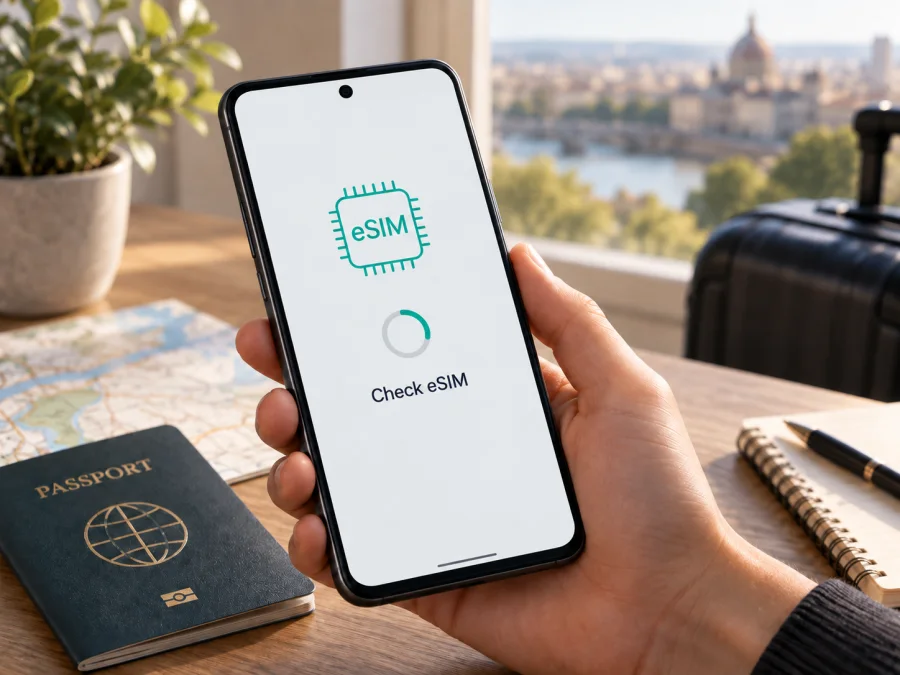
Oppo Find X3 8GB RAM eSIM compatibility and setup guide
Quick answer
The eSIM capability of the exact Oppo Find X3 8GB RAM variant is not confirmed by OPPO’s official Find X3 specification. For the documented China-market model, OPPO lists dual Nano-SIM support, but does not list eSIM, an EID, or an eSIM setup option. Treat this version as incompatible unless the phone’s own settings and OPPO or its carrier confirm eSIM for its exact model code and region. An 8 GB RAM configuration does not itself determine eSIM capability.
| Item | What to know |
|---|---|
| Device | Oppo Find X3 8GB RAM |
| Listed memory options | 8 GB RAM with 128 GB or 256 GB storage in OPPO’s China-market specification |
| Listed SIM arrangement | Two Nano-SIM cards |
| eSIM status | Not listed for the documented Find X3; support is not verified |
| Checks to make | Model code, EID, and an “Add eSIM” or equivalent setting |
| Before buying | Confirm eSIM capability, carrier unlock status, destination coverage, and plan conditions |
Why the exact model matters
Oppo Find X3, Find X3 Pro, Find X3 Neo, and Find X3 Lite are separate phones. Their hardware and regional configurations should not be treated as interchangeable. OPPO has published eSIM information for the Find X3 Pro in certain markets; that does not establish support on the Find X3 covered by this guide. The exact name and model code on your handset matter more than a family-level compatibility list or a retailer’s shortened listing.
The official China-market Find X3 specification identifies model PEDM00 and describes two Nano-SIM cards. It lists 8 GB RAM configurations with different storage capacities but does not state that this phone has an eSIM. A dual-SIM phone may have two removable SIM cards and no embedded SIM profile capability. Likewise, 5G support, a large amount of memory, or the ability to use two phone lines is not proof of eSIM support.
Market and carrier differences can affect SIM features and the menus shown in Android. Imported or second-hand phones may have a different model code or software region than the seller’s description suggests. If OPPO documentation does not confirm eSIM for the exact regional version, regard support as unverified. Do not infer it from the Find X3 Pro, a different Find X3 variant, or an online checker that identifies only the product family.
Does the Oppo Find X3 8GB RAM support eSIM?
For the documented Find X3 specification, OPPO lists two Nano-SIM slots rather than eSIM. Therefore, eSIM support is not verified for the Oppo Find X3 8GB RAM. If your phone is PEDM00, expect to use physical Nano-SIM cards unless OPPO or your carrier confirms otherwise for your precise hardware and software region.
An EID is an identifier associated with an eSIM-capable device; it is different from an electronic identity credential sometimes called eID. Check for an EID and an option to add or download an eSIM profile in the phone’s settings. Those are useful practical indicators, but confirm any unusual or contradictory result with OPPO or the carrier. Android labels vary by software version, and a menu alone does not guarantee that a particular profile will work. If there is no EID and no add-eSIM option, pause before buying a plan. A software update cannot add missing eSIM hardware.
What to check before buying an eSIM plan
Use this checklist before ordering a travel eSIM, particularly if the phone is imported or used.
- Confirm the model code. In Settings, open About device, About phone, or Status. Compare the code and software region with the box and purchase documents.
- Search for an EID. Search Settings for “EID”; it may also appear under SIM status or device status. Keep the identifier private.
- Look for eSIM controls. In SIM or mobile-network settings, search for “Add eSIM,” “Download a SIM,” or “Add mobile plan.” Wording depends on the Android and ColorOS release.
- Ask OPPO about the precise version. Provide the model code and region. Ask whether that exact handset can download eSIM profiles; do not ask only about the Find X3 family.
- Check carrier lock status. A locked phone may reject another provider’s profile even if the hardware supports eSIM. Confirm travel use with the original carrier.
- Review the plan. Check destination coverage, data allowance, validity, supported network, activation timing, and tethering conditions. A data plan should not be assumed to include a regular phone number, calls, or SMS.
- Keep internet available for setup. Profile download may require Wi-Fi or another working connection. Install before departure if airport Wi-Fi is not a reliable option.
On the phone, search separately for “EID,” “eSIM,” and “Add SIM,” then inspect the mobile-network page. Two physical SIM slots without an EID or eSIM control are consistent with the Nano-SIM configuration listed by OPPO; they do not demonstrate eSIM capability. A missing menu is a reason to verify the regional model with OPPO before paying for a plan.
Compatibility check: Check your device before selecting a plan. If the EID or add-eSIM control is absent, confirm the model code with OPPO first.
If the phone is confirmed eSIM-capable: installation and activation
These steps apply only after OPPO or your carrier confirms eSIM support on your exact handset and an eSIM option is present. They cannot enable eSIM on a phone that lacks the required hardware. ColorOS and Android menus vary; follow the labels shown on your phone.
- Prepare the phone. Connect to stable Wi-Fi, charge the battery, and check that the handset is unlocked and running an official supported software version.
- Choose a travel plan. In Kaspersky eSIM Store, use the app or website to select a destination and review coverage, data, validity, price, activation timing, and other conditions. Kaspersky eSIM Store helps users choose, arrange, and activate an eSIM plan for mobile internet abroad; mobile service uses the plan’s supported local networks.
- Open the installation details. After arranging a plan, find its QR code or manual activation details in your account or app. If the QR code is on the phone itself, display it on another device so the phone can scan it.
- Open mobile-network settings. Go to Settings and select Mobile network, SIM card & mobile data, or the equivalent menu. Choose Add eSIM or Add mobile plan.
- Download the profile. Scan the supplied QR code or enter manual details if provided. Use only the phone’s built-in settings and a code provided with your plan.
- Wait for installation. Keep the internet connection stable. Download may take several minutes. If the phone says a code was already used, check the plan instructions or contact support before trying again.
- Name the line. Label it “Travel data” or another recognizable name. Decide whether to keep your usual physical SIM enabled for calls and messages.
- Choose the data line. In SIM settings, select the travel eSIM for mobile data when you are ready. Check the separate defaults for calls and SMS so you do not change your normal number by mistake.
- Follow activation timing. Some plans start at installation; others start on first connection in a covered destination. Read the plan’s rule before enabling the profile.
- Set roaming if required. Enable data roaming for the travel profile only when the plan instructions say to. Check the selected line carefully; roaming on your home SIM may create charges under your operator’s terms.
- Wait for network registration. On arrival, allow a few minutes for the profile to connect. If it does not, check destination coverage, profile status, data-line selection, and roaming before reinstalling anything.
Read the Android eSIM installation instructions before setup. The iOS eSIM installation instructions are useful if you are helping a traveler with an Apple device; this Oppo phone uses Android. Follow the activation details supplied with the plan, since rules can vary.
Using a travel eSIM for mobile data
If eSIM is confirmed on the phone, a travel profile may be used for data while your normal SIM remains available, subject to the phone’s dual-SIM limits and plan terms. Select the travel eSIM as the mobile-data line. Disable automatic data switching if available, so the handset does not fall back to your home SIM without your noticing.
For a short break, estimate data for maps, messaging, tickets, browsing, and uploads. For a longer or multi-country trip, compare validity and allowance, then confirm that every stop is covered; a country plan may not include neighboring destinations.
At the airport, Wi-Fi can help download a confirmed compatible profile. If validity starts on first connection, wait until you reach a covered destination before enabling it. After arrival, select the travel line for data. Messaging apps can use data, but a travel plan may not include a phone number, calls, or SMS.
Keep the home SIM active only if you understand its roaming charges. Choose the data line explicitly and check the call and message defaults separately. If you plan to use hotspot sharing, verify that the plan and local network allow tethering. Actual coverage, speed, and 5G availability depend on the destination network, plan, local conditions, and supported device bands.
Troubleshooting common eSIM problems
There is no EID or “Add eSIM” option
Confirm the model code, install official system updates, restart, and search Settings for EID and eSIM. If no EID or add-eSIM control appears, ask OPPO whether the exact regional model supports eSIM before buying. OPPO’s documented Find X3 specification lists dual Nano-SIM and does not verify eSIM; Find X3 Pro information does not apply to this phone.
The QR code will not scan
Raise brightness on the screen showing the code, clean the camera lens, and fit the full code in the frame. If the code arrived on this same phone, display it on another device. Open the built-in Add eSIM flow rather than the regular camera. If manual details are provided, enter them only in the phone’s official settings. Avoid repeated scans if the code may be single-use.
The profile download fails
Reconnect to stable Wi-Fi and check that the device has an EID and that the code has not already been used. Verify the plan’s destination and installation instructions. If an error says the code is invalid or used, contact plan support with the order details and error text. Do not share the QR code publicly.
The profile is installed but there is no service
Check that you are in a covered destination and that the plan validity has started. Make sure the profile is enabled and selected for mobile data. If required, turn on roaming for that profile only. Toggle airplane mode or restart; if automatic network selection fails, follow the plan instructions to select a supported network manually. Registration may take a few minutes.
Mobile data does not load or the home SIM roams
Confirm that mobile data is enabled for the travel eSIM and that the phone has not selected the home SIM. Check the plan’s data allowance, validity, and any supplied APN instructions. Turn off data roaming on the home line if you do not intend to use it; keep roaming on for the travel profile only if required. Calls on the home line may still be charged under the home operator’s terms.
The phone is locked or the profile cannot be transferred
Ask the original carrier to confirm the phone is unlocked. Do not delete an installed profile unless its instructions allow reinstalling it. Some profiles are restricted to one handset or one installation and may require support to replace.
FAQ
Can every Oppo Find X3 8GB RAM use eSIM?
No universal compatibility claim is supported. OPPO’s documented Find X3 specification lists two Nano-SIM cards and does not list eSIM. Check the exact model code, EID, and add-eSIM setting before purchase; regional software or carrier restrictions can matter.
Does 5G or dual SIM prove eSIM support?
No. 5G describes network capability, while dual SIM may refer to two physical Nano-SIM cards. Neither proves that the phone can download an eSIM profile.
Is Find X3 Pro the same phone?
No. It is a separate model. OPPO’s eSIM information for Find X3 Pro in certain markets does not prove eSIM support on the Oppo Find X3 8GB RAM.
Does a travel eSIM replace my normal number?
Not necessarily. A travel data plan is intended for mobile internet and may not include a phone number, standard calls, or SMS. Check the plan terms; internet messaging apps can work over data.
Final device check and eSIM for your trip
Before choosing a travel plan, confirm that your handset is the Oppo Find X3 8GB RAM you intend to use, record its model code, and look for an EID and an eSIM installation option. OPPO’s documented Find X3 specification lists dual Nano-SIM and does not confirm eSIM, so do not rely on compatibility information for Find X3 Pro or another model in the series. If OPPO confirms eSIM on your regional handset, check that it is unlocked, the plan covers your destinations, and you understand its data allowance, validity, and activation trigger.
Kaspersky eSIM Store is an app and website where you can choose, arrange, and activate an eSIM plan for mobile internet on an overseas trip. Once compatibility is confirmed, compare destination options and plan conditions in the app or on the website, then follow the Android instructions. If your Find X3 has no EID or add-eSIM option, choose a compatible device or a physical SIM alternative rather than assuming it can install a travel profile.


