Travel connectivity guide
Oppo Find X3 eSIM: Compatibility and Travel Setup
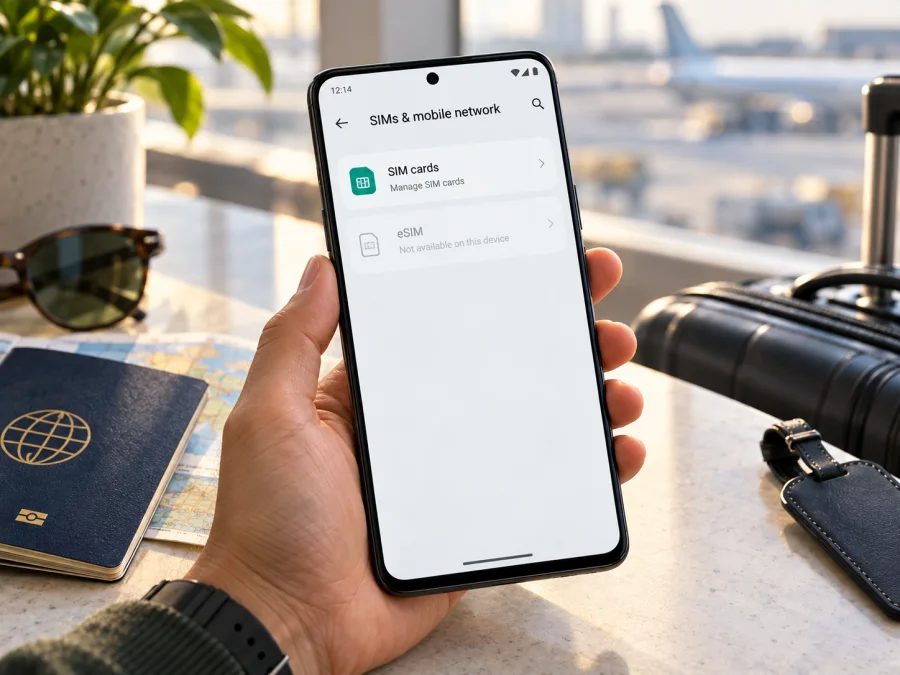
Oppo Find X3 eSIM: compatibility, setup and travel guidance
Short answer: the standard Oppo Find X3 (model PEDM00) does not support eSIM according to OPPO’s published specifications. Those specifications identify a dual Nano-SIM configuration and do not list an embedded SIM, EID, or eSIM setup function. Do not assume that an eSIM plan can be installed on this phone just because it is a 5G device or belongs to the Find X3 family. In particular, OPPO lists eSIM among the features of selected models that include the Find X3 Pro; that is a separate model and its feature set does not apply to the standard Find X3.
This matters if you are preparing for a trip. A data eSIM can be useful for mobile internet abroad, but the handset must support eSIM at the hardware, software, and market-variant level. Before you select or activate a plan, check your exact phone and its settings. If your standard Find X3 has no EID and no option to add an eSIM, use a compatible second device or a physical SIM instead.
Does Oppo Find X3 support eSIM?
For the standard China-market Oppo Find X3 listed by OPPO as model PEDM00, the answer is no: OPPO’s specification page lists “Nano-SIM” and dual-SIM support. It does not list an eSIM profile or eSIM enrollment. This is the relevant distinction for the device named in this article. The fact that the phone supports 5G cellular networks does not imply that it has an eSIM chip; 5G and eSIM are separate capabilities.
The wider family also includes Find X3 Pro, Find X3 Neo, Find X3 Lite and special editions. They are not interchangeable: OPPO names Find X3 Pro among selected eSIM-capable models, while the standard Find X3 specification lists two Nano-SIM slots. Check the full name and model number in Settings, especially when buying used.
| Item | Standard Oppo Find X3 |
|---|---|
| OPPO model identifier | PEDM00 |
| SIM type in OPPO specifications | Nano-SIM, dual SIM |
| eSIM support listed by OPPO | No eSIM capability is listed for this model |
| 5G support | Yes, on supported bands and networks |
| Practical eSIM verdict | Treat as not eSIM-compatible unless OPPO confirms a different exact model or regional variant |
The specification refers to OPPO’s PEDM00 product. Imported, carrier-customized, or inaccurately listed phones can cause confusion, so verify the identifier in Settings and with OPPO or the seller. Regional software and operator settings may affect supported devices, but do not assume they add eSIM hardware to a physical-SIM-only model. An otherwise compatible device may also need to be unlocked for the operator market where the profile will be used. OPPO’s published PEDM00 specification does not establish what a particular carrier permits in its market; for any separately verified eSIM-capable variant, confirm profile support with the issuing operator.
Why the Find X3 Pro comparison matters
OPPO’s general eSIM help page says eSIM is available on selected models and includes Find X3 Pro in its list. Its Chinese product page for the standard Find X3, meanwhile, gives the PEDM00 model number and says it takes two Nano-SIM cards. These are compatible facts because they describe different devices. A Find X3 Pro owner should check the precise regional version and the relevant operator market; a standard Find X3 owner should not infer eSIM compatibility from the Pro model’s support.
Check your exact phone before choosing a plan
The quickest practical check is to inspect the phone itself, then compare what you find with the exact model name. A missing menu on this standard Find X3 is consistent with OPPO’s listed dual physical-SIM design. An EID is a device identifier associated with eSIM provisioning; its presence is a useful clue, while its absence on the PEDM00 supports the conclusion that the phone has no eSIM facility. A menu can vary by software version, so use both checks rather than trusting a single search result or seller claim.
Use this compatibility checklist before selecting a travel plan:
- [ ] Open Settings → About device (the wording can vary by ColorOS version) and record the complete model name and model number.
- [ ] Open Settings → Mobile network or SIM card & mobile data and look for Add eSIM, Add mobile plan, or Download a SIM. On the standard Find X3, expect physical SIM management rather than an eSIM enrollment option.
- [ ] Search Settings for EID. If the phone provides a status or regulatory-information screen, check there as well. Do not confuse an IMEI with an EID: they are different identifiers.
- [ ] If no EID and no add-eSIM option appear, do not buy a profile on the assumption that a QR code or software update will make it work.
- [ ] If the model number is not PEDM00 or the handset is described as a Pro, Neo, Lite, or carrier edition, verify that exact variant with OPPO and the seller. Check the operator market and firmware currently installed.
- [ ] Confirm that the phone is not network-locked if you plan to use another operator’s physical SIM or a supported eSIM in a different handset.
Where to look for an EID or eSIM menu
On compatible Android phones, eSIM controls usually appear in mobile-network or SIM settings. Menu names vary by manufacturer and software version. Look for a control that explicitly adds or downloads an eSIM profile. A camera QR scanner is different: recognizing a code does not provision a profile unless the phone supports eSIM.
On Oppo Find X3, check Settings → About device for the model identifier and Settings → Mobile network for SIM controls. Search Settings for “eSIM” or “EID,” or check the status information screen. Do not share your EID, IMEI, activation code, or full QR code publicly; provide such details only through a private official support channel when requested.
If no EID and no eSIM option appear, stop there for this model. Rebooting, changing the preferred network to 5G, or resetting settings will not add eSIM hardware. A factory reset removes personal data and is not a compatibility remedy.
Check whether your device is compatible before choosing a plan. A 5G icon, dual-SIM tray, supported frequency band, or ability to connect to mobile data does not prove that the phone supports an eSIM profile. Likewise, an eSIM plan’s country coverage does not change a handset’s compatibility.
What to do if you want mobile data abroad
Because the standard Oppo Find X3 is not listed as eSIM-compatible, plan around a physical SIM or another compatible device. You can keep your regular SIM in the Find X3 and use a separate eSIM-capable phone, tablet, or other supported handset for travel data. A mobile hotspot can share that device’s connection, although it adds battery use and may be restricted by the plan. Alternatively, check whether a local physical SIM is suitable for the Find X3 and your destination.
If you are considering a different phone or a verified Find X3-family variant, Kaspersky eSIM Store is an app and website where you can choose, arrange, and activate an eSIM with a mobile-data plan for an international trip. Before selecting a destination plan, verify the exact handset’s eSIM capability, its unlock status and the plan’s conditions, including destination, data allowance, validity and activation timing. A plan is intended for mobile data; it does not automatically include a regular phone number, voice calls or SMS unless its conditions expressly say so. You can use internet-based calling and messaging apps over data where available.
Before you purchase or install an eSIM
For a compatible phone, confirm these points before ordering:
- Model and variant: Check the identifier in Settings; regional or carrier versions may differ.
- Unlock status: Ask the original operator or seller whether the phone accepts other providers’ profiles.
- Destination: Confirm every country on your route is included.
- Allowance and validity: Match the data amount to your expected use and check when validity starts.
- Installation: Keep reliable internet available and save the instructions. Do not delete a working profile unless support advises it; some cannot be downloaded again.
Installing an eSIM on a compatible device
The standard Oppo Find X3 cannot follow these steps because OPPO’s specification does not list eSIM for PEDM00. The instructions below describe the general flow for a compatible Android or iPhone device, such as a separately verified eSIM-capable model. Menu labels and activation behavior vary by device, operating-system version, plan and operator. Use the instructions supplied with the particular plan.
For Android, see the Android eSIM installation instructions. For iPhone, see the iOS eSIM installation instructions. Those guides do not change Oppo Find X3 compatibility.
General installation steps for a compatible Android phone
- Confirm compatibility and unlock status. Check the model, EID and Add eSIM option.
- Connect to Wi-Fi. Keep a reliable connection while the profile downloads.
- Open SIM settings. Choose Add eSIM or the equivalent mobile-plan option.
- Scan or enter details. Use the supplied QR code or manual activation information; keep both private.
- Download and label the profile. Follow the prompts and choose a clear label such as “Travel data.” The download may take a few minutes.
- Follow the activation timing. Plan validity may start at installation or at first connection; check the specific terms.
- Select the data line. Keep your usual line active only if needed and review its roaming charges.
- Set data roaming if required. Enable it for the travel eSIM only when the plan instructions call for it.
- Test after arrival. Turn on the profile, select it for mobile data, wait for network registration and open a webpage.
General installation steps for a compatible iPhone
Installing a profile and using it for data are separate stages. A profile may appear in settings but remain switched off, or it may be installed before the phone reaches the supported destination network. Check the activation conditions instead of repeatedly scanning the same QR code. If the phone reports that a code has already been used, contact the plan’s support channel before deleting the profile or requesting a replacement.
Using a travel eSIM for mobile internet
On a compatible phone, select the travel eSIM for mobile data while keeping a regular number on another line if needed. Review the home operator’s roaming rates before leaving that line active; calls, texts, voicemail and data may have different charges.
For a multi-country itinerary, verify each destination and transit stop. After a border crossing, allow time for network registration. Available networks and performance depend on local coverage, plan terms and supported bands.
Install the profile over stable Wi-Fi, keep instructions accessible and follow the plan’s activation timing. Download key travel details in advance. When active, check the data-line and roaming settings; limit automatic updates or backups if you need to manage the allowance.
The Find X3 can use physical SIM cards; check destination availability and compatible bands. If data is on a second eSIM-capable device, connect by password-protected hotspot and keep that device powered and nearby.
Example travel scenarios
One-week city break: A traveler with a standard Find X3 should not purchase a travel eSIM for direct installation on that phone. They can use a compatible secondary phone or check for a local physical SIM that works with the Find X3. If using a separate eSIM phone, estimate data use for maps, messaging, browsing and occasional uploads, then compare the plan’s allowance and validity.
Several countries in one trip: Confirm that each stop is covered and check activation and network-selection terms. Use a secure hotspot from the compatible second phone when needed.
Keeping a home number reachable: The Find X3’s physical SIM may remain available for calls or texts, subject to operator terms. Check roaming rates before using it for data; use a separate compatible device for the travel eSIM.
Troubleshooting common eSIM questions
There is no “Add eSIM” option
First confirm the complete model number. On the standard PEDM00 Oppo Find X3, the missing option matches OPPO’s published dual Nano-SIM specification. Check for an EID as well, but do not expect a software update to add an eSIM function to this model. If the phone is actually a different Find X3-family device, verify that exact device and market variant with OPPO before ordering a plan.
I cannot find an EID
Search Settings for “EID,” check About device or status information, and compare the result with the exact model’s official documentation. Do not substitute the IMEI: the IMEI identifies cellular equipment, while the EID is associated with eSIM provisioning. On the standard Find X3, OPPO lists physical Nano-SIM support and no eSIM. If a seller claims the phone supports eSIM, ask for the exact model number and evidence from its settings before purchase.
The QR code will not scan
Check camera focus and the plan instructions; a profile may also have been used already. Use the eSIM setup scanner on a supported phone. For standard Find X3, a QR code cannot bypass the lack of a listed eSIM feature.
The profile downloads but there is no service
On a compatible model, confirm the profile is on, selected for data, and used in a covered destination. Check the roaming requirement, restart or briefly toggle airplane mode, and allow time to register. Follow the plan’s activation instructions if validity has not started.
Mobile data does not use the travel line
Open SIM settings and confirm which line is assigned to mobile data. Disable automatic switching between lines if it causes the phone to use the home SIM. Check the data allowance and any usage limit set on the handset. When troubleshooting, avoid deleting the eSIM profile; removal may make reinstallation impossible without help from the plan provider.
The phone is locked to an operator
A network lock may prevent another provider’s profile from working. Ask the original operator whether the phone is unlocked. An eSIM profile cannot remove a carrier lock, and unlocking Find X3 does not add eSIM support.
The phone shows 5G but the eSIM does not work
5G describes a radio network generation; eSIM describes how a subscriber profile is stored and provisioned. A phone can support 5G with physical SIM cards and still have no eSIM capability. The standard Find X3’s 5G support does not change the dual Nano-SIM information in OPPO’s specifications.
FAQ
Can Oppo Find X3 scan an eSIM QR code?
OPPO does not list eSIM for standard Oppo Find X3 (PEDM00). A camera may recognize a QR code as text or a link, but cannot download a profile without eSIM support.
Is eSIM support available after a ColorOS update?
There is no official indication in OPPO’s published standard Find X3 specification that a ColorOS update adds eSIM. The listed SIM type is dual Nano-SIM. Update the phone for normal maintenance when appropriate, but do not buy an eSIM plan on the assumption that an update will add support.
Does Oppo Find X3 Pro have the same answer?
No. OPPO’s eSIM help page includes Find X3 Pro among selected compatible models. That does not establish compatibility for the standard Find X3. Pro owners should check the exact regional model, settings and operator market; this page addresses the standard Oppo Find X3.
Can I use an eSIM plan for calls and SMS?
A travel eSIM plan is commonly intended for mobile data, and a phone number, voice service or SMS should not be assumed unless the specific plan says these are included. Messaging and calling apps can use mobile data. Keep the service terms in view when choosing a plan.
What is the safest way to check before purchase?
Read the model number in Settings, look for an EID and Add eSIM control, then compare with OPPO’s exact-variant documentation. Resolve conflicting details with OPPO or the seller. Check unlock status and destination coverage.
Check the device, then choose a travel option
OPPO lists the standard Oppo Find X3 with two physical Nano-SIM cards and no eSIM. Treat it as incompatible with direct eSIM installation unless OPPO confirms otherwise for your exact handset. A 5G connection or QR scanner does not change that result.
Before choosing travel data, check the model number, EID and eSIM menu, operator lock, destination, allowance, validity and activation terms. If there is no EID or Add eSIM option, use a compatible second device or physical SIM. Kaspersky eSIM Store is an app and website where you can choose, arrange and activate an eSIM with a mobile-data plan for an international trip on a compatible device.


