Travel connectivity guide
Oppo Find X3 Pro 512GB eSIM: Compatibility & Setup
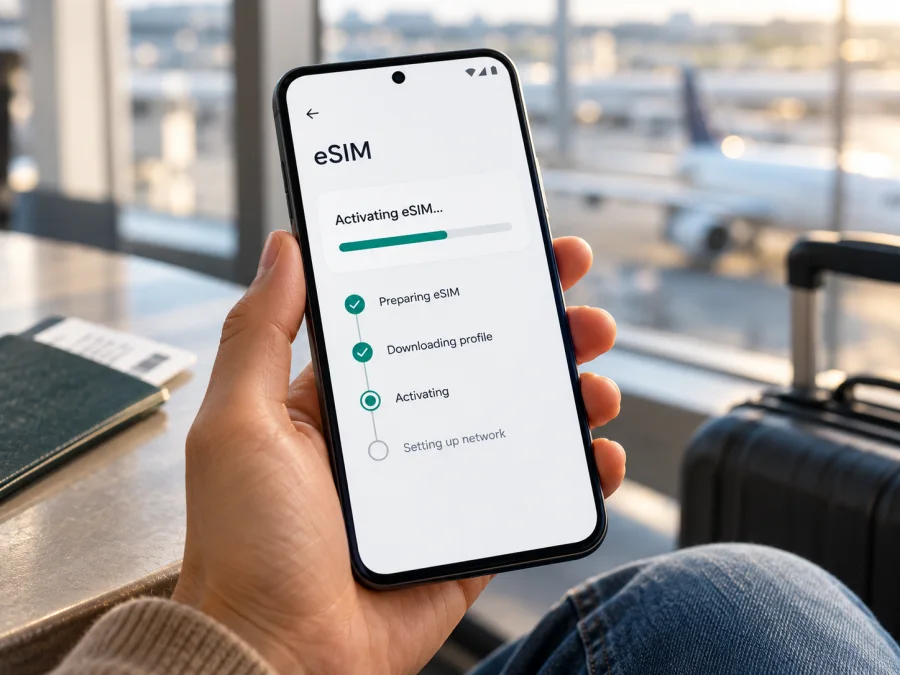
Oppo Find X3 Pro 512GB eSIM: compatibility and setup guide
Can Oppo Find X3 Pro 512GB use eSIM? Some Find X3 Pro configurations support eSIM, but OPPO’s published specifications do not confirm this exact 512GB variant. Compatibility depends on the model, sales region, software and carrier. Check the phone’s EID and eSIM settings before buying a travel plan.
The storage detail also needs verification. OPPO’s current global specification for model CPH2173 lists 12GB RAM and 256GB ROM, not 512GB. That does not prove a 512GB version is unavailable in every market or channel, but it means the exact listing cannot be verified from that official page. Storage capacity does not establish whether a phone has eSIM hardware.
OPPO’s global specifications say eSIM support depends on carriers. OPPO Support lists Find X3 Pro among selected eSIM-capable models. OPPO Japan’s SIM-free product material specifies nano-SIM/eSIM, while other regional and carrier versions can differ. So the useful answer is conditional: the model family includes eSIM-capable versions, but the Oppo Find X3 Pro 512GB in your hand needs to be checked individually.
Quick compatibility summary
| Item | What is known |
|---|---|
| eSIM | Available on selected Find X3 Pro configurations; OPPO says carrier support matters. |
| 512GB variant | Not listed on OPPO’s current global CPH2173 specification, which shows 12GB RAM + 256GB ROM. |
| Regional differences | Yes. OPPO Japan’s SIM-free documentation lists nano-SIM/eSIM; SIM configuration and availability differ by market and carrier. |
| Best check | Look for an EID and Add eSIM/Download eSIM control in the phone’s settings; confirm the device is unlocked. |
| Travel use | A compatible, unlocked handset can use an eSIM data plan where its destination and network terms permit. |
The findings were checked against OPPO’s global and regional product specifications, OPPO Support’s eSIM information and OPPO Japan’s product material on 17 October 2026. These sources do not confirm a universal 512GB configuration. Treat that exact listing as unverified until the handset itself passes the checks below.
Does Oppo Find X3 Pro support eSIM?
There is no safe yes-or-no answer for every Oppo Find X3 Pro 512GB. OPPO describes eSIM as available on selected models and includes the Find X3 Pro in its support information. Its global CPH2173 page says eSIM support depends on carriers. The Japanese SIM-free catalogue lists nano-SIM/eSIM, but the phone’s SIM arrangement can differ by sales region or carrier. This is why a model name alone is not enough.
A carrier-branded phone may have different SIM options, software or restrictions from an unlocked retail version. Imported stock can also have a model code or firmware from another region. An eSIM component may be present while a carrier lock or local operator policy prevents activation. Even when an eSIM works, a specific travel plan still needs to accept the device and cover your destination.
The 512GB label does not resolve the question. OPPO’s current global specifications list 12GB RAM and 256GB ROM for CPH2173. A seller’s 512GB description could refer to a different market, a listing mistake or another sales configuration; the public information reviewed here is not enough to determine which. Check the storage shown in Settings and compare the model code with the seller’s records. Ask for the original sales market and whether the phone was SIM-free or carrier-branded.
The Japanese materials illustrate the distinction: OPPO’s SIM-free product catalogue specifies eSIM, while regional specifications note carrier-dependent functions and dual-SIM limits for some variants. This is evidence for that documented configuration, not proof that every Japanese Find X3 Pro—or every global unit—supports eSIM. The same caution applies to a phone advertised as 512GB.
| What to check | Why it matters |
|---|---|
| Full model identifier | The model code can help distinguish regional hardware and firmware. Check Settings, the box and purchase record. |
| Original sales market | The country where it was sold and whether it was carrier-branded can affect SIM options. |
| Carrier lock | A locked phone may reject a profile from another provider. Confirm with the original operator or seller. |
| ColorOS version | Menu names and availability can vary by software build and market. |
| Storage claim | Verify it in Settings and through regional product documentation; capacity is not an eSIM test. |
Check compatibility before buying
Use the phone itself as the final check. Connect to Wi-Fi, then look for an EID and an eSIM control. An EID is an identifier associated with eSIM hardware. Its presence is useful evidence, but does not confirm that the handset is unlocked or that a particular plan will work.
- Find the model code. Open Settings → About device (or About phone) and record the complete identifier and ColorOS version. Check that the device’s storage matches the 512GB listing.
- Look for an EID. Search Settings for “EID” or “SIM status”; depending on software, it may appear under Status, About device or SIM information.
- Look for eSIM controls. Open Settings → Mobile network or SIM management and check for Add eSIM, Download eSIM or a similar option. Menu names can vary.
- Check the carrier lock. Ask the original carrier or seller to confirm that another provider’s eSIM can be used.
- Confirm plan compatibility. Check that the plan accepts this Android device and covers the intended destination. A profile for another phone or destination is not automatically compatible.
Some Android phones show the EID after entering *#06# in the Phone app, but behavior varies. Use Settings as the primary check. An IMEI is not an EID, and seeing an IMEI alone proves nothing about eSIM support. If neither an EID nor an eSIM option appears, apply any official system update, restart once, and check again. If still absent, contact OPPO or the original operator with the model code before purchase. Do not assume a software update can add missing eSIM hardware.
Compatibility checklist
- [ ] The model code and original market are known.
- [ ] Settings show an EID or an eSIM add/download option.
- [ ] The handset is unlocked for another provider.
- [ ] The eSIM provider accepts this device configuration.
- [ ] The plan covers the destination and its conditions fit the trip.
- [ ] Wi-Fi or another internet connection is available for installation.
Check your device before choosing a travel plan. If the EID and eSIM controls are both missing, treat the handset as incompatible unless OPPO or the carrier confirms otherwise for that exact model. Do not buy on the assumption that an update will enable eSIM.
What an EID can tell you
The EID identifies an eSIM-capable device. It differs from an IMEI, which identifies the mobile device, and from the number associated with a physical SIM. The EID can help support staff identify your eSIM hardware, but it does not prove carrier acceptance, an unlocked status, or coverage in a destination. Share it only through an appropriate support channel if requested; avoid posting it publicly.
If an EID appears but no eSIM option is available, possible reasons include a regional software configuration, a carrier restriction, an outdated build or a mismatch between the handset and its listing. A factory reset is not a useful first compatibility test and can erase data without changing hardware or carrier policy. Ask the seller, carrier or OPPO Support before considering one.
How to install an eSIM on Oppo Find X3 Pro 512GB
Continue only after confirming eSIM controls are available and the phone is unlocked. Keep Wi-Fi connected during installation. A QR code or activation code may be single-use, so save the provider’s setup information and do not remove a partly installed profile without checking whether it can be reissued.
ColorOS menus differ by region and version. A typical route is Settings → Mobile network → eSIM → Add eSIM or Download eSIM. If you cannot find those options, stop and confirm the model with OPPO or the original carrier rather than treating a QR scan as a compatibility test.
- Prepare. Connect to stable Wi-Fi, charge the phone and install any available official software update. Recheck that the eSIM plan accepts your device and destination.
- Open network settings. Go to Mobile network, SIM management or the equivalent menu.
- Add the profile. Choose Add eSIM/Download eSIM and scan the provider’s QR code from another screen. Enter manual activation details only if the provider supplies them.
- Wait for installation. Keep Wi-Fi connected and follow the on-screen prompts. A profile can install before it is able to connect to a network in the destination.
- Name the line. Use a clear label such as “Travel data” so you can distinguish it from your home SIM.
- Choose when it should be used. Read the plan’s activation and validity rules. Installation and the start of the data period may be separate events.
- Select mobile data. At the destination, enable the travel profile and choose it as the data SIM. Keep the home line for calls only if needed and check its roaming rules with your operator.
- Set roaming if required. Some travel eSIMs require data roaming on that profile. Follow the plan’s instructions and enable it on the correct line only.
- Test the connection. Wait a few minutes, then open a webpage. If there is no service, check the selected SIM, roaming requirement and APN instructions.
For general steps, see the Android eSIM installation instructions. The iOS installation instructions are for Apple devices; their menu names do not apply to this Oppo. Follow the controls shown on your own ColorOS version if they differ from a general guide.
Use a travel eSIM for mobile data
Before travel, decide which line should provide data. A travel eSIM plan may be data-only and may not include a regular phone number, voice calls or SMS; check the plan terms. Messaging and calls through internet apps can use the data connection, subject to each app’s conditions.
On arrival, enable the travel profile, set it as the mobile data SIM and turn on roaming for that profile only if required. Disable data switching to the home line if your phone offers that option and you want to avoid unintended data use. Check the network name, signal and plan status. If you travel across borders, verify that every destination is included: a country plan may not cover neighbouring countries, while regional plans cover only the listed destinations.
The phone may store multiple SIM profiles, but the active SIM combinations depend on its exact version and software. Do not assume every physical SIM/eSIM pairing can be active together. If you keep your usual line available, check with your home operator whether calls, SMS or roaming can incur charges. A travel data eSIM does not replace your normal number.
Kaspersky eSIM Store is an app and website where you can choose, arrange and activate an eSIM with a mobile-data plan for an overseas trip. It is not the mobile operator or network. Check the plan’s destinations, validity and activation rules before purchase. Once you have verified compatibility, you can browse current destinations and plans; this is a general store page, not a country-specific tariff.
Common problems
No EID or eSIM menu
Check the model and ColorOS version, search Settings for “EID” and “eSIM”, and inspect Mobile network/SIM management. Restart after an official update. If the controls remain absent, ask OPPO or the original carrier about the exact model and market. A QR code cannot add eSIM capability to a configuration without it.
QR code does not scan
Show the code on another screen, increase brightness and avoid glare. Use manual activation only when supplied by the provider. Do not repeatedly scan a possibly single-use code; ask whether it is still valid or can be reissued.
The profile cannot be added
Check Wi-Fi and follow the on-screen error. Confirm device compatibility, carrier unlock status and whether the phone has reached its profile limit. If a download partly completed, ask the provider before deleting it or retrying a potentially single-use code.
Profile is installed but there is no signal
Confirm the plan is valid in your current destination and that the travel eSIM is enabled and selected for mobile data. Toggle airplane mode once or restart. Check whether the plan requires data roaming, automatic network selection or a particular APN. Follow the plan instructions before changing unrelated network settings.
Data is slow or comes from the wrong SIM
Signal and speed depend on local conditions and the network available to the plan. Check remaining data and validity, then verify the selected mobile-data line. Turn off automatic data switching if available. A 5G-capable phone does not guarantee 5G access on every plan or network.
Support needs device details
Provide the model code, ColorOS version, purchase region and exact error message. Share an EID or IMEI only through the provider’s official support channel if requested. Never share the QR code or activation code publicly.
Practical examples
Japanese SIM-free model: OPPO Japan’s product material documents nano-SIM/eSIM for a SIM-free Find X3 Pro. Check that your exact phone matches this configuration and shows an EID and eSIM option. A carrier-branded Japanese handset may differ, so the SIM-free documentation is not proof for every unit.
Phone sold as 512GB: Verify its model code and storage in Settings. If an EID and eSIM control are present, still confirm the phone is unlocked and that the plan provider accepts it. If controls are absent, get model-specific confirmation from OPPO or the seller before purchase; the storage label is not evidence of eSIM support.
Phone with two physical SIMs: A dual-SIM tray neither proves nor rules out eSIM. Check the EID and settings. If the phone does not offer eSIM, consider a supported physical SIM or Wi-Fi alternative for the trip.
Frequently asked questions
Does Oppo Find X3 Pro 512GB support eSIM?
Some Find X3 Pro configurations do. OPPO says support depends on carriers, and the current global specification reviewed here lists 256GB rather than 512GB. Verify EID, eSIM controls, model code and region on the exact phone before buying.
Is 512GB an official OPPO configuration?
The current global CPH2173 page lists 12GB RAM + 256GB ROM. The 512GB retail listing remains unverified by that source, though this alone does not rule out every regional sales configuration. Check the handset and request official market documentation from the seller.
Will any travel eSIM work if an EID is present?
No. The phone must be unlocked and accepted by the provider; the plan must cover the destination and meet the device’s network requirements.
Can I keep my regular number?
Possibly, if the phone supports the required SIM combination and your operator allows it. A data-only travel eSIM does not supply a regular number, and the home line may incur roaming charges.
What if the eSIM menu is missing after an update?
An update is not proof of eSIM hardware. Confirm the exact model and region with OPPO or the original carrier. Back up data and avoid a factory reset unless the manufacturer recommends it.
Before you choose a travel plan
- Verify the model number, original market and advertised 512GB storage on the handset and purchase records.
- Confirm that Settings shows an EID or Add eSIM/Download eSIM option.
- Confirm the phone is unlocked and the plan provider accepts this configuration.
- Check destinations, data allowance, validity and activation timing against your trip.
- Keep internet access available for installation and save the setup instructions.
After these checks, use Kaspersky eSIM Store to choose and arrange a mobile-data eSIM plan for your overseas trip. Compare the current destination options and plan conditions with your itinerary, then follow the activation steps supplied for the profile. If the phone has no EID or eSIM controls, pause and confirm its configuration with OPPO or the seller; use a physical SIM or Wi-Fi alternative if the device is not eSIM-enabled.


