Travel connectivity guide
Oppo Find X5 512GB eSIM: compatibility and setup
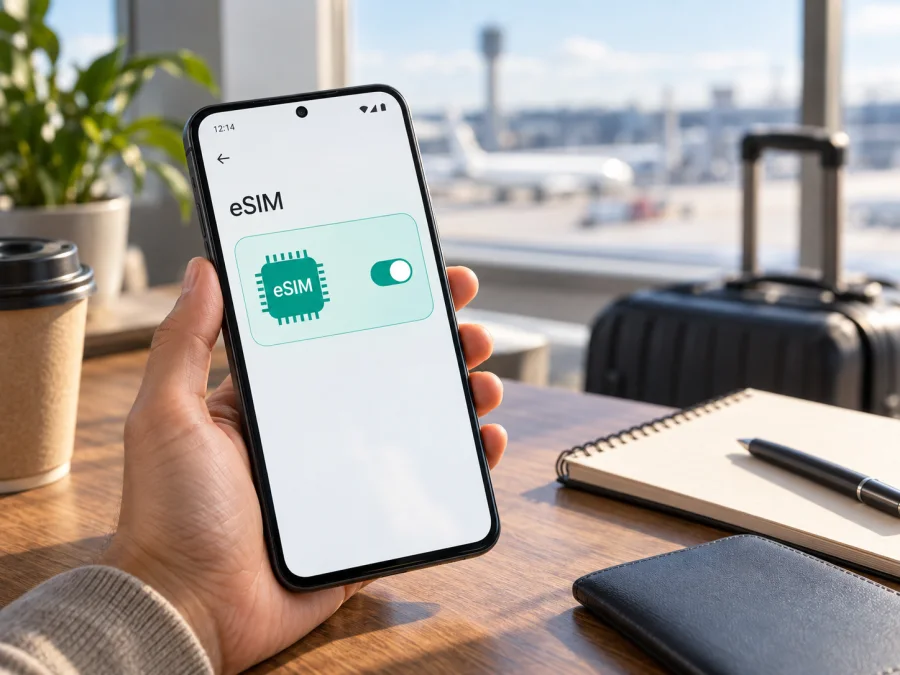
Oppo Find X5 512GB eSIM compatibility and setup guide
If you are checking whether Oppo Find X5 512GB can use an eSIM for mobile data abroad, do not rely on storage alone. The answer depends on regional hardware, model code and software. Current official OPPO information differs by market: one regional specification identifies eSIM for the regular Find X5, while another lists dual Nano-SIM and no eSIM. The requested 512GB combination also needs extra care because official Find X5 pages list lower configurations.
That means Oppo Find X5 512GB may be compatible only if the particular unit has the eSIM hardware and an eSIM option in ColorOS. Treat it as unconfirmed until you see an EID or an “Add eSIM” control in the phone’s mobile-network settings. If those controls are absent, the device cannot install a travel eSIM through a later update or an app.
Quick answer: does Oppo Find X5 512GB support eSIM?
There is no single safe yes-or-no answer for every phone sold under this description. OPPO’s official regional documentation shows why. The Chinese Find X5 specification identifies model PFFM10, lists 8GB+128GB, 8GB+256GB and 12GB+256GB configurations, and describes the SIM type as dual Nano-SIM. It does not present the regular Find X5 as an eSIM phone. By contrast, an official Swiss Find X5 series product table lists eSIM in the “Others” row for OPPO Find X5 5G and lists an 8GB+256GB configuration.
These records show a genuine regional difference. Check “512GB” against the phone’s model code and About device screen: it may be a reseller description or a mix-up with another Find X5-series model. Storage and 5G do not prove eSIM support.
For practical purposes, use this decision:
| What you find on the phone | eSIM conclusion for Oppo Find X5 512GB |
|---|---|
| An EID is displayed and Mobile network contains Add eSIM | The unit has eSIM capability; continue with carrier and plan checks. |
| The phone has two physical Nano-SIM slots and no EID or eSIM menu | Treat it as a physical-SIM-only regional version. |
| The storage is reported as 512GB but the model code or menus are unclear | Compatibility is unconfirmed; verify with the seller before purchase. |
| The eSIM menu appears but activation fails | The hardware may be compatible, but the profile, carrier, lock, region or network settings may prevent activation. |
What the official specifications mean for this exact variant
Do not substitute Find X5 Pro, Find X5 Lite or a generic “Find X5” result: those are different devices and may have different SIM hardware.
The manufacturer’s published data gives useful reference points, but it does not validate every retail listing:
| Item | What can be established safely |
|---|---|
| Device name | Oppo Find X5 512GB, as supplied for this page |
| Platform | Qualcomm Snapdragon 888 5G is listed for the regular Find X5 |
| Software family | ColorOS 12.1 is shown in the official specifications reviewed |
| Official memory examples | Regional pages show 8GB+256GB; China also lists 8GB+128GB and 12GB+256GB |
| Requested storage | 512GB is not confirmed by those official Find X5 specifications |
| SIM evidence | Chinese official page: dual Nano-SIM; Swiss official series page: eSIM listed for Find X5 5G |
| Compatibility status | Region and model-code dependent; verify on the handset |
The table is deliberately conservative. A regional eSIM entry is not a promise for every imported Find X5, and firmware cannot add missing eSIM hardware.
How to check EID and eSIM settings
Perform this check over Wi-Fi. Labels can vary with ColorOS version, language and market, but the compatibility signs are consistent.
- Open Settings and use the search field for EID, eSIM, SIM, or mobile network.
- Open About device or Status and look for an EID entry. EID means eSIM identifier. It is normally a long numeric value; never publish it or send it to an unknown person.
- Return to Settings and open Mobile network, SIM card & mobile data, or the closest equivalent.
- Look for Add eSIM, Set up eSIM, Download a SIM, or a plus sign for adding a mobile plan. A menu that only says SIM 1 and SIM 2, with two physical-card slots and no add option, is evidence against eSIM support.
- If an eSIM entry exists, open it without scanning a QR code yet. Confirm that the screen offers a way to download or add a mobile plan and that the phone can display an EID.
- Check About device for the model number, region or software build. Compare it with the seller’s listing. A 512GB storage reading that does not match the advertised model should be resolved before buying a plan.
For a short reminder of the checks, Check your device before choosing a plan.
Compatibility checklist before you buy a travel plan
Use this checklist for Oppo Find X5 512GB, especially when the phone was imported or bought from a marketplace.
- [ ] The phone is really the regular Find X5, not Find X5 Pro, Find X5 Lite or another model in the series.
- [ ] The About device screen shows a model code that matches the seller’s description.
- [ ] The stated 512GB capacity is visible in the phone and is not only a listing title.
- [ ] An EID is present, or the mobile-network settings show Add eSIM.
- [ ] The phone is not locked to an operator or restricted to a specific regional network.
- [ ] You have Wi-Fi available for downloading the eSIM profile.
- [ ] The chosen plan covers the destination and has the data allowance and validity period you need.
- [ ] You understand whether the plan is data-only and whether calls or SMS are excluded.
- [ ] You know when the plan starts counting: installation, first connection or another condition in its terms.
If any of the first five boxes is uncertain, pause before payment. Kaspersky eSIM Store can help you choose and activate a travel eSIM plan, but it cannot turn a physical-SIM-only handset into an eSIM device.
How to install an eSIM on a compatible Oppo Find X5 512GB
Install only after the device check succeeds and you have read the plan conditions. Keep your existing physical SIM active if you need your usual number for incoming calls or messages, but remember that adding a profile does not automatically make the travel plan your data line.
- Connect the phone to reliable Wi-Fi, charge it, and turn off any setting that might interrupt the download. Do not begin in a place where you may lose internet access.
- Open Kaspersky eSIM Store on the site or in the application, choose your destination and review the plan’s coverage, data allowance, duration and activation terms. The service is a way to choose, arrange and activate an eSIM plan for mobile internet while travelling; it is not a mobile operator or a network owner.
- Complete the order flow in Kaspersky eSIM Store. Keep the QR code or manual details on another screen, another device or a printed page.
- On the phone, open Settings, then Mobile network or SIM card & mobile data, and choose Add eSIM or Download a SIM.
- Scan the QR code when ColorOS asks for it. If scanning is unavailable, use the manual activation code supplied with the plan. Enter it exactly; do not add spaces or replace similar characters.
- Wait for the profile to download. Name it something clear such as Travel data so you do not confuse it with your physical SIM. Do not remove the profile while the activation screen is still working.
- When prompted, decide which line should handle mobile data. To use the travel plan abroad, select the new eSIM as the mobile-data line. Keep calls and SMS on your usual line if that is what you need.
- Open the new eSIM’s settings and enable the line. If the plan’s instructions require data roaming, enable it for that eSIM only. Do not enable roaming on your everyday line unless you deliberately want to use its roaming service.
- Turn Wi-Fi off briefly after activation and check whether the phone registers on a supported network. It may take a short time to select a network; follow the plan’s terms if activation is expected only after arrival.
- Record the profile name and the line selected for data. This makes it easier to restore the correct setting after a reboot, a flight or a change between destinations.
The general Android guide is available at Android eSIM installation instructions. If you are comparing phones or moving your plan between devices, the iOS eSIM installation instructions explain the corresponding Apple flow; they are not a substitute for confirming compatibility on Oppo Find X5 512GB.
Do not delete an eSIM as a first troubleshooting step. Some profiles are intended for one device and may not be transferable after deletion.
Activating eSIM for mobile data on a trip
Install before departure. Connect Oppo Find X5 512GB to Wi-Fi, add the profile and leave it disabled until needed. After landing, enable the travel eSIM, select it for data and enable roaming for that profile if required. This gives you time to discover a regional limitation before the trip.
Install after arrival. This can suit plans that activate on first network connection. Save the QR code or manual details offline, confirm the EID, then install over Wi-Fi, select the profile for data and check the network indicator. Follow the plan’s stated activation rule; installation and validity do not always begin together.
For either pattern, set the travel eSIM as the mobile-data line and keep your ordinary SIM for calls or messages if needed. A travel plan is commonly data-only, so it may not include a conventional number, voice service or SMS. Confirm that the data counter moves on the eSIM before using maps or tickets.
Common problems and practical checks
There is no Add eSIM option
First check for an EID. If neither EID nor an eSIM menu exists, the phone is probably a physical-SIM regional version. Confirm the model code and seller documentation; do not keep searching for a QR scanner in a general camera app. A QR code cannot add eSIM to unsupported hardware. If the listing says 512GB but official details do not match, request clarification or use a different compatible device.
The QR code will not scan
Increase screen brightness on the device showing the QR code and keep the code fully visible. If it is on the same phone, use manual activation details or another screen. Do not repeatedly scan an expired or already-used code.
The profile downloads but will not activate
Check Wi-Fi, automatic date and time, the selected region and whether the phone is operator-unlocked. Restart once, enable the eSIM line, and turn on roaming for the travel profile if required. Save the exact error message before trying another change.
The eSIM is active but there is no data
Verify that the travel eSIM is selected for mobile data, mobile data is enabled and roaming is on when required. Move to ordinary signal, toggle airplane mode once and wait for registration. Check destination coverage, validity and any supplied APN instructions.
Data is being used from the wrong SIM
Set the travel eSIM as the preferred data line and disable automatic data switching. Temporarily disable mobile data on the everyday SIM if necessary.
The phone was bought abroad or refurbished
Treat storage and region as separate questions. Confirm the model number, original market, ColorOS build, SIM tray, EID and operator-lock status. If the seller cannot demonstrate the eSIM menu on the exact unit, consider it unverified.
Frequently asked questions
Is the 512GB storage enough to confirm compatibility?
No. Storage capacity does not identify the eSIM component. In addition, the official Find X5 pages checked for this guide do not list the regular model in a 512GB configuration. Treat “Oppo Find X5 512GB” as the exact listing name you are investigating, then validate the actual model code and EID on the handset.
Does 5G mean that eSIM is available?
No. 5G describes network capability; eSIM describes subscriber-profile storage. A 5G phone can have only physical SIM slots. Find X5 regional documentation demonstrates this distinction: one page describes dual Nano-SIM, another lists eSIM.
Can a ColorOS update add eSIM?
An update can change menus or enable a function already supported by the regional hardware, but it cannot add a missing eSIM component. If the EID remains absent after a normal update and restart, do not assume a future update will solve the limitation.
Will a travel eSIM replace my regular number?
Usually not. A travel data plan may not include a normal number, calls or SMS. Keep your physical SIM for your usual number if needed and use internet messaging over the selected data line.
Final device check before a trip
For Oppo Find X5 512GB, the responsible conclusion is conditional: some official regional Find X5 documentation lists eSIM, while another official regional specification lists dual Nano-SIM and no eSIM entry; the requested 512GB capacity is not confirmed in the official configurations reviewed. Your own handset is ready only when it shows an EID and an Add eSIM control, matches the expected model code, is not operator-locked and can connect to the destination network.
Run the check a few days before departure. Confirm the profile name, data line, required roaming switch, destination coverage and activation timing. Keep the QR code or manual details private. If the device passes, Kaspersky eSIM Store can help you select, arrange and activate a suitable eSIM plan for mobile internet during your foreign trip. If it fails the EID or settings check, resolve the listing with the seller before purchasing a plan.


