Travel connectivity guide
Oppo Find X5 8GB RAM eSIM Compatibility
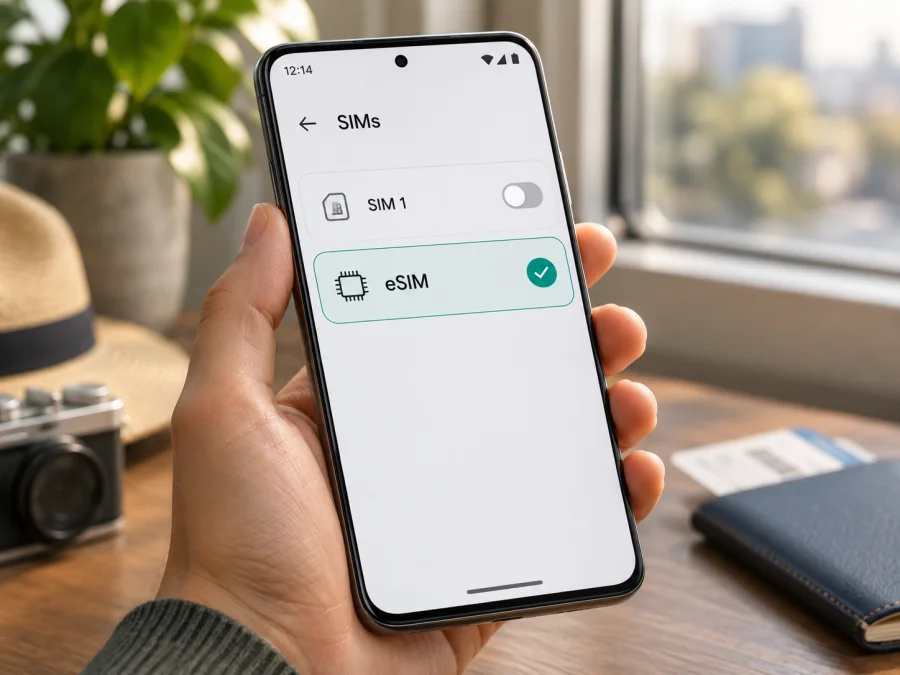
Oppo Find X5 8GB RAM eSIM: compatibility and setup guide
The Oppo Find X5 8GB RAM may support eSIM in some market variants, but the memory configuration alone does not identify whether a particular handset has eSIM hardware enabled. OPPO’s regional specifications differ: the official China-market listing for model PFFM10 describes two nano-SIM cards, while eSIM compatibility references list Find X5 models in some other markets and caution that availability varies by region and carrier. Therefore, check the actual phone before choosing a travel plan. An EID or an “Add eSIM” option is stronger evidence than the name on the box.
This guide explains how to check your device, install a travel eSIM if the required option is present, and troubleshoot common setup issues. It also explains which points to verify before you rely on mobile data abroad.
Does the Oppo Find X5 8GB RAM support eSIM?
The answer depends on the exact regional and operator variant. “8GB RAM” is a memory specification, not a regional model identifier, and does not confirm eSIM by itself. Do not assume that every phone sold as Oppo Find X5 8GB RAM can add a digital SIM.
OPPO’s official China-market specification page identifies the Find X5 variant as PFFM10 and lists nano-SIM cards with dual-SIM support. That listing does not describe an eSIM option. OPPO’s global Find X5 product page presents product information, but does not provide a market-by-market eSIM confirmation. Current third-party compatibility lists include the Find X5 while warning that eSIM availability can depend on country, operator, and device configuration. Taken together, those details do not establish universal support for every handset carrying the Find X5 name.
For the phone in your hand, use the following rule:
- If Android displays an EID and the SIM settings include an option such as Add eSIM, Add mobile plan, or Download a SIM, the handset likely has an eSIM function. Confirm that it is available in your current software and that the phone is unlocked before buying a plan.
- If there is no EID and no eSIM option after checking the settings and updating the software, treat that handset as not confirmed for eSIM. Ask OPPO or the seller to confirm using the complete model code and sales region. Do not buy a travel plan based only on a compatibility list for the model family.
The exact menu names can vary with ColorOS version, language, and market. A carrier can also restrict which profiles an otherwise eSIM-capable phone accepts. An eSIM menu does not guarantee coverage or service in every destination; the selected plan’s supported country, partner network, data allowance, validity period, and activation conditions still apply.
Model identity and regional differences
“Find X5” is a family name; the model code and original sales market are more useful when checking SIM support. OPPO’s official Chinese listing identifies PFFM10 and specifies dual nano-SIM, without listing eSIM. This does not establish the SIM setup of every version sold elsewhere. The label “8GB RAM” also does not identify whether the phone is a 128GB or 256GB storage configuration, nor whether eSIM is enabled.
Check Settings → About device for the model number and software version. If the phone is imported or second-hand, its original sales market matters. Regional firmware and operator configuration can change which SIM options appear. A carrier lock is separate from eSIM hardware: even with an EID, a locked handset may reject a third-party profile. Ask the selling operator whether the phone is unlocked before travel. Avoid unofficial firmware changes; they cannot reliably add absent hardware or official support.
Quick specification context
| Item | What can be established | What it means for eSIM |
|---|---|---|
| Device named here | Oppo Find X5 8GB RAM | RAM alone does not identify SIM configuration. |
| Regional example | China listing identifies PFFM10 | Official listing specifies two nano-SIMs, not eSIM. |
| Other market listings | Some compatibility lists include Find X5 | Not universal manufacturer confirmation; check your own phone. |
| Individual check | EID and eSIM-add option | Strong practical confirmation for the current configuration. |
| Travel use | Depends on the chosen plan and network | Check destinations, validity, data, and device bands. |
Check the phone before buying a plan
Do these checks while connected to Wi-Fi. The labels below are examples; your ColorOS version may use slightly different wording.
1. Look for an EID
An EID is the identifier associated with an embedded SIM. On many Android phones, opening the dialer and entering *#06# displays device identifiers. If the information screen shows a 32-digit EID in addition to IMEI numbers, note that as a positive sign. You do not need to share your EID publicly. If the code does nothing, that alone is not conclusive: use Settings as well.
You can also look under Settings → About device → Status or SIM status for an EID entry. Menu placement differs by software. Do not confuse an EID with an IMEI; they identify different parts of the phone’s mobile connection.
2. Look for an eSIM control
Open Settings and check Mobile network, SIM card & mobile data, or SIM management. Look for Add eSIM, Add mobile plan, Download a SIM, or a similar control. Some versions put this option behind a plus sign or within the current SIM list. If you see only physical SIM slots and no eSIM add control, continue to the next check rather than assuming the feature exists.
3. Check the software and exact model
Install available official system updates, restart the phone, and search Settings for “eSIM” or “SIM.” Then confirm the model code in About device. A missing setting can reflect the regional version or software configuration; an update may resolve a menu or software issue, but cannot be relied on to change the phone’s hardware capability.
4. Confirm the network lock status
If the phone came from a mobile operator, ask that operator whether the device is unlocked for third-party eSIM profiles. If you can, verify that it accepts a SIM from another provider before departure. Keep the answer and model code handy if you contact OPPO support or the seller.
Use this checklist before checkout:
- [ ] The phone is exactly the Oppo Find X5 8GB RAM variant you intend to use.
- [ ] You have recorded its model code and original sales market.
- [ ] The device shows an EID or a working eSIM-add option.
- [ ] The phone is unlocked or the selling operator has confirmed third-party eSIM use.
- [ ] The intended plan covers every destination on your route.
- [ ] You have checked the plan’s data amount, validity, activation trigger, and any setup requirements.
For a second way to compare your own model against a device list, check your device before purchasing. If the exact model code or country is not listed, ask the device seller or manufacturer to confirm rather than treating a family-level list as a guarantee.
Set up an eSIM on the Oppo Find X5 8GB RAM
Only continue if the handset shows eSIM support. Use reliable Wi-Fi and have the QR code or activation details available on a second screen. Do not delete a downloaded profile to retry unless the plan provider confirms it can be reinstalled.
- Open SIM settings. In Settings, look under Mobile network, SIM management, or similar. Choose Add eSIM or Add mobile plan. If no such control exists, stop and recheck compatibility.
- Add the profile. Choose QR scanning if supplied. The code must appear on another screen or paper. If manual activation details were provided, enter them exactly as shown.
- Download and label it. Keep Wi-Fi on, follow the ColorOS prompts, and wait for completion. Give the line a label such as “Travel data.”
- Choose the data line. Enable the profile and select it for mobile data when ready. If keeping the home SIM active, review its roaming settings to avoid unintended charges.
- Check roaming and APN. Enable data roaming for the travel eSIM only if its instructions require it. Most profiles set the APN automatically; enter a provided APN only if needed and use the exact supplied value.
- Test after arrival. In a supported destination, turn Wi-Fi off briefly and load a webpage. Confirm the eSIM is enabled and selected for data.
ColorOS wording varies. The Android eSIM installation guide shows a common QR flow, but its screenshots are specific to Samsung. The iOS installation guide is for iPhone users who may be helping a companion. On this Android phone, follow the labels actually shown on the device and the plan-specific instructions.
Prepare the eSIM for a trip
A travel eSIM is a digital SIM profile; installing it does not automatically mean that mobile data is available. The phone must be compatible, the profile active, the destination covered, and the device able to connect to a supported local network.
Before departure
- Check your destination or route. For a multi-country trip, verify each stop against the plan’s exact covered-destination list.
- Compare terms. Review data allowance, validity, tethering or fair-use notes, and what event starts the plan. Activation may begin on purchase, installation, or first connection.
- Confirm compatibility. Check the EID or eSIM option on the exact Oppo Find X5 and confirm that it is unlocked. Install only when and where the plan instructions allow; reliable Wi-Fi makes setup easier.
- Save instructions safely. Keep the confirmation details accessible offline. Do not share the QR code publicly; it may allow the profile to be installed.
- Choose your data line. Decide whether to keep your home SIM available for calls or messages. Select the travel eSIM for data as needed and check roaming settings on both lines.
After arrival
Enable the travel profile if necessary, select it for mobile data, and turn on data roaming for that profile if required by the plan. Allow a few minutes to register. Confirm that the home SIM has not been selected for data by mistake. If automatic network selection fails, use manual selection only as instructed by the plan provider.
Kaspersky eSIM Store is an app and website where you can choose, arrange, and activate an eSIM with a mobile-data plan for an international trip. It is not a mobile operator or network provider. To browse destinations and check current plan details, visit Kaspersky eSIM Store. Review the specific offer’s destination, data allowance, validity, and terms.
Practical travel situations
A short city break: Estimate use of maps, bookings, messaging, and browsing. Video, cloud backups, and hotspot sharing can consume data quickly; monitor usage on the phone.
A multi-country itinerary: A plan for one country may not cover the next. Compare each stop with the coverage list instead of relying on the plan title.
Keeping a home number active: Check your operator’s roaming conditions. If needed, leave the physical SIM on for calls or messages, choose the travel eSIM for data, and disable data roaming on the home line. Travel data plans usually do not include a phone number, voice service, or SMS unless their terms say otherwise.
Sharing data: Hotspot use depends on the phone and plan. Check the plan terms and monitor usage when sharing.
Troubleshooting: when the eSIM will not connect
Work through these checks in order. Avoid deleting the eSIM profile as a first response; some activation codes cannot be used again.
| What you notice | What to check |
|---|---|
| No “Add eSIM” option | Confirm the full model code and regional variant, search SIM settings, check for updates, and ask OPPO or the seller whether this unit supports eSIM. The 8GB RAM label alone is not enough. |
| No EID appears | Check About device and the dialer identifier screen. Restart and update the phone. If neither place shows an EID or eSIM control, treat support as unconfirmed and contact the manufacturer or seller. |
| QR code will not scan | Increase screen brightness on the other device, clean the camera lens, use a printed code, or enter manual details if provided. Ensure the code belongs to this plan and has not already been used. |
| Profile download fails | Reconnect to reliable Wi-Fi, check date and time settings, restart, and retry only if the plan allows it. Confirm the phone is unlocked and that the activation details are correct. |
| eSIM installed but has no signal | Check whether the destination is covered, the profile is enabled, the travel line is selected for data, and the plan’s activation condition has been met. Allow time for network registration. |
| Signal appears but data does not work | Check the data-line selection, mobile data switch, and whether roaming is required for the travel profile. Review APN settings only against the plan’s supplied values. |
| Connection is slow or intermittent | Move to an area with better reception, switch automatic network selection off and back on, or follow the plan provider’s network-selection guidance. Local coverage and congestion can vary by place and time. |
| Home SIM incurs roaming use | Check which SIM is selected for mobile data and disable data roaming on the home line if you do not want it to use roaming data. Review your operator’s charges separately. |
If the settings still do not match these steps, capture the exact model code, ColorOS version, error message, and whether the phone shows an EID. Share those details only with OPPO support, your seller, or the plan support team through their appropriate channels. Never send an activation QR code in a public forum.
Frequently asked questions
Does every Oppo Find X5 8GB RAM have eSIM?
No. RAM does not identify the sales region or SIM configuration. Check this handset for an EID and eSIM-add option, then confirm its model code and unlock status.
Is the China-market PFFM10 version eSIM compatible?
OPPO’s official Chinese Find X5 specification lists two nano-SIM cards for PFFM10 and does not list eSIM. Do not assume it works; check the handset and ask OPPO before buying a plan.
Can I add eSIM if the menu is missing?
Check for official software updates and search the SIM settings. If the phone still has no EID or eSIM control, a QR code cannot create compatibility. Confirm with the manufacturer or seller.
Can I use a physical SIM and travel eSIM together?
Some regional versions support dual-SIM use with a physical SIM and eSIM, but available combinations vary. Select the intended data line and review roaming settings.
Does installation activate the plan immediately?
Not always. Installation, activation, first connection, and validity start can be separate events. Follow the timing shown in the specific plan terms.
Does a travel eSIM include calls and texts?
Usually a travel data plan is data-only and may not provide a regular phone number, calls, or SMS. Check the plan terms; internet calling and messaging apps can work over data.
What if the EID is present but installation fails?
Check that the phone is unlocked, the activation code is unused, Wi-Fi works, and the details are correct. If it still fails, contact support with the model code and error message.
Does eSIM support guarantee service at my destination?
No. Service depends on plan destinations, local network availability, device bands, coverage, and current conditions. Check plan details before relying on it.
Final check before you travel
For the Oppo Find X5 8GB RAM, treat eSIM support as variant-dependent until you verify the actual phone. Check the EID and SIM settings, identify the regional model code, confirm the device is unlocked, and match the planned destination to the chosen plan’s terms. If the phone lacks eSIM controls, use another compatible device or ask about a physical SIM option at your destination.
Once compatibility is confirmed, install the profile over reliable Wi-Fi, select it for mobile data when appropriate, and set roaming only as the plan requires. Before departure, check your device and browse available eSIM plans for your trip. This final check helps you avoid buying a plan that your particular phone or itinerary cannot use.


