Travel connectivity guide
Oppo Find X5 Pro 128GB eSIM Compatibility
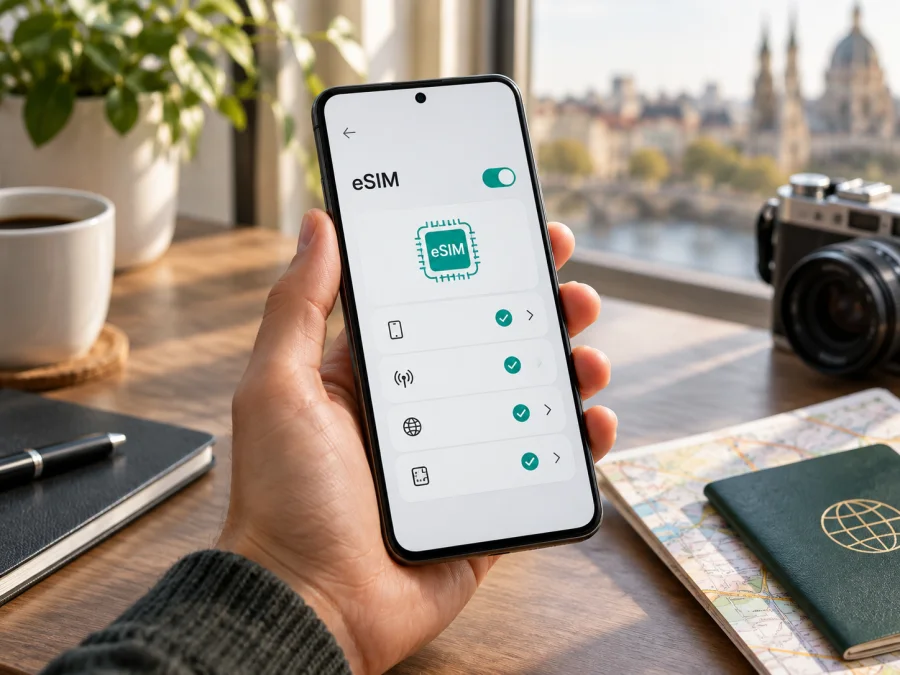
Does Oppo Find X5 Pro 128GB support eSIM?
Short answer: eSIM support is confirmed for some regional OPPO Find X5 Pro versions, but the exact Oppo Find X5 Pro 128GB configuration cannot be verified from OPPO’s official specifications. OPPO’s current official China specification page lists the Find X5 Pro as model PFEM10 with 12GB RAM and either 256GB or 512GB storage, and lists two Nano-SIM cards. OPPO’s Switzerland launch information for the Find X5 Pro includes eSIM, but describes a different market configuration. It does not establish that a 128GB unit supports eSIM.
That distinction matters. A shop listing that says “128GB” may have a mistaken title, may describe another Find X5 series model, or may refer to a regional or refurbished handset whose exact model code needs checking. Before buying a travel plan, identify the device’s model number and look for an EID or an eSIM option in its settings. If neither is present, do not assume that an update, QR code or carrier setting can add eSIM capability.
<a id="kesim-device-compatibility"></a>
Compatibility at a glance
| Item | What to know about Oppo Find X5 Pro 128GB |
|---|---|
| Exact variant | The requested name is Oppo Find X5 Pro 128GB. Keep the storage figure in mind when checking a listing or handset. |
| Official storage information | OPPO’s China specification page for Find X5 Pro (PFEM10) lists 12GB+256GB and 12GB+512GB; it does not list a 128GB configuration. |
| eSIM by region | OPPO’s Switzerland launch information includes eSIM for Find X5 Pro. OPPO’s China PFEM10 specification lists dual Nano-SIM and does not list eSIM. |
| Practical answer | Possible on an eSIM-capable regional Find X5 Pro, but unverified for the 128GB description on its own. Check the individual handset. |
| Network lock | The phone must be unlocked for the eSIM plan or operator you intend to use. |
| Best confirmation | Find an EID and an option to add or download an eSIM profile on the phone, then confirm the precise model code with OPPO or the seller. |
Why the storage label is not enough
Storage capacity does not itself determine eSIM support. Manufacturers can sell the same family name with different radio hardware, SIM trays, firmware and software features in different countries. In this case, the capacity in the request is a reason to take extra care: the official OPPO China page for Find X5 Pro does not list 128GB, while the same page identifies its PFEM10 version as dual Nano-SIM. OPPO’s Swiss launch information reports eSIM on Find X5 Pro, showing that the feature can differ by market or version.
The official information available for those markets does not confirm a Find X5 Pro 128GB version. Ask the seller for a photo of Settings → About device showing the model number and storage, and confirm that the actual phone has an EID. Do not infer eSIM support from “Find X5 Pro,” “5G,” “dual SIM,” or another Find X5 model: dual SIM can mean two physical SIMs. OPPO’s China specification is for PFEM10; its Swiss launch information, published on 24 February 2022, describes another market. Neither establishes support for an unidentified 128GB unit. If the seller cannot identify it, treat compatibility as unknown.
Check the actual phone before choosing a plan
Use this checklist on the phone itself, rather than relying only on a retailer’s compatibility table:
- [ ] Confirm the full product name and model code in Settings → About device. Compare it with the box label and the seller’s receipt.
- [ ] Check storage under About device. If the phone reports 128GB, ask OPPO support to identify the model code; the published China Find X5 Pro specification does not list that capacity.
- [ ] Look for an EID. Open the phone dialler and enter
*#06#; on supported firmware, the device information screen may display EID alongside IMEI numbers. You can also check Settings → About device → Status or search Settings for “EID.” Menu labels vary by ColorOS version and region. - [ ] Look in Settings → Mobile network for eSIM, Add eSIM, Download a SIM, or Add mobile plan. The wording and path can differ by software version.
- [ ] Confirm that the device is not carrier-locked and that its software is up to date. An update can expose a feature already supported by the hardware, but it cannot install an eSIM chip or guarantee regional provisioning.
- [ ] Check that the travel plan supports the destination and the phone’s network bands. eSIM capability alone does not guarantee coverage or a particular data speed.
An EID is a strong sign that a phone has an eSIM component, but it does not by itself confirm that every carrier or travel plan will activate on it. If the EID is missing, or the phone has no eSIM controls after an update and restart, contact OPPO with the full model code. Ask the plan provider to confirm that this precise regional version is supported before paying.
Check your device before you choose a plan.
How to install and activate an eSIM
Install the profile while connected to reliable Wi‑Fi, preferably before leaving home. Keep the QR code or manual activation details available on another screen or printed copy: a phone generally cannot scan a QR code that is displayed on its own screen. Follow the plan’s instructions, because some profiles begin their validity period during installation while others start on first network connection.
For Android, see the Android eSIM installation instructions. For iPhone, see the iOS eSIM installation instructions. The iOS guide is included for travellers who are setting up a plan on a separate Apple device; Oppo Find X5 Pro runs Android.
- Confirm compatibility and unlock status. Find the EID and eSIM menu on this exact handset. Make sure no carrier restriction prevents adding a profile from the plan you selected.
- Choose the destination and plan. Review the destination or region, data allowance, validity period, supported network, start conditions and any fair-use limits. The travel eSIM discussed here is for mobile data; do not expect a regular phone number, voice service or SMS unless the plan explicitly says otherwise.
- Open the installation details. After choosing and completing the plan in the relevant service, open the profile’s installation instructions. Use the QR code or manual activation details exactly as provided. Avoid sharing the QR code: it may be a one-time credential for your profile.
- Add the eSIM in ColorOS. Open Settings → Mobile network and select eSIM or Add eSIM if available. Depending on the firmware, the option may appear under SIM management. Scan the QR code from another screen or enter the activation details manually when offered.
- Wait for the profile to download. Keep the screen on, stay connected to Wi‑Fi and do not close the setup page until ColorOS confirms that the plan has been added. The profile may show as a second SIM or as a travel line.
- Name the line clearly. Use a label such as “Travel data” so you can distinguish it from your usual number. Keep your home SIM enabled if you need calls or messages on it, and check its roaming settings and charges with your home operator.
- Set the data line. In SIM or mobile network settings, select the travel eSIM for mobile data when you are ready to use it. Disable automatic data switching if it could move usage back to a home SIM with roaming charges.
- Activate according to the plan terms. Some profiles are installed in advance and connect only after arrival; others start their validity as soon as they are installed or first connect. Follow the activation timing shown with the plan. Turn on data roaming for the travel eSIM only if its instructions require it.
- Check the connection. Once the plan should be active, turn off Wi‑Fi briefly and load a familiar web page. Confirm that mobile data is assigned to the travel line and that the status bar shows a network connection.
Using the eSIM while travelling
Before departure: Verify the phone’s model code and EID, check that it is unlocked, and choose a plan for every country on your itinerary. If travelling across borders, a regional plan may be more suitable than separate country plans, but check the listed destinations and conditions. Save the setup instructions where you can access them offline. Install the profile when the plan allows, and note when its validity begins.
On arrival: Turn off airplane mode, select the travel eSIM for mobile data, and allow a few minutes for network registration. If the plan instructions say to enable data roaming, enable it for that eSIM. Keep your home line available for calls or verification messages only if you understand its roaming charges. For many data-only plans, calls and messages can continue through internet apps when a data connection is available; they do not provide a traditional mobile number by default.
During a multi-country trip: Check the plan’s country list before crossing a border. Service may take time to switch networks. If it does not reconnect, follow the recommended network-selection setting, toggle airplane mode once, then restart. Monitor the plan’s allowance and validity in the service where it was arranged; Android’s data counter may use a different period.
At the end of the trip: Switch mobile data back to your regular SIM if needed. Do not delete the travel profile unless you know it can be installed again; some profiles are single-use or cannot be transferred.
Once you have confirmed compatibility, Kaspersky eSIM Store is an app and website where you can choose, arrange and activate an eSIM with a mobile-data plan for an international trip. Review the destination, price, data allowance and validity; coverage and performance depend on local network conditions.
Troubleshooting: profile added, but no data
Start with the phone’s settings and the plan’s activation instructions. These checks resolve many setup problems without deleting the profile:
- The eSIM option is missing. Search Settings for “eSIM” and “EID,” restart, and check for an official ColorOS update. If neither appears, verify the model code with OPPO. The feature may be absent on that regional version; a QR code cannot add it.
- The QR code is rejected. Confirm the phone is on Wi‑Fi and scan the code from another screen. Check whether the profile was already added or used; ask the provider whether it can be reissued.
- The profile downloads but says “No service.” Check that the plan is active, you are in a supported destination and the travel eSIM is switched on. Toggle airplane mode once, wait for registration, then restart if needed. Some travel profiles connect only after arrival.
- Signal bars appear but pages do not load. Assign mobile data to the travel line; check that the plan has started and has data remaining; verify the APN against the provider’s instructions. Enable data roaming only if required.
- Data uses the wrong SIM or drops out. Set the travel eSIM as the mobile-data SIM and turn off automatic data switching if needed. Move to an area with stronger signal and check the supported network. Local coverage and congestion can affect service.
- Activation appears stuck. Keep Wi‑Fi on and allow the download to finish. Do not delete the profile first. Record the error and contact the service that issued it with the model code and, if requested through secure support, the EID.
If an EID is visible but Add eSIM is absent, ask OPPO whether the exact model code and sales region enable eSIM. If installation succeeds but registration fails, ask the plan provider to check profile status, destination availability, network selection and APN.
Frequently asked questions
Does Oppo Find X5 Pro 128GB support eSIM?
There is no official confirmation for a Find X5 Pro 128GB configuration. OPPO lists eSIM for the Switzerland-market Find X5 Pro; its China PFEM10 listing shows dual Nano-SIM and 256GB or 512GB storage. Verify the model code, EID and eSIM menu.
Is every Oppo Find X5 Pro eSIM-compatible?
No. OPPO lists eSIM for the Switzerland market, while the China PFEM10 specification lists two physical Nano-SIM cards. The model name alone is not enough.
Can I add eSIM support with a software update?
A software update cannot add eSIM hardware to a version that lacks it. If there is no EID, confirm the model code with OPPO before buying a plan.
Does an EID guarantee that my plan will work?
No. The phone must also be unlocked, the profile valid, and the plan supported for the phone and destination.
Will a travel eSIM replace my regular SIM?
You may be able to keep a physical SIM and add an eSIM profile, subject to regional configuration and dual-SIM rules. Choose the data line and check home-SIM roaming charges. A data-only travel plan normally has no regular phone number, calls or SMS unless stated in its terms.
Can I move the installed eSIM to another phone?
Do not assume so. Some profiles are single-use or tied to the first phone. Check transfer terms before deleting or resetting a profile.
Check the device, then prepare the trip
For Oppo Find X5 Pro 128GB, the answer is conditional: OPPO confirms eSIM on some regional Find X5 Pro versions, but does not document a 128GB configuration. China PFEM10 is specified with dual Nano-SIM and storage from 256GB. Check the 128GB description against the handset.
Before buying a travel plan, confirm the model code, look for an EID, find the eSIM addition control, and make sure the phone is unlocked. If one of these checks fails or the configuration remains unclear, ask OPPO and the seller to identify the device. Then check that the selected plan covers your destination, fits your data needs and explains when its validity begins.
After those checks, Kaspersky eSIM Store can help you choose, arrange and activate an eSIM plan for mobile internet on an international trip. Keep the setup details available and select the correct data line on arrival.


