Travel connectivity guide
Oppo Find X8 512GB eSIM: compatibility and setup
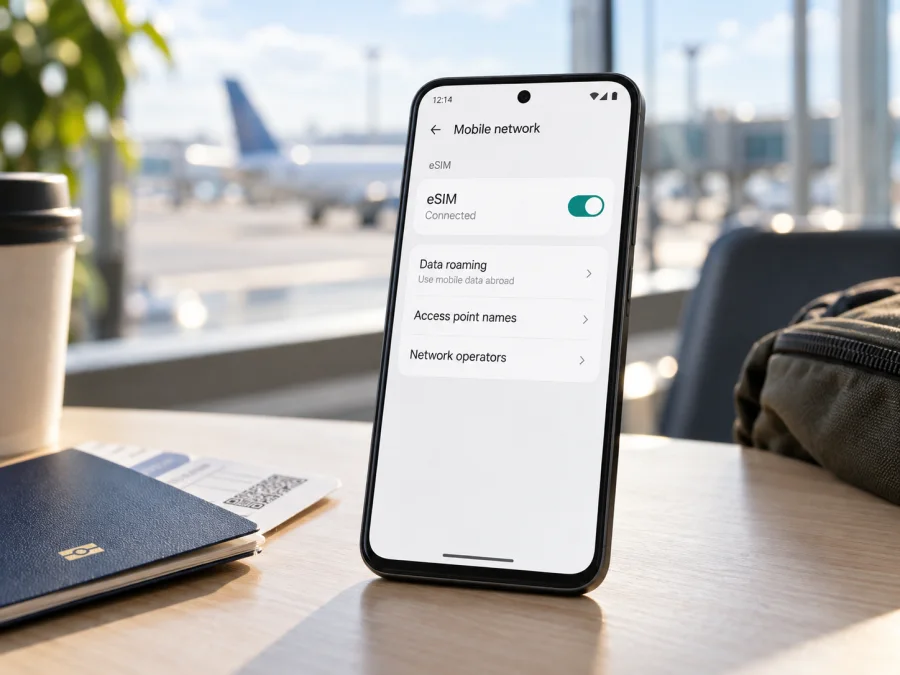
Oppo Find X8 512GB eSIM: compatibility and setup guide
Short answer: eSIM is supported by some regional versions of the Oppo Find X8 512GB, but the storage capacity alone does not identify an eSIM-capable version. OPPO lists eSIM for the international CPH2651 model in several regional specifications, including a 16GB + 512GB configuration in Kenya and a nano-SIM + eSIM option in Japan. The Chinese-market Find X8, model PKB110, is listed with physical nano-SIM cards only. Before choosing a travel plan, check the model number, the EID and the mobile-network menu on the exact phone you own. A phone that has 512GB of storage may still have a regional configuration without eSIM.
That distinction matters because product names on retailer pages often omit the market suffix or model code. The same familiar name and storage amount can refer to hardware intended for different countries. Software, carrier restrictions and the supported mobile bands can also vary. Use the phone itself and the seller’s exact model information as your final checks; do not rely on the name “Oppo Find X8 512GB” alone.
Does Oppo Find X8 512GB support eSIM?
Yes, when it is an eSIM-enabled regional version. OPPO’s official Kenya specification identifies the Find X8 as model CPH2651, lists a 16GB + 512GB memory configuration and specifies “Nano-SIM card/Nano-USIM card + eSIM.” OPPO’s Japanese Find X8 specification also identifies CPH2651 and lists a dual-SIM arrangement of nano-SIM plus nano-SIM/eSIM. These official product pages confirm that this model family has regional 512GB versions with eSIM capability.
That does not mean every Find X8 sold with 512GB supports eSIM. OPPO’s China specification identifies the China-market Find X8 as PKB110 and lists its SIM type as Nano-SIM and Nano-USIM, with dual physical SIM operation. It does not list eSIM. Treat a China-market PKB110 as not confirmed for eSIM unless OPPO or the seller confirms that the precise device has an eSIM function enabled. Do not infer support from the processor, Android version, storage size, the number of SIM slots, or the fact that a different market’s Find X8 supports eSIM.
| Item | What to know about Oppo Find X8 512GB |
|---|---|
| Device named in this guide | Oppo Find X8 512GB |
| eSIM answer | Supported on some regional versions; check the model code and phone settings |
| Official eSIM-listed model family | CPH2651, including OPPO regional specifications that list nano-SIM + eSIM |
| China-market example | PKB110 is listed with physical nano-SIM cards only |
| Does 512GB prove eSIM support? | No. Storage capacity does not identify the cellular configuration |
| Before buying a travel plan | Confirm EID or an Add eSIM option, no carrier lock, and destination-network compatibility |
The model number is the practical starting point. Open Settings and look for About device, Device information or a similarly named page; the wording can vary with the ColorOS version and region. Find the model number and compare it with the original box, invoice or the seller’s exact listing. If you see CPH2651, that is consistent with official regional listings that include eSIM, but still confirm that the eSIM menu and EID are present on your specific handset. If you see PKB110, the official China listing does not show eSIM support. A changed ROM or imported firmware does not by itself add an eSIM chip or establish that the feature is enabled.
Regional versions, carriers and what the specifications mean
OPPO publishes Find X8 specifications by market, and those pages are not interchangeable. In Kenya, OPPO’s CPH2651 page lists 16GB RAM + 512GB storage and nano-SIM plus eSIM. In Japan, OPPO’s CPH2651 page lists nano-SIM + nano-SIM/eSIM. In China, the PKB110 page offers several storage configurations, including 512GB, but lists two physical SIM cards. This is a direct example of why the storage variant cannot answer the eSIM question by itself.
Device capability and local network service are separate. A supported phone still needs to be unlocked and the plan must cover the destination and an available network.
A carrier-locked handset may reject another provider’s profile even if its hardware supports eSIM. Ask whether it is unlocked, and request the full model code rather than relying on “Find X8,” “global ROM” or “512GB.” A different ROM does not prove the device has the regional hardware or eSIM configuration.
The country of use does not change regional hardware: a PKB110 taken to Japan remains a PKB110. The destination and operator market determine which networks and plans are available, not whether the phone has eSIM hardware.
Check compatibility before choosing a plan
Use this checklist on the handset you will take on the trip. Do not buy a plan based only on a retailer’s model name or a generic compatibility list.
- [ ] Confirm the full model number. Check Settings → About device and the box or receipt. Record the complete code, including any suffix.
- [ ] Look for an EID. Open the phone dialler and enter
*#06#. If the device supports eSIM and the software exposes it, the information screen may show an EID alongside IMEI numbers. You can also look under Settings → About device → Status or SIM status. Menu labels differ by software build. - [ ] Look for eSIM controls. Open Settings → Mobile network, SIM card & mobile data, or the closest equivalent. Check for Add eSIM, Add mobile plan, Download a SIM, or a SIM manager that lets you add a digital SIM.
- [ ] Check both indicators. A visible EID and an Add eSIM option are strong practical signs. If either is missing, do not assume support; confirm the model with OPPO support or the seller.
- [ ] Confirm the phone is unlocked. A carrier restriction can block a travel eSIM even when the device has eSIM hardware.
- [ ] Check the plan’s destination and terms. Make sure the country or region, data amount, validity period and supported networks fit your itinerary.
- [ ] Keep internet available for setup. You may need Wi-Fi or another working data connection to download the profile.
If the settings menu does not show eSIM and the EID screen has no EID, pause before purchase and ask the seller to confirm the device’s eSIM capability in writing.
For a quick reference, check whether your device is compatible. Match the result to your exact model and regional variant before choosing a plan.
How to install an eSIM on Oppo Find X8 512GB
The Oppo Find X8 runs Android with OPPO’s ColorOS interface. Menu names and screen order may differ by region or software update, so follow the labels displayed on your handset. Install the profile while you have a stable internet connection, preferably before departure, and keep the QR code or activation details accessible on another screen or device.
- Confirm compatibility and unlock status. Check the model number, EID and Add eSIM control using the steps above. If the device is locked or the option is absent, resolve that before ordering a plan.
- Choose a plan for your trip. In the Kaspersky eSIM Store app or website, select the destination and review the listed data allowance, validity, price, supported network information and activation conditions. The service is intended for mobile internet while travelling abroad; check the specific plan terms before completing your selection.
- Read the installation instructions. Follow the Android eSIM installation guide. The iOS installation guide is for Apple devices and does not describe Oppo’s Android menus.
- Open the SIM settings. On the phone, go to Settings and select Mobile network, SIM card & mobile data, or the equivalent. Tap Add eSIM or Add mobile plan. If you cannot find the option, search Settings for “eSIM” or check the model and regional variant again.
- Add the profile. Scan the QR code supplied for the plan, or use manual activation details if that option is provided. Keep the QR code private and do not post it publicly. If you received the QR code on the Oppo screen itself, display it on another device or use the provider’s permitted manual entry method.
- Wait for the download to finish. Leave the phone connected to Wi-Fi or another stable internet connection and do not close the setup screen midway. When prompted, give the new line a clear label such as “Travel” so you can identify it later.
- Decide when to switch the line on. Depending on the plan’s terms, installation and activation may be separate events. Some plans begin their validity when the profile connects to a supported network; others use a different trigger. Read the activation rules shown with your plan and avoid turning on the travel line early if that could start its validity.
- Set the data line. Under SIM settings, choose the travel eSIM for mobile data when you are ready to use it. Keep your home SIM selected for calls or messages if you need it and the device supports the arrangement. Disable data switching if you want to avoid the phone moving mobile data back to your home SIM unexpectedly.
- Enable data roaming for the travel eSIM if instructed. Some travel eSIMs require data roaming to connect to their partner network. Turn it on only for the travel profile when the plan’s instructions say to do so. Check your home SIM’s roaming setting separately to avoid unintended charges.
- Test after arrival. Turn off Airplane mode, allow the phone to register, then open a simple webpage. If it does not connect, verify the selected data SIM, coverage, roaming setting and plan activation conditions before changing other settings.
You may install the profile before departure, but installation may not start validity. Keep it until the trip ends unless the plan says otherwise; some single-use profiles cannot be reinstalled after deletion.
Using the travel eSIM for mobile data
An eSIM is a digital SIM profile stored in the phone. A travel data plan lets a compatible device use mobile data without replacing the physical SIM. It does not automatically include a regular phone number, voice calls or SMS unless the plan terms say so; internet calling and messaging apps use data.
Before the trip, decide how you want each line to work. A common arrangement is to keep the home SIM available for calls or verification messages, while selecting the travel eSIM as the data line abroad. Check your home operator’s roaming charges first; leaving a SIM enabled for calls or messages can still result in charges under its own plan. If you do not need the home line, you can turn it off temporarily in SIM settings.
When you arrive, check that the travel eSIM is enabled and selected for mobile data. If the plan instructions require roaming, enable Data roaming for that line. Wait briefly for network registration; the phone may need to choose a supported operator automatically. If it does not, use manual network selection only where the plan’s instructions recommend it. The operator list shown on the phone reflects local networks; it does not mean that Kaspersky eSIM Store owns or operates those networks.
To conserve data, connect to trusted Wi-Fi when convenient, pause automatic app updates and cloud photo uploads over mobile data, and monitor consumption in the phone’s data-usage settings. Those device counters can reset on a schedule that differs from the plan’s validity or billing cycle, so use them as an estimate and review the plan’s own usage information where available. If tethering is important, verify whether the specific plan permits hotspot use before relying on it.
Practical travel examples
- Short city break: Match the plan’s validity to your stay and estimate data for maps, messaging and browsing. Install over Wi-Fi and switch to the travel line when its activation rules allow.
- Several countries: Confirm that every country on your route is covered. A country-specific plan may stop working at a border; compare regional and separate country plans by their stated coverage.
- Keep your home number: Leave the home SIM enabled only for the calls or messages you need, and select the travel eSIM for data. Check home roaming charges and turn off automatic data switching if available.
- No connection after landing: Check the plan’s activation conditions, selected data line, coverage and roaming setting. Avoid deleting the profile while troubleshooting.
Common problems and checks
There is no Add eSIM option
First confirm that the phone’s exact model code and market are eligible. A 512GB listing is not enough. Check for an EID by entering *#06# and inspect Settings → About device and Mobile network. If the handset is a China-market PKB110, OPPO’s official specification lists physical SIM cards rather than eSIM. If the code is CPH2651 but the option is missing, restart the device, install any official ColorOS updates available for that model and region, then ask OPPO support whether eSIM is enabled for that specific unit. Do not install unofficial firmware to try to expose a setting.
The QR code will not scan
Use a clear, complete code on a second screen, with the display bright and free of glare. If it says the code is used or invalid, stop retrying and contact the plan’s support; some codes are single-use.
The profile will not download
Check your internet connection, restart the phone and try once more on stable Wi-Fi. If the code is rejected as used or invalid, do not delete profiles or keep rescanning; ask for help with the error message.
The profile is installed but there is no service
Confirm that the travel line is enabled and selected for data, the plan covers your destination and its activation conditions are met. Toggle Airplane mode, check whether data roaming is required, then verify that a supported local network is available.
Data uses the wrong SIM or stops working
Review the selected data line and disable automatic data switching if needed. Check that the travel eSIM has data remaining and that the plan permits any hotspot use you need. If the phone is SIM-locked, ask the original carrier or seller about unlocking; do not try unofficial software.
The connection is slow or intermittent
Reception, congestion, buildings, supported bands and plan coverage all affect service. A 5G-capable phone does not guarantee 5G in every destination or on every partner network; 4G may be the available option.
Frequently asked questions
Does every Oppo Find X8 512GB have eSIM?
No. No. Some regional Find X8 versions list eSIM, while China-market PKB110 lists physical nano-SIM cards. Check the exact model, EID and Add eSIM menu; 512GB alone proves nothing.
Is the CPH2651 version eSIM-compatible?
OPPO lists a 16GB + 512GB CPH2651 with nano-SIM + eSIM in Kenya and nano-SIM + nano-SIM/eSIM in Japan. Check your unit’s EID and menu, and confirm it is unlocked.
Does the China-market PKB110 support an eSIM?
OPPO’s China specification lists dual physical SIMs and does not list eSIM. Treat it as unsupported unless OPPO confirms otherwise for your unit; another ROM does not prove hardware support.
Can I use an eSIM and a physical SIM at the same time?
Some regional specifications list nano-SIM + eSIM, but simultaneous line behavior depends on the exact handset and software. Check its SIM manager and plan instructions.
Does a travel eSIM include my normal phone number?
A travel data plan is for mobile internet unless its terms say otherwise. Your home SIM can keep your usual number active, but your operator may charge for roaming.
Should I install the eSIM before the trip?
If the plan allows, install over Wi-Fi before departure. Check when validity begins, keep setup details private and do not remove the profile during the trip.
What should I do if the EID is present but activation fails?
An EID suggests eSIM capability but does not guarantee a plan will activate. Check unlock status, destination, enabled profile and selected data line, then contact support if needed.
Before you travel: confirm the phone and choose a plan
For Oppo Find X8 512GB, the reliable answer is regional: eSIM is available on certain officially listed variants, including CPH2651 configurations, but the 512GB label alone is not enough to confirm it. Verify the full model number, look for an EID and an Add eSIM control, and check that the handset is unlocked. If any of those checks is unclear, ask OPPO or the seller to confirm the exact unit before paying for a plan.
Once the device is confirmed, choose an eSIM plan for the countries on your itinerary and review its data allowance, validity, network and activation conditions. Kaspersky eSIM Store is an app and website where you can choose, arrange and activate an eSIM plan for mobile internet on an international trip. Check the destination and plan details before purchase, then install and select the eSIM for mobile data when you are ready to use it. A few minutes spent checking the exact device and the plan can make setup much easier after you arrive.


