Travel connectivity guide
Oppo Find X8 Pro 512GB eSIM Compatibility
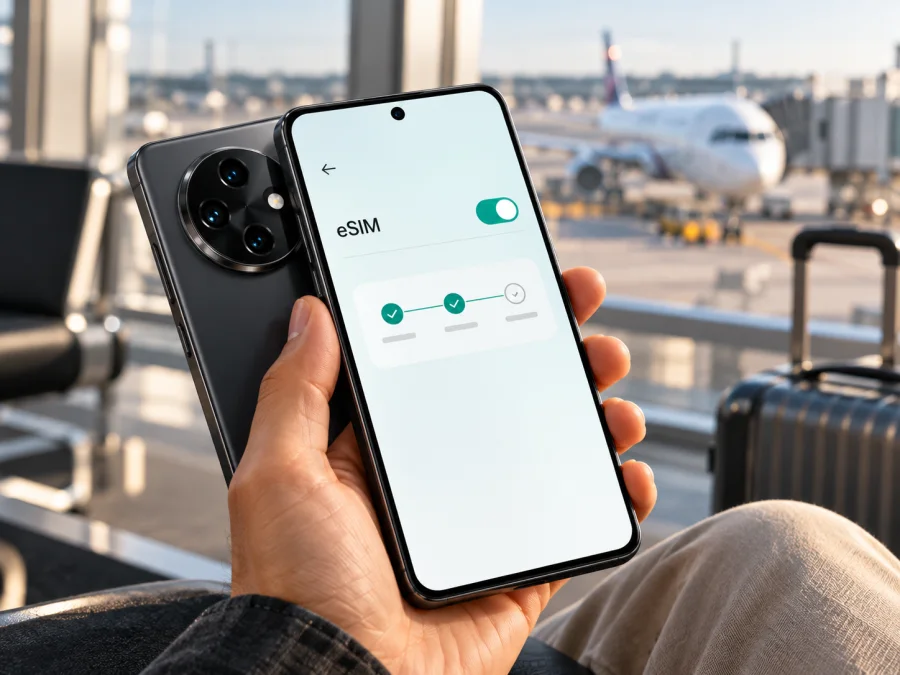
Oppo Find X8 Pro 512GB eSIM: compatibility, setup and travel use
The short answer is: the Oppo Find X8 Pro 512GB can support eSIM, but the storage label alone does not prove that your particular phone has the feature. OPPO’s official specifications list eSIM for some Find X8 Pro versions, including the CPH2659 configuration sold in several markets. Other official regional listings describe a physical nano-SIM configuration without eSIM, and the China-market model is listed with two physical nano-SIM cards. Check the exact model number, the market it was made for, and the eSIM controls on the phone before choosing a plan.
At a glance
| Item | What to know |
|---|---|
| Device in this guide | Oppo Find X8 Pro 512GB |
| eSIM answer | Supported on selected regional versions; verify the individual phone |
| Model identifier shown on several international specification pages | CPH2659 |
| China-market identifier shown by OPPO | PKC110; the China listing specifies dual physical nano-SIM, not eSIM |
| Storage configuration | 512GB is a storage size and does not establish eSIM support |
| Software family | ColorOS; menu wording can vary by market and software version |
| Before buying a plan | Confirm eSIM controls or EID, network unlock status and plan compatibility |
Does the Oppo Find X8 Pro 512GB support eSIM?
Sometimes. The precise answer depends on the regional version, and 512GB by itself is not enough to confirm support. OPPO’s Find X8 Pro Specifications pages for Spain and India, checked on 17 October 2026, identify the CPH2659 model and list a nano-SIM plus eSIM configuration. OPPO Support’s What is OPPO’s eSIM? page, also checked on 17 October 2026, names the Find X8 Pro among its eSIM-compatible phones. These sources establish that eSIM-enabled Find X8 Pro versions exist.
There is a meaningful regional difference. OPPO’s Find X8 Pro Product Specifications page for mainland China identifies model PKC110 and lists two physical SIM formats, without eSIM; its Find X8 Pro Specifications page for the Netherlands lists nano-SIM without eSIM. Both pages were checked on 17 October 2026. The Netherlands page shows CPH2659, so a model code alone does not settle the question. A matching model code therefore does not guarantee eSIM support in every sales market.
The eSIM may also share the second SIM position with a physical SIM. OPPO’s support guidance describes eSIM as occupying SIM 2 by default on supported devices. That describes how the feature is represented in the phone, not how many cellular connections can be active at once. Check the SIM settings and the instructions supplied with your specific ColorOS build before planning to keep multiple lines active.
The market and model number matter
You can find the model number on the box or under Settings → About device. Compare it with OPPO’s specifications for the country where the phone was originally sold. A retailer may use “Oppo Find X8 Pro 512GB” for more than one regional version, so ask for the model number and written confirmation of eSIM support before purchase.
Carrier-sold devices need a separate check. A phone may include eSIM hardware but still be locked to its original operator or restricted by a carrier configuration. Ask whether the phone is unlocked and whether the specific operator or travel plan you intend to use accepts that model. eSIM hardware, 5G, dual-SIM wording, the tray shape and NFC do not independently prove that a particular eSIM can be activated.
Compatibility checklist: check your own phone
Use this checklist before buying a data plan. The menu path can vary slightly across ColorOS releases, so use the Settings search field if a label is different.
- [ ] Check the model identifier. Open Settings → About device and note the model number and software version. Do not rely only on the storage amount shown in an online listing.
- [ ] Look for eSIM management. Open Settings → Mobile network or SIM card & mobile data. Look for eSIM, Manage eSIM, Add eSIM or a similar option. OPPO’s support instructions use this area for adding and managing a profile.
- [ ] Check for an EID. In Settings, search for “EID”, or open About device → Status if available. A displayed EID is a strong indication that the device has an eSIM identity. Some devices show it only after the eSIM section is enabled. A missing EID is not conclusive if the menu is hidden by software or the regional setup, so confirm with OPPO using the exact model number.
- [ ] Confirm the phone is unlocked. Ask the original carrier or seller if the phone can accept a plan from another provider. A network lock is separate from eSIM hardware support.
- [ ] Check plan terms. Confirm that the plan covers every country or region on your route, supports the phone, and provides the kind of service you need. Many travel plans are data-only.
- [ ] Keep the proof. Save the seller’s answer and the model number. If the eSIM option is missing after setup, this information helps OPPO support identify the correct market version.
For a quick cross-check, check your device against the regional model details and the menu options above. If anything conflicts, trust the actual Settings screen and a confirmation from OPPO for that model and market rather than a generic marketplace description.
Add and activate an eSIM
Use reliable Wi-Fi and follow the plan’s activation and reinstallation terms. Keep the QR code on a second screen or printed copy; do not delete an existing profile unless you know it can be downloaded again.
- Update and identify the phone. Install available updates, restart, and confirm the model number and eSIM menu. If it is absent, check regional support before paying.
- Prepare the plan. Choose a plan for your destination and dates. Check allowance, validity, activation timing, networks, hotspot rules and reinstallation. Display the QR code on another screen or print it.
- Open the eSIM controls. Go to Settings → Mobile network → eSIM or Manage eSIM; wording may vary or appear under SIM card & mobile data. Search Settings for “eSIM” if needed.
- Add the profile. Choose Add eSIM, Download SIM or the corresponding option, then scan the QR code. If the plan provides a manual activation code, use the manual entry option instead. Only enter the details supplied for your plan.
- Wait for the download. Keep Wi-Fi connected and follow the on-screen steps until installation finishes.
- Name and enable the line. Label the profile (for example, “Travel data”) and enable it when ready. Select it for mobile data. You may keep the home SIM enabled for calls and texts, depending on the phone’s dual-SIM behavior and roaming terms.
- Set data roaming only if required. If the plan requires data roaming, enable it for the eSIM line only. Check the selected line first to avoid charges on the home SIM.
- Test the connection. When the plan should be active, turn off Wi-Fi and load a webpage. Confirm the eSIM is selected for data; if activation starts on arrival, wait until the phone connects at the destination.
For step-by-step platform help, see the Android eSIM installation instructions or the iOS eSIM installation instructions. The iOS guide is a general reference for people helping someone on an Apple device; this Oppo phone runs Android and should be configured using its ColorOS menus.
Once you have confirmed that your exact phone can add an eSIM, choose a destination and compare available eSIM plans in Kaspersky eSIM Store’s app and website. You can arrange and activate a plan for mobile data on an overseas trip. Compare the destination, data allowance, validity and activation conditions before you complete the purchase.
Using the eSIM while travelling
A travel eSIM can provide mobile data after you arrive without removing the physical SIM. If your regional version allows it, keep your home line available for calls or verification messages while selecting the travel profile for data. Check your home operator’s roaming terms so that calls, texts or accidental data use do not come as a surprise.
Before departure, install the profile if its terms allow early installation and save the setup details offline. Plans differ in when their validity begins: some start at installation, others when they first connect to a supported network. Check the activation rule and make sure the plan covers every country on your route.
At the destination, enable the travel line and choose it under Mobile data. If the plan requires roaming, enable roaming for that line alone. Allow a short time for network registration, especially inside an airport or underground station. Automatic network selection is usually the simplest first setting. Use manual selection only when the plan’s instructions identify a network to choose or automatic registration fails.
Common problems and what to check
There is no eSIM option in Settings. Search Settings for “eSIM” and check Mobile network and SIM card & mobile data. Restart the phone and install official system updates. If there is still no option, verify the model number and original sales market with OPPO. Do not buy a plan on the assumption that an update will enable a feature absent from the regional version.
The QR code will not scan. Check that the full QR code is visible. Connect the Oppo to Wi-Fi and scan it from a second screen or printed copy. Use manual entry only with a code from the plan provider; a single-use code may not work again.
The profile downloaded, but there is no service. Confirm the eSIM is enabled and selected for data, check coverage and activation timing, then toggle airplane mode or restart. Enable roaming only if instructed. Enter an APN only when the plan provides one.
The phone says the plan is invalid or cannot be added. Check that the QR code belongs to the plan and is valid, then confirm the phone is unlocked and its regional model supports eSIM. Contact the plan provider with the error and order details. Do not delete an installed profile before asking support.
Mobile data uses the wrong SIM. Open Settings → Mobile network and select the intended eSIM for mobile data. Review the default SIM for calls and messages separately. If your home line is enabled, disable its data roaming or mobile data if you want to avoid accidental use of your home operator’s roaming service.
The connection is slow or keeps dropping. Check signal, coverage, network selection and remaining data. Move to a clearer location, restart, or use automatic network selection. Weak local coverage can still limit service.
The EID is missing. Look under Settings → About device → Status and search Settings for “EID”. Some OPPO guidance says the eSIM may need to be enabled before the EID appears. If the menu and EID are both missing, use the model number to confirm the regional variant with OPPO. Do not infer support from another Find X8 Pro sold in a different country.
Practical travel scenarios
Short city break. Confirm compatibility, choose a plan for the destination, then select the travel eSIM for data on arrival. Keep the home line for calls only if its roaming terms suit you.
Several countries. Confirm that every country on the route is covered before choosing a regional plan. If you need a local number for work calls or verification, check that the plan includes voice and SMS; many travel plans are data-only.
Frequently asked questions
Is every Oppo Find X8 Pro 512GB eSIM-compatible?
No. OPPO’s official specifications show eSIM on some regional Find X8 Pro versions, while other regional listings describe physical SIM configurations without eSIM. The 512GB capacity does not distinguish them. Confirm the model number, original market and the eSIM menu on the phone.
Does the 512GB version mean 16GB RAM?
Not necessarily from the wording alone. OPPO’s official pages for several CPH2659 markets list a 16GB + 512GB configuration, but a storage-only retailer title may omit RAM and region. Use the exact device information and purchase documentation for the handset you have.
Can I keep my physical SIM and use eSIM at the same time?
OPPO says eSIM occupies SIM 2 on supported devices. The available combinations depend on the handset and software, so check its SIM manager.
Will an eSIM plan give me a phone number?
Not automatically. Many travel eSIM plans are for mobile data only. Read the plan details for voice and SMS support. You can use messaging or calling apps over data, but these do not turn a data-only plan into a conventional number.
Should I delete the eSIM when the trip ends?
Check the plan terms first: a removed profile may not be reinstallable. You may be able to switch the line off without deleting it.
Final check before your trip
For the Oppo Find X8 Pro 512GB, treat eSIM compatibility as regional, not as a guaranteed feature of every phone with that name. Confirm the exact model number and original sales market, look for the eSIM controls or EID, check that the phone is unlocked, and read the selected plan’s destination and activation rules. Complete these checks before buying a travel data plan.
After the device passes those checks, choose a plan for the countries on your itinerary and the amount of data you expect to use. Kaspersky eSIM Store’s app and website let you choose, arrange and activate an eSIM plan for mobile internet during an overseas trip. Keep the installation details available, select the correct SIM for mobile data, and check the line settings again when you arrive.


