Travel connectivity guide
Oppo Find X9 Pro 128GB 5G eSIM Guide
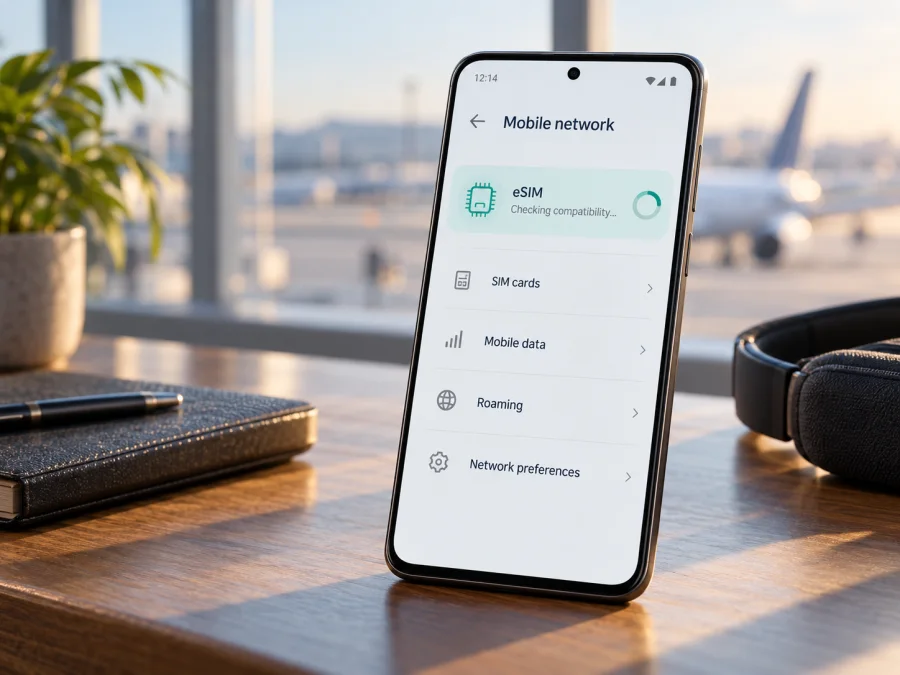
Oppo Find X9 Pro 128GB 5G eSIM: compatibility and setup guide
Quick answer
Quick answer
Does the Oppo Find X9 Pro 128GB 5G support eSIM? Its exact compatibility cannot be confirmed from this name: OPPO’s official pages checked do not list a 128GB configuration. However, OPPO lists eSIM for the international CPH2791 Find X9 Pro and for a separately named China Satellite Communication Edition. The standard China model is listed with physical SIM types. Check the model number and eSIM controls on the exact phone before relying on it.
The international CPH2791 specifications list 16GB RAM and 512GB storage, not 128GB. OPPO’s China product information says domestic eSIM service depends on support from mainland Chinese mobile operators. That statement concerns the operator market in China; it does not establish that every China-market Find X9 Pro can install an overseas travel profile. OPPO’s regional pages were checked on 2 November 2026.
In short: if the phone is an international CPH2791 and has an EID and eSIM menu, eSIM is supported subject to carrier lock and plan compatibility. For a purported 128GB unit, or any China edition, confirm the exact variant with OPPO or the seller before buying a plan.
What the name tells you, and what it does not
What the name tells you, and what it does not
The name Oppo Find X9 Pro 128GB 5G preserves the supplied product description, but it does not identify a regulatory model, sales region, SIM configuration, software variant or carrier lock status. A retailer’s storage label and “5G” wording cannot prove eSIM capability. Check Settings > About device, the device label and the invoice; if they disagree, ask OPPO support for the phone’s sales region.
| Item | Verified information | Still to check |
|---|---|---|
| Name | Oppo Find X9 Pro 128GB 5G | Whether the 128GB listing matches the actual phone |
| International model | OPPO regional pages identify CPH2791 | That the phone in hand is CPH2791 |
| Storage | International listing reviewed specifies 16GB + 512GB | The stated 128GB configuration is unverified |
| eSIM | Listed for international CPH2791 | Lock status, software and provider acceptance |
| China edition | Standard and Satellite Communication Edition have different SIM listings | Exact edition and operator support |
| 5G | Indicates network-generation capability | Does not prove eSIM or band compatibility |
Storage and cellular features are separate checks. Do not treat the title as a manufacturer specification or combine details from another Find X9 Pro variant.
Does the Find X9 Pro support eSIM?
Does the Find X9 Pro support eSIM?
Some regional versions do; the exact 128GB unit is not verified by its name. OPPO’s Turkish specifications identify eSIM support for CPH2791, and its Portuguese page lists nano-SIM plus eSIM. OPPO’s China product information separates the standard Find X9 Pro, listed with Nano-SIM and Nano-USIM, from the Satellite Communication Edition, whose SIM types include eSIM. It also directs buyers to confirm eSIM availability with local Chinese operators.
These official listings support eSIM for the identified international model and the named China satellite edition. They do not justify saying that every regional Find X9 Pro supports eSIM, or that an unverified 128GB listing is one of those variants. Imported devices retain their original hardware and software configuration even when sold abroad.
Keep three checks separate: whether the phone has eSIM hardware and an active menu; whether it is unlocked and can install the chosen profile; and whether the plan covers the place you will use it. A positive answer to one does not settle the others. “5G” describes radio capability, not how the subscriber profile is stored, and does not promise 5G access on every network.
Check this exact phone before buying an eSIM plan
Check this exact phone before buying an eSIM plan
Menu labels vary by ColorOS version and region. Use Settings search if the path differs.
- Find the model code. Open Settings > About device and note the model number. CPH2791 is the identifier on the international OPPO pages checked. The box label is a useful cross-check.
- Look for an EID. Search Settings for “EID” or “SIM status.” On many Android devices, dialing
*#06#displays identifiers including EID when eSIM hardware is present. An EID is evidence, not a guarantee of unlock status or service. - Look for eSIM controls. Open Mobile network or SIM management and check for “Add eSIM,” “Add mobile plan” or equivalent. Do not scan an activation code just to test the menu.
- Check region and software. Record the ColorOS version and carrier branding. Install official updates, then check again; an update cannot add missing eSIM hardware.
- Confirm the phone is unlocked. Ask the original operator or seller whether third-party eSIM profiles are permitted.
- Check the plan. Verify destination coverage, data allowance, validity, activation timing and device requirements.
Check your device compatibility before selecting a plan. For a used or imported phone, ask for screenshots of the EID and eSIM menu with identifiers obscured, plus written confirmation of the exact model code. If 128GB storage matters, verify it in Settings rather than inferring it from a listing.
An EID is sensitive device information, not an activation code. Do not post it, an IMEI or a QR code publicly. If an EID appears but the eSIM option does not, ask OPPO support for the sales region and quote the model and software version. Avoid unofficial firmware changes.
Before you install: prepare the phone and plan
Before you install: prepare the phone and plan
Finish compatibility and unlock checks before purchase. Use stable Wi-Fi, keep the phone charged and set date and time automatically. Read when the plan’s validity starts: it may begin at purchase, installation or first connection, depending on its terms. Keep the QR code available on another screen; many codes are single-use.
Do not delete a profile as a troubleshooting step unless the provider instructs you to. Removing it may prevent reinstallation. Menu placement on the Find X9 Pro can vary by ColorOS, region and carrier customization; an app cannot add eSIM hardware to a phone that lacks it.
How to install and activate an eSIM
How to install and activate an eSIM
These are standard Android steps; ColorOS labels vary. See the Android eSIM installation instructions or the iOS installation instructions for a person setting up an Apple device.
- Select a plan for the countries on your itinerary. Confirm the phone is compatible and unlocked, then review data, validity and activation conditions.
- Connect to Wi-Fi and open Settings > Mobile network or SIM management.
- Choose Add eSIM / Add mobile plan. If the option is absent, stop and reconfirm the model and EID instead of repeatedly scanning a code.
- Install the profile by scanning the plan’s QR code or entering manual details if offered. Approve the download and wait for the eSIM to appear in the SIM list.
- Name the line (for example, “Travel data”) so it is easy to distinguish from your regular SIM.
- Select the eSIM for Mobile data. Disable automatic data switching if you want to prevent the phone from moving data to the home line. Check your home operator’s roaming terms before leaving that SIM enabled.
- Activate at the right time according to the plan’s stated validity start. Some profiles can be installed before travel; others start their validity sooner.
- Enable data roaming for the travel eSIM only if required by its instructions. Confirm the switch belongs to that profile, not your home SIM.
- Test the connection with Wi-Fi off when you are in a covered destination. Confirm the travel line is selected and open a simple webpage.
Kaspersky eSIM Store is an app and website where you can choose, arrange and activate an eSIM with a mobile data plan for an overseas trip. After verifying compatibility, you can browse current travel eSIM options and review the live destination and plan terms. The homepage is a general place to browse, not a country-specific tariff page. Availability and performance depend on the selected plan and local partner networks.
Using the eSIM for mobile data while travelling
Using the eSIM for mobile data while travelling
Install before departure only if the plan permits it. Save its instructions somewhere accessible offline. On arrival, select the travel eSIM for mobile data and enable data roaming for that line if required. A physical home SIM may remain available for calls or messages, but dual-SIM behavior depends on the phone variant and settings; review possible home-carrier charges.
For a multi-country trip, check each country against the plan’s exact coverage list. A regional name alone does not guarantee every stop is covered. Data-only travel plans generally do not include a phone number, regular cellular calls or SMS unless the terms say otherwise. Internet calling and messaging apps can work over data.
Monitor remaining data and validity. Maps, translation, backups and video can consume a package quickly; download useful material on Wi-Fi and restrict automatic updates if needed. Hotspot use depends on the phone and plan. Do not assume a profile can be transferred to a replacement device; ask the provider before deleting it or resetting the phone.
Troubleshooting common problems
Troubleshooting common problems
No EID or “Add eSIM” option
Recheck the model number against the regional OPPO listing. CPH2791 is listed with eSIM internationally, whereas OPPO describes different SIM configurations for standard and satellite China editions. The storage label and 5G wording do not resolve the variant. If the menu remains absent after an official update, ask OPPO or the seller to confirm the exact unit. Avoid unofficial firmware changes.
The QR code will not scan or download
Check Wi-Fi, screen brightness and that the code belongs to this plan and has not been used. Use manual entry only if the provider offers it. Restart once and retry. If the code is reported invalid or already used, contact the provider before removing any installed profile.
Profile installed, but no service
Confirm that your destination is covered, the eSIM is enabled and selected for data, and the phone is not locked. Toggle Airplane mode for about 20 seconds and wait for registration. Enable roaming on the travel line if the plan requires it. Return network selection to automatic if a manually selected network will not register.
Connected, but apps have no internet
Check data selection, plan validity and remaining allowance with Wi-Fi off. If the provider specifies APN details, compare them with the profile and enter only the supplied values. A VPN, private DNS or data-saving option may affect an app; test a basic webpage before changing settings further.
Home SIM uses data or the phone stays on 4G
Select the travel eSIM for data and turn off automatic data switching if available. Check the home line’s roaming settings and billing policy. 4G instead of 5G is not by itself an eSIM fault: network coverage, bands, plan access and local conditions affect the available generation.
Profile disappeared after reset
Check SIM management before scanning again. Some activation codes can only be used once. Ask the provider whether reissue or transfer is possible, and keep order details private. Do not share an activation QR code publicly.
Practical examples
Practical examples
- International CPH2791: verify EID, eSIM menu and unlock status, then check the destination. Install over Wi-Fi if the plan allows advance installation; select the travel line for data after arrival.
- A seller’s “128GB 5G” listing: request the model code and verify storage in Settings. OPPO’s international page checked here lists 16GB + 512GB, not 128GB. Confirm eSIM separately rather than treating one spec as proof of another.
- China-market phone: establish whether it is the standard or Satellite Communication Edition, then confirm operator support for the actual market and the intended travel profile.
- Several borders: check the plan’s country list and validity for every stopover where you need data.
Frequently asked questions
Frequently asked questions
Is eSIM confirmed for Oppo Find X9 Pro 128GB 5G?
Not for the exact 128GB configuration. OPPO does list eSIM for international CPH2791 and for a separate China satellite edition. Check the actual model, EID and menu before buying a plan.
Is CPH2791 compatible with a travel eSIM?
OPPO lists eSIM for this international model. The phone must also be unlocked, and the plan must support the destination and device.
Does every China-market Find X9 Pro have eSIM?
No such conclusion is supported by OPPO’s listings. They distinguish the standard model from the Satellite Communication Edition, and refer buyers to local operators for domestic service. Confirm the edition and market.
Does 5G prove eSIM will work?
No. 5G is a radio capability; eSIM is a way to provision a subscriber profile. Either can be present without the other.
Do I need to remove my physical SIM?
Not necessarily, but active SIM combinations vary. Select the travel eSIM for mobile data and review both lines’ roaming settings.
Will a travel eSIM give me a phone number?
Usually travel plans are data-only. Check the individual plan; messaging and internet calls can work through apps when data is available.
When should I install the profile?
Follow the plan terms. Validity may begin at purchase, installation or first connection. Verify the start event before scanning the QR code.
Final check before your trip
Final check before your trip
For Oppo Find X9 Pro 128GB 5G, eSIM is unconfirmed until you identify the exact unit. Check its model code, EID and eSIM menu, and ask OPPO or the seller if anything conflicts. OPPO’s international CPH2791 listing supports eSIM; its China materials distinguish the standard and satellite editions. The 128GB detail has not been matched to an official configuration in the specifications reviewed.
After the phone passes those checks, confirm it is unlocked and choose a plan covering every destination. Review data, validity and activation timing, install over Wi-Fi, then select the travel profile for mobile data. You can use the Kaspersky eSIM Store app or website to review current travel options. Checking the device and plan before departure helps avoid regional-variant surprises.


