Travel connectivity guide
Oppo Find X9 Pro 512GB 5G eSIM: Compatibility
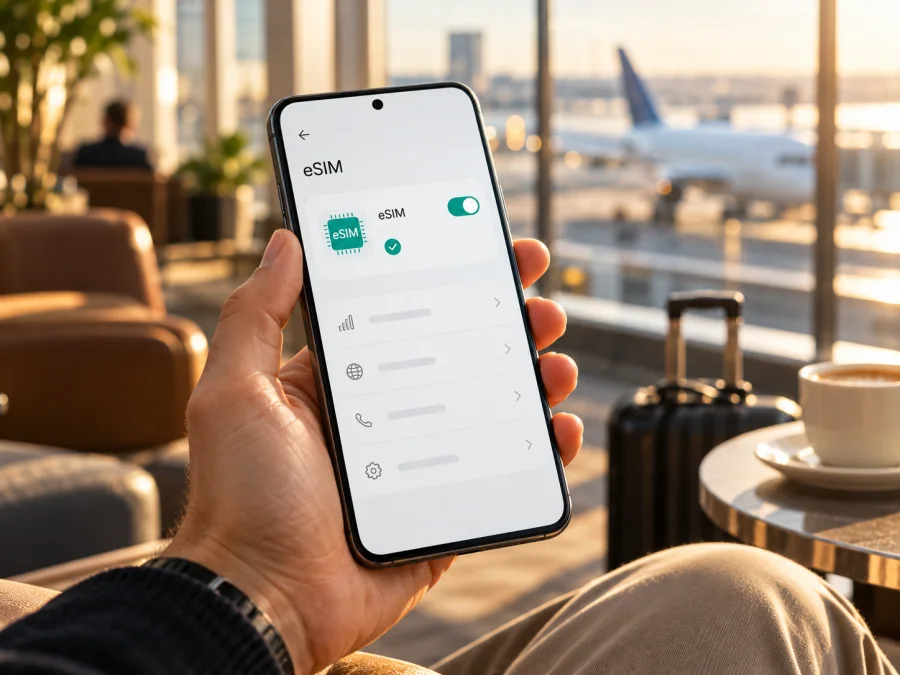
Oppo Find X9 Pro 512GB 5G eSIM: compatibility and setup
Quick answer: the international OPPO Find X9 Pro configuration sold in markets such as the UK is listed by OPPO as supporting eSIM. The 512GB storage label alone does not identify the phone’s region, model code, firmware, or carrier status, however. Before relying on eSIM, verify the exact handset in its settings and with the seller. A China-market phone or an imported unit may differ, even when its retail name and storage capacity look the same.
An eSIM is a digital SIM profile rather than a removable card. For travel, it can provide mobile data while you keep your usual number available for calls or messages, depending on your phone and plan. This guide covers compatibility checks, setup, and common issues for the Oppo Find X9 Pro 512GB 5G.
Oppo Find X9 Pro 512GB 5G eSIM compatibility
OPPO’s UK specification page lists the Find X9 Pro as model CPH2791, with a 16GB RAM and 512GB storage configuration. It specifies a nano-SIM plus eSIM combination. OPPO’s India specifications also list eSIM support for the Find X9 Pro. This is strong confirmation for those official market variants, including the UK 512GB configuration.
The name in a shop listing is not enough to establish that every Oppo Find X9 Pro 512GB 5G has the same embedded SIM hardware or software. OPPO publishes different market specifications: its China page identifies the phone as PLG110 and lists its own configurations and SIM details. Regional configurations can differ in SIM options, firmware, supported networks, and services. OPPO’s China specification for PLG110 lists nano-SIM and nano-USIM card types and does not list eSIM support. The international CPH2791 specification therefore is not proof that a PLG110 or another regional SKU will accept a travel eSIM. Confirm the actual model code and the phone’s own settings before paying for a plan.
| Check | What is confirmed or what to do |
|---|---|
| Exact name supplied | Oppo Find X9 Pro 512GB 5G |
| Official international variant | OPPO UK lists CPH2791 with 16GB + 512GB and nano-SIM + eSIM |
| Other market confirmation | OPPO India lists eSIM as supported |
| Region caveat | China-market PLG110 specifications list nano-SIM and nano-USIM, without eSIM |
| Fastest device check | Look for an EID and an Add eSIM option in Settings |
| Before buying | Confirm the SKU, carrier unlock status, destination, and plan conditions |
| Travel use | Select the travel profile for mobile data only when you want it to start being used |
In short: yes for the international CPH2791; unconfirmed for a phone identified only by the retail name “Oppo Find X9 Pro 512GB 5G.” If the model code or eSIM controls are unclear, ask the seller or OPPO support to verify the SKU instead of relying on a marketplace title or generic list.
Check the exact phone before buying a plan
Do these checks on the handset you will actually take on your trip. A feature listed for one country’s version may not be active on a similarly named device from another market.
- Find the model code. Open Settings and look under About device, About phone, or Status. Menu names can vary by ColorOS version. Write down the model number, not only the commercial name. The international page identifies CPH2791; the China-market page identifies PLG110.
- Look for an EID. In Settings, search for “EID” or “eSIM”. Some Android versions show the EID under About device, Status, or SIM status. You can also open the phone dialer and enter
*#06#; on devices that support this shortcut, the information screen may display an EID alongside other identifiers. Do not share an EID publicly. If no EID appears, ask OPPO or the seller to confirm whether the exact SKU supports eSIM. - Look for an add-profile control. Open Settings and search for “Add eSIM”, “Add mobile plan”, “SIM”, or “Mobile network”. A visible option to download or add an eSIM is a useful sign. Its absence is a reason to stop and investigate, not to assume a hidden menu will enable the feature.
- Confirm the phone is unlocked. A carrier-locked handset can restrict which profiles or networks it accepts. Ask the carrier that supplied the phone to confirm its unlock status and any restrictions on installing another operator’s profile.
- Check the network and travel requirements. eSIM capability does not guarantee that every network, band, or service will work in every destination. Confirm that the plan covers your destination and that its conditions suit your trip.
An EID does not rule out carrier or plan restrictions, and menu names can change with software. If uncertain, compare the model code with the specification for its market and ask the seller to confirm. Check your device before selecting a plan.
What the 512GB label does and does not tell you
“512GB” identifies storage capacity, not RAM, market version, model code, SIM arrangement, or carrier lock status. OPPO’s UK specification lists CPH2791 with 16GB RAM and 512GB storage, while China-market listings identify PLG110 and include different configurations. Ask the seller for the exact SKU and country of sale; do not assume a listing for “512GB” means the UK configuration.
For a sealed phone, request written confirmation of the model code and eSIM support. For a used device, ask to see its EID and Add eSIM setting without sharing personal identifiers. eSIM profiles are managed in mobile-network settings, and the number of profiles stored is not necessarily the number that can be active together. Check the exact phone’s SIM controls before relying on simultaneous use.
Prepare before installation
Complete a few checks before scanning a QR code. This makes setup easier and helps prevent the profile being installed at an inconvenient time.
- Confirm compatibility and unlock status. Check the EID, add-eSIM setting, model code, and carrier status on the Oppo Find X9 Pro 512GB 5G.
- Read the plan conditions. Check the destination or region, data allowance, validity period, supported network, and when validity begins. A plan may start when installed, when it connects for the first time, or according to another stated rule; use the conditions shown for that plan.
- Keep a reliable internet connection. Connect to Wi-Fi or another dependable connection while downloading the profile. Do not depend on the new eSIM’s data connection to install that same profile.
- Have the installation details ready. Keep the QR code visible on another screen or use the provider’s manual activation details if offered. A phone generally cannot scan a QR code displayed on its own screen using its own camera.
- Avoid deleting profiles casually. Some QR codes or activation details can only be used once. If installation fails, check the provider’s instructions or support before deleting a partly installed profile or trying to scan the same code repeatedly.
After confirming compatibility, Kaspersky eSIM Store is an app and website where you can choose, arrange, and activate an eSIM with a mobile-data plan for an overseas trip.
How to install and activate an eSIM
ColorOS menu names can vary by software version and region. Use Settings search if a label below differs on your phone. An eSIM profile is downloaded to the device; the exact activation moment depends on the plan’s terms, so installation and first use may not be the same event.
1. Connect to Wi-Fi
Before starting, connect the phone to a stable Wi-Fi network. Keep the QR code or manual activation details available, and make sure you have read whether the plan begins at installation or at first connection in its destination.
2. Open the SIM settings
Open Settings and go to the mobile network or SIM management section. If you do not see it, use the Settings search box and enter “eSIM” or “SIM”. Choose the option to add or download an eSIM only after confirming that the screen belongs to the phone’s mobile network settings.
3. Scan the QR code or enter details
Choose the QR-code option and point the camera at the code supplied with your plan. If the seller or plan provider supplies manual activation details and your phone offers that method, enter them exactly as provided. Keep the code private. If it has already been used or the phone reports that it cannot be added, do not assume a second scan will work; review the plan instructions first.
4. Follow the on-screen prompts
Allow the phone to download and save the profile. Give it a clear label such as “Travel data” so you can distinguish it from your home SIM. If the phone asks whether to enable the new profile, follow the plan’s timing instructions. You can usually leave a travel profile switched off until you are ready to use it, but check the plan terms before doing so.
5. Choose the line for mobile data
In SIM or mobile-network settings, select the travel eSIM as the mobile-data line when you want to use the plan. Keep your regular SIM selected for calls or messages if you need it and if your setup allows that arrangement. Check each line’s settings carefully: selecting an eSIM for data is different from changing the default line for calls or messages.
6. Enable data roaming only when required
Some travel eSIM plans require data roaming on the eSIM to connect to their partner network. If the plan’s instructions say to enable it, turn roaming on for that profile only. Roaming charges on your home line can be different, so verify which SIM has roaming enabled before you travel. If the plan does not require roaming, follow its directions rather than enabling it by default.
7. Confirm connection at the right time
When you reach the destination or the plan’s stated start condition is met, switch on the travel eSIM and mobile data for that profile. Give it a few minutes to register. Check that the phone shows a mobile network and that a small data request works. Keep Wi-Fi available while troubleshooting. For more detail, see the Android eSIM installation guide or the iOS installation guide; the iOS guide is for Apple devices, while the Android guide notes that its illustrated path is specific to Samsung and menus differ by model.
If you want to use the profile later, it may be possible to install it before departure and leave it switched off, provided the plan does not start its validity on installation. Read the plan conditions first. An installed profile may still need its activation conditions met before it connects to a network.
Using the eSIM for mobile data during a trip
Before departure, decide which line should handle each task. A travel-data eSIM can provide mobile data under its plan conditions; it does not automatically replace a usual number, include voice calls or SMS, or guarantee service everywhere. Check whether your plan is data-only. Internet calls and messages through apps may work over mobile data, but they still depend on the app, connection, and relevant account settings.
A simple setup is to keep the home SIM for calls and messages if needed, then select the travel eSIM for mobile data. Review automatic data switching so the phone does not unexpectedly use a line with different charges. Options depend on the software and carrier.
On arrival, check the data line, eSIM status, and plan-required roaming setting. For a multi-country trip, confirm that every destination is included; a country plan may exclude neighbouring countries, and regional plans also have limits.
Estimate use for maps, messages, browsing, and video, then compare it with the plan’s allowance and validity. Check top-up rules and download maps or travel documents over Wi-Fi where practical.
A travel eSIM does not require removing a physical SIM, but the active-SIM arrangement varies. Test the setup before leaving and check home-line roaming settings. If a work profile, hotspot, or two-factor authentication depends on your regular number, confirm those services in advance.
Common problems and checks
There is no “Add eSIM” option
Search Settings for “eSIM” and “EID”, then check About device and SIM status. Restart the phone and install available official system updates if appropriate. Confirm the model code and region with the seller or OPPO support. If the EID and eSIM controls remain absent, consider the exact unit unverified or unsupported; do not buy a plan on the assumption that a software update will add eSIM capability.
The QR code will not scan
Increase the display brightness, clean the camera, and check that the whole code is visible. If it still fails, check whether manual activation is offered or ask the provider whether the code is valid and unused. Keep the QR code private.
The profile will not download
Check Wi-Fi, automatic date and time, and the activation details. Note the error message and contact the plan provider. Do not delete a partly installed profile unless its instructions or support recommend it; the same code may not work twice.
The profile is installed but there is no service
Check that it is switched on and selected for data, the destination is covered, the plan is active, and airplane mode is off. Enable roaming for the travel profile if the plan requires it. Restart the phone and allow a few minutes to register; use manual network selection only if the provider directs you to.
The phone connects but data does not work
Verify the selected data line, remaining allowance and validity, and required roaming setting. Briefly turn off Wi-Fi to test mobile data. If an access point name (APN) is specified, check it against the provider’s instructions rather than guessing. Share the destination, model code, and error with support if needed.
The home line is using data or roaming
Open SIM settings and confirm the travel eSIM is selected for mobile data. Review any automatic data-switching feature and the home SIM’s roaming settings. Check the home operator’s terms if you need the regular line active abroad. A travel eSIM does not automatically prevent charges from another enabled SIM.
The phone is locked or the network is unavailable
Ask the original carrier to confirm the phone is unlocked. Check destination coverage and supported network availability; 5G branding does not guarantee every band or roaming partner is available. If the plan works on another unlocked compatible phone, mention this when contacting support about the Oppo Find X9 Pro 512GB 5G.
FAQ
Does the Oppo Find X9 Pro 512GB 5G support eSIM?
The international CPH2791 version is listed with eSIM support on OPPO’s UK specifications, including its 16GB RAM and 512GB storage configuration. OPPO India also lists eSIM support. The retail name and storage alone do not establish that an unspecified handset has the same capability. China-market PLG110 specifications list physical SIM types without eSIM. Check the phone’s model code, EID, and Add eSIM option.
Is the China-market Find X9 Pro the same as the international version?
No. OPPO lists different model identifiers for different markets, including CPH2791 on its UK page and PLG110 on its China page. Product configurations and SIM details can vary. Verify the exact SKU and do not assume that international eSIM instructions apply to every regional version.
Can I install an eSIM before travelling?
Often you can install a profile while connected to Wi-Fi, but the right timing depends on the plan. Some plans begin validity at installation, while others begin on first connection or under another stated rule. Read the specific conditions and leave the profile inactive if the instructions allow and you do not want it to start yet.
Does a travel eSIM include my normal phone number?
A data-only travel eSIM generally does not provide a regular voice number or SMS unless its plan explicitly says otherwise. You may keep your home SIM for those services if your device, carrier, and settings allow it. Internet calling and messaging apps use data and depend on their own requirements.
Should I turn on data roaming?
Only follow the selected plan’s instructions. Some travel eSIMs require roaming on the travel profile; others may not. If you enable it, check that it is enabled for the correct line, since your home operator may apply separate charges.
Can I use a travel eSIM and physical SIM together?
The international OPPO specification lists nano-SIM plus eSIM, but active profiles depend on the phone, software, and carrier. Check SIM management and select the intended data line.
What if I cannot find an EID?
Search Settings for eSIM and check SIM status. If EID and Add eSIM controls are missing, ask OPPO or the seller to verify the SKU before purchasing a plan.
Check compatibility and choose a travel plan
Before buying, verify the model code, EID, Add eSIM control, and carrier unlock status on your own Oppo Find X9 Pro 512GB 5G. The international CPH2791 configuration is officially listed with eSIM, while the exact retail name does not establish the market version of every unit. Confirm the destination, data allowance, validity, activation timing, and roaming instructions for any plan you are considering.
Once compatibility is clear, Kaspersky eSIM Store is an app and website where you can choose, arrange, and activate an eSIM with a mobile-data plan for an overseas trip. Check the current options for your destination and compare the stated terms before selecting one. Browse travel eSIM plans and keep the installation instructions handy for when you are ready to add the profile.


