Travel connectivity guide
Oppo Find X9 Pro 5G eSIM: Compatibility & Setup
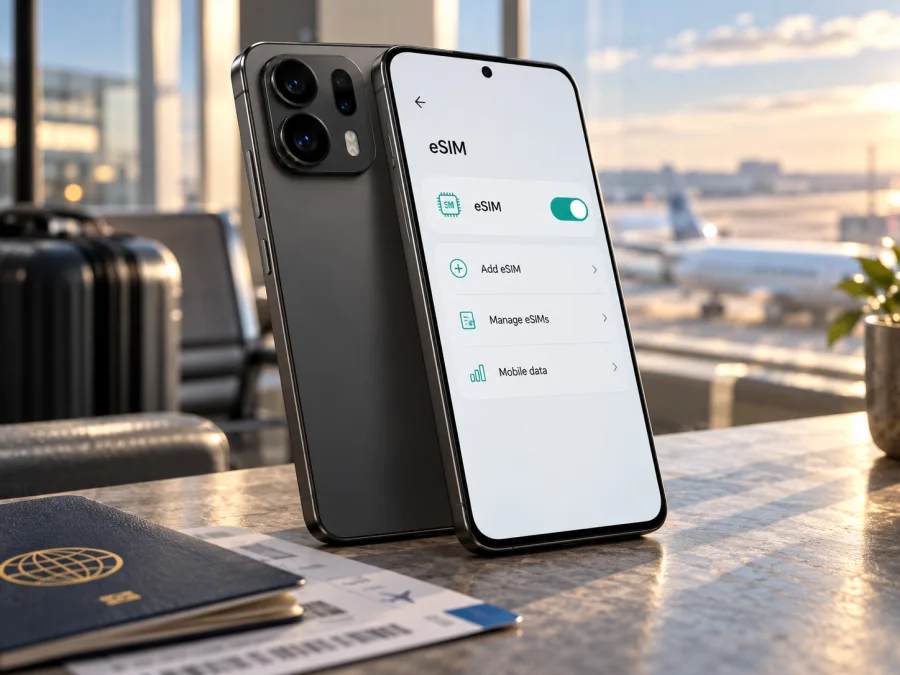
Oppo Find X9 Pro 5G eSIM: compatibility and setup guide
The Oppo Find X9 Pro 5G can use eSIM in some regional versions, but the model name alone is not enough to confirm support. OPPO lists eSIM for the CPH2791 version in markets including India and Spain. Its China-market Find X9 Pro, model PLG110, is listed with physical SIM support and no eSIM entry. If you are buying or already own this phone, identify the model number and check the handset itself before choosing a travel plan.
An eSIM is a digital SIM profile that you download to a compatible phone. It can provide mobile data during a trip without replacing your everyday physical SIM. Support in the phone is only the first check: the phone must also be unlocked, the destination plan must cover your trip, and the provider must be able to activate the profile on your particular device.
Does the Oppo Find X9 Pro 5G support eSIM?
Yes, for confirmed CPH2791 versions; do not assume that every Oppo Find X9 Pro 5G has eSIM. OPPO’s India and Spain specification pages identify the CPH2791 and list eSIM in its cellular specifications. The China page identifies model PLG110 and does not list eSIM. The absence of an eSIM entry is not a universal statement about every device sold under a similar retail name, so treat a PLG110 as unsupported unless its own settings show eSIM controls and OPPO or the seller confirms the feature for that exact unit.
Regional names, memory configurations, bands and SIM arrangements can differ. A listing that says only “Find X9 Pro” does not establish which hardware or software configuration you will receive. Imported handsets may also have different firmware, carrier settings or support documentation from the model sold through an authorised local channel. Check the model code on the box, invoice, device information screen or OPPO support page before relying on a general compatibility list.
| Check | What to look for | What it tells you |
|---|---|---|
| Model code | CPH2791 or PLG110 in the device information or packaging | Identifies the regional model more precisely than the retail name |
| OPPO specification | eSIM is listed for the matching model and market | Manufacturer documentation supports the feature for that version |
| EID | An EID appears in the phone’s status or SIM settings | The device reports an embedded SIM identity |
| Settings menu | A control such as “Add eSIM” or “Add mobile plan” appears | The software exposes a way to install an eSIM profile |
| Carrier lock | The phone accepts a SIM or plan from another provider | An unlocked phone is generally needed for a separate travel plan |
| Destination plan | The provider confirms the plan and activation method are compatible | The phone feature alone does not guarantee network access |
A compatible version can still fail to connect if it is carrier-locked, if the plan is not valid for the destination, or if the local network does not support the required service. Conversely, a physical SIM tray does not prove that eSIM is absent: some versions support both a physical SIM and a digital profile. The reliable check is the exact model documentation plus the EID and eSIM controls on the phone you will use.
Check the exact phone before you buy
Use these checks in order. If one step contradicts another, pause and ask OPPO support or the seller to confirm the device’s model code and eSIM capability. Do not rely on the box name alone or on a compatibility statement for another Find X9 Pro variant.
1. Find the model number
Open Settings and look for About device or About phone. Menu names can vary by ColorOS version and region. Note the model or regulatory model code exactly as shown. Compare it with the label on the original packaging and with the specifications for the market where the phone was sold. If the phone was imported, ask the seller which regional firmware and model code are installed.
2. Look for an EID
An EID is a long identifier associated with the phone’s embedded SIM hardware. On Android, it may be visible under Settings → About device → Status or in a SIM or mobile-network information screen; the exact route varies. You can also open the phone dialler and enter *#06#. On many Android devices, this displays device identifiers, and an eSIM-capable phone may show an EID alongside IMEI numbers. The code is only a lookup shortcut; if it does not work or shows no EID, check Settings and the model-specific OPPO documentation as well.
Treat an EID as evidence, not as permission to share it. Do not post the EID, IMEI, QR code or activation details publicly. If you contact support, use the provider’s private support channel and share only the information requested.
3. Check for an eSIM control
In Settings, open Mobile network, SIM card & mobile data, or a similarly named section. Look for eSIM, Manage eSIM, Add eSIM, or Add mobile plan. You may need to open the SIM manager or tap a plus sign. The label can differ by region and software version. A physical-SIM-only configuration may show no eSIM option.
Do not delete an existing profile just to test the menu. Removing an eSIM can disable it, and a one-time QR code may not be reusable. If a profile is already installed, check whether it is enabled and whether the phone offers a separate option to add another one.
4. Confirm the phone is unlocked
A carrier lock can prevent a phone from using an eSIM from another provider even when the handset has an EID and an Add eSIM menu. Ask the original carrier or seller to confirm the lock status. If the device is locked, arrange an unlock through the carrier before travel; changing settings on the phone cannot remove a network lock.
5. Confirm the travel plan’s requirements
Check that the destination or region, validity period, data allowance and activation conditions fit your itinerary. Confirm whether the profile is installed by scanning a QR code, entering details manually or using an app. Some providers require an internet connection during installation. Also check when the plan’s validity begins: it may start at installation, first network connection or another point stated in its terms.
If the menu and EID are present, the device is unlocked, and the plan provider confirms compatibility, you have a strong basis to proceed. If the phone is PLG110 or the software does not expose eSIM, do not buy a profile expecting a hidden setting to enable it. Ask OPPO or the seller to verify the exact unit, or use another unlocked phone with confirmed eSIM support.
Before selecting a plan, check whether your device is compatible. Kaspersky eSIM Store is an app and website where you can choose, arrange and activate an eSIM with a mobile-data plan for an international trip. You can browse current destinations and available plans and review the terms for your route before making a choice. The available options and conditions depend on the destination and selected plan.
Installing an eSIM on a compatible Oppo Find X9 Pro 5G
Before you begin, connect to Wi-Fi or another reliable internet connection, keep your eSIM QR code or activation details ready, and review when the plan becomes active. If a plan was arranged through Kaspersky eSIM Store, find the profile and setup steps in your account. For device walkthroughs, see the Android eSIM installation instructions and iOS eSIM installation instructions. The iOS guide is for Apple devices; this Oppo phone uses Android.
Menu wording can vary by ColorOS version and market. Use Settings search for “eSIM” or “SIM” if needed. Do not scan a code until you are ready to install the profile on the phone that will use it.
- Open mobile-network settings. Go to Settings → Mobile network or the equivalent SIM settings page.
- Start eSIM setup. Tap Add eSIM, Add mobile plan or the matching option. If none appears, recheck the model code and EID rather than continuing through physical-SIM menus.
- Scan or enter the activation details. Use the built-in setup flow and enter manual details only if supplied by the plan provider. Keep the QR code private.
- Download the profile. Confirm the plan name and follow the on-screen prompts. Keep the internet connection available while installation completes; this may take several minutes.
- Label and configure the line. Give it a clear name such as “Travel”. Choose which line handles calls and messages, then select the travel eSIM for mobile data when you want to use it.
- Check activation instructions. Turn on the eSIM and enable data roaming for that profile only if the plan instructions require it. Installing a profile and starting its validity are not always the same event.
- Confirm the connection. At a covered destination, make sure airplane mode is off, mobile data is enabled and assigned to the travel eSIM, then allow the phone time to register.
Using eSIM data on a trip
You may be able to keep your usual number available for calls or verification while the travel eSIM handles data. The combinations supported depend on the handset configuration and software, so check the SIM manager. Review your home carrier’s roaming terms and keep data roaming disabled on your regular SIM if you want to avoid unexpected data use there.
Before departure, save setup instructions and check the plan’s coverage, validity period, data allowance and activation trigger. After arrival, turn on the travel eSIM, select it for mobile data, and enable roaming on that profile if instructed. If your itinerary crosses borders, confirm that the plan explicitly covers every destination. Coverage and speed depend on local network availability and plan terms. Although the phone supports 5G, that does not guarantee 5G access on every plan or network; 4G/LTE may be used instead.
For maps, messaging and browsing, estimate your data needs and monitor use in Android settings or the account where you arranged the plan. Large downloads, photo backups and video calls can use data quickly. A data-only eSIM can support internet calling and messaging apps, but it does not necessarily include a normal phone number, standard calls or SMS. Check plan terms before relying on tethering; any hotspot use draws from the same allowance.
Common problems and checks
| Problem | What to check |
|---|---|
| No “Add eSIM” option | Search Settings, verify the model code and compare it with OPPO’s market-specific specifications. PLG110 is not confirmed for eSIM by the China listing. |
| No EID appears | Check both About device/status and *#06#. A dialler code may vary, so also check the settings menu and ask OPPO about the exact unit. |
| QR code will not scan | Increase screen brightness, steady the camera, or display the code on another device. Use manual entry only when supplied. If a code is marked used or expired, contact the provider before retrying. |
| Profile will not download | Check the internet connection, restart the phone and confirm the profile was not installed elsewhere. Some QR codes are single-use; deleting a profile may not make the code reusable. |
| Installed, but no service | Confirm the destination is covered, the plan is active, the eSIM is on and selected for data, and roaming is enabled for it if required. Toggle airplane mode or restart, then allow time to register. |
| Data does not load | Check mobile-data SIM selection, data settings and any APN instructions supplied with the plan. Test with Wi-Fi off. Do not copy settings from an unrelated carrier. |
| Phone is carrier-locked | Ask the original carrier to confirm unlock eligibility. An eSIM profile cannot bypass a network lock. |
When contacting support, provide the model code, ColorOS version, destination and exact error wording. Share EID, IMEI or activation details only through a private support channel when requested; do not post them publicly.
Travel examples
Confirmed CPH2791, trip coming up: Check the EID, Add eSIM menu and unlock status now. Review the plan’s activation conditions, and install in advance only if allowed. At the destination, assign mobile data to the travel profile and check its roaming setting.
Phone bought in China: Confirm whether the code is PLG110. OPPO’s China specifications do not list eSIM for this version, while Indian and Spanish CPH2791 listings do. Treat PLG110 as unsupported unless the handset itself exposes eSIM controls and OPPO confirms the exact configuration. A language change or third-party app cannot be assumed to add eSIM capability. Consider another compatible unlocked phone if eSIM is essential for the trip.
Unclear marketplace listing: Ask the seller for the model code on the actual unit and written confirmation of eSIM support for that code and sales market. Check return terms before paying. If the seller cannot identify the variant, do not base a time-sensitive trip on an assumed eSIM feature.
Frequently asked questions
Does every Oppo Find X9 Pro 5G support eSIM?
No. OPPO lists eSIM for CPH2791 in markets including India and Spain. Its China-market PLG110 page does not list eSIM. Check the exact phone before buying a plan.
Is the Indian CPH2791 compatible with a travel eSIM?
OPPO lists eSIM support for the Indian CPH2791. The phone must also be unlocked, and the selected plan must support its installation method and destination.
Does PLG110 definitely lack eSIM?
The China-market OPPO page does not confirm eSIM for PLG110. Treat it as unsupported unless the phone exposes an EID and eSIM controls and OPPO confirms support for that unit.
Is 5G guaranteed with a travel eSIM?
No. It depends on the plan, local network, coverage and device bands. The phone’s 5G capability alone does not guarantee a 5G connection.
Can I keep my physical SIM active?
Possibly. Supported combinations vary by configuration and software. Check the SIM manager, choose the correct mobile-data line and review roaming settings for your regular SIM.
Does a travel eSIM include calls and SMS?
Not necessarily. Many travel plans are for mobile data only. Check the specific terms; internet calling and messaging apps can work over data.
Can I install the eSIM before leaving?
Often, but follow the plan’s instructions and confirm when validity begins. Installation and activation can be separate steps.
Can I move the profile to another phone?
Do not assume so. Transfer or reinstallation depends on the provider’s rules. Ask before removing a profile or changing devices.
Does Kaspersky eSIM Store provide the mobile network?
No. Kaspersky eSIM Store is an app and website that helps users choose, arrange and activate an eSIM with a mobile-data plan for an international trip. The connection depends on the chosen plan and networks available at the destination.
In short: verify first, then choose a plan
The Oppo Find X9 Pro 5G supports eSIM in confirmed regional configurations, including OPPO’s CPH2791 listings for India and Spain. The China-market PLG110 specifications do not list the feature. Check the exact model, EID, Add eSIM menu, carrier lock and plan conditions on the phone you will take.
Once compatibility is clear, choose a plan for your destination and dates, follow its setup instructions, and assign the profile to mobile data when ready. Kaspersky eSIM Store helps you browse destinations and arrange an eSIM plan for mobile internet abroad. Verify the device first, then review the plan terms so the setup fits your trip.


