Travel connectivity guide
Oppo Find X9 Pro eSIM: Compatibility and Setup
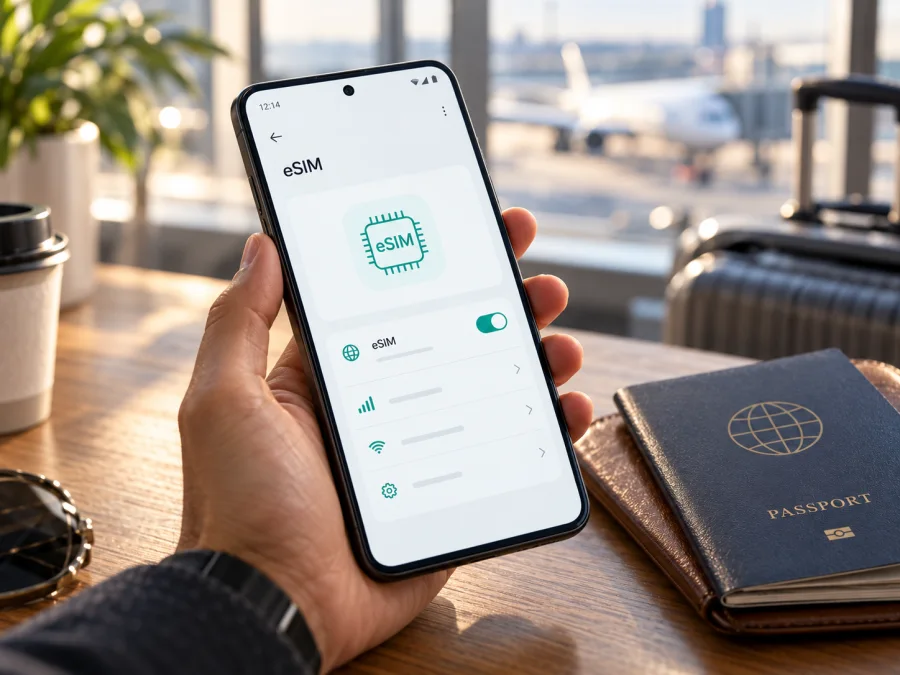
Oppo Find X9 Pro eSIM: compatibility and setup guide
Short answer: Oppo Find X9 Pro supports eSIM on the international CPH2791 version listed by OPPO in several markets, including the UK and Australia. The regular mainland China model PLG110 is listed with physical Nano-SIM cards and no eSIM. OPPO also lists eSIM for a separate Find X9 Pro satellite-communications edition, subject to support from a Chinese carrier. Check the exact model code and the phone itself before choosing a travel plan.
This distinction matters because “Oppo Find X9 Pro” is a product name used across different sales markets and editions. A phone’s color, storage size, seller title, or 5G label does not prove that it has an eSIM. The reliable checks are the model number, an EID, and an eSIM option in the mobile-network settings. If those checks do not agree, ask the seller or OPPO support about the exact unit.
Does Oppo Find X9 Pro support eSIM?
Support depends on the sales market and edition. OPPO lists Nano-SIM plus eSIM for international model CPH2791. The regular mainland China PLG110 lists physical Nano-SIM cards without eSIM. OPPO’s China store lists eSIM on a separate satellite-communications edition, subject to participating carrier support.
CPH2791’s eSIM listing does not guarantee that every carrier, firmware build, or travel plan will work. The phone must be unlocked, show an eSIM option, and support the plan and destination. Do not assume the regular PLG110 can add a travel profile; OPPO does not list eSIM for that edition.
| Item to check | What OPPO currently lists | What it means for you |
|---|---|---|
| International model code | CPH2791 | OPPO regional specifications list Nano-SIM + eSIM. Confirm the unit’s settings and carrier eligibility. |
| Regular mainland China model code | PLG110 | The listed SIM type is physical Nano-SIM; eSIM is not listed for this edition. |
| Mainland China satellite-communications edition | A distinct edition in OPPO’s China store | eSIM is listed for this edition, with service dependent on participating Chinese carriers. |
| 5G/network access | Depends on the model’s supported bands and the local network | 5G by itself does not confirm eSIM support or guarantee service in a destination. |
| Network lock | Depends on the seller or original carrier | An eSIM-capable phone can still reject another provider’s profile if it is locked. |
Market editions may differ in bands, firmware, carrier provisioning, and sales restrictions. A retailer may import a phone from another market. Check the model code on the box and under Settings → About device; if it is unclear, verify with OPPO or the seller before paying.
How to check your own phone before buying
Use at least two checks. An EID and an eSIM installation option are stronger evidence than a listing that only says “dual SIM” or “5G.” Menu names can vary by ColorOS version and region.
- Find the model code. Open Settings → About device and look for Model or Model number. Compare the value with the sales region and edition. International listings commonly use CPH2791; the regular mainland China listing uses PLG110. If the phone has another code, check that exact code with OPPO for your market.
- Look for an EID. In Settings, open About device, Status, or SIM status and look for EID. On some Android phones,
*#06#displays identifiers, including EID. It may not work on every build, so its absence there alone is not conclusive. - Check the mobile-network menu. Open Settings → Mobile network or SIM card & mobile data. Look for Add eSIM, Add mobile plan, Download a SIM, or a similar option. Do not confuse this with adding a physical SIM or setting up a mobile hotspot.
- Confirm with the seller or carrier. Give them the complete model code and ask whether that exact unit can install a third-party travel eSIM. Ask whether it is carrier-unlocked and whether any regional or contract restriction applies.
- Check the destination plan’s requirements. Confirm that the eSIM is intended for the country or region you will visit, supports your device, and has the right validity period and data allowance. Availability and conditions can change.
An EID does not confirm that a phone is unlocked or that a specific plan will activate. If the EID or add-eSIM control is missing, verify the edition with OPPO or the seller. A QR code cannot add eSIM capability to an unsupported model.
Compatibility checklist
Before you select a travel eSIM, confirm each point:
- [ ] The model code and sales region are known; they are not inferred from the name alone.
- [ ] The device shows an EID or an eSIM installation option.
- [ ] The phone is not locked to a carrier that blocks another eSIM profile.
- [ ] The software is up to date, and the mobile-network settings are available.
- [ ] You have a stable Wi-Fi or mobile connection for downloading the profile.
- [ ] The plan covers the destination and its terms fit your trip.
- [ ] Your existing number’s roaming and default-data settings are understood.
Check your device before completing a purchase. If you are checking a mainland China phone, ask specifically whether it is the regular PLG110 or the separate satellite-communications edition; do not rely on “Find X9 Pro” alone.
What to prepare before installation
Use a reliable internet connection and keep the QR code or manual activation details available on another screen. Read the plan terms first: check its destination, data allowance, validity, activation timing, and whether it includes calls or SMS. Many travel eSIM plans are data-only. On a dual-SIM phone, decide which line handles calls and which uses mobile data; review your home carrier’s roaming terms before travel.
Kaspersky eSIM Store is an app and website that helps you choose, order, and activate an eSIM with a suitable mobile-data plan for an international trip. It does not operate a mobile network. Service depends on the selected plan and local network arrangements.
How to install an eSIM on Oppo Find X9 Pro
Labels vary by ColorOS version and region. The general Android flow is to open mobile-network settings, add an eSIM, and scan a QR code or enter activation details. If no eSIM option appears, recheck the model code before purchase.
- Connect to the internet. Use stable Wi-Fi or another connection that will remain available while the profile downloads.
- Open the SIM settings. Go to Settings → Mobile network or SIM card & mobile data. The wording may differ on your software build.
- Choose the eSIM option. Tap Add eSIM, Add mobile plan, or the closest equivalent. If only physical SIM controls appear, check the EID and model code again.
- Scan or enter the activation details. Scan the QR code from another screen, or enter the manual details supplied with the plan. Follow the prompts and accept the plan terms shown on the phone.
- Name the profile. Give it a clear label such as “Travel data” or the destination name so you can distinguish it from your home line.
- Choose the line for mobile data. Select the new eSIM as the mobile-data line when you are ready to use it. Keep calls and texts assigned to your preferred line if the phone offers separate choices.
- Set data roaming for the correct line. Turn on data roaming for the travel eSIM only if the plan’s instructions require it. Leave roaming off for your home SIM if you do not want it to use roaming data.
- Wait for registration. Give the profile a few minutes to connect, especially after landing or when changing networks. Do not delete the eSIM while troubleshooting unless the plan provider confirms it can be installed again.
See the Android eSIM installation instructions for general steps; their screenshots are specific to Samsung, so follow the labels on your Oppo. The iOS eSIM instructions apply to Apple devices, not this phone.
Installing before departure or after arrival
Install at home over Wi-Fi if the plan permits it, but check when its validity begins; installation and activation are not always the same event. If you wait until arrival, you will need Wi-Fi or another connection to download the profile. Confirm the plan covers every country on your route before departure.
Using eSIM for mobile internet while travelling
Select the travel eSIM as the mobile-data line when you are ready to use it. Keep your home SIM for calls if needed, but turn off its data roaming to avoid unintended data charges. Enable roaming on the travel eSIM only if the plan instructions require it. Disable automatic data switching if your phone offers that setting.
On arrival, turn on the eSIM, choose it for mobile data, and wait for network registration. Test a webpage with Wi-Fi off, then check the plan’s balance or usage display. If you visit several countries, verify each is covered; a country-specific plan may not work across a border. Service also depends on local network conditions and the device’s supported bands.
When choosing a plan, estimate your use: maps and messaging differ from video streaming, calls, backups, and hotspot use. Check whether tethering is allowed, how much data is included, and when validity starts. Kaspersky eSIM Store helps you browse available options and review the displayed terms; it is not a network operator. If a specific destination page is unavailable, use the Kaspersky eSIM Store homepage to browse current destinations and plans as a general starting point, not as a country tariff.
Common problems and what to check
“Add eSIM” is missing
Check the model code, EID, and SIM-status screen. The regular China-market PLG110 is listed without eSIM; a regional firmware or carrier setup may also affect menus. Restart and update the phone, then ask OPPO or the seller about the exact code. Software cannot add eSIM capability to unsupported hardware.
The QR code will not scan
Use another screen or a printout, increase brightness, and keep the code steady. If manual details are available, enter them exactly as provided. QR codes may be single-use; contact the plan’s support if the code says it was already used.
The profile installs but does not connect
Make sure the eSIM is on and selected for mobile data, the plan covers your location, and its validity has begun. Enable data roaming on that eSIM if required. Toggle airplane mode, restart, and allow several minutes for registration. Enter an APN only if the plan instructions specify one.
Signal bars appear but there is no data
Confirm the data SIM, plan balance, validity, and roaming setting. Turn Wi-Fi off to test cellular data. Start with automatic network selection; change it manually only when the plan instructions recommend it.
The home SIM is using data abroad
Recheck the default data SIM and disable automatic switching if available. Turn off roaming data for the home line while preserving any roaming setting needed by the travel eSIM. Calls and SMS on the home line may still incur separate charges.
Activation fails
Check that the phone is unlocked, the plan covers the destination, and the activation code has not already been used. Keep the exact error message and model code for support. Do not delete the eSIM or reset network settings until the provider confirms how to restore it.
FAQ
Does every Oppo Find X9 Pro support eSIM?
No. OPPO lists eSIM for international CPH2791, not the regular mainland China PLG110. A separate satellite-communications edition is listed with eSIM subject to carrier support. Check the exact phone.
How can I identify the international version?
Check Settings → About device and the box label for the model code. International OPPO specifications identify CPH2791. Confirm other codes with OPPO or the seller; color, memory, and seller wording do not establish the variant.
Does an EID guarantee that a travel eSIM will work?
No. The phone must also be unlocked, expose an eSIM installation option, and support the plan and destination.
Can I keep my physical SIM active?
Often, but the number of active lines and supported combinations depend on the edition, software, and carrier. Check the SIM settings and confirm which line handles calls, texts, and data.
Does a travel eSIM include a phone number?
Not necessarily. Many travel plans provide data only. Check the plan terms for voice calls and SMS; internet messaging apps use data but are not carrier calls or texts.
What if I cannot add the eSIM I bought?
Stop before deleting profiles or repeatedly scanning the code. Check the model code, EID, and eSIM menu, then contact the seller or plan support with the error message. Confirm any regional or carrier restriction before buying another plan.
Before you travel: verify the phone, then choose the plan
The model name alone is not enough to confirm compatibility. Check the full model code, EID, and eSIM option in Settings. OPPO lists eSIM for international CPH2791; the regular mainland China PLG110 is listed with physical SIMs. A separate satellite-communications edition requires local carrier support.
Once the exact device is confirmed as eSIM-capable and unlocked, choose a plan for the countries on your itinerary. Review the data allowance, validity, activation timing, hotspot conditions, and any instructions for roaming. Install the profile over a reliable connection, select it for mobile data when ready, and keep your home SIM settings under control. If the model code or eSIM menu is unclear, confirm compatibility with OPPO, the seller, and the plan provider before paying.


