Travel connectivity guide
Oppo Find X9 Ultra 512GB 5G eSIM: Compatibility
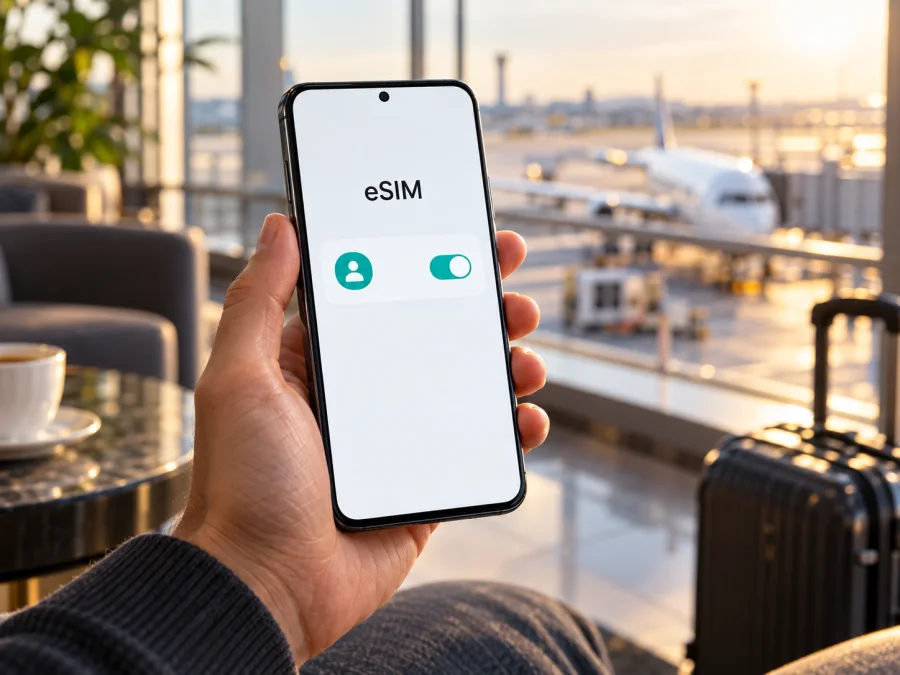
Oppo Find X9 Ultra 512GB 5G eSIM: compatibility and setup
The Oppo Find X9 Ultra 512GB 5G can use eSIM in the international version listed by OPPO as model CPH2841. OPPO’s Singapore and European specifications identify the 12GB+512GB configuration and mark eSIM as supported. The name alone, however, does not identify the market version: OPPO’s mainland China specifications use model code PMA110, list two Nano-SIM/Nano-USIM cards, and do not list eSIM. If a shop describes a phone only as “Oppo Find X9 Ultra 512GB 5G”, check its model code and the eSIM menu on the actual handset before you buy an eSIM plan.
That distinction is useful when planning travel. A phone may support 5G and still lack eSIM in a particular regional version; a phone may support eSIM but not be able to register with every network or plan in every country. Compatibility, local operator support, network bands, device lock status, and the plan’s coverage area are separate checks.
Does the Oppo Find X9 Ultra 512GB 5G support eSIM?
Yes, for the international CPH2841 version documented by OPPO. Its official specifications state that eSIM is supported and include the 12GB+512GB storage configuration. OPPO’s mainland China page identifies a separate PMA110 version. That page lists physical Nano-SIM cards and dual-SIM operation but does not list eSIM. Because the China specification does not make an explicit “eSIM unsupported” statement, do not infer support from the shared product name, 5G capability, storage size, or appearance. Treat eSIM on that version as unconfirmed unless OPPO or the seller confirms it for the exact device.
| Check | International listing | Mainland China listing |
|---|---|---|
| Official model identifier | CPH2841 | PMA110 |
| 512GB configuration | 12GB+512GB listed | 12GB+512GB listed among several configurations |
| SIM details in OPPO specifications | SIM 2 and eSIM supported | Two Nano-SIM/Nano-USIM cards listed |
| What this means for eSIM | Supported on the documented international version | eSIM is not listed; confirm directly on the handset and with OPPO before relying on it |
| 5G | Supported bands vary by market | Supported bands vary by market |
Check your exact device before buying a plan
Use the handset itself as the final compatibility check. Menu names can vary by ColorOS version, translation, country, and whether an eSIM profile has already been enabled. On an OPPO phone, look under Settings → Mobile network or Settings → SIM card & mobile data for an eSIM management option. OPPO support describes menu labels such as Manage eSIM card or eSIM. If the option is present, open it and see whether the phone offers to add or download an eSIM profile.
You can also look for an EID, the identifier associated with the phone’s eSIM component. On OPPO devices, the path may be Settings → About device → Status. Some dual-SIM eSIM models may require you to enable eSIM in the mobile-network settings before the EID appears. An EID is a useful sign that the phone has an eSIM component, but it does not prove that a specific travel plan will work. The settings option and the plan’s requirements should agree. If neither an EID nor an eSIM-management option appears, do not buy a plan on the assumption that a later software update or a QR code will add eSIM capability. Confirm the exact model with the seller or OPPO support first.
Compatibility checklist
- [ ] The phone’s model code matches the regional version for which OPPO lists eSIM support; for the documented international version, check for CPH2841.
- [ ] The device settings show an eSIM option and allow you to add a profile.
- [ ] An EID is available in device status, if the setup or provider asks for it.
- [ ] The phone is not locked to a carrier that blocks another operator’s eSIM.
- [ ] The software is up to date, and you have a reliable Wi-Fi or mobile connection for downloading the profile.
- [ ] The plan covers the country or region you will visit and supports the service you need.
- [ ] The local network’s bands and service availability are suitable for your route; 5G access is not guaranteed everywhere.
Check whether your device is compatible before choosing a plan. If you are purchasing the phone, ask the seller to demonstrate the eSIM menu on that specific unit rather than relying on a product title, an online listing, or a photograph of another handset.
Set up an eSIM on the Oppo Find X9 Ultra
Set aside a few minutes and connect the phone to Wi-Fi. Keep the activation details available on another screen or printed page if the plan uses a QR code; the phone cannot scan a code that is displayed only on its own screen unless the setup flow offers a manual method. Do not delete an installed profile to troubleshoot unless the plan’s instructions or support team tells you to: some eSIM profiles cannot be downloaded again after removal.
- Confirm compatibility. Check the model code, eSIM setting, and EID as described above. Make sure the phone is carrier-unlocked if you intend to use a travel eSIM alongside a physical SIM.
- Choose the plan for your destination. Read the destination, data allowance, validity period, supported network, and activation conditions. Check when validity begins: it may start when the profile is installed, when it first connects to a supported network, or at another point specified by the plan.
- Open mobile-network settings. Go to Settings → Mobile network or Settings → SIM card & mobile data, then select eSIM, Manage eSIM card, or the closest equivalent shown on your software version.
- Add the profile. Choose the option to add or download an eSIM. Scan the provider’s QR code, or use manual entry if the provider has supplied an activation code and the phone offers that option. Follow the on-screen prompts and wait for the download to finish.
- Name the line. Give the new profile a label such as “Travel data” so you can distinguish it from your home SIM. Leave your home SIM enabled if you still need it for calls, texts, or account verification, and review its roaming settings to avoid unexpected charges.
- Choose the data SIM. In SIM or mobile-network settings, select the travel eSIM for mobile data when you want to use it. Keep the home line selected for calls or messages if that is your preference and the phone allows separate line choices.
- Check activation at the right time. Some plans can be installed before departure but should be switched on or selected for data only when you are ready to use them. Follow the plan’s activation instructions and validity rules; installing a profile and starting its data allowance are not always the same event.
- Test the connection. When the plan should be active and you are in its coverage area, turn off Wi-Fi briefly and check that mobile data loads a page. If the provider requires data roaming for its travel profile, enable roaming for that eSIM only. Confirm the selected line and the plan’s APN instructions if the provider supplied them.
OPPO’s interface and menu labels can differ across markets and software versions. For a visual walkthrough, see the Android eSIM installation instructions. The iOS eSIM installation instructions are for Apple devices, but may help if you are assisting someone travelling with an iPhone.
Kaspersky eSIM Store is an app and website where you can choose, arrange, and activate an eSIM with a suitable mobile-data plan for an international trip. Once compatibility is confirmed, use it to review the destination and plan terms before you travel. Plans provide mobile data according to their stated conditions; unless a plan specifically says otherwise, do not assume it includes a regular phone number, voice calls, or SMS.
Use the eSIM for mobile data while travelling
Before departure, install the profile only if the plan’s instructions permit early installation. Read the activation policy carefully and save any setup details somewhere you can access without the destination connection. If the QR code is single-use, keep its original message until the eSIM appears in Settings and the profile is enabled. You can often prepare the phone at home and select the travel eSIM for data after arrival, but the exact timing depends on the plan.
Practical travel setups
Keeping your usual number available. Leave your regular SIM active for expected calls or verification messages, and use the travel eSIM for mobile data. Review your home carrier’s roaming charges and disable its data roaming if you do not want it to use mobile data. Check which line is selected for outgoing calls and messages before making them.
Sharing a connection. If you plan to use the phone as a hotspot, check that the plan and the local network allow tethering. Availability can vary. A connected laptop can consume data quickly through cloud sync, operating-system updates, or video, so check its background-data settings before sharing.
Troubleshooting: eSIM will not install or connect
There is no eSIM option in Settings. Check the model code, software region, and ColorOS version. Search Settings for “eSIM” and “EID”; restart the phone and install available system updates. If the menu and EID remain absent, contact the seller or OPPO support with the model code. Do not assume that the international and mainland China variants behave alike.
The QR code will not scan. Increase the brightness on the device displaying it, clean the camera lens, and hold the code steady within the scanner frame. Make sure you are connected to the internet and using the eSIM-add screen. If the QR code was already used, expired, or intended for another device, ask the plan provider for the correct next step instead of repeatedly scanning it. Use manual entry only when the provider has supplied the required activation details.
Profile download fails. Check Wi-Fi access, turn off any VPN connection temporarily if it interferes with the provider’s provisioning page, confirm the date and time are automatic, and retry once from the eSIM menu. Make sure the phone has room for another profile and has not reached a profile limit. If the error persists, save the exact message and contact the provider or OPPO support; do not delete a working profile to make space without confirming how it can be restored.
The profile is installed but there is no service. Verify that the eSIM line is enabled and selected for mobile data, airplane mode is off, and the plan is active for the current location and date. Toggle airplane mode on briefly and off, then restart the phone if needed. If the plan requires data roaming, enable it on the travel eSIM. Confirm the provider’s APN settings only when they have supplied specific values; incorrect APN details can prevent data access.
The phone shows signal but apps cannot load. Confirm mobile data is assigned to the travel eSIM rather than the home SIM. Turn Wi-Fi off for a short test, check the plan’s remaining data and validity, and open a simple webpage. If the plan account says data is available, check any APN instructions and try the recommended network selection. A signal indicator alone does not confirm that the selected line has an active data allowance.
The phone is locked or the plan is rejected. A carrier-locked phone may restrict eSIMs from another operator. Ask the original carrier or seller to confirm the lock status and permitted networks. The device must also be allowed to register with a network in the destination; a supported eSIM profile alone cannot remove a carrier lock or local service restriction.
A profile was removed or the phone was reset. eSIM profiles may not be transferable or re-downloadable. Check the plan’s terms and contact the plan provider before deleting profiles, resetting the phone, or moving service to another device. Keep account access and support details available during the trip.
Frequently asked questions
Can I use an eSIM and a physical SIM at the same time?
The international specifications describe SIM 2 and eSIM support, but actual active-line combinations can depend on the regional phone, software, and carrier. Check the SIM manager on your handset. If you need your regular number for calls while the travel eSIM handles data, confirm both lines can be enabled together and set the preferred line for each service.
Does every Oppo Find X9 Ultra 512GB 5G support eSIM?
No blanket answer applies to every regional unit sold under the product name. OPPO documents eSIM support for the international CPH2841 model, including the 12GB+512GB configuration. The mainland China PMA110 specifications list physical Nano-SIM cards but omit eSIM. Check the model code and the actual eSIM settings before you purchase a plan.
Is 5G guaranteed with a travel eSIM?
No. The phone supports 5G, but access also depends on the plan, the local operator, its frequency bands, location, and network conditions. The plan may connect over 4G/LTE where 5G is unavailable or not included.
Does an eSIM plan include calls and text messages?
Usually a travel data plan is for mobile internet only, unless its terms explicitly include voice or SMS. You can use internet-based messaging or calling apps over the data connection. Your existing number and its charges remain governed by your home carrier.
Should I install the eSIM before travelling?
That depends on the plan’s instructions. Some profiles can be installed in advance and activated later; in other plans, installation or first connection may start validity. Read the activation and validity terms before scanning the QR code, and make sure you have a reliable internet connection during setup.
What should I do if activation still fails?
Keep the profile installed, note the exact error, and check the model code, EID, selected data line, roaming setting, and plan activation status. Then contact the eSIM plan provider for provisioning or network questions, or OPPO support for device settings. Avoid deleting the profile until support confirms the next step.
Before you choose an eSIM for your trip
For Oppo Find X9 Ultra 512GB 5G, begin with the exact market version: OPPO’s international CPH2841 listing confirms eSIM support, while the mainland China PMA110 listing does not specify eSIM and should be checked directly. Verify the model code, look for the eSIM control and EID in Settings, and make sure the phone is unlocked. Then choose a plan that covers your actual destination and review its data allowance, validity, activation timing, roaming requirements, and network conditions.
Once those checks are complete, Kaspersky eSIM Store’s app and website can help you choose, arrange, and activate an eSIM plan for mobile data on an international trip. Review the plan terms before purchase and keep its setup instructions accessible. A short compatibility check before buying makes installation more predictable and helps you arrive prepared to get online.


