Travel connectivity guide
Oppo Find X9 Ultra eSIM: Compatibility & Setup
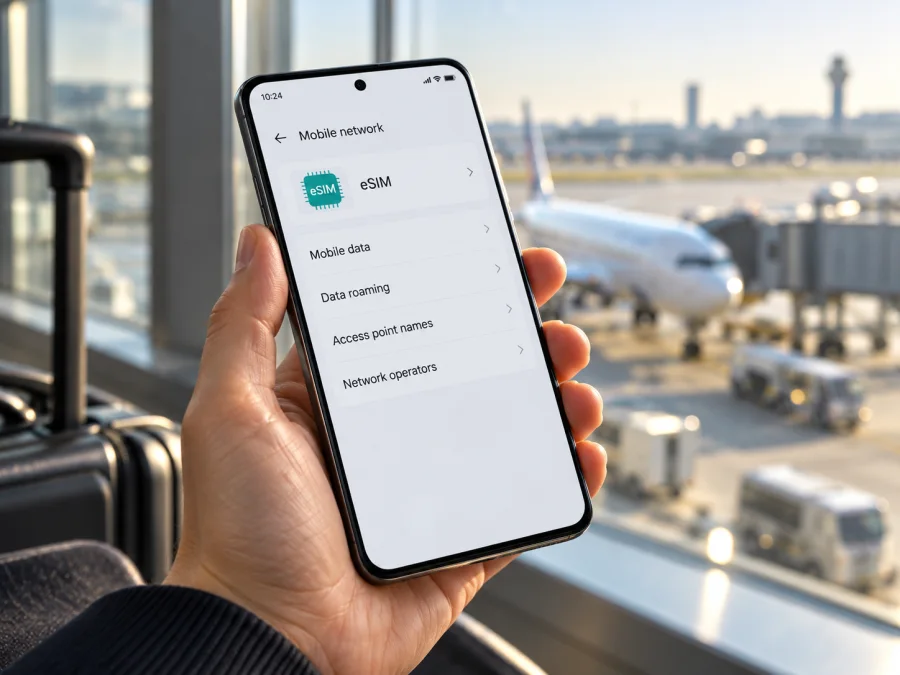
Oppo Find X9 Ultra eSIM: compatibility, setup and travel use
The short answer depends on the exact regional version. OPPO’s Mexican specifications for Find X9 Ultra explicitly list eSIM support. The Chinese Find X9 Ultra page identifies model PMA110 and lists nano-SIM cards, but does not list eSIM; the Polish specifications identify CPH2841 and also do not explicitly list eSIM. Those pages do not justify a blanket promise for every phone sold under the same family name. If your Oppo Find X9 Ultra is the version whose official regional specifications confirm eSIM, and its settings show an EID or an option to add an eSIM, it should be able to install a compatible travel profile. If those checks are absent, treat support as unconfirmed and do not buy a plan until OPPO or the seller verifies the exact unit.
That distinction matters because “Oppo Find X9 Ultra” alone does not tell a buyer which market’s device they have. A phone bought locally, imported from China, or sold as an international model can have a different model code, SIM configuration, software build and supported mobile bands. The eSIM logo or 5G label in a listing is not enough to establish that a specific handset can download an eSIM profile.
Compatibility at a glance
| Check | What is currently confirmed | What it means for your phone |
|---|---|---|
| Product name | Official OPPO pages list Find X9 Ultra in multiple markets | The family name alone does not identify the regional version |
| Mexican specifications | The regional OPPO specification page says eSIM is supported | A useful positive reference for that market’s listed product; still check your exact device and carrier lock |
| Chinese specification | The official page names model PMA110 and lists Nano-SIM/Nano-USIM dual SIM; it does not list eSIM | Do not assume that a China-market unit supports eSIM based on another region’s page |
| Polish specification | The page names CPH2841 and lists Nano-SIM cards and SIM 2; it does not explicitly list eSIM | An omitted eSIM entry is not a positive confirmation; check the handset and the local OPPO support team |
| EID or “Add eSIM” | Must be checked on the handset itself | A visible EID and an available eSIM installation menu are strong practical indicators, but a carrier restriction can still matter |
| Travel plan | Device, carrier and destination network must all be compatible | Confirm plan conditions and unlocked status before purchase |
OPPO’s published regional pages are useful evidence, but they are not interchangeable. Even where a specification lists eSIM, activation can depend on software, the carrier that sold or manages the phone, and the network where the profile will be used. Conversely, a missing field on a web page is not definitive proof that an individual handset lacks the feature. For an exact decision, combine the model code on the phone, the regional OPPO specification or support answer, and the device’s own eSIM settings.
Why region and seller matter
Manufacturers may sell a phone family in different configurations by country. SIM slots, eSIM provisioning, radio bands, software and carrier certification can vary. A retailer may use the same headline name for imported hardware with a different model code.
OPPO’s Chinese page identifies Find X9 Ultra as PMA110 and lists Nano-SIM/Nano-USIM dual-SIM operation, without an eSIM entry. The Mexican page explicitly lists eSIM. A Polish page identifies CPH2841 and lists physical SIMs, but does not explicitly mention eSIM. These pages show why a single regional specification cannot guarantee the configuration of every handset; an omitted field is not conclusive proof of absence either.
Before buying, ask for the full model code from the phone’s About device screen or regulatory label. Ask the seller or OPPO to confirm eSIM for that code and sales market, and specifically whether a third-party travel profile can be added. For an imported or second-hand phone, confirm it is carrier-unlocked and intended to work in your destination.
Check the model number and eSIM menu
- Open Settings → About device (or About phone) and record the full model number and software version.
- In Settings → Mobile network or SIM card & mobile data, look for eSIM, Add eSIM, or Add mobile plan. Settings search for “eSIM” can help; a generic SIM page alone is not proof.
- Look for an EID in About device or SIM status. You can also try
*#06#in the dialler; some devices show the EID on that information screen. Keep EID and IMEI private. - If neither EID nor an add-eSIM option appears, restart, install available system updates over Wi-Fi and check again. If still absent, ask OPPO or the seller about the exact model code. An update cannot guarantee that a variant has the necessary hardware or provisioning.
- Confirm the phone is unlocked. An eSIM menu does not guarantee that another provider’s profile will activate.
An EID is a useful indicator, not a complete plan-compatibility test. The travel plan, destination and partner network must also fit. If you cannot verify the device and plan, wait before checkout.
Before choosing a travel eSIM
A travel eSIM is a digital mobile profile that can provide data in a country or region, depending on the plan. It can help with maps, messages, email and other online services abroad. Many travel plans are data-only and do not include a regular phone number, voice calls or SMS; check the plan terms. Internet calling and messaging apps may work over data where available.
Kaspersky eSIM Store is an app and website where you can choose, arrange and activate an eSIM plan for mobile internet during an international trip. It does not replace your regular carrier. If the phone and carrier allow both lines, you may keep your usual SIM for calls or texts and select the travel eSIM for data. Dual-SIM behavior varies by device and network.
Before choosing, confirm:
- Destination: every country on your itinerary is listed as covered.
- Allowance and validity: the data amount and duration fit your trip; check whether validity starts at purchase, installation or first connection.
- Compatibility and lock status: your exact regional phone supports eSIM and is unlocked.
- Plan terms: check data-only limits, roaming instructions, speed conditions and whether voice/SMS are included.
- Installation: find out whether you need a QR code, app or manual details. Install over reliable Wi-Fi when the plan’s timing permits; keep QR details private and do not delete a profile casually, since codes may not be reusable.
After checking your model and settings, you can browse the Kaspersky eSIM Store website for current destinations and plan conditions. The homepage is a starting point, not a specific country tariff or offer. Review the terms shown for your own trip.
Install and activate the eSIM
ColorOS screens can vary by release and region. Follow the instructions supplied with your plan if they differ from these general steps. See the Android eSIM installation instructions and iOS eSIM installation instructions. Oppo Find X9 Ultra uses Android-based ColorOS; the iOS guide may help if another traveller is using an Apple device.
Prepare
- Connect to Wi-Fi and charge the phone.
- Confirm the exact device’s eSIM support and unlock status.
- Read coverage, allowance, validity and activation timing. Keep the home SIM enabled only if you need it and understand its roaming charges.
- If using a QR code, display it on another screen. Treat it as private activation information.
Add the profile
- Open Settings → Mobile network or SIM card & mobile data.
- Tap eSIM, Add eSIM, or Add mobile plan. If no option appears, stop and verify the exact model rather than trying random codes.
- Scan the provider’s QR code from a second screen, use its app, or enter the supplied details exactly as instructed.
- Keep the phone online until installation finishes. Label the line Travel data for easy identification.
- If asked for defaults, keep the home SIM for calls or messages if desired. Select the travel profile for data when the plan is ready and appropriate for activation.
Connect at your destination
- Enable the travel profile and select it as the Mobile data line.
- Enable data roaming for that profile only if its instructions require it. Some travel profiles use partner networks this way; follow the plan’s specific guidance.
- Wait for registration, then test a webpage with Wi-Fi switched off. If needed, toggle airplane mode once or restart.
- Enter an APN only when the plan specifies one, exactly as provided.
Installation and start of validity may be different events: validity may begin at installation, at a scheduled time, or on first connection. Check the terms before installing well ahead of departure.
Use it for a trip: three practical setups
A short city break. Install the travel eSIM on Wi-Fi before leaving, then keep it off until arrival if the plan allows. On landing, select it for mobile data and test maps or messaging. This reduces the chance of accidentally using the home SIM for roaming data.
A multi-country itinerary. Confirm that every destination is included in the plan’s coverage list and that the validity period spans the full route. A country-specific plan may stop working when you cross a border; a regional plan may continue if the next country is included. Check network selection and data roaming instructions after each border crossing.
Keeping your usual number. If the device permits two active lines, leave the home SIM available for calls or SMS and choose the travel eSIM for data. This can still trigger charges from the home carrier for calls, texts, or roaming. Check those terms in advance, and use internet messaging for data-based conversations where practical.
For any scenario, keep Wi-Fi available for installation and support, download offline maps before you go, and monitor data use in the phone settings or the plan’s app. Background backups, photo uploads, video and hotspot use can consume data quickly. Turn off automatic downloads or cloud backups over mobile data if you want to conserve the allowance.
Troubleshooting: check one setting at a time
No eSIM option appears. Verify the full model code against the official regional details, search Settings and check for an EID. Restart and update, then contact OPPO or the retailer if still unclear. Do not assume all Find X9 Ultra versions share the same SIM configuration.
The profile will not download. Check Wi-Fi, use a second screen for the QR code, and ensure the profile has not already been installed. Confirm manual details exactly. Some codes are single-use; contact plan support before deleting a partial profile or requesting a new one.
The profile installs but has no service. Check that it is enabled, the destination is covered and the travel eSIM is selected for data. Enable roaming only if required by the plan. Wait for registration, then toggle airplane mode or restart. Use automatic network selection unless instructions say otherwise.
Connected, but data does not load. Confirm mobile data uses the travel profile, check any specified APN and look at the plan’s validity and remaining data. Test a webpage with Wi-Fi off so you know which connection is in use.
The usual SIM stopped working. Check that both profiles are enabled and confirm the defaults for calls, messages and data. Carrier settings may limit simultaneous use. Do not delete either profile while troubleshooting; ask the home carrier about roaming and registration.
Service is slow or intermittent. Speed depends on local coverage, congestion, supported bands and plan conditions. Try another location and check for speed or fair-use limits. A 5G label on the phone does not guarantee 5G access on every partner network.
You cannot find the EID. Search Settings, inspect SIM status or About device, or try *#06# if supported. If it remains unavailable, ask OPPO to confirm the model code. Never use another phone’s EID or post device identifiers publicly.
If the issue persists, contact the plan’s support channel with your order reference, destination, model code and error description. Share requested identifiers only through its official private support channel.
Compatibility checklist before you pay
Use this short checklist before choosing a plan for Oppo Find X9 Ultra:
- [ ] I have the model code from About device, not only the product name from a listing.
- [ ] OPPO or the exact regional specification confirms eSIM for this model and market, or the phone itself shows an EID and an option to add an eSIM.
- [ ] The phone is unlocked for the eSIM profile I intend to use.
- [ ] The plan covers every country on my route and its validity fits my dates.
- [ ] I understand the data allowance, activation trigger, roaming requirements and whether the plan is data-only.
- [ ] I have checked whether I want to keep my regular SIM active and what my home carrier may charge.
- [ ] I know how to install the profile and have Wi-Fi available for setup.
Check your device before choosing a plan. The result should be based on the exact regional version, not simply the Find X9 Ultra name. If official details and the phone’s menus conflict, ask OPPO support to confirm the code shown in Settings. If you cannot establish support, keep using a compatible alternative device or another connection method until the exact handset is confirmed.
Frequently asked questions
Does Oppo Find X9 Ultra support eSIM?
OPPO’s Mexican specification explicitly says eSIM is supported. Other regional pages identify different device details or omit an eSIM entry. Since the task name does not specify a market or model code, check the handset’s EID, Add eSIM menu and exact regional specification before buying a plan.
Is the Chinese Find X9 Ultra the same as the international version?
Do not assume so for SIM or network functions. The Chinese page identifies PMA110 and lists Nano-SIM/Nano-USIM dual-SIM operation, without an eSIM entry. Confirm your exact code and its local support details.
Does 5G prove eSIM works?
No. 5G is a network capability; eSIM depends on the device configuration, software, carrier restrictions and profile provisioning. Check separately.
Can I keep my usual SIM active?
Possibly, if the regional version, software and carriers allow it. The travel profile can often be selected for data while the home line remains available, but check line settings and roaming charges.
Does a travel eSIM include a phone number?
Do not assume so. Many are data-only. Check the plan terms; internet calls and messages may work over data.
Should I install before travelling?
Often this is convenient over Wi-Fi, but check when validity begins. If it starts at installation, wait until the right time; if it starts on first connection abroad, advance installation may be suitable.
What if I have an EID but activation fails?
An EID indicates capability, not guaranteed service. Check unlock status, destination coverage, profile validity and required settings, then contact plan support.
Final check before your trip
For Oppo Find X9 Ultra, use a specific rather than assumed compatibility answer. OPPO’s public material confirms eSIM on at least one regional specification, while other regional pages show different SIM information or omit an eSIM entry. Check the full model code, look for an EID and an Add eSIM option, verify that the phone is unlocked, and make sure the destination plan covers your route and dates.
Once those checks agree, choose a data plan that suits the trip, install it according to the supplied instructions, and set the travel eSIM as the mobile-data line when appropriate. Kaspersky eSIM Store’s app and website let you browse, arrange and activate an eSIM plan for mobile internet abroad; review the destination and conditions shown for your itinerary before proceeding. If the exact Oppo Find X9 Ultra variant cannot be verified, use a confirmed compatible device or another access option rather than relying on a regional specification for a different handset.


