Travel connectivity guide
Oppo Reno 15 256GB eSIM compatibility and setup
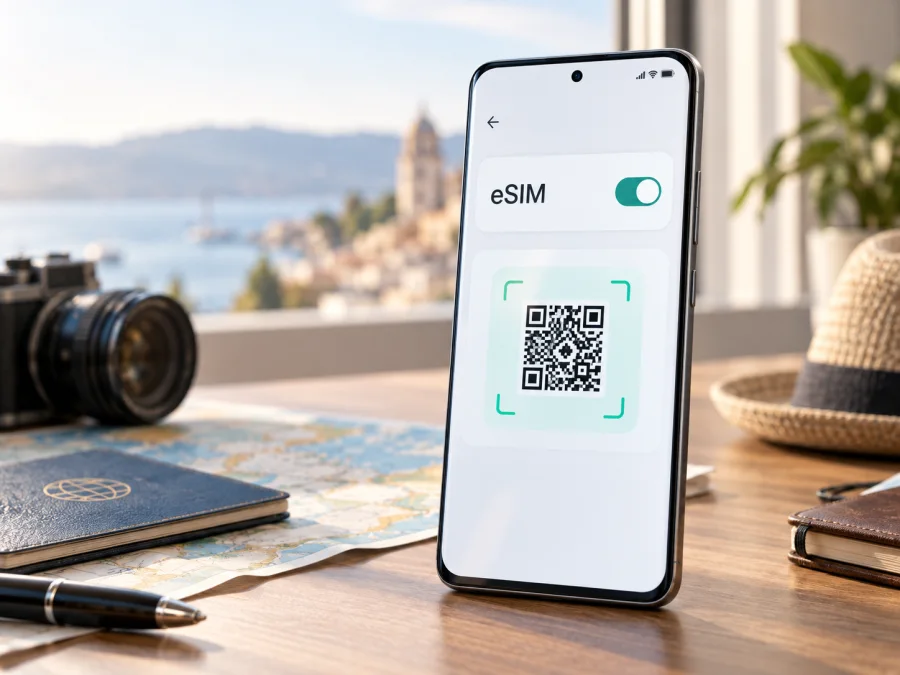
Oppo Reno 15 256GB eSIM: compatibility, setup and travel use
If you are checking whether Oppo Reno 15 256GB can use a travel eSIM, the short answer is: it depends on the market version. The storage name alone does not identify one universal configuration. OPPO's current regional specifications for the Reno15 5G family show both outcomes: some 256GB versions list eSIM as supported, while another regional specification lists it as unsupported. Treat the exact phone in your hands—not a shop title or a generic model name—as the final authority.
This guide explains how to check the version, find an EID or eSIM menu, install a data profile and use it on a trip. It keeps exact name Oppo Reno 15 256GB. If your phone does not expose an eSIM function, do not purchase a plan until the seller or OPPO support confirms that your regional model can add one.
Does Oppo Reno 15 256GB support eSIM?
There is no safe universal “yes” for every phone sold under this name. The official OPPO specifications identify the Reno15 5G hardware as CPH2825 in several markets, but the eSIM line is not consistent across those market pages. The India specification lists eSIM as unsupported. The Philippines and Egypt specifications list eSIM as supported for their 12GB + 256GB configurations. Other regional pages can list different memory combinations and network functions.
Direct compatibility answer
Oppo Reno 15 256GB may support eSIM, but only some regional and software versions are confirmed to do so. Check the physical device for an EID and for an option such as Add eSIM before buying a travel plan. If both checks are absent, assume that this specific phone cannot install an eSIM until OPPO or the seller confirms otherwise.
The word “5G” and the 256GB capacity do not prove eSIM support. Do not combine this page with a different Reno15, Reno15 F, Reno15 Pro or another storage variant.
What the exact variant tells you
The supplied device name contains the brand, family and storage capacity, but not RAM, country or model code. Use the table as a starting point, not as a substitute for the on-device check.
| Item | What to establish for Oppo Reno 15 256GB | Why it matters |
|---|---|---|
| Device name | Oppo Reno 15 256GB | This is the exact variant being checked here. |
| Official family name | Often shown as OPPO Reno15 5G | Regional product pages may add “5G” even when a retailer does not. |
| Storage | 256GB | Storage size does not determine eSIM support by itself. |
| RAM | Confirm whether the phone is 8GB or 12GB | Official market pages can offer different memory combinations. |
| Model code | Check About device, the box or the purchase record | A code is more useful than a shortened shop name. |
| eSIM status | Supported, unsupported, or not stated for your market | Only “supported” plus a visible device menu is a usable confirmation. |
| EID | Present in device information or shown by the IMEI screen | An EID is a strong sign that the phone has an eSIM identity. |
| Network lock | Confirm that the phone is not restricted to another operator | A capable phone can still reject a profile if it is locked. |
OPPO notes that live network functions depend on the carrier and related services, so supported eSIM hardware does not guarantee that every plan or destination will work in the same way.
How to check eSIM compatibility yourself
Perform this check while connected to Wi-Fi, before purchasing a plan. Menu wording can vary by ColorOS release and language.
Check the mobile-network menu
- Open Settings.
- Open Mobile network, SIM card & mobile data, or the similarly named cellular settings page.
- Look for eSIM, Add eSIM, Add mobile plan, Download a SIM, or an option to add a mobile plan by QR code.
- Open the option only far enough to confirm that the phone offers eSIM setup; you do not need to scan a code yet.
- If only physical Nano-SIM slots are listed and there is no eSIM or add-plan command, record that result as a warning.
An eSIM menu reflects the software on your exact device. If a supported phone lacks the option, check the model code, install official updates, restart it and ask OPPO or the seller before buying.
Check for the EID
An EID is the identifier used by an eSIM-capable device. Try Settings > About device > Status or SIM status and look for EID. On some Android builds, *#06# shows IMEI details and an EID, but the screen varies.
Record only that an EID is present; do not share the full number publicly. An EID plus an eSIM add option is a basic device-side pass, but the plan and network still need checking.
Check the system and lock status
Confirm the ColorOS version under About device and apply official updates. Ask the seller or original operator whether the device is unlocked. A network-specific setup screen or SIM restriction is a reason to stop and clarify the situation.
Compatibility checklist before you buy a plan
Use this checklist for Oppo Reno 15 256GB and for the exact eSIM plan you are considering:
- [ ] The phone’s model code and country of sale are known.
- [ ] RAM and storage match the listing; the device is not another Reno15 variant.
- [ ] An EID is visible, or the phone clearly offers Add eSIM.
- [ ] The mobile-network settings can add a profile by QR code or activation details.
- [ ] The device is not locked to an operator or restricted by an employer.
- [ ] The selected plan covers every country or region on the route.
- [ ] The plan is for mobile data and its traffic allowance suits the trip.
- [ ] The start condition, validity period, hotspot rules and refill conditions are understood.
- [ ] You have reliable Wi-Fi for installation and the QR code or activation details are available.
- [ ] Your regular SIM can remain available for calls or messages if you need it.
Check your device before you choose or pay for a travel eSIM. If the phone fails the EID or settings check, compatibility is unresolved; it is not a reason to try a profile and hope it installs. A failed installation may not be refundable under the terms of the selected plan.
How to install and activate an eSIM
Labels can move after a ColorOS update. Start only after confirming that the device can add an eSIM and that the plan is intended for your destination.
1. Prepare the phone and the plan
Connect Oppo Reno 15 256GB to stable Wi-Fi. Open the Kaspersky eSIM Store app or website, choose a destination and review the plan’s traffic, validity and activation conditions. The app and website help you select, arrange and activate an eSIM plan; they are not a mobile operator or network owner.
Keep the activation email, QR code or in-app profile available. If the QR code is on the same phone, use another screen or manual details.
2. Open the eSIM setup screen
Go to Settings > Mobile network or Settings > SIM card & mobile data, then choose Add eSIM or the closest equivalent. Select the option to add a plan by QR code. If this command is not present, stop and return to the compatibility check; do not treat a physical SIM menu as an eSIM menu.
For device-specific guidance, use the Android installation instructions at Kaspersky eSIM Store Android instructions. The page can reflect current Android wording more accurately than a fixed article because menus vary by manufacturer and software version.
3. Scan or enter the activation details
Scan the QR code from the order screen or email. Keep the code fully visible and avoid glare. If scanning is not offered or does not work, choose manual entry and enter the activation address and confirmation code exactly as supplied. Do not edit punctuation or replace a zero with the letter O.
Wait while the phone downloads the profile. Installation does not necessarily make it the data line, so continue with the next steps.
4. Name the profile and choose its role
Give the line a clear label such as Travel data. Keep the physical SIM separate. When Android asks for the mobile-data line, select the eSIM only when ready; keep calls and SMS on the primary line if needed.
5. Configure mobile data for the trip
Open the mobile-network settings and confirm that the travel eSIM is enabled. Set it as the mobile-data line. Some travel profiles require Data roaming to be enabled for that eSIM; follow the plan’s instructions and remember that this switch should be applied to the intended travel line, not accidentally to your primary SIM. If the plan uses a custom APN, enter only the values supplied in the activation instructions.
6. Activate at the right time
Installation, activation and the start of validity are not necessarily the same event. Check the order details before installing early; if allowed, install at home and leave the travel line off until the intended moment.
The reference is Kaspersky eSIM Store iOS instructions for a second iOS device.
Using the eSIM for mobile internet while travelling
Before departure, save essential information offline and install over dependable Wi-Fi if the plan permits it. Keep the activation email accessible.
After landing, confirm that the travel eSIM is enabled, selected for mobile data, and set to use data roaming if required. Turn off automatic data switching to prevent the primary line taking over.
A travel eSIM is normally for data. It does not automatically give you a conventional number, voice calls or SMS. Use maps, translation, email, ride-hailing, banking applications and messengers over data, while your existing number remains with your regular operator. Check roaming charges before leaving the primary line active.
Practical travel scenarios
Short city break. Install on Wi-Fi, select the travel line after landing, and use it for maps, tickets and messages. The phone’s 256GB memory does not increase the plan allowance.
Multi-country route. Confirm coverage for every country, not just the first airport. A country-only plan may stop at a border even though the eSIM remains installed.
Work trip. Estimate video calls, cloud files and hotspot use separately. Tethering can consume traffic quickly or be restricted.
Longer stay. Track balance and expiry in the app or website. Do not delete the profile while troubleshooting; some cannot be transferred or downloaded again.
Troubleshooting eSIM problems
The phone cannot find an eSIM option
Return to About device and record the model code, RAM, storage and ColorOS version. Search for Add eSIM, Add mobile plan and Download a SIM. If there is still no EID or add-plan option, contact OPPO or the seller before purchase.
The QR code will not scan
Increase the QR screen brightness and scan in the eSIM setup screen, not the ordinary camera. Check the code belongs to the order and reconnect to Wi-Fi.
The profile downloads but there is no service
Confirm that the eSIM is enabled and selected for data. Check destination, signal, roaming and APN instructions. Toggle airplane mode once, restart if needed, and return network selection to automatic unless the plan says otherwise.
Data is going through the wrong SIM
Open the SIM manager, set the travel eSIM as the data line and disable automatic data switching. Check the primary SIM’s roaming setting separately; turn its mobile data off if it takes over.
The connection is slow or stops
Check remaining traffic, validity and destination coverage. Try a stronger-signal location and a simple webpage. If the phone sees the network but data fails, save screenshots and contact support.
The eSIM was deleted or the phone was reset
Do not assume the QR code can be reused. Some profiles are single-use or non-transferable. Check the plan conditions and contact Kaspersky eSIM Store support with the order details. Do not share the EID, QR code or activation code publicly.
FAQ
Is Oppo Reno 15 256GB definitely eSIM-compatible?
No. OPPO regional specifications show both support and no support for 256GB configurations. Confirm the EID, eSIM option and model code before buying.
Does 256GB mean that the phone has eSIM?
No. Storage and eSIM capability are separate. A 256GB listing can omit RAM, region and carrier information, so check the phone itself.
Will a travel eSIM give me a phone number?
Usually not. Travel plans are commonly for mobile data; voice calls and SMS require explicit plan support. Otherwise use messaging apps over data.
Do I need data roaming enabled?
Possibly. Some travel profiles need data roaming on the eSIM. Follow the plan instructions and avoid enabling it on the primary line by mistake.
What if the phone says eSIM is unsupported?
Stop before purchase or installation. Verify the model code and ask OPPO, the seller or support to confirm the regional version; a generic compatibility claim is not enough.
Does the Kaspersky eSIM Store act as a mobile operator?
No. It is an app and website that helps you choose, arrange and activate an eSIM with a suitable mobile-data plan for a foreign trip. It does not own a network or replace the local network.
Final device check before your trip
For Oppo Reno 15 256GB, confirm the model code, RAM, country of sale and ColorOS version. Verify that an EID and Add eSIM option are present. If either is missing, ask for confirmation before paying.
Once confirmed, use the Kaspersky eSIM Store app or website to select a data plan for your route and expected use. Review traffic, validity, activation timing, roaming and hotspot rules. Install over Wi-Fi, assign the travel line to data and keep the primary SIM under control. This prepares mobile internet without assuming every Oppo Reno 15 256GB version has the same eSIM capability.


