Travel connectivity guide
Oppo Reno 15 5G eSIM Compatibility and Setup
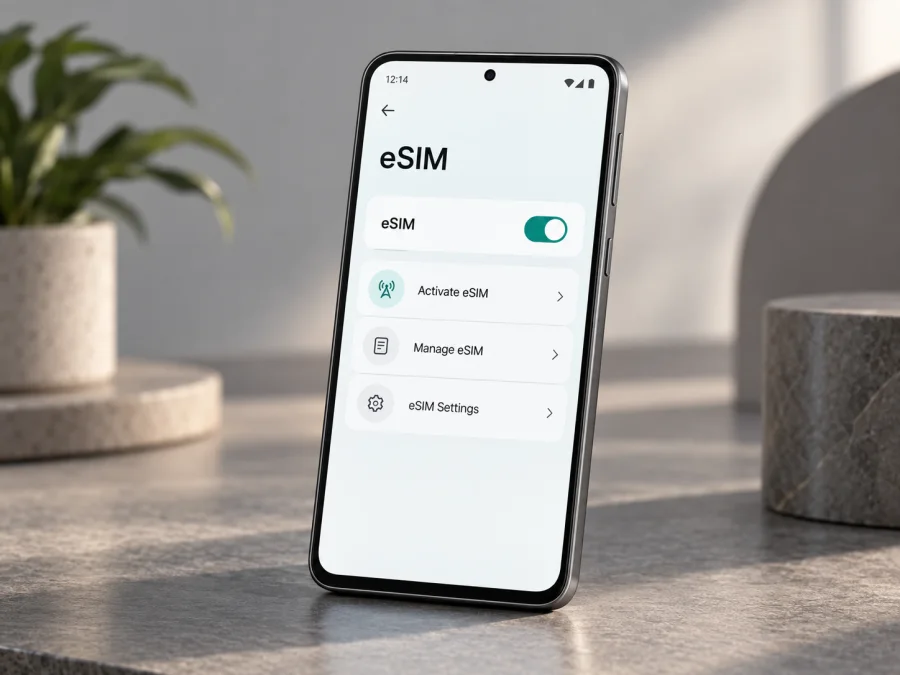
Does Oppo Reno 15 5G support eSIM?
The short answer is: some regional versions of Oppo Reno 15 5G support eSIM, while others do not. OPPO’s official India specification page lists eSIM as unsupported. OPPO’s Kazakhstan and Austria specifications list it as supported. That means the model name by itself is not enough to confirm compatibility. Check the exact handset sold in your market, its model code, and the eSIM controls in its settings before choosing a travel plan.
This distinction matters even when two phones share the Oppo Reno 15 5G name and look alike. Regional hardware, firmware, and carrier configuration can differ. A phone imported from another market may also have different bands, software, warranty terms, or restrictions. Treat the manufacturer’s specification for your sales region and the phone’s own EID/eSIM menu as the decisive checks.
Compatibility at a glance
| Check | What to know about Oppo Reno 15 5G |
|---|---|
| Device in this guide | Oppo Reno 15 5G, with the model name written exactly as supplied |
| eSIM status | Region-dependent: supported on OPPO Kazakhstan and Austria specifications; unsupported on OPPO India specification |
| Physical SIM | OPPO lists nano-SIM support; the exact SIM configuration can vary by market |
| 5G | 5G capability does not itself confirm eSIM capability |
| Before purchase | Match the device’s model code and region, confirm an EID or add-eSIM control, and check that it is not carrier-locked |
| Travel data | A compatible, unlocked version can use a travel eSIM when the plan and local network support it |
The table reflects regional product pages; it does not promise that every handset with this family name has eSIM. Memory configurations do not establish support. Match the seller’s description to the model code in Settings or on the box.
What OPPO’s regional specifications say
OPPO’s official specifications currently make the variation explicit. The India page for Oppo Reno 15 5G identifies model CPH2825 and says eSIM is unsupported. OPPO’s Kazakhstan page for the Reno15 5G lists eSIM as supported. OPPO’s Austria page also lists eSIM as supported. Because official pages differ, neither a blanket “yes” nor a blanket “no” is safe for every regional unit.
Use the official entry for the phone’s sales region and full model code, especially for an import. Do not infer support from Oppo Reno 15 Pro, Reno 15 F, or another similarly named device. A carrier may still restrict eSIM provisioning or require its own activation process.
The most useful on-device indicators are an EID (Embedded Identity Document) and an option such as Add eSIM, Add mobile plan, or Download a SIM. Menu names differ with ColorOS version, language, carrier setup, and software updates. An EID indicates eSIM capability, but a carrier may still impose a lock or service limitation. If neither an EID nor an eSIM option appears, a QR code cannot add missing support; confirm the SKU with OPPO or the seller.
Check your own phone before you buy
Use the handset you will travel with; a product photo or marketplace title is not enough.
- Find the model code and sales region. Open Settings → About device and note the model number and software version. Compare the code with the official OPPO page for the market where the phone was sold. If the handset is second-hand or imported, ask the seller which regional version it is and compare the code on the box with the phone.
- Look for an EID. In Settings, search for “EID” or open About device → Status (the exact path can vary). Some ColorOS versions place device identifiers under Settings → About device → Status information. If available, the EID is a long identifier for the phone’s embedded SIM component. Do not post it publicly; provide it only to a carrier or support channel that needs it.
- Look in SIM settings. Open Settings → Mobile network or SIM card & mobile data and look for Add eSIM, Add mobile plan, or a similar control. A button that opens an eSIM setup screen is useful evidence. A menu item for adding an ordinary physical SIM is not the same thing.
- Check the carrier lock. Confirm that the phone can accept a plan from another provider. If it was purchased through a carrier, ask that carrier whether the handset is unlocked and can install a travel eSIM. A compatible eSIM component does not bypass a network lock.
- Check the plan’s country and network terms. Confirm destination coverage, validity period, data allowance, activation timing, and supported network partners. Confirm whether the eSIM is data-only and whether hotspot use is permitted.
Compatibility checklist
- [ ] The phone is Oppo Reno 15 5G, and I have recorded its full model code.
- [ ] I checked the OPPO specification for the region where this handset was sold.
- [ ] I can see an EID or an eSIM/mobile-plan installation option in Settings.
- [ ] The phone is unlocked for use with another provider.
- [ ] The eSIM plan covers my destination and the way I intend to use mobile data.
- [ ] I have a reliable internet connection available for installation.
For a quick reminder, check whether your device is compatible. If you cannot find the EID or the add-eSIM control, verify the precise model code with OPPO support before purchasing a plan. This extra check can prevent arriving at the airport with a QR code that the handset cannot install.
Each check matters: an eSIM menu does not confirm destination coverage, and a suitable plan does not unlock a restricted phone.
Choose and prepare a travel eSIM
A travel eSIM is a digital profile for mobile data that can work alongside your home SIM. Before choosing one, list the countries and dates on your route and estimate your data use. Maps and messaging use less data than frequent video, large uploads, or hotspot sharing.
Check the plan’s destination coverage, data amount, validity, network access, and activation rules. Some plans start when installed; others start when they first connect to a supported network. Keep the QR code or manual installation details accessible, and install over reliable Wi-Fi. Do not delete an installed profile while troubleshooting unless the provider confirms that it can be reinstalled.
Kaspersky eSIM Store is an app and website where you can choose, arrange, and activate an eSIM with a mobile data plan for an international trip. After confirming your Oppo Reno 15 5G version supports eSIM and is unlocked, compare a plan for your destination and review its terms. The app and website help you prepare a travel eSIM; coverage and connection quality depend on the plan and available local network.
If a plan activates on arrival, follow its specific instructions about when to enable the line or data roaming. If you travel across several countries, check that all stops are included. Remember that many travel plans are data-only and do not include a regular phone number, voice calls, or SMS unless their terms say otherwise.
Install and activate eSIM on Oppo Reno 15 5G
ColorOS menu names can vary. Charge the phone, connect to Wi-Fi, and have the QR code or manual activation details ready. If the code is displayed on the Oppo Reno 15 5G screen, show it on another device or use manual entry if available.
- Confirm support. Check for an EID and an eSIM option under Settings → Mobile network. If neither appears, verify the model code and regional version before proceeding.
- Open eSIM setup. Tap Add eSIM, Add mobile plan, or the equivalent control in Mobile network settings.
- Install the profile. Scan the provider’s QR code or enter the supplied details manually. Follow the prompts and wait for the download to complete without interrupting the connection.
- Name the line. Use a clear label such as “Travel data.” Choose which line handles calls and messages as needed, and select the travel eSIM for mobile data when you want to use the plan.
- Set activation options. Enable the eSIM line at the time directed by the plan. Turn on data roaming for that eSIM only if its instructions require it; check that your home SIM is not selected for data.
- Test the service. At the destination, allow the line to connect to a supported network, turn Wi-Fi off briefly, and open a webpage. Confirm that the travel eSIM is the data line.
See the Android eSIM installation instructions for Android steps. The iOS eSIM installation instructions apply to iPhone and are included for people who manage both platforms; use the Android instructions for this Oppo phone.
What to keep on your home SIM
If your phone and carrier allow it, you can keep a home SIM enabled for calls or verification messages while assigning mobile data to the travel eSIM. Check roaming charges with your home carrier and verify the data-line selection after changing SIM settings. A travel plan may be data-only; internet messaging and calling apps can use its data, subject to the app and local network.
What to keep on your home SIM
You may leave a physical home SIM installed for calls or messages while using the travel eSIM for data, if the phone and your carrier allow dual-SIM operation. Set the preferred data line deliberately: otherwise the phone may use the home SIM for mobile data and incur roaming charges. Some services that verify accounts by SMS may still depend on the home line. The travel plan may be data-only and may not include a phone number, standard voice calls, or SMS. Internet calling and messaging apps can work over data, subject to the app, destination network, and plan.
Use it during different trips
Short city break: use mobile data for maps, transit, reservations, and messages. Download offline maps as a backup and monitor the plan’s allowance.
Multi-country route: confirm every country is covered. At a border, allow the phone to register on an included network; if needed, follow the plan’s network-selection instructions.
Keep a home number available: leave the home SIM on only if you need its calls or messages, but set the travel eSIM as the data line. Check home-carrier roaming costs in advance.
Hotspot use: share data only if the plan permits tethering. Laptops and other devices can use data quickly, so disconnect them when finished.
Troubleshooting: what to check first
There is no eSIM option. Search Settings for “eSIM,” restart the phone, and check for official ColorOS updates. Confirm the model code against the regional OPPO specification. An update cannot be assumed to add support to a version OPPO lists as unsupported; ask OPPO or the seller if the region is unclear.
The QR code fails. Use a stable internet connection, make the full code visible, and confirm it has not expired or already been used. Try manual entry only if the provider offers it. Contact the provider before deleting another profile or requesting a replacement.
The profile installed but data does not work. Confirm the eSIM line is enabled and selected for data, the plan has started, and you are in a covered location. Enable data roaming for the travel line if the instructions require it. Briefly toggle airplane mode, then restart if needed.
Signal appears but apps are offline. Turn Wi-Fi off to test mobile data, check any provider-supplied APN instructions, and ensure Data Saver is not blocking the app. Try automatic network selection, then the provider’s recommended network if needed.
The wrong SIM uses data or the connection is slow. Recheck the selected data line and home-SIM roaming settings. Move to an area with stronger reception and check whether the plan and local network support 5G; a 5G-capable phone does not guarantee 5G access everywhere. Congestion and coverage affect speed.
You need to move or reinstall the eSIM. Do not delete a working profile to test transfer. Some profiles are tied to one device or limited in the number of installs. Ask the provider about a reinstallation or replacement before changing phones.
If a problem remains, note the model code, ColorOS version, destination, selected data line, and exact error. Contact the plan provider for activation questions, or OPPO/the carrier for handset support and carrier-lock issues. Do not post your full EID publicly.
FAQ
Is Oppo Reno 15 5G eSIM compatible?
It depends on the regional version. OPPO lists eSIM as unsupported in India and supported in Kazakhstan and Austria. Check the official specification for the sales region and look for an EID or eSIM setup control on your own handset.
When should I install it, and should I delete it if it fails?
Install over reliable Wi-Fi when convenient, but follow the plan’s activation timing. Do not delete the profile as a first troubleshooting step; some plans cannot be reinstalled without provider help.
Final device check and trip eSIM
Before choosing a travel plan, verify the exact Oppo Reno 15 5G model code and sales region, confirm an EID or eSIM installation control, and make sure the phone is unlocked. OPPO’s specifications differ by market. Choose a plan whose destination, validity, data allowance, network access, and activation conditions fit your itinerary.
Kaspersky eSIM Store is an app and website that helps you choose, arrange, and activate an eSIM plan for mobile data on an international trip. Check the device first, review the plan details, install the profile over a stable connection, and activate it according to its instructions. Once abroad, select the travel eSIM for mobile data and confirm that the phone has registered on a supported local network.


