Travel connectivity guide
Oppo Reno 15 Pro 128GB 5G eSIM Guide
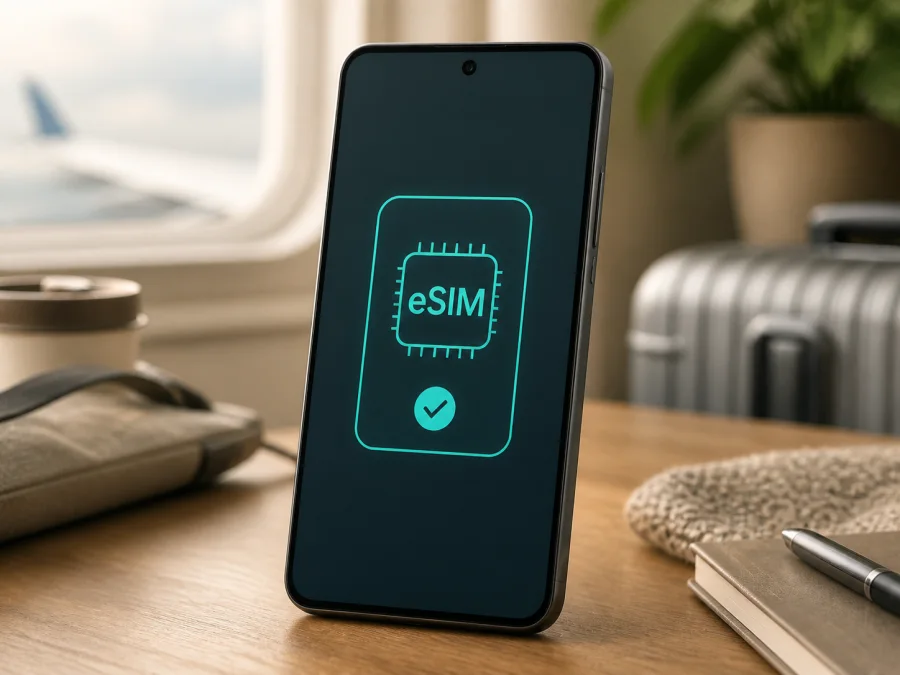
Oppo Reno 15 Pro 128GB 5G eSIM: compatibility, setup and travel use
If you are checking whether the Oppo Reno 15 Pro 128GB 5G can use an eSIM for mobile data abroad, the short answer is: Reno15 Pro 5G versions listed on current official OPPO regional specification pages support eSIM, but the exact 128GB retail unit still needs to be checked before you buy a plan. Storage capacity and the 5G label do not identify the market version on their own. eSIM availability can depend on the model code, country of sale, carrier configuration and installed software.
That matters for a phone bought through an importer, marketplace or a different regional shop. A phone can have the same name while offering different SIM combinations. Use the official specification as confirmation, then check the phone itself for an EID and an option to add a mobile plan or eSIM.
Quick answer for this exact configuration
The official OPPO pages reviewed for several European, Asian and other markets show eSIM: supported for Reno15 Pro 5G. They also list nano-SIM support and 5G network bands. This is strong evidence that compatible regional versions exist. It does not prove that every device sold as Oppo Reno 15 Pro 128GB 5G has the same capability. The 128GB description may be a seller’s configuration label, and the name alone does not reveal the device’s model code or firmware region.
Use this rule:
- If Settings shows an EID and an option such as “Add eSIM”, “Add mobile plan” or “Download a SIM”, the phone has the eSIM path needed for installation.
- If there is no EID and no eSIM option, do not purchase a travel eSIM yet. Ask the seller or OPPO support for confirmation for the exact model code and market.
- If the menu exists but activation fails, check carrier restrictions, software updates, network access and the plan’s conditions before assuming the phone is incompatible.
An eSIM from Kaspersky eSIM Store is intended for mobile internet on a compatible phone during a foreign trip. It is not automatically a replacement for the phone’s primary number. Unless a selected plan says otherwise, it does not include a regular phone number, standard calls or SMS.
Specifications that matter for eSIM use
| Item | What it means for the Oppo Reno 15 Pro 128GB 5G |
|---|---|
| Device name | Oppo Reno 15 Pro 128GB 5G; this guide does not merge it with another storage or regional version. |
| Network generation | 5G is included in the supplied name, but 5G capability does not by itself confirm eSIM support. |
| Storage label | 128GB describes storage; it is not an eSIM identifier and is not the only compatibility test. |
| eSIM status | Supported on the Reno15 Pro 5G versions shown in current official OPPO regional specifications. |
| Physical SIM | Official regional pages list nano-SIM or nano-USIM; the available combination with eSIM may vary. |
| Final verification | Check for an EID and an eSIM/add-plan control in the device settings. |
Regional and operator differences
Reno15 Pro 5G is sold in more than one market. Official regional pages can differ in memory combinations, network bands, SIM wording and available features. Keep the exact “128GB” text when comparing a listing, but do not treat it as proof of a particular eSIM implementation.
Before purchase, collect the model code, country or region of sale and unlocked status. The code is usually in Settings > About device, on the box or in purchase documentation. A listing that says only “global”, “international” or “5G” leaves details unresolved, so ask the seller to confirm eSIM for that exact code.
Carrier customisation can create another limitation. A carrier may restrict activation or require an unlocked device. An eSIM menu can also be hidden by software supplied for a particular market. Do not use unofficial region changes or firmware modifications just to expose a menu.
Current official OPPO regional specifications list eSIM support for Reno15 Pro 5G in multiple markets. For Oppo Reno 15 Pro 128GB 5G, the safe conclusion is conditional: eSIM can be supported, but verify the exact 128GB phone in Settings before buying a plan.
<a id="kesim-device-compatibility"></a>Compatibility check before purchase
Complete this check while you still have time to change the phone or plan. Check your device compatibility before placing the order.
Device checklist
- [ ] The model name and model code match the phone or seller documentation.
- [ ] The phone is an Oppo Reno 15 Pro 128GB 5G, not another Reno storage or generation variant.
- [ ] Settings contains an EID, usually under About device, SIM status or status information.
- [ ] Settings contains “Add eSIM”, “Add mobile plan”, “Download a SIM” or an equivalent control.
- [ ] The phone is not locked to an operator or restricted to carrier activation.
- [ ] The operating system and carrier configuration are up to date.
- [ ] Wi‑Fi or another working internet connection is available for installation.
- [ ] The selected plan covers every country or region on your itinerary.
- [ ] You understand traffic, validity, activation and refund conditions.
How to find an EID
Open Settings and search for EID. On many Android builds, it is under About device, Status or SIM status. Labels can change with ColorOS and region. You may see EID 1 or EID 2, or a single EID even when only one profile can be active. Do not share the full number publicly.
How to find the add-eSIM control
Open Settings and look for Mobile network, SIM card and mobile data, SIM manager or a comparable menu. Search for “eSIM”, “SIM”, “mobile plan” or “download SIM”. Choose the add option only when you are ready to install. Some phones allow several profiles but only one or a limited combination to connect at a time. If the phone asks whether the new profile is for data, calls or messages, select deliberately rather than changing the primary line by accident.
Choosing a travel eSIM
Once the EID and add-eSIM menu are confirmed, choose a plan for the journey. In Kaspersky eSIM Store, the app and site help you select a destination, review a suitable eSIM tariff for mobile internet abroad, complete the order and activate the profile. Read the current conditions before payment.
Start with the route. A country plan may suit a single-country stay; a regional option may fit several countries if it explicitly covers every stop. Before payment, confirm destination, traffic, validity and when validity starts. Keep purchase details and the QR code safe.
The first natural action is worth taking only after compatibility is clear: choose an eSIM plan for your trip. Kaspersky eSIM Store helps you choose, arrange and activate an eSIM with a travel data tariff; it is not a mobile operator, network owner or provider of the underlying mobile internet. The eSIM uses the networks and conditions associated with the selected plan. It is intended for mobile internet, so do not expect a separate ordinary phone number unless the plan explicitly says so.
Do not install a profile repeatedly because the first connection takes a few minutes. An eSIM may be limited to one installation or become unavailable after removal, depending on the plan.
How to install and activate the eSIM
Install over stable internet, preferably before leaving. Keep the physical SIM active if you need your usual number, but decide which line provides mobile data. See the Android eSIM installation instructions and iOS eSIM installation instructions.
1. Confirm the prerequisites
Check EID, the add-eSIM menu, unlocked status, battery and Wi‑Fi. Have the QR code ready. Do not delete an existing plan unless instructed.
2. Open mobile-network settings
Go to Settings and open Mobile network, SIM card and mobile data, SIM manager or the closest equivalent. Select the control for adding an eSIM or downloading a mobile plan. Use Settings search if the label is different.
3. Scan the QR code or enter details
Scan the code on another screen, or use manual details when supplied. Never publish the QR code because it can represent the profile itself.
4. Download the profile
Keep the phone on Wi‑Fi while it downloads. If the code was already used, stop retrying and contact support.
5. Name the line
Use a clear name such as “Travel data” or the destination. Keep the home SIM labelled separately.
6. Select mobile data
When Android asks which SIM should use mobile data, select the travel profile. Leave the home SIM as the preferred calls or messages line only when that matches your roaming preferences. Review any dual-SIM warning.
7. Enable roaming for the travel eSIM if required
Many travel plans require Data roaming because the profile connects through a partner network. Enable it for the travel eSIM, not automatically for the home SIM.
8. Test at the right time
Install before departure and leave the profile off until needed if the plan allows. After arrival, turn it on, select it for data and open a simple webpage. Validity start depends on the plan.
Using eSIM on a trip
A short city break
Install at home over Wi‑Fi and keep the home SIM for calls if needed. At the destination, switch data to Travel data and enable roaming for that profile. Check the data counter and avoid activating early unless the plan allows it.
A multi-country itinerary
Check coverage for every country, including transit stops. When crossing a border, keep the same eSIM selected and allow time for registration. If it does not connect, toggle airplane mode once, then check coverage and network selection instead of deleting the profile.
Work travel with a primary number
Keep the physical SIM for important messages only if its roaming terms are acceptable. Select the travel eSIM for data and turn off automatic switching if available. Meetings use the selected data line; the travel eSIM itself does not supply a conventional number unless stated. After the trip, return data to the home SIM.
Troubleshooting common problems
The QR code will not scan
Increase brightness, clean the camera lens and show the complete code on a second screen. Check internet access and compare manual activation characters. A code already used needs support rather than repeated scans.
There is no Add eSIM option
Search Settings for EID and eSIM, install pending updates, restart and check the model code. If both remain absent, the unit may be a regional or carrier version without eSIM enabled. Do not buy a plan until OPPO or the seller confirms the exact unit. This is especially important for a 128GB listing whose market is not shown.
The profile downloads but there is no signal
Confirm the travel profile is on and selected for data. Check destination, data roaming, network mode and operator selection. Move to a place with better reception and allow several minutes.
Mobile data uses the wrong SIM
Open the SIM manager and set the travel eSIM as the data SIM. Turn off automatic switching and check the line shown in the status bar. If the home SIM takes over, disable its mobile data temporarily while leaving it available for calls, subject to roaming charges.
The internet is slow or stops
Check remaining traffic and validity first. Then toggle airplane mode once and restart. Signal bars do not show whether traffic remains; congestion, local coverage and the plan can affect performance.
The phone is locked
An operator-locked phone may reject a travel profile even when the hardware supports eSIM. Ask the original operator about unlocking. Do not confuse a SIM PIN with an operator lock or rely on unofficial unlocking tools.
FAQ
Does the Oppo Reno 15 Pro 128GB 5G support eSIM?
It can. Current official OPPO regional specifications for Reno15 Pro 5G list eSIM as supported, but the exact 128GB unit may have a different market or carrier configuration. Confirm EID and Add eSIM before purchase.
Does 5G prove that eSIM will work?
No. 5G describes cellular network technology; it does not identify the embedded SIM hardware or regional software. Use the EID and settings check.
Can I keep the physical SIM and use the travel eSIM?
Often, yes, but the active combination depends on region, firmware and carrier. Select the travel eSIM for data and review the phone’s dual-SIM warning.
Will the travel eSIM give me a phone number?
Not normally in this use case. Kaspersky eSIM Store helps choose and activate eSIM tariffs for mobile internet during a foreign trip. Calls, SMS and a separate number are not included unless the selected plan says so; messaging apps can use the data connection.
What if activation still fails?
Verify EID, unlocked status, Wi‑Fi, the correct profile, destination coverage, data selection and roaming. If these pass, contact support with order information and the exact error. Do not publish the QR code or full EID.
Final check before your trip
Before choosing an eSIM, confirm the exact Oppo Reno 15 Pro 128GB 5G model code, find the EID, open Add eSIM and check that the phone is unlocked. Then review destination, traffic, validity, activation rule and data-roaming requirements. Installing a profile is only one part of the process: selecting it for data and testing the connection matter too.
If the phone passes those checks, Kaspersky eSIM Store can help you choose, arrange and activate an eSIM tariff for mobile internet in your foreign trip through its app or website. If the EID or add-eSIM menu is missing, pause before payment and verify the regional version with the seller or OPPO. That final device check is the safest way to avoid buying a plan that the particular Oppo Reno 15 Pro 128GB 5G cannot use.


