Travel connectivity guide
Oppo Reno 15 Pro 128GB eSIM Compatibility
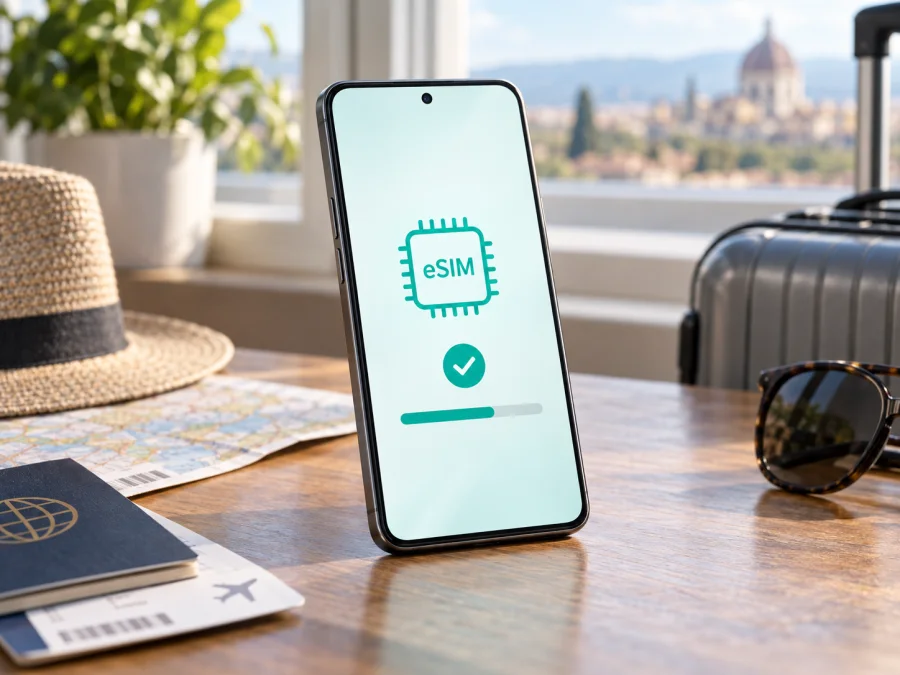
Oppo Reno 15 Pro 128GB eSIM compatibility and setup guide
The Oppo Reno 15 Pro 128GB needs a little more checking than a simple yes or no. OPPO’s current regional specifications list eSIM support for some Reno15 Pro versions, but the official configurations shown on those pages start at 256GB. The 128GB name by itself does not identify the phone’s market or model code, so it is not enough to confirm that a particular handset can install an eSIM.
In practical terms: if your phone is an international Reno15 Pro variant whose model code and settings show eSIM capability, you can use a compatible travel data plan. If it is a China-market version, a carrier-customized unit, or a listing whose exact model code is unknown, verify it directly before buying a plan. Storage size does not create eSIM support; the hardware, regional configuration, software and carrier restrictions matter.
Quick answer
| Check | What to know about Oppo Reno 15 Pro 128GB |
|---|---|
| eSIM status | Regional Reno15 Pro versions are listed as eSIM-capable by OPPO; a 128GB configuration is not shown in the official specs reviewed. Confirm the model code on the handset itself. |
| What decides compatibility | The phone’s exact regional model, eSIM hardware and software, current firmware, carrier lock status, and the destination plan’s supported network. |
| Best confirmation | Find an EID and an Add eSIM option in Settings, then compare the model code with the official OPPO specifications for the phone’s market. |
| Travel use | An eSIM data plan can provide mobile data abroad while a physical SIM remains available for calls or messages, depending on the device’s dual-SIM settings. |
| Before purchase | Confirm device compatibility, destination coverage, data allowance, validity, activation rules and whether data roaming must be enabled. |
OPPO’s India specification page identifies model CPH2811 and explicitly marks eSIM as supported. OPPO’s Netherlands page identifies CPH2813 and also lists eSIM support. Those official pages are useful evidence for those named variants, not a guarantee for every phone marketed with a similar Reno15 Pro name. The China-market OPPO page identifies model PLV110 and lists physical nano-SIM cards; it does not list eSIM. The official regional pages reviewed show 256GB or larger storage configurations, not a 128GB one. As a result, treat “Oppo Reno 15 Pro 128GB” as an unverified retail description until the model code is checked.
Why region and model code matter
A product family name can cover devices built for different markets. Regulations, mobile networks, component choices, firmware and carrier arrangements can vary. A model may look identical to another version and share its processor, cameras or 5G label, while having a different SIM tray or eSIM configuration. A seller may also describe storage informally, bundle a refurbished device, or omit a regional suffix. None of those clues alone proves eSIM support.
The 128GB figure is especially important here because it does not appear among the official Reno15 Pro configurations found in the regional specification pages reviewed. That does not prove that no retailer or market ever offers such a configuration. It does mean the storage label cannot be used to map the handset confidently to CPH2811, CPH2813, PLV110 or another model. Ask the seller for the full model number and sales region, and confirm them on the phone before you depend on the feature for a trip.
Do not infer eSIM from 5G, dual-SIM support, a physical SIM tray with two slots, or a claim that the phone is “global.” These describe different capabilities. A phone can support 5G without eSIM; physical dual-SIM operation does not guarantee a digital SIM; and “unlocked” only addresses whether a carrier restriction may apply. A carrier can also restrict eSIM provisioning even when the hardware supports it.
Compatibility checks before choosing a plan
Use these checks in order. They take only a few minutes and help avoid buying a plan that the handset cannot install.
- Read the model number on the phone. Open Settings → About device (the exact wording can differ in ColorOS) and record the model number, not just the displayed device name. You may also find it on the original box or purchase invoice. Prefer the value shown in Settings if the box and handset differ.
- Look for an EID. In Settings, open About device, Status, or a SIM information page and look for EID. On Android, you can also try dialing
*#06#; on supported devices the identity screen may show an EID alongside the IMEI. Do not share the EID publicly. Its presence is a strong sign that an eSIM component is available, but continue to confirm the phone is unlocked and that your plan is supported. - Find the eSIM control. Go to Settings → Mobile network or SIM card & mobile data and look for Add eSIM, Download a SIM, Add mobile plan, or a similarly named option. Menu labels vary by software version and region. A missing option may mean the variant does not support eSIM, the feature is disabled by firmware, or the carrier software hides it; ask OPPO support using the full model code if the result is unclear.
- Check carrier lock status. If the phone came from a mobile operator or was bought on a payment plan, confirm that it is unlocked and allowed to add another provider’s profile. The presence of an EID alone does not remove a carrier lock.
- Check the destination and plan requirements. Confirm the intended country or region is covered, that the plan supports the handset’s network bands and that its terms match your trip. eSIM capability does not guarantee reception on every local network.
- Keep the software current. Install available ColorOS and carrier settings updates over Wi-Fi, then restart and recheck the menu. Firmware changes can add, move or hide settings, so use the current handset rather than relying only on screenshots from another Reno15 Pro.
Compatibility checklist
- [ ] I recorded the full model code from Settings.
- [ ] The official specification for that exact regional version lists eSIM, or OPPO support has confirmed it.
- [ ] An EID appears and an Add eSIM or equivalent control is available.
- [ ] The phone is not carrier-locked or otherwise barred from adding another profile.
- [ ] The plan is intended for my destination and supports the phone’s available networks.
- [ ] I know whether installation needs Wi-Fi, a QR code, an app, or manual activation details.
If any point is uncertain, resolve it before paying. Check your device against the model code and settings, rather than relying on the general product-family name.
Install and activate an eSIM
The precise screens depend on ColorOS version and on the eSIM provider. Keep a reliable Wi-Fi connection available during setup. Many eSIM profiles need internet access to download, and a QR code is usually intended for one installation only. Do not scan it until you are ready to add the profile to this phone.
- Prepare the phone. Update the system if practical, connect to Wi-Fi, and make sure the phone is unlocked. Keep the printed or second-screen QR code accessible. If the code is displayed on this same phone, you may need the provider’s manual activation details or a second device to display it.
- Obtain the plan details. Follow the provider’s instructions and check the destination, data allowance, validity period and activation conditions. Some plans start their validity when installed; others start when they first connect to a supported network. Read the terms before proceeding.
- Open the eSIM setup screen. From Settings, open Mobile network or SIM card & mobile data, choose Add eSIM or Add mobile plan, and follow the on-screen steps. If prompted, scan the provider’s QR code. Some providers instead require an activation code or a guided in-app install.
- Wait for the profile to download. Keep Wi-Fi connected and do not close the setup screen while the phone downloads and registers the profile. When asked to label it, use a clear name such as “Travel” so it is easy to distinguish from your main line.
- Choose how the SIMs will be used. If you keep a physical SIM in the device, select which line handles mobile data, calls and messages. For a data-only travel plan, set the travel eSIM as the mobile-data line when you are ready to use it. The menu may offer a separate switch for each SIM.
- Set data roaming only as instructed. Some travel eSIMs require data roaming to be enabled on that eSIM to connect outside its home network. Enable it for the travel profile only when the plan instructions say to do so. If you want to avoid unexpected charges, leave roaming disabled on your home SIM and verify the selected data line.
- Activate at the right time. Installation and activation are not always the same event. You can often install before departure and leave the line off until arrival, but follow the plan’s own start and expiry rules. At the destination, turn on the travel line, select it for data and allow it to register on a supported network.
- Test the connection. Turn Wi-Fi off briefly, open a webpage or map, and verify the mobile-data indicator. If it does not connect, check the plan’s APN guidance, network selection and roaming setting before deleting the profile.
For platform-level walkthroughs, see the Android eSIM installation instructions and the iOS eSIM installation instructions. The iOS guide is not the setup path for the Oppo; it is included for readers comparing devices or helping a companion with an iPhone. Always follow the exact prompts shown on your own ColorOS version and the plan provider’s activation steps.
Using the Oppo Reno 15 Pro 128GB while travelling
A travel eSIM is useful when you want mobile data for maps, messaging, ride bookings, translation, boarding passes and other online tasks after arriving. If the handset passes the checks above, you can install a compatible profile before departure, then turn on its line when you reach the destination. This can reduce the need to find a local SIM counter immediately, although actual service depends on the plan, partner network, local coverage and device bands.
A common arrangement is to leave your usual physical SIM enabled for incoming calls or texts and assign mobile data to the travel eSIM. This depends on your carrier’s roaming terms and the phone’s dual-SIM behavior. Disable data roaming on your home line if you do not want it to use mobile data abroad, and review call-forwarding, voicemail and incoming-call charges with your home carrier. Data-only plans normally do not provide a standard phone number, voice service or SMS unless the specific terms say otherwise; internet calling and messaging apps can work over data.
For a short city break, a modest data allowance may be enough if you download maps and travel documents ahead of time and use Wi-Fi where convenient. For remote work or frequent video, estimate consumption more carefully and check whether tethering is allowed. If you are crossing borders, verify that the plan covers every country on the route and learn whether it connects automatically or requires manual network selection. A regional plan may cover more than one destination, but the coverage list and conditions are what matter.
Kaspersky eSIM Store is an app and website where you can choose, arrange and activate an eSIM with a mobile-data plan for an international trip. Before selecting one, compare its destination, data amount, validity, activation rules and any restrictions that matter to your route. Explore eSIM options for your trip in the Kaspersky eSIM Store app or website after confirming the phone is compatible. Kaspersky eSIM Store is not a mobile operator, network owner or mobile internet provider; connectivity is delivered through the networks and arrangements stated for the selected plan.
Troubleshooting: what to check first
There is no Add eSIM option. Confirm the exact model code and market, check for an EID, install available updates and restart the phone. The Reno15 Pro family name alone is not proof. If OPPO’s specification for your model does not list eSIM, or no EID appears, contact OPPO support or the seller before buying a plan. A menu from a different country’s model may not match your phone.
The QR code will not scan or the profile will not download. Use a stable Wi-Fi connection, increase screen brightness on the device displaying the code, and make sure the code is not blurred, cropped or expired. Check whether it has already been used. If scanning is not offered, use the provider’s manual installation method. Avoid repeatedly attempting an old code; some profiles cannot be reissued or installed on another device without provider help.
The eSIM is installed but shows no service. Verify that its line is switched on and selected for mobile data. At the destination, check whether data roaming is required for that specific profile. Turn airplane mode on briefly and off, restart the phone, and wait for network registration. If automatic selection fails, use manual network selection only if the plan instructions identify a supported network. Confirm the country is covered and the plan has started.
The signal appears but data does not work. Check that mobile data is enabled and assigned to the travel eSIM, not the home SIM. Compare the APN with the provider’s instructions, confirm the plan still has data and validity remaining, and temporarily disable Wi-Fi to test mobile data alone. Do not guess an APN value; enter one only when instructed.
The home SIM still incurs roaming charges. Review the default data SIM and disable data roaming on the home line if appropriate. Calls, voicemail and SMS may be billed separately even when the travel eSIM handles data. Ask your home carrier about its charges and make a test call only after you understand the terms.
A carrier or activation message appears. The handset may be locked, the plan may be restricted to a specific market, or the provider may need to refresh the profile. Save the exact error message and contact the carrier or plan provider. Avoid deleting an installed eSIM as a first troubleshooting step: some plans cannot be restored by scanning the original QR code.
Frequently asked questions
Does every Oppo Reno 15 Pro 128GB support eSIM?
That cannot be confirmed from the storage name alone. OPPO lists eSIM for certain regional Reno15 Pro 5G models, including CPH2811 and CPH2813. The official specs reviewed do not show a 128GB configuration, and OPPO’s China-market PLV110 page does not list eSIM. Verify the exact code on your handset and in the official specifications for its sales region.
Is 5G the same as eSIM support?
No. 5G describes a mobile-network generation; eSIM is a way to provision a SIM profile digitally. A phone can support one without the other. The Reno15 Pro model needs both an eSIM-capable regional configuration and a compatible plan to use a travel eSIM.
How do I know the phone is unlocked?
Check the purchase documents and ask the carrier that originally supplied the handset. There may also be a network-lock status in device settings, but menus vary by software and market. An EID proves neither that the phone is unlocked nor that a particular carrier will accept the plan.
Can I keep my regular number active?
Often, yes: a physical SIM can remain enabled while the eSIM handles data, depending on the phone’s dual-SIM options and the carrier’s rules. Choose each default carefully. Keeping a home line active may still incur charges for roaming calls, voicemail or SMS.
Can I move the eSIM later to another phone?
Do not assume so. Many profiles are tied to the device on which they are installed, and QR codes may be single-use. Check the plan’s transfer and reissue rules before installation. If you replace or reset the handset, contact the provider before removing the profile.
What if Settings and the official product page disagree?
Use the full model code and ask OPPO or the carrier to reconcile the difference. A software update, import or regional firmware can affect available menus. Do not purchase based only on an online listing, a generic compatibility chart, or the settings of another person’s phone.
Final device check before your trip
Before choosing a plan for the Oppo Reno 15 Pro 128GB, confirm the full model code in Settings, find the EID and Add eSIM control, check that the phone is unlocked, and compare those details with OPPO’s specification for the handset’s region. The official pages currently confirm eSIM on specific Reno15 Pro variants, but the 128GB label does not map clearly to the configurations listed there. If your handset is a regional version without an official eSIM listing, treat compatibility as unconfirmed until OPPO or your carrier verifies it.
Once compatibility is clear, choose an eSIM plan for the actual destinations on your itinerary. Check the data allowance, validity, supported networks, installation method, activation timing, roaming instructions and tethering terms before you travel. Install over Wi-Fi, label the profile clearly, select the correct data line and test it after arrival. Kaspersky eSIM Store helps travellers choose, arrange and activate a suitable eSIM data plan through its app and website; the selected plan’s stated networks and conditions determine service. A few minutes spent checking the handset and the plan can make arrival setup much smoother.


