Travel connectivity guide
Oppo Reno 15 Pro 512GB 5G eSIM: Setup Guide
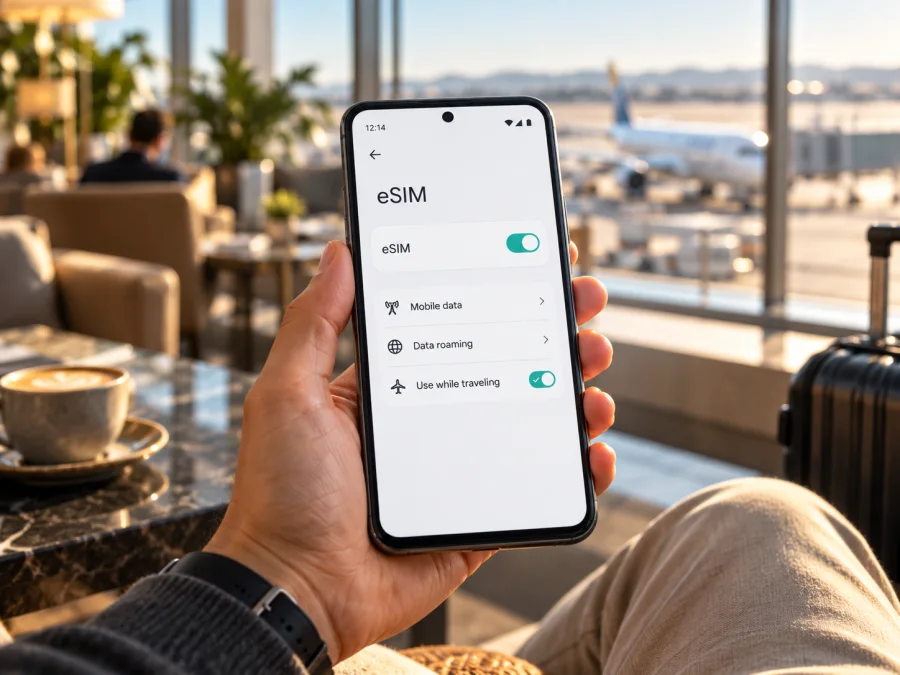
Oppo Reno 15 Pro 512GB 5G eSIM: compatibility and setup guide
The Oppo Reno 15 Pro 512GB 5G can use eSIM in the regional versions documented by OPPO, but the name on a shop listing is not enough to identify the phone’s exact variant. OPPO’s India specifications list eSIM for model CPH2811, including a 12 GB + 512 GB configuration. OPPO’s France specifications list eSIM for CPH2813, also with 12 GB + 512 GB. These official specifications make the answer yes for those named configurations. They do not prove that every phone sold under a similar Reno15 Pro name in every market has the same eSIM hardware, firmware, carrier provisioning or menu options.
Before buying a travel plan, identify the model code on your own phone, then check for an EID or an eSIM management option in Settings. If the EID is present and the phone offers a way to add an eSIM, confirm that the device is unlocked and that the plan supports the destination and networks you need. The steps below explain how to check, install a profile and select it for mobile data.
At a glance
| Item | What is verified or what to check |
|---|---|
| Exact device name | Oppo Reno 15 Pro 512GB 5G |
| eSIM answer | Supported on the OPPO-listed CPH2811 and CPH2813 variants described below; verify the exact unit before purchase |
| Documented 512 GB versions | India: CPH2811, listed as 12 GB + 512 GB; France: CPH2813, listed as 12 GB + 512 GB |
| Cellular generation | 5G is part of the requested device name; local access still depends on bands, the plan and the visited network |
| eSIM checks | Look for an EID and for “Manage eSIM” or “Add eSIM” in the mobile network settings |
| Important limitation | A seller’s title, storage size, or 5G marking does not establish a specific regional model code or guarantee that it is carrier-unlocked |
| Travel use | Select the installed eSIM for mobile data; enable data roaming for that eSIM only if the plan instructions require it |
Does Oppo Reno 15 Pro 512GB 5G support eSIM?
Yes, the OPPO-published specifications confirm eSIM for the 512 GB CPH2811 and CPH2813 versions. OPPO India identifies CPH2811 and lists both 12 GB + 256 GB and 12 GB + 512 GB configurations, with eSIM marked as supported. OPPO France identifies CPH2813, lists 12 GB + 512 GB and likewise marks eSIM as supported. This is stronger evidence than a third-party compatibility list because it comes from OPPO’s regional product specification pages.
The practical answer for a phone being sold to you is still conditional: check the model code printed on the box, shown in Settings, or provided by the seller, and verify the eSIM menu on that handset. Regional releases can have different model identifiers, cellular bands, SIM arrangements and firmware. An import can retain its original regional setup even when a retailer uses a broad English-language product title. A carrier-branded or previously locked phone may also impose a separate network restriction even when its hardware has an eSIM.
The official regional specifications identify at least two relevant variants:
| Regional listing | Model code | Memory configuration shown by OPPO | eSIM status on that listing |
|---|---|---|---|
| India | CPH2811 | 12 GB + 256 GB; 12 GB + 512 GB | Supported |
| France | CPH2813 | 12 GB + 512 GB | Supported |
These are not interchangeable identifiers. The India page also documents different dimensions and battery capacity from the France page, underlining why a nearby model name should not be treated as proof of identical specifications. The global product page uses the shorter “Reno15 Pro 5G” naming, while regional specification pages add a model code and market-specific details. Check the page for the country where the phone was originally sold and match its code to the actual handset. The cited pages establish support for these particular listings; they do not let us infer the status of an unlisted code, an altered firmware build or a device whose eSIM function has been restricted.
The market names in the table describe the regional OPPO specification pages, not where a handset will necessarily connect or which plan is available there. Separately, the mobile operator or travel-plan provider must support eSIM provisioning for the device and destination, and the handset must be unlocked for that service. A phone listed as eSIM-capable in India or France does not guarantee service on every operator, in every country, or on every roaming route.
Check the exact phone before buying
Run these checks on the handset itself where possible. A box label or online listing can help identify the market version, but a device-level check is more useful because it also reflects the installed firmware.
Compatibility checklist
- [ ] Find the model number. Open Settings and look under About device / About phone for the model or model number. Compare it with the label on the box and any invoice. CPH2811 and CPH2813 are documented above; do not assume another code is identical.
- [ ] Look for the eSIM menu. In ColorOS, try Settings → Mobile network and look for eSIM, Manage eSIM, Manage eSIM card, or Add eSIM. The wording and route can differ by region and software version. OPPO’s support guidance describes the eSIM management option under mobile network settings as a compatibility check.
- [ ] Check for an EID. Search Settings for “EID”, or open About device → Status if that option is available. An EID is an identifier associated with an eSIM-capable device. A visible EID is a useful sign, but confirm that the eSIM can actually be added and enabled; menu availability and carrier restrictions matter too.
- [ ] Ask the seller or carrier if anything is unclear. Request written confirmation for the exact model code and whether the handset is unlocked for another provider’s eSIM. Ask about any carrier or enterprise restriction attached to that unit.
- [ ] Check the plan’s destination and conditions. Confirm the country or region, data allowance, validity, activation timing, supported networks and whether data roaming must be on for the travel profile.
- [ ] Make sure you can get online during setup. Installing a profile normally requires an internet connection. Use reliable Wi‑Fi or an existing mobile connection and keep the QR code available on another screen or printed page.
If the menu is missing, do not buy a plan on the assumption that 5G or the 512 GB capacity proves eSIM support. Update the phone only through its normal system update process, restart it and check again. If it is still absent, ask OPPO support or the seller to confirm the code and firmware. You can also Check your device before choosing a plan. A compatibility result is a screening step; the final check should be made on your own phone and with the plan’s current requirements.
Prepare the eSIM for a trip
Before choosing a plan, consider trip length, typical data use, hotspot needs and whether you cross borders. Confirm which countries are covered, the data allowance, validity and when it begins. Do not assume nearby destinations are included or that a 5G icon guarantees service: availability depends on the phone’s regional bands, the local network and plan terms.
Kaspersky eSIM Store is an app and website where you can choose, arrange and activate an eSIM plan for mobile data on a trip abroad. You can browse current travel plans for the destination and review the current terms before deciding. This is the general Store homepage, not a country-specific tariff page; availability, partner networks and plan conditions should be checked for your destination at the time you choose.
Install and activate on the Oppo Reno 15 Pro 512GB 5G
Keep the phone connected to Wi‑Fi or another working data connection. Menu names below may differ slightly by ColorOS version or region. A QR activation code is usually single-use, so do not scan it on another device or delete the profile if you may need to reinstall it. Check the plan provider’s instructions before starting; if you are not sure whether installation starts the validity period, confirm that detail first.
- Open the eSIM controls. Go to Settings → Mobile network → eSIM or Manage eSIM. If the menu is not there, stop and recheck the phone’s model code and eSIM eligibility rather than continuing with an unrelated SIM option.
- Choose to add or download an eSIM. Tap Add eSIM, Download SIM, or the closest equivalent. The phone may display a short explanation and ask you to continue.
- Scan the activation QR code. Show the code on another screen or use a printout, then point the phone camera at it. Follow the prompts to download the profile. If the plan provides manual activation details and OPPO’s interface offers manual entry, use those exact details instead. Do not share a QR code or activation code publicly.
- Give the profile a clear label. For example, use the destination or “Travel data.” A label helps distinguish it from a home SIM; it does not change the plan or its coverage.
- Turn on the eSIM when you are ready. The profile can often be installed before departure and enabled later. Whether installation, activation or first network connection starts the plan’s validity depends on the plan terms. Follow those terms rather than assuming every eSIM starts at the same moment.
- Set the preferred line for mobile data. In Mobile network / SIM management, choose the travel eSIM as the mobile data line. Keep your home line selected for calls or SMS only if you need it and understand your home operator’s roaming charges. Disable mobile data on the home SIM if you want to avoid it being used for data abroad.
- Check data roaming for the travel eSIM. Some travel plans require the eSIM’s data roaming switch to be enabled to connect to a partner network. Turn it on for that profile only when the plan instructions say to do so. This setting allows the profile to use a visited network under its plan; it does not make every roaming service free. Keep roaming off on the home SIM unless you intend to use that operator’s roaming service.
- Wait for network registration. On arrival, turn the eSIM on, confirm mobile data is assigned to it and wait a few minutes. If the plan specifies a network selection or APN, follow the current plan details. Avoid deleting and reinstalling the eSIM as a first troubleshooting step.
For screenshots and general steps, see the Android eSIM installation guide. Its device-specific screen labels may describe Samsung rather than OPPO, so use it as a broad Android reference and follow the Reno15 Pro’s own ColorOS prompts. The iOS installation guide is for iPhone; it is included as the other platform’s reference and does not describe the Oppo setup path.
Before departure and on arrival
If advance installation is permitted, use reliable internet before departure and check when the plan’s validity begins. Keep the activation details private; do not reset the phone or remove a profile unless instructed. On arrival, select the travel eSIM for data, enable roaming only if required, then wait a few minutes and test a webpage. If it fails, check destination coverage, plan status and any required APN before reinstalling.
Common issues and checks
“Add eSIM” or “Manage eSIM” is missing
Confirm the exact model code, install available official ColorOS updates, restart the phone and search Settings for “eSIM” or “EID.” Compare the code with OPPO’s specification for the country where the phone was sold. If the code matches an eSIM-listed version but the option remains absent, ask OPPO or the seller whether the firmware, carrier configuration or device state disables the feature. A factory reset should not be the first step, and it does not convert hardware that lacks an eSIM function.
The QR code will not scan
Increase the brightness of the screen displaying the QR code, clean the camera lens and keep the code steady. Make sure the QR code is intended for this device and has not already been used. If the camera cannot scan it, check whether the provider issued manual activation details and whether the ColorOS menu supports manual entry. Do not repeatedly request replacement profiles until you know whether a new code would invalidate the existing one.
The profile downloads but will not connect
Check that the eSIM is enabled and selected for mobile data, that the phone is not in airplane mode, and that the plan is valid for the country you are in. Enable data roaming for the travel eSIM only if required. Review the plan’s APN and network-selection guidance, then restart the phone or toggle airplane mode briefly. Registration can take several minutes and depends on local network availability. If the plan calls for a specific partner network, use the provider’s current instructions.
Data works on the wrong SIM or home roaming charges appear
Open the SIM manager and review the mobile data default, call default and SMS default separately. Turn off data roaming or mobile data on the home line if you do not want it used abroad. Keep in mind that receiving calls, sending SMS or allowing the home SIM to register may have separate charges under your home operator’s terms. The travel eSIM’s data settings do not control charges from another line.
Data is slow or unavailable in one place
Move to an area with better signal, check whether the plan allows the available network generation, and compare the phone’s supported regional bands with the network used at that destination. Network congestion, indoor coverage, local outages and plan restrictions can all affect speed. If the phone shows signal but apps cannot connect, verify mobile data selection, APN and remaining plan data. When contacting support, give the destination, model code, ColorOS version, selected data line and the steps already tried; never send a public copy of the activation QR code.
The phone is locked or the eSIM cannot be added alongside a physical SIM
Ask the original carrier to confirm whether the phone is unlocked for another provider’s eSIM. eSIM hardware support does not override a carrier lock. Also review the active SIM arrangement: the handset can impose limits on which SIM profiles operate together. If a prompt asks you to replace or deactivate a profile, pause and check the consequences before confirming.
Practical travel scenarios
Short city break: Install in advance if permitted, then use the travel eSIM for maps, transit and messaging. Save large downloads for Wi‑Fi if data is limited.
Multi-country itinerary: Verify every country is explicitly covered. For work, keep a home line only if needed, set the travel profile as the data line, and check home operator charges. Before hotspot use, confirm plan support and monitor usage.
Frequently asked questions
Does every Oppo Reno 15 Pro 512GB 5G support eSIM?
OPPO confirms eSIM for CPH2811 (India, 12 GB + 512 GB) and CPH2813 (France, 12 GB + 512 GB). This does not confirm every regional code, firmware or carrier-locked handset. Check the code, EID and eSIM settings on your phone.
Is an EID enough to prove that a travel plan will work?
No. It is a useful compatibility indicator, but the handset must also be unlocked, the plan must cover your destination, and local network bands and conditions must be suitable.
Can I install the eSIM before travelling?
Often, if the plan permits it and you have internet access. Check when validity begins and whether to leave the profile switched off until arrival. Installation and the start of data use may be separate events.
Do I need to remove my physical SIM?
Not necessarily. The phone and carrier determine which profiles can be active together. Check SIM management and do not remove a profile unless you understand the consequences.
Will the travel eSIM give me a local number or 5G everywhere?
Do not assume it includes a phone number, voice or SMS; many travel plans are data-only. 5G depends on supported bands, local coverage and plan terms, and may fall back to LTE.
What if I cannot find the EID?
Search Settings for “EID,” check About device → Status if available, and look for eSIM management under Mobile network. If neither appears, ask OPPO or the seller to confirm the model code before buying a plan.
Final check: confirm the phone, then choose the trip plan
For the Oppo Reno 15 Pro 512GB 5G, OPPO’s published specifications verify eSIM support on the 512 GB CPH2811 India variant and CPH2813 France variant. Before relying on that answer for a particular handset, match its model code, confirm an EID or eSIM management option, and check that it is unlocked. Then review the plan’s destination, network conditions, data amount, validity start and roaming/APN instructions.
Once those checks are complete, choose a plan that fits your itinerary and data use. Kaspersky eSIM Store’s website and app let you choose, arrange and activate an eSIM plan for mobile data during a trip abroad. You can browse current travel plans and verify the current destination options and terms before travel.


