Travel connectivity guide
Oppo Reno 5A 256GB eSIM Compatibility Guide
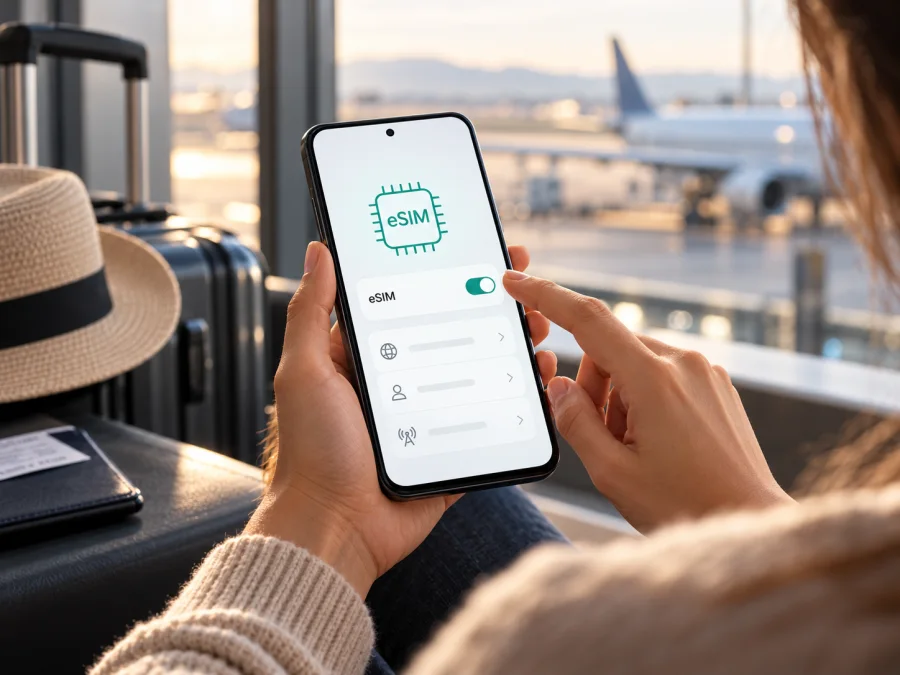
Oppo Reno 5A 256GB eSIM: compatibility and travel setup
Short answer: OPPO officially documented eSIM support for Japanese-market OPPO Reno5 A phones, including a Y!mobile release named “OPPO Reno5 A (eSIM).” However, OPPO Japan’s published specification lists 128 GB of internal storage, and the carrier-specific eSIM model is identified separately. That does not confirm eSIM support for a handset labelled Oppo Reno 5A 256GB. Treat compatibility as unverified until the phone’s own settings and model details confirm it.
This distinction matters because eSIM capability is built into a particular device configuration and its software. A product listing, shared model-family name, 5G support or large storage figure does not prove that a given handset can download an eSIM profile. Before choosing a travel plan, inspect the phone itself and confirm its market version, carrier status and current software.
Does Oppo Reno 5A 256GB support eSIM?
The answer is conditional. OPPO Japan says its Reno5 A supports nano-SIM and eSIM, and OPPO announced a separate eSIM-capable version for Y!mobile in Japan. Those are confirmations for the Japanese variants described by OPPO. The manufacturer’s Japanese specification for the standard model lists 6 GB RAM and 128 GB ROM; it does not establish a 256GB internal-storage edition or confirm eSIM on one.
| Detail | What can be confirmed | What it means for this phone |
|---|---|---|
| Device name supplied | Oppo Reno 5A 256GB | Keep this exact label when checking the seller’s listing, box and device information. |
| Official Japanese Reno5 A specification | OPPO Japan lists 6 GB RAM and 128 GB ROM, nano-SIM and eSIM | This supports eSIM on the documented Japanese configuration, but does not verify the 256GB label. |
| Japanese carrier release | OPPO announced “OPPO Reno5 A (eSIM)” for Y!mobile | This establishes an eSIM release in that specific operator market. It does not make every carrier or regional version equivalent. |
| Exact 256GB configuration | Not established by OPPO’s published Japanese specification | Verify the device’s model number, original sales region and eSIM menu before relying on it. |
| Working on a travel plan | Requires an eSIM-capable, unlocked phone and a compatible plan/network | A model-family match alone is not enough to confirm service. |
The “256GB” part should not be interpreted as proof of an eSIM edition. Check whether the number describes internal storage, a seller’s combined storage claim, an inserted memory card, or simply a listing error. Do not assume a memory card can change the phone’s cellular hardware. If the handset reports 256GB but does not show eSIM settings, ask the seller or the relevant OPPO support team to identify the exact model and software build before purchasing a plan.
Why regional and operator versions can differ
Phone makers and operators can release devices with similar retail names but different SIM hardware, software configuration, firmware, supported frequency bands or provisioning rules. OPPO’s published eSIM confirmations are geographically specific: OPPO describes Japanese versions, and the carrier-specific “(eSIM)” release is for Y!mobile in Japan. It is reasonable to use that evidence for those documented devices; it is not enough to assign the same capability to every phone sold as Reno 5A in another country.
The operator market matters as well. An eSIM-enabled handset can still be locked to its original carrier, restricted by policy, or unable to use the bands and network settings needed by a particular service abroad. A physical SIM tray that accepts two nano-SIM cards does not establish eSIM capability. Conversely, the presence of one physical nano-SIM does not rule eSIM out. The supported combinations and menu options depend on the exact edition and software.
OPPO also published a notice that some SIM-free Japanese Reno5 A units initially did not display the eSIM menu, with a software update planned to address the issue. That is a useful reminder that software can affect what you see. If your phone’s origin and model are the documented Japanese version but the eSIM option is missing, install available official system updates and check with the seller or OPPO support. Do not try to force the feature by installing firmware for a different region.
Check compatibility before buying a plan
Use these checks on the handset you will actually take on the trip. Ideally, complete them while you still have access to the seller, your home operator and stable Wi-Fi.
- [ ] Read the exact model identifier. Open Settings → About device (the wording varies by ColorOS version) and record the model number, software version and region information shown there. Compare those details with the original box, receipt or seller documentation.
- [ ] Look for an eSIM control. Open Settings → Mobile network or the closest equivalent. Check for eSIM, Add eSIM, Add mobile plan or a similar option. Menu names can vary. The relevant clue is whether the phone offers to add or download a mobile plan, not merely whether it has a SIM-management screen.
- [ ] Check the EID. On many Android phones, dialing
*#06#displays device identifiers. If an EID is listed, that is a strong sign that the phone contains an eSIM identity. The code may behave differently by software version, and an EID by itself does not guarantee that the phone is unlocked or that a particular plan will work. - [ ] Check for an “Add eSIM” action. If the menu is present, open it only far enough to confirm that the phone can start adding a plan. You do not need to scan a purchase QR code for this compatibility check.
- [ ] Confirm the phone is not carrier-locked. Ask the original operator or seller whether the handset can accept an eSIM profile from another provider. A visible menu cannot remove a network lock.
- [ ] Check software and connectivity. Install official updates, charge the phone and connect it to reliable Wi-Fi before trying to add an eSIM. A stable internet connection is normally needed to download a profile.
- [ ] Match the trip plan to the destination. Verify the country or region, validity period, data allowance, supported network and any activation conditions shown for the specific plan.
For a guided compatibility check, check your device. If the exact 256GB variant is not listed, treat that as a prompt to verify its model number with the seller or OPPO rather than as confirmation either way. A successful menu check plus a matching model record is much stronger evidence than a reseller title alone.
Prepare your phone and choose a travel plan
Before installation, decide which SIM should handle each task. Many travellers keep a home physical SIM active for calls or verification messages and use a travel eSIM for mobile data. Whether both can remain active at once depends on the phone’s supported SIM combinations and the active line settings. OPPO’s Japanese specification describes a dual-SIM arrangement, but the exact behaviour of the requested 256GB device remains unverified.
The Kaspersky eSIM Store website and app help you browse, choose, arrange and activate an eSIM plan for mobile data during an international trip. Check the plan’s destination, data amount, validity and activation conditions before you confirm it. The product is for travel data; unless the terms for a particular plan explicitly say otherwise, do not expect a regular mobile number, voice calls or SMS. Internet calling and messaging apps can work over data, subject to the app and local conditions.
Planning a trip? Once you have verified that your specific phone supports eSIM and is unlocked, browse current travel eSIM options and compare the destination and plan conditions shown on the site. The homepage is a general place to browse current options; it is not a country-specific tariff or a promise of coverage on every network.
Before buying, confirm when the plan starts its validity and when data use begins. Some plans start when they connect to a supported local network, while other activation conditions may apply. Keep the plan details and QR code or in-app activation instructions available on another screen or printed copy. Do not delete an installed profile to troubleshoot unless the plan instructions or support team tell you to: some activation codes are one-time-use and a removed profile may not be recoverable.
How to install and activate an eSIM on Oppo Reno 5A 256GB
The steps below describe the typical Android/ColorOS flow. Exact wording can differ by model, carrier edition and software version. Follow the instructions supplied with your selected plan if they differ, and install only after you have confirmed that the phone supports eSIM. For additional guidance, see the Android installation instructions and the iOS installation instructions. The iOS guide is included as a reference for people comparing devices; an iPhone workflow does not apply to this Oppo phone.
- Check compatibility and unlock status. Confirm the EID or eSIM-add menu, identify the phone’s regional version and make sure the original operator has not locked it.
- Prepare a connection. Connect to reliable Wi-Fi. Keep the QR code or activation details visible on another device, unless you are installing from an app that can complete setup directly.
- Open the mobile-network settings. Go to Settings → Mobile network (or a similarly named menu) and choose eSIM or Add eSIM.
- Start adding the plan. Choose the option to download or add a mobile plan. If asked, scan the provider’s QR code. If scanning is unavailable, use a manual activation method only when the plan’s instructions provide one.
- Wait for the profile to download. Keep the phone online and do not close the setup screen prematurely. Follow the on-screen prompts and confirm the profile name when asked.
- Label the new line. Use a clear name such as “Travel data” so that you can distinguish it from your home SIM. The label is for your own reference and does not change the plan.
- Choose when to turn it on. If the plan starts only upon connection at the destination, you may be able to install it before departure and leave the line off until you arrive. Check the plan’s own activation terms first; they control when validity starts.
- Set mobile data to the travel eSIM. In SIM or mobile-network settings, select the travel profile for mobile data. Keep your home line selected for calls or messages if you need it and if the device supports that arrangement.
- Enable data roaming for the travel line only if required. Some travel eSIM profiles need data roaming switched on to connect to their partner network. Check the plan instructions. Make sure roaming is not inadvertently enabled for your home SIM if your home operator may charge for it.
- Test the connection. After arrival, turn off Wi-Fi briefly and check that mobile data works. If it does not, verify the selected data line, roaming setting, signal, plan validity and any network-selection instructions before changing other settings.
Use the eSIM for mobile data during a trip
After you arrive in the plan’s destination, turn on the travel line and select it as the default mobile-data SIM. If the plan requires data roaming, enable roaming for that line only. Wait briefly for registration, then test a simple webpage or messaging app with Wi-Fi off. A signal indicator alone does not prove that mobile data is active, and the phone may need a few minutes to register on a supported local network.
Common problems and checks
The eSIM menu is missing. Recheck the model number, sales region and carrier edition. Install official system updates, restart the phone and look again under Mobile network. OPPO documented an early software issue affecting the menu on some Japanese SIM-free Reno5 A units, so a missing setting does not by itself identify the hardware. If the exact 256GB variant still has no EID or add-eSIM option, ask the seller or OPPO support to confirm that model instead of trying an unofficial firmware change.
The QR code will not scan. Increase screen brightness on the device displaying it, clean the camera lens and hold the phone steady. Make sure the code belongs to the plan you purchased and has not already been used. If you have only one screen, check whether the provider offers a manual activation option; do not type guessed server or activation details.
The profile will not download. Check Wi-Fi, disable any temporary network filter that may block the download if appropriate, restart the phone and retry according to the provider’s steps. Confirm that the profile is intended for this device and that the activation code is valid. If the code has already been used, contact support before deleting or resetting anything.
The eSIM installs but shows no service. Confirm that the travel line is enabled and selected for data, that you are in a destination supported by the plan, and that the plan is within its validity period. Check whether data roaming must be enabled for that profile. Follow the plan’s network-selection guidance and restart once after a change.
There is a signal but no internet. Turn Wi-Fi off, verify the selected data line, roaming requirement and plan status, then follow any APN instructions from the provider. Do not guess APN values.
The phone uses the wrong SIM for data. Open SIM management and explicitly select the travel eSIM for mobile data. Turn off automatic data switching if available. Confirm that the home SIM has not been selected again after a restart or software change.
The eSIM works at home but not abroad. Confirm the plan includes the country you are visiting, the activation date and the local network selection guidance. Check lock status with the original operator and ask plan support to verify destination service.
The plan is installed on another phone. Many eSIM activation codes are single-use and profiles may not be transferable. Do not assume you can move an installed profile from the Oppo to another handset. Check the plan terms and ask its support team about recovery options before removing a profile or resetting the phone.
When contacting support, share the model and software version, destination, line status and exact error. Never share passwords or a full activation code publicly.
FAQ
Is Oppo Reno 5A 256GB definitely eSIM compatible?
OPPO’s Japanese materials document eSIM for Reno5 A variants, but do not establish eSIM support for the 256GB configuration. OPPO documents eSIM for Japanese Reno5 A variants, including a Y!mobile “(eSIM)” edition, but OPPO Japan’s published storage specification is 128 GB. Verify the 256GB handset’s model number, EID and add-eSIM menu before buying a plan.
Does every Reno5 A sold in every country support eSIM?
The evidence does not support that blanket claim. The confirmed releases are Japanese-market variants. Other regional or operator versions may differ, so check the specific device and its local documentation.
Is an EID enough to prove that I can use a travel eSIM?
An EID is useful evidence that the phone has an eSIM identity, but it does not prove that the device is unlocked or compatible with every provider, plan or network. Also confirm the add-eSIM option, carrier status and destination requirements.
Can I install the plan before departure?
Often you can install a profile while connected to Wi-Fi, but the right time to enable it depends on the plan’s activation rules. Read the validity and activation conditions before scanning the QR code. Some plans begin at purchase or installation; others begin when the profile connects in the destination.
Will the travel eSIM replace my usual number?
A mobile-data travel plan typically does not provide a standard phone number, voice calls or SMS unless its terms state otherwise. You can keep your home SIM for those services if the handset and your home operator allow it, and select the travel eSIM for data.
What should I do if eSIM settings are missing after an update?
Confirm the exact model and region, then contact the original seller or OPPO support. OPPO previously reported that some Japanese SIM-free units had a missing eSIM menu before a planned update. Do not install firmware from another region or assume that the 256GB label corresponds to the eSIM-enabled edition.
Check your device and plan your trip
For Oppo Reno 5A 256GB, the safest decision is based on the phone in your hand: verify its exact model identifier, check for an EID and an Add eSIM option, confirm that it is unlocked, and match its regional version to official documentation. OPPO’s Japanese eSIM information confirms support for specific Japanese Reno5 A versions, while its published Japanese specification lists 128 GB of internal storage rather than the requested 256GB configuration. Keep that uncertainty in mind until the seller or manufacturer confirms the exact handset.
Once compatibility is confirmed, compare the destination, data allowance, validity and activation rules for your trip. The Kaspersky eSIM Store app and website can help you choose, arrange and activate a travel eSIM plan for mobile data. Check the device before purchase, install the profile over a reliable connection, and select the correct data line when you arrive.


