Travel connectivity guide
Oppo Reno 6 Pro 5G 256GB eSIM Compatibility
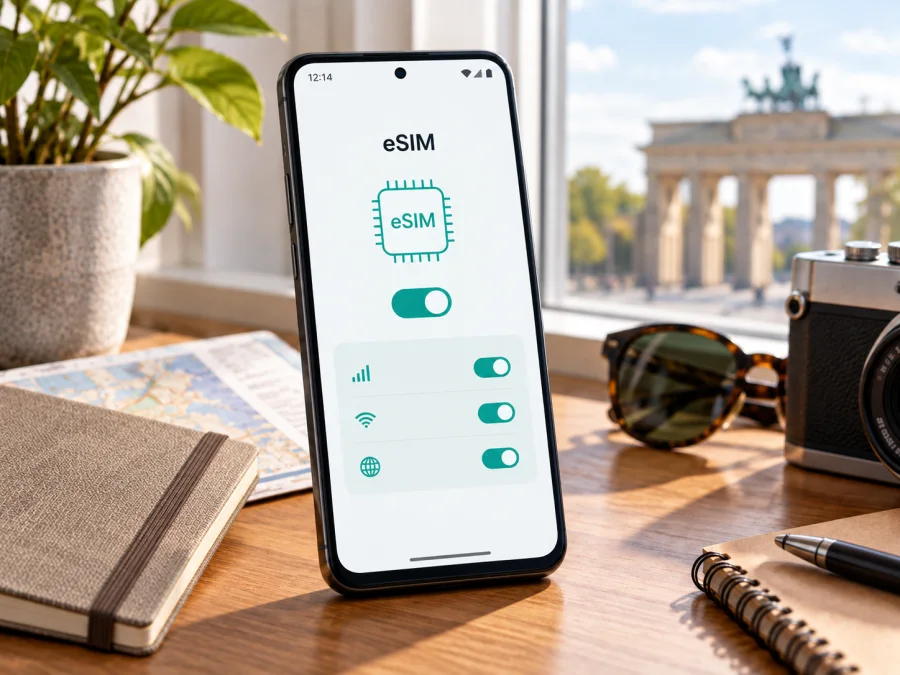
Oppo Reno 6 Pro 5G 256GB eSIM compatibility
The Oppo Reno 6 Pro 5G 256GB is a regional-dependent case for eSIM. OPPO’s official specifications for the Reno6 Pro 5G describe dual Nano-SIM and note in some regional versions that eSIM support depends on the provider. The global specifications identify the CPH2247 model and a 12 GB RAM + 256 GB storage configuration, but do not promise that every phone sold under this name has an active eSIM function. Treat compatibility as unconfirmed until you check the exact handset, its software and the service you plan to use.
The “5G” label describes cellular network capability; it does not prove that a phone includes eSIM hardware or an enabled eSIM menu. Likewise, 256GB storage says nothing by itself about whether the device can download a mobile plan. Before ordering an eSIM, look for an EID or an option to add a mobile plan in the phone’s settings, confirm that the handset is unlocked, and ask OPPO or the seller about the exact regional model code. If those checks do not confirm eSIM, use a supported physical SIM or another compatible phone.
Compatibility at a glance
| Item | What to know |
|---|---|
| Device checked | Oppo Reno 6 Pro 5G 256GB |
| Official model information | OPPO lists Reno6 Pro 5G model CPH2247 in global specifications |
| Storage configuration | OPPO’s global page lists 12 GB RAM + 256 GB storage; market configurations can differ |
| Physical SIM | The published cellular specifications describe dual Nano-SIM |
| eSIM verdict | Not guaranteed across all regional or carrier versions; OPPO states in regional specifications that support depends on providers |
| Best first check | Find the EID and an eSIM add/download control in Settings |
| Before buying | Confirm exact model and firmware, carrier lock status, destination coverage, and plan terms |
This verdict is intentionally cautious. Official product information is not consistent enough to treat every Oppo Reno 6 Pro 5G 256GB as eSIM-ready: the global page lists Nano-SIM slots and does not give a universal eSIM assurance, while OPPO regional specification pages include a provider-dependent eSIM qualification. That wording does not mean every provider can enable eSIM on every unit. The decisive evidence is the capability of your individual handset and confirmation from the seller, manufacturer support or provider for that region.
A product name can cover phones prepared for different countries, carriers or distribution channels. Radio bands, SIM arrangements, firmware menus and restrictions may vary. OPPO’s global specifications identify model CPH2247; compare that code with Settings > About device and the box, then ask OPPO or the seller about eSIM for the sales region.
A dual physical SIM tray neither proves nor disproves eSIM. Physical Nano-SIM slots and embedded-profile support are different capabilities. A carrier or regional firmware may affect whether setup is available. A software update cannot add missing hardware, and a generic compatibility list may not cover your exact version.
Check the model code, original market, carrier lock and ColorOS build. Ask support: “Does this exact regional model support downloading an eSIM profile, and is it unlocked for a travel eSIM?” Install official updates before troubleshooting. Do not apply details for Reno6 Pro+, another Reno model or a different regional version to this phone automatically. The name here remains Oppo Reno 6 Pro 5G 256GB.
Check the actual phone before purchase
Check for an EID and an eSIM or add-mobile-plan control. Menu names vary by ColorOS version, country and carrier profile. If both are missing, pause and ask OPPO or the seller to verify the model code before you purchase a plan.
1. Look for an EID
In Settings, search for “EID”. Device information may be under About device, Status or SIM status. An EID is an identifier associated with an eSIM-capable device. Keep it private. Its presence is a strong sign of capability, but does not guarantee that a particular plan will install or connect. If search finds nothing, check those pages manually and install available official updates.
2. Look for eSIM controls
Open Settings > Mobile network or the SIM-management screen. Look for eSIM, Add eSIM, Download a SIM, Add mobile plan or Manage eSIM. Some builds place this under SIM cards & mobile networks. A QR scanner or download option means a setup control exists; do not scan a code just to test, because some activation codes are single-use. If the control is missing, restart and check again before contacting support.
3. Verify the exact variant
Compare the model code in About device with the box or receipt. Ask OPPO or the seller to confirm eSIM support and unlock status for that code, country of purchase and ColorOS version. Carrier lock can prevent a travel profile from working even when eSIM controls are present.
In the compatibility section, keep this checklist handy: Check your device.
If your phone passes the checks: install an eSIM
Proceed only after confirming that your individual phone supports eSIM and the chosen plan accepts it. Use stable Wi-Fi, keep the activation details accessible on another screen, and do not share the QR code. Many codes are intended for one installation on one device.
- Review the plan. Confirm destination coverage, data allowance, validity and when validity begins: at installation, first connection or another stated time.
- Prepare the phone. Update ColorOS through the official updater, charge the battery, connect to Wi-Fi and confirm the device is unlocked.
- Open setup. In Mobile network or SIM management, choose Add eSIM or the equivalent.
- Download the profile. Scan the provider’s QR code or enter manual details if supplied. Follow prompts and do not repeatedly scan a code if progress pauses.
- Name the line. Use a clear label such as “Travel data”. Choose which SIM will handle mobile data, calls and messages.
- Choose activation timing. If advance installation is allowed, install over Wi-Fi and enable the profile at the destination. Follow the plan’s validity rules; installing and activating are not always the same event.
- Set data and test. Select the travel eSIM for mobile data. Enable data roaming on that line only if the plan instructs you to. In the covered area, turn Wi-Fi off briefly and test a webpage.
For step-by-step help, see the Android eSIM installation instructions. The iOS eSIM installation instructions are for travellers comparing the process with an iPhone or assisting another person.
Activation and data settings for a trip
Installing a profile and connecting to a network are separate events. A downloaded eSIM can appear in the SIM list but wait for its activation condition or a partner network in the destination. Read the plan’s activation guidance. Do not delete a profile because it has not connected yet; many profiles cannot be transferred or reinstalled freely.
Before departure, decide which line handles each task:
- Mobile data: select the travel eSIM when you want to use its allowance.
- Calls and messages: keep your usual SIM available if needed, but check home-operator roaming costs. A data-only plan does not provide a regular number, voice calls or SMS unless stated.
- Data roaming: enable it for the travel line only when instructed. It may be required for the eSIM to connect to a partner network; check home-line settings separately.
- Automatic switching: disable mobile-data switching to another line if it could create unexpected charges.
- Hotspot: tether only if permitted, and remember that other devices can use data quickly.
At arrival, enable the travel line at the plan’s stated activation time, allow registration, then test data. If you use two lines, check how the phone handles dual-SIM operation; data on one line can affect the other line or 5G availability. Download maps and essential trip details before leaving.
Kaspersky eSIM Store is an app and website where travellers can choose, arrange and activate an eSIM with a mobile-data plan for an international trip. Compare destination, data allowance, validity and activation terms. Coverage and service depend on local networks and the selected plan.
Travel scenarios
City break: Choose a plan that covers the city and dates. Navigation, messaging and ride-hailing use less data than video, while public Wi-Fi may not be convenient on the move.
Multi-country route: Check every destination. A single-country plan may stop working at a border; a regional plan may include several countries. Read the covered-country list and fair-use terms. Do not assume a transit or maritime network is included.
Work trip: Estimate video calls, cloud files and hotspot use, which can consume data faster than maps or messages. Keep your primary SIM available for authentication if needed, and use the travel line for data when its plan is active.
Longer stay: Compare duration and renewal rules with your dates. A travel plan may not replace a local number or long-term service. In every scenario, device support, unlocked status and destination network compatibility matter as much as the package.
Troubleshooting: when an eSIM will not install or connect
There is no Add eSIM option. Search Settings for EID and check Mobile network and SIM management. Restart and confirm the exact code with OPPO or the seller. If EID and setup controls remain absent, treat the phone as unsupported unless the manufacturer confirms otherwise. 5G alone is not evidence of eSIM.
The QR code is rejected. Check Wi-Fi, confirm the code belongs to the plan and has not been used, and set date and time automatically. For an expired or invalid code, contact the plan provider. Do not post the QR code or activation details publicly.
The profile installs but has no service. Check that it is enabled and selected for data, that you are in a covered area, and that validity has started. Enable data roaming for that line if instructed, then toggle Airplane mode or restart. Allow a short time for registration.
Mobile data does not work. Turn Wi-Fi off for a brief test, confirm mobile data uses the travel line, and check any APN instructions supplied by the provider. Do not change APN settings without instructions. Try simple checks before resetting network settings, which can erase saved Wi-Fi and Bluetooth details.
Connection is slow or uses the wrong line. Move to an area with better reception and allow automatic network selection. 5G phones can use 4G depending on local coverage, supported bands, plan terms and network load. Recheck the selected data SIM and disable automatic switching if needed.
The profile disappeared or was deleted. Check the eSIM list and restart once. Contact the plan provider before reinstalling: QR codes may be single-use and profiles may not transfer. Do not delete a working profile to resolve a temporary outage.
If the issue remains, contact the plan provider with the order reference, model code, country and error description. OPPO can confirm device capability; the plan provider can check activation and destination-network status.
FAQ
Does the Oppo Reno 6 Pro 5G 256GB support eSIM?
It depends on the exact regional and carrier version. OPPO’s regional specifications say eSIM support depends on providers; global specifications list dual Nano-SIM but do not promise universal eSIM. Confirm EID and setup controls on your phone and verify its model code with OPPO or the seller.
Does 5G mean the phone has eSIM?
No. 5G is cellular network capability. eSIM is separate and depends on device hardware, software, region and provider.
Can I use eSIM alongside a physical SIM?
Only if the exact phone and software support the arrangement. Dual Nano-SIM specifications do not confirm simultaneous physical SIM plus eSIM. Check SIM management and ask OPPO about your model code.
Does a travel eSIM include calls and texts?
Usually it is for mobile data only unless the plan details say otherwise. You can often keep a primary SIM for calls and messages, subject to home-operator charges and the phone’s dual-SIM behaviour.
Should I install before departure? Can I transfer it later?
Install in advance only if the plan permits it, and check when validity starts. Do not assume a profile can be moved or reinstalled; contact its provider before deleting it.
Final device check and trip eSIM
Before choosing a plan, verify these points on the exact Oppo Reno 6 Pro 5G 256GB:
- Find an EID and eSIM setup option, or get confirmation from OPPO for the model code and region.
- Confirm the phone is unlocked and that its software exposes eSIM setup.
- Check destination coverage, travel dates, data amount and validity start.
- Select the intended data line and follow the plan’s roaming instructions; protect the home SIM from unintended charges.
- Keep activation details private and do not remove a working profile unless the provider tells you how to restore it.
If the phone passes these checks, use Kaspersky eSIM Store’s app or website to choose, arrange and activate an eSIM data plan for your trip. If EID or setup controls are absent, confirm compatibility before purchase and consider a device or SIM option explicitly supported by the provider.


