Travel connectivity guide
Oppo Reno 6 Pro 5G 8GB RAM eSIM Guide
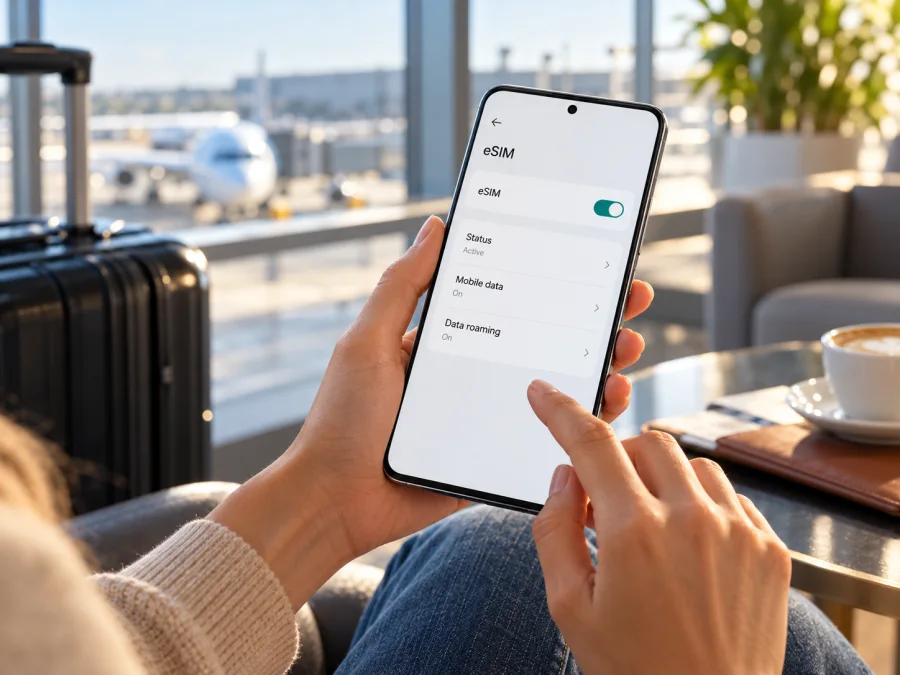
Oppo Reno 6 Pro 5G 8GB RAM eSIM: compatibility and travel setup
Short answer: eSIM support is not confirmed for the exact Oppo Reno 6 Pro 5G 8GB RAM variant. OPPO’s regional specifications identify different Reno6 Pro hardware and memory configurations. The Chinese-market Reno6 Pro specification lists an 8GB RAM option and two nano-SIM cards; OPPO’s global page for the separately named Reno6 Pro 5G identifies model CPH2247 and lists 12GB RAM. Those records do not prove that an 8GB handset has an eSIM, and the global model’s details should not be applied to it. Check the model code, EID and mobile-network settings on your own phone before choosing an eSIM plan.
The “5G” in a product name refers to mobile-network capability, not eSIM capability. Likewise, 8GB describes memory and does not identify an eSIM component. If this exact phone has no EID and no option to add an eSIM, assume that it cannot install an eSIM unless OPPO confirms support for its precise model code and software version.
Does Oppo Reno 6 Pro 5G 8GB RAM support eSIM?
There is no reliable, exact-match confirmation that every Oppo Reno 6 Pro 5G 8GB RAM unit supports eSIM. The key complication is that the model name is used inconsistently across markets and listings:
- OPPO’s China-market Reno6 Pro specification identifies model PEPM00, lists 8GB + 128GB and 12GB + 256GB memory configurations, and specifies dual nano-SIM and 5G network bands. That is evidence about that market’s Reno6 Pro configuration, not a universal specification for every seller’s “Reno 6 Pro 5G 8GB RAM.”
- OPPO’s global product page calls the device Reno6 Pro 5G, identifies it as CPH2247, and lists 12GB RAM + 256GB storage. It specifies a nano-SIM card for SIM 2 and does not list an 8GB configuration on that page.
- Some regional OPPO specification pages include a note that eSIM support depends on carriers. Such a note does not establish that the specific 8GB device has eSIM hardware, nor that a carrier can enable it on a different model or regional build.
The practical answer is therefore conditional: do not assume that the 8GB RAM version can use eSIM. An 8GB handset may be a China-market Reno6 Pro, a seller’s shorthand, or another region-specific configuration. Confirm the model number printed in Settings, on the box, or in the original sales record. Match that number to the OPPO support page for the phone’s actual sales region. Ask OPPO or the original seller to confirm eSIM support for the exact model code and software build in writing if the device checks below are inconclusive.
A mobile carrier or travel eSIM provider can determine whether its service and radio bands work in a country. It cannot add eSIM hardware to a phone that lacks it. Geographic availability of a travel plan is a separate question from handset compatibility: first confirm the device can install an eSIM, then check that a selected plan covers the places on your itinerary.
Device details and what they do—and do not—tell you
| Item | Verified information | eSIM relevance |
|---|---|---|
| Requested variant | Oppo Reno 6 Pro 5G 8GB RAM | Keep the memory and 5G modifiers; do not substitute another configuration. |
| China-market Reno6 Pro | OPPO identifies PEPM00, lists 8GB + 128GB, dual nano-SIM, and 5G bands. | This does not confirm eSIM. |
| Global Reno6 Pro 5G | OPPO identifies CPH2247 with 12GB RAM + 256GB and a nano-SIM slot. | This is a different listed configuration. |
| Network and software | The regional specifications list 5G; the global page names ColorOS 11.3 based on Android 11. | 5G does not imply eSIM; menus can vary by firmware. |
| Device identifiers | EID and Add eSIM must be checked on the handset. | Verify before purchase. |
A seller’s title can combine details from different market versions. Use the device’s full model code and on-device identifiers, not a search snippet or SIM-tray appearance, to confirm the phone you have.
Check eSIM compatibility before you buy
Follow these checks in order. If any result conflicts with what a seller or plan page says, pause the purchase and ask for confirmation tied to the model number.
- [ ] Find the model code. Open Settings and look under About device / About phone for Model or Model number. Record the full code, including letters and digits. If the phone will not start, check its box or purchase documentation.
- [ ] Confirm the market version. Ask where the phone was originally sold and check the regional OPPO support page for that code. A phone currently used in a country is not necessarily the variant made for that market.
- [ ] Look for an EID. In Settings, search for “EID” or check About device, Status, or SIM status. Some Android versions show the EID only in a status screen. An EID is a strong indication of an eSIM-capable device; save the screen or number for support, but do not post it publicly.
- [ ] Look for an add-eSIM control. Open Settings and search for “eSIM,” “Add eSIM,” “Download a SIM,” or “Add mobile plan.” Menu labels vary by ColorOS version and market. A QR-code scanner alone is not proof: it may be for Wi-Fi or another feature.
- [ ] Check with OPPO for the exact code. Ask whether that model code has eSIM hardware and whether the current regional firmware exposes eSIM activation. Request an answer for your country of purchase, not just for “Reno6 Pro.”
- [ ] Check the operator lock. If the handset was sold through a mobile operator, confirm it is unlocked and can accept a profile from another provider. A locked phone may reject a travel eSIM even when it has eSIM hardware.
- [ ] Confirm plan details. Once the phone passes the hardware check, review the destination, supported network, data allowance, validity period, activation conditions, and any roaming setting required by the plan.
Check your device before you purchase an eSIM plan. For this exact 8GB listing, take the conservative route: if there is no EID and no add-eSIM menu, treat the handset as not eSIM-ready until OPPO confirms otherwise. Do not buy a plan on the strength of “5G,” “dual SIM,” or a claim about another Reno6 Pro version.
Where to find an EID or eSIM setting
On a Reno phone, start in Settings and use the search field. Search for EID, then eSIM. Depending on the software build, the relevant controls may be under Mobile network, SIM card & mobile data, SIM management, or a similar section. If a menu has an option such as Add eSIM or Add mobile plan, open it only far enough to confirm that the phone offers eSIM setup; you do not need to scan or activate a plan during the compatibility check.
If Settings search returns no result, inspect the SIM status page and About device page. Restart the phone and check again after installing any official system update available for that device. Then contact OPPO with the model code and software version. A missing menu can reflect hardware, firmware, or regional policy; do not infer a definite answer from one menu path alone. However, if there is no EID, no add-eSIM control, and no confirmation from OPPO, do not proceed as if the phone were compatible.
Choose a travel eSIM only after the handset passes
A travel eSIM can be useful for maps, transport, translation, messaging, and work abroad. Match a plan to every country or region on your route; a regional plan does not guarantee service in every border area or on every network.
Kaspersky eSIM Store is an app and website where you can choose, arrange, and activate an eSIM with a mobile-data plan for an international trip. Review the selected plan’s destination, data volume, validity, and activation terms. Kaspersky eSIM Store is not a mobile operator and does not own or operate the networks used by a plan.
Before ordering, confirm that the exact phone has an EID and Add eSIM option, is unlocked, and can connect to Wi-Fi for setup. Check where the plan works and when its validity begins. Keep the QR code available and private. You can browse current destinations and plans on the Kaspersky eSIM Store website; this general store link is not a country-specific tariff.
How to install an eSIM on a compatible Reno phone
These steps apply only if your exact device exposes eSIM installation and is unlocked. ColorOS menus differ by model, region, carrier, and software version. If your screen does not offer an eSIM option, stop; do not try to force installation through a QR code.
Before installation
- Connect to stable Wi-Fi and charge the phone.
- Read the plan’s activation instructions and confirm whether installation starts its validity period.
- Keep the eSIM QR code or manual activation details private and ready. Many QR codes can be used only once.
- Do not delete an existing eSIM profile to troubleshoot unless the provider confirms that it can be reinstalled.
Add the profile
- Open Settings. Search for “eSIM” or go to the mobile-network or SIM-management section.
- Choose Add eSIM. The wording may be Add mobile plan, Download a SIM, or similar. If no such action appears, stop and reconfirm compatibility.
- Select QR-code setup. Use the camera or built-in scanner presented by the phone. If the QR code is on the same device, display it on another screen or follow the provider’s manual-entry instructions.
- Review the plan details. Check that the displayed information matches the eSIM you intend to install.
- Confirm the download. Keep the phone connected to Wi-Fi while the profile is added. Wait for the on-screen completion message; setup can take a few minutes.
- Name the line. Use a clear label such as “Travel data” so you can distinguish it from your everyday SIM.
- Choose a default for mobile data. Select the travel eSIM when you want to use the plan. Keep your usual line available for calls or messages only if you understand its roaming charges and settings.
- Set data roaming as instructed. Some travel eSIM profiles require data roaming to be enabled on that profile to connect to a partner network. Follow the selected plan’s instructions and check that roaming is switched on for the correct line only.
- Test the connection. When the plan is active in its destination, turn Wi-Fi off briefly and load a basic webpage. Then restore Wi-Fi if you do not need mobile data.
For general platform guidance, see the Android eSIM installation instructions. The Android guide may show a different brand or menu layout, so follow the controls available on your particular Reno. The iOS eSIM installation instructions are for iPhone and are included only as a separate platform reference; they do not describe steps for this Android phone.
Use the travel eSIM for data on the trip
After installation, review the SIM settings before departure and again after landing. If the phone is compatible and the plan covers your destination, select the travel profile as the mobile-data line. Keep your normal SIM for voice or messages only if you want to and have checked its roaming costs. Many data-only plans do not provide a regular phone number, cellular voice service, or SMS; internet calling and messaging apps can work over data, subject to their own requirements.
When you arrive:
- Open mobile-network settings and make sure the travel eSIM profile is enabled.
- Set it as the line for mobile data.
- Turn on data roaming for that travel profile if the plan instructions require it.
- Wait for the phone to register on a supported local partner network. This may take several minutes.
- If service does not start, toggle airplane mode on briefly and off, then wait for registration again.
- Check the plan’s destination and remaining data in its account or app, where available.
For a short city break, a small data allowance may suit maps, tickets, and messaging if you have estimated your usage. For a longer stay or frequent video calls, compare the plan’s data amount and validity with your expected use. If you travel across borders, confirm each stop is covered. Do not assume that a country is included because it is geographically close to a listed destination.
You can often leave the physical home SIM inserted while using a travel eSIM for data if the phone supports the desired dual-SIM arrangement. The exact behavior varies. Some devices pause one line during calls or change which SIM receives messages. Check the phone’s dual-SIM options and your home operator’s charges before relying on both lines. If you want to avoid roaming charges on the home SIM, disable data roaming on that line and verify that the travel eSIM remains selected for mobile data.
5G availability is also separate from eSIM installation. A 5G-capable Reno6 Pro may connect using 4G or another available network depending on plan, local operator, coverage, radio bands, signal, and device variant. The “5G” label does not promise a 5G connection in every destination. A stable 4G data connection may be sufficient for many travel tasks.
Common problems and checks
There is no EID or Add eSIM option
Confirm the model code and original sales region, search Settings, then ask OPPO about the exact hardware and firmware. The China-market 8GB Reno6 Pro listing specifies dual nano-SIM, not proof of eSIM. If OPPO cannot confirm support and the phone has no EID, use a physical SIM, roaming, or Wi-Fi rather than buying an eSIM profile.
The QR code will not scan or download
Check Wi-Fi, screen brightness, camera lens, and that the code is the correct unused installation QR. Restart the phone and check for official system updates. If the phone reports eSIM unsupported, APN changes cannot make it compatible. Do not delete a profile or retry a one-use QR repeatedly without checking with the plan provider.
The eSIM is installed but there is no service
Make sure the profile is enabled, covers the current country, and has reached its activation time. Select it for mobile data and enable data roaming on that profile if the plan requires it. Restart or briefly toggle airplane mode. If the phone shows signal but data fails, check remaining data, validity, and the selected data line. Enter an APN only when the provider supplies the value.
The home SIM uses data, or the phone rejects a profile
Check default data, automatic switching, roaming settings, and carrier-lock status. A locked phone, unsupported region, expired profile, or used QR may prevent activation. Record the error, model code, and ColorOS version; ask OPPO or the seller about device status and the plan provider about profile validity. Keep QR codes and identifiers private.
Practical travel scenarios
You are leaving soon and cannot confirm support. Treat the phone as incompatible for planning purposes and arrange roaming, a physical SIM, Wi-Fi, or another verified eSIM-capable device.
You are considering a used 8GB phone. Ask for its model code, original market, unlocked status, and EID evidence. A “dual SIM” label may mean two physical nano-SIM cards.
Your regional version is confirmed compatible. Compare destination, data amount, validity, and activation conditions. If validity starts on first connection, follow the plan’s guidance about when to enable data roaming.
You need your regular number. A travel plan may be data-only. Check home-line roaming costs and whether the plan includes calls, SMS, or a number; use internet calling apps over data when appropriate.
Frequently asked questions
Can Oppo Reno 6 Pro 5G 8GB RAM use eSIM?
Support is unconfirmed for the exact 8GB variant. OPPO’s China-market Reno6 Pro page identifies PEPM00, an 8GB option, and dual nano-SIM; the global Reno6 Pro 5G page describes CPH2247 with 12GB RAM. Check your EID, eSIM menu, and model code with OPPO.
Does 5G or dual SIM prove eSIM support?
No. 5G is a network feature, and dual SIM can mean two physical nano-SIM cards. Look for an EID and an eSIM setup option.
Can a provider enable eSIM on an unsupported Reno6 Pro?
No. A provider can issue a plan for an eSIM-capable phone but cannot add eSIM hardware to an unsupported model.
Can I install a travel profile before leaving, and will it include a phone number?
Only install early if the plan permits it; validity may begin at installation or first connection. Many travel plans provide data only, without a regular number, calls, or SMS. Check the current terms.
Check before you choose
For Oppo Reno 6 Pro 5G 8GB RAM, the available official specifications do not confirm eSIM for the exact name and memory configuration. The 8GB China-market Reno6 Pro listing specifies dual nano-SIM; the global Reno6 Pro 5G specification is a different 12GB CPH2247 record. Your model code, EID, eSIM settings, regional firmware, and carrier lock determine what this individual phone can do.
Before you choose a travel plan, confirm eSIM support on the handset and check that it is unlocked. Then select a destination plan whose data allowance, validity, and activation terms fit your trip. If compatibility is confirmed, Kaspersky eSIM Store can help you choose, arrange, and activate an eSIM with a mobile-data plan for international travel. If it is not confirmed, use a physical SIM, roaming, or Wi-Fi option that works with your device.


