Travel connectivity guide
Oppo Reno14 256GB eSIM: compatibility guide
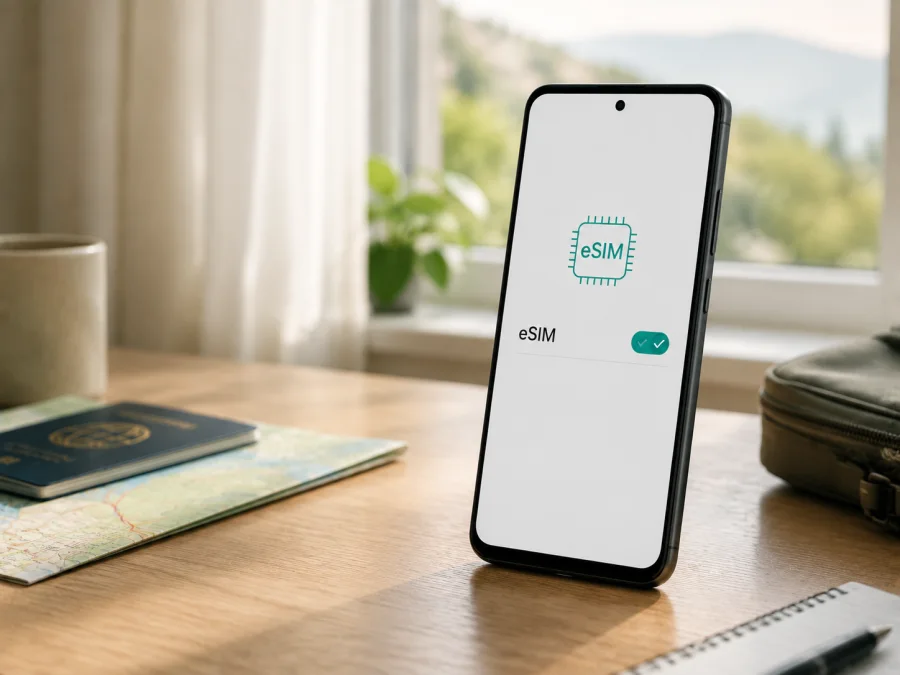
Oppo Reno14 256GB eSIM: compatibility and setup guide
If you are checking whether Oppo Reno14 256GB can use a travel eSIM, the short answer is: yes, when your phone is the regional Reno14 5G variant whose official specifications list eSIM. OPPO's current CPH2737 specifications list 12GB + 256GB in several markets and describe Nano-SIM + eSIM. That is a strong signal, but not a guarantee for every unit.
The key qualification is regional. OPPO lists a physical nano-SIM with eSIM in some markets and SIM2 as nanoSIM or eSIM in Japan. Firmware, operator customization or a different product code can change what ColorOS exposes. Confirm the EID or eSIM menu before buying.
What OPPO confirms for this 256GB variant
OPPO regional pages connect eSIM with the CPH2737 family and list 12GB + 256GB in some markets, alongside 12GB + 512GB. They also list ColorOS 15 at launch; software updates and local releases can change the version on a retail unit.
The practical reading for Oppo Reno14 256GB is:
| Item | What the official regional specifications indicate | Why it matters for eSIM |
|---|---|---|
| Device requested | Oppo Reno14 256GB | Match the 256GB phone; do not substitute Reno14 F, FS, Pro or another version. |
| Official family label | OPPO Reno14 5G, commonly CPH2737 | Check the code in About device or on the box. |
| Memory listing | 12GB + 256GB in regional catalogues | Storage alone does not determine eSIM; firmware and SIM configuration matter. |
| SIM format | Nano-SIM + eSIM; Japan lists nanoSIM/eSIM for SIM2 | Tray and simultaneous-use rules may vary. |
| Cellular technology | 2G, 3G, 4G LTE and 5G bands vary by market | The eSIM still needs a supported destination network. |
| Operating system | ColorOS 15 at launch | Search Settings for “eSIM” or “EID” if the path differs. |
| Final check | EID and an option such as Add eSIM or Download a SIM are visible | This is the decisive check for the exact handset, firmware and sales region. |
Direct compatibility verdict
The 256GB Reno14 5G configuration is eSIM-compatible in regional versions documented by OPPO, including official listings that pair 12GB RAM with 256GB storage. Treat an imported or carrier-specific phone as unconfirmed until it passes the checks below. If there is no EID and no option to add a mobile plan or eSIM, do not assume that a software update, a QR code, or the presence of 5G will create eSIM support.
Remember that 5G describes radio capability, while eSIM is a separate device and firmware feature. A phone can support 5G and still be physical-SIM-only in a particular market; the 256GB label alone does not prove that all units are identical.
Why region and carrier version matter
OPPO does not describe the SIM slots identically everywhere: Spain and the Philippines list Nano-SIM + eSIM, while Japan describes SIM1 as nanoSIM and SIM2 as nanoSIM/eSIM. This supports eSIM for the family but also makes a regional check necessary.
The result can differ because of an imported market, carrier provisioning, a different Reno14 family model, another firmware build, or a refurbished unit. Ask for the exact model code, sales region and SIM specification before paying. If the phone is available, trust its EID and eSIM menu over a generic marketplace title, and ask the carrier whether the device is unlocked.
Check compatibility before buying a plan
Run these checks while you have Wi-Fi to avoid purchasing a profile the phone cannot install.
1. Find the model and software details
Open Settings > About device and record the model name, model number, software version and storage capacity. The official reference uses CPH2737, but do not force your phone to match that code. If the box and Settings disagree, pause the purchase.
2. Look for an EID
In Settings, search for EID. Depending on ColorOS and the region, it may be under About device, Status, SIM status, Mobile network, or a SIM manager. An EID identifies the embedded SIM component; it is different from the IMEI and a phone number.
An EID is strong evidence of an eSIM element. Do not publish the complete identifier or send it to an unknown seller.
3. Look for the add-eSIM control
Open Settings > Mobile network, SIM card & mobile data, or the equivalent SIM screen. Look for Add eSIM, Add mobile plan, Download a SIM instead?, Set up eSIM, or a plus sign. Wording can change with language and ColorOS version.
Both an EID and an add-eSIM control are the best result. If you see only physical SIM slots and no EID, assume the device is not ready. If an EID appears without the add control, check for an update and ask OPPO or the seller whether regional firmware enables provisioning.
4. Confirm it is unlocked and network-ready
An eSIM can install yet fail to register if the phone is carrier-locked, the plan excludes the destination, or the phone lacks a compatible band. Ask about unlock status, keep Wi-Fi available, and charge the battery.
5. Check your device against the final checklist
Use this short checklist immediately before ordering a plan:
- [ ] The phone is the exact Oppo Reno14 256GB variant, not a nearby Reno14 model.
- [ ] Settings shows an EID or a clearly labelled eSIM section.
- [ ] The device offers Add eSIM or an equivalent mobile-plan command.
- [ ] The model is not carrier-locked, or the carrier has confirmed eSIM use.
- [ ] The intended destination and network bands are compatible with the selected plan.
- [ ] Wi-Fi is available for installation and the QR code or activation details can be opened on another screen.
- [ ] You have checked the plan's data allowance, validity, activation condition and refund rules.
If any essential box is unclear, wait before purchasing. Compatibility is easier to verify before a plan is issued than after a QR code has been used.
How to install an eSIM on Oppo Reno14 256GB
Labels differ slightly between ColorOS builds, but the sequence is stable. Use Wi-Fi and keep the QR code on a second device; a QR code shown on the Reno14 screen cannot normally be scanned by its own camera.
1. Prepare the phone and plan
Confirm the EID and Add eSIM checks. Read when validity begins: some profiles start on a supported network, while others follow the purchase terms. Do not delete a working profile before departure.
2. Open mobile-network settings
Go to Settings > Mobile network or the closest equivalent. Select SIM management, SIM card & mobile data, or Add eSIM. If you see a choice between a physical SIM and an eSIM, choose the eSIM option.
3. Scan or enter the activation details
Scan the QR code supplied in your Kaspersky eSIM Store profile or confirmation message and follow the prompts. Use manual activation only with supplied details; never guess an SM-DP+ address or code.
4. Name the profile
Give the line a label such as Travel data or the destination name so you do not select the home SIM by mistake.
5. Choose the data line
When ColorOS asks which SIM provides data, select the travel eSIM. Keep the home SIM for calls if needed, but review its roaming settings. If required, enable data roaming for the travel eSIM only.
6. Finish activation
Wait for the profile and signal indicator; registration can take several minutes. Do not rescan a downloaded profile because activation codes may be single-use. For more guidance, see the Android installation instructions or iOS installation instructions.
7. Test before leaving
Turn off Wi-Fi briefly, select the travel eSIM, and open a simple webpage. Turn Wi-Fi back on. If the plan starts only at the destination, do not test cellular data at home.
Using the eSIM for mobile internet while travelling
For a short trip, the least confusing arrangement is usually to keep the home number for calls and use the travel eSIM for data. On Oppo Reno14 256GB, open the SIM manager and confirm that the eSIM is selected under Mobile data. Disable automatic data switching if ColorOS offers that choice; otherwise, the phone may move data to the home line when the travel eSIM signal is weak.
Before take-off, download maps and tickets, save activation details securely, and keep access to the profile containing the QR code. At arrival, turn off airplane mode, enable the travel eSIM, allow data roaming if required, and wait for registration. Leave network selection automatic unless instructed otherwise.
Scenario: a city break
For navigation, transport apps, messaging and browsing, choose data for the trip length and your likely video, backup and hotspot use. Check validity and start condition, not just the largest data figure.
Scenario: work travel
For video calls or a laptop hotspot, verify that tethering is allowed. Keep updates and photo backup on Wi-Fi and watch the data counter. A travel eSIM generally supplies mobile data, not a regular number, voice minutes or SMS.
Scenario: a multi-country route
Confirm whether one regional plan covers the whole route or whether country plans are needed. After changing profiles, verify the active data line. Kaspersky eSIM Store helps you choose, arrange and activate an eSIM tariff for mobile internet on a foreign trip; it is an app and website, not a mobile operator or network owner.
After the checklist passes, review the destination, data amount and validity in Kaspersky eSIM Store before choosing a travel profile.
Troubleshooting common eSIM problems
“Add eSIM” is missing
Search Settings for EID, eSIM and mobile plan, restart the phone, install an available ColorOS update, and check the model code. If no EID or add-eSIM function appears, treat the unit as incompatible or regionally restricted and contact OPPO or the seller.
The QR code will not scan
Increase brightness on the second device, clean the lens, and hold the phone steady. Confirm that the code is for an eSIM profile. If it is displayed on the Reno14, open it on another screen; if already downloaded, use SIM management instead of scanning again.
The profile will not download
Check Wi-Fi, enough free storage, and whether the code has expired or been used elsewhere. Disable a VPN temporarily if it interferes. Do not erase the profile before checking whether it can be reissued.
The eSIM is installed but there is no service
Select the eSIM for data, enable its data roaming when required, and check that the destination is included. Toggle airplane mode, then retry. If automatic selection fails, follow the provider's manual network instructions and confirm the home SIM is not the data line.
The signal works but data does not
Check the APN only if the plan supplies a value; incorrect manual values can block data. Confirm activation, remaining data and validity, then test with Wi-Fi off and check data-limit or battery-saving restrictions.
Data is being used from the home SIM
In SIM management, select the travel eSIM for data and turn off automatic data switching. Disable home-line data roaming unless you need it and its carrier terms are acceptable.
Calls or SMS do not work
That may be normal: a travel eSIM for mobile internet does not necessarily include a number, voice service or SMS. Use apps over data or keep the home line available, and check the plan conditions.
FAQ
Does Oppo Reno14 256GB support eSIM?
Yes, regional OPPO specifications list Nano-SIM + eSIM for CPH2737 listings with 12GB + 256GB. Imported or carrier-customized units can differ, so confirm the EID and Add eSIM control.
Is 5G enough to prove eSIM compatibility?
No. 5G is a cellular radio feature; eSIM is an embedded SIM and provisioning feature. Your phone can have 5G and still lack eSIM in a particular regional configuration. The EID and eSIM menu are more useful checks.
Can I use a physical SIM and travel eSIM together?
Often, but the tray and ColorOS configuration decide the combination. Check the active data line and whether both lines can remain active.
Do I need to remove my physical SIM?
Usually not. Keep it for the home number if needed, choose the travel eSIM for data, and follow the options shown in SIM management.
When should I install the eSIM?
Install it over stable Wi-Fi with time to troubleshoot, often before departure. Follow the plan's activation terms because validity may begin on installation or on connection at the destination.
Can I move the eSIM to another phone?
Do not assume you can. Transfer rules are provider-controlled; check the plan terms before deleting a working profile or resetting the phone.
Does Kaspersky eSIM Store provide the mobile network?
No. Kaspersky eSIM Store is an app and website that helps you choose, arrange and activate an eSIM tariff for mobile internet during a foreign trip. Availability depends on the selected tariff and destination networks.
Final device check and travel eSIM choice
Before you order, confirm all four essentials: the phone is the exact Oppo Reno14 256GB unit you intend to use; Settings shows an EID and an Add eSIM option; the device is not carrier-locked; and the plan covers every destination on your route. Then select a data allowance and validity period that fit your actual use, install the profile over Wi-Fi, choose it as the mobile-data line, and test the settings without consuming unnecessary data.
If OPPO's regional specification and the phone's own menus agree, the 256GB Reno14 5G is a practical candidate for a travel eSIM. If they disagree, pause the purchase and verify the model code, market and carrier policy. A careful compatibility check before buying gives you a much better chance of arriving with mobile internet ready for the trip.


