Travel connectivity guide
Oppo Reno14 Pro 12GB RAM eSIM
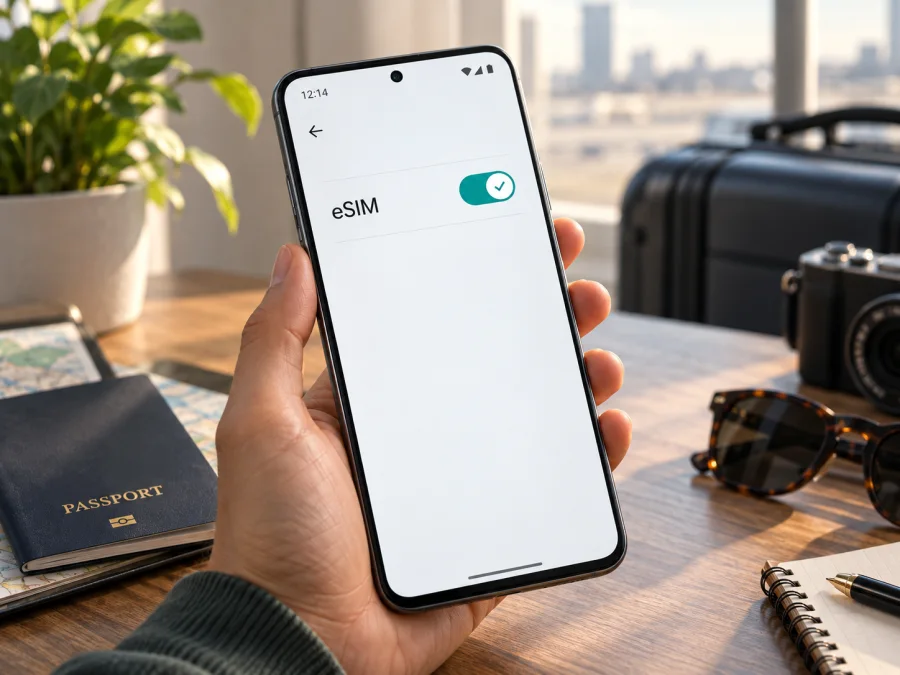
Oppo Reno14 Pro 12GB RAM eSIM: compatibility and setup guide
The short answer is conditional: an international Oppo Reno14 Pro 12GB RAM configuration can support eSIM, but the name and RAM amount alone do not identify the phone’s regional hardware and software. OPPO’s Singapore and Türkiye specification pages list a Reno14 Pro 5G model, CPH2739, with 12 GB RAM and 512 GB storage and show a Nano-SIM plus eSIM arrangement. OPPO’s mainland China Reno14 Pro page instead lists two Nano-SIM cards and does not list eSIM. Check the exact model code and the settings on your own handset before relying on eSIM for a trip.
At a glance
| Item | What to know |
|---|---|
| Device name supplied | Oppo Reno14 Pro 12GB RAM |
| Official eSIM listing | International Reno14 Pro 5G CPH2739, listed with 12 GB + 512 GB in Singapore and Türkiye |
| Regional exception | OPPO China lists dual Nano-SIM; eSIM is not listed |
| Practical decision | Verify your exact model code, EID, and Add eSIM setting |
| Network access | Depends on the plan, destination network, coverage, and supported bands |
This article keeps the supplied device name intact. OPPO may market some Reno14 Pro versions as Reno14 Pro 5G; 5G capability does not itself imply eSIM. The Singapore and Türkiye specifications identify CPH2739 and list a Nano-SIM plus eSIM. OPPO’s mainland China specification instead lists two Nano-SIM cards. The market version, hardware, and firmware matter; changing the phone’s language cannot turn a physical-SIM model into an eSIM device.
“12GB RAM” identifies memory capacity, not storage, sales region, model code, or SIM hardware. The cited CPH2739 listings pair 12 GB RAM with 512 GB storage, but retailers may abbreviate or combine variants in a listing. Check the model number in Settings, on the box, and on your purchase record. Do not infer eSIM support from dual-SIM wording or a 5G badge.
How to verify your specific phone
Use the handset itself as the final check. ColorOS menu labels can vary by version, region, and language; search Settings for “EID,” “eSIM,” or “SIM” if the paths differ.
- Find the model code. Open Settings → About device or About phone and note the full model number. CPH2739 is the code on the cited Singapore and Türkiye eSIM specifications. A different code requires its own market-specific check.
- Look for an EID. Search Settings for EID, or check About device → Status/Status information and SIM details. EID identifies embedded SIM hardware; it is different from IMEI.
- Check the SIM manager. Open Settings → Mobile network or SIM card & mobile data and look for Add eSIM, Download a SIM, or Add mobile plan. You can confirm the menu exists without starting an installation.
- Check carrier lock status. If the phone came from an operator, ask whether it is unlocked and can accept a travel profile from another provider. EID does not remove a network lock.
- Ask OPPO about the exact SKU. Give support the model code, purchase country, and ColorOS version; ask whether that precise variant can download a third-party eSIM profile.
An EID together with an Add eSIM control is good practical evidence of support. If both are missing, restart the device, install official system updates, and check the correct SIM menu. A missing control can reflect regional software or operator restrictions, but an update cannot add absent eSIM hardware. If your phone shows the China-market model, OPPO’s China specifications list two Nano-SIM cards and do not list eSIM. Confirm with OPPO before purchase rather than relying on a generic shop description.
A listing that says “Reno14 Pro” may combine devices from several sales regions. If you are buying online, request a photo of the model code from Settings or the box and compare it with the official specification for that market. Ask whether the phone was originally sold unlocked and whether third-party eSIM profiles are allowed. If the seller cannot answer, wait to buy a travel plan until OPPO has confirmed the SKU. Both the handset and its carrier-unlock status must be suitable, and the plan must cover the destination.
Before-you-buy checklist
<a id="kesim-device-compatibility"></a>
- [ ] Record the full model code and sales market.
- [ ] Check an official specification or OPPO support response for that exact code.
- [ ] Confirm EID and an Add eSIM option in Settings.
- [ ] Confirm the phone is carrier-unlocked.
- [ ] Match destination, route, data allowance, validity, and activation terms to your trip.
- [ ] Check any supported-band or hotspot requirements relevant to your use.
What eSIM does on this phone
An eSIM is a digital SIM profile stored in compatible phone hardware. You add it from Settings, usually with a QR code or provider installation flow. It can let you keep a home physical SIM available while a separate travel profile handles data. The active-line combinations depend on the regional Reno14 Pro version, ColorOS, and profiles; check the SIM manager instead of assuming every dual-SIM arrangement works.
Travel eSIMs commonly provide mobile data only. They may not include an ordinary phone number, voice calls, or SMS unless the plan terms explicitly say so. Messaging and voice apps can use the data connection. Check your home operator’s roaming terms if you need its number for calls or verification messages.
An eSIM-capable 5G phone is not guaranteed 5G access in every destination. The handset’s bands, plan, partner network, coverage, and local deployment all matter; 4G/LTE may be the available service.
Install and activate a travel eSIM
Begin on reliable Wi-Fi and keep the activation details accessible, preferably on another screen. Follow the plan’s instructions: activation may use a QR code, an in-app flow, or manual details. A profile may be installable only once, so do not delete or scan it repeatedly unless the provider permits it.
See the Android eSIM installation instructions for this Oppo phone. The iOS eSIM installation instructions may help if you are also setting up an iPhone.
Steps on Oppo Reno14 Pro
- Confirm readiness. Check model code, EID, Add eSIM, unlock status, destination, Wi-Fi, and battery.
- Open the SIM settings. Go to Settings → Mobile network or SIM card & mobile data, then select Add eSIM/Add mobile plan.
- Install the profile. Scan the provider’s QR code, use its app flow, or enter the supplied activation details. Confirm that the profile is intended for this phone.
- Wait for download. Approve the profile and allow a few minutes for setup. Keep the phone connected to the internet.
- Label the line. Use a clear name such as “Travel data” to distinguish it from your home SIM.
- Choose data settings. Select the travel eSIM for mobile data when appropriate. Review the home SIM’s roaming and automatic data switching settings to avoid unintended charges.
- Check when validity begins. Some plans start at installation; others start when first connected to a supported network. Follow the plan’s timing rules if installing before departure.
- Set roaming if required. Some travel profiles require data roaming. If so, enable it for the travel eSIM only, following the plan instructions.
- Test on arrival. Turn off airplane mode, enable the profile, wait for network registration, then test a webpage. If it fails, work through the checks below before removing the profile.
ColorOS wording may change after updates. Search Settings for “eSIM” or “mobile network” if needed. Avoid resetting network settings as an early troubleshooting step because it may remove saved Wi-Fi and Bluetooth details without fixing an unsupported variant.
Plan your setup around the trip
Before departure, decide whether you need data immediately on landing, need your regular number reachable, and will cross borders. Check the plan’s destination list rather than assuming nearby countries are included. If you plan to share data with a laptop, confirm hotspot use is allowed.
For a short city visit, estimate data for maps, transit, messaging, and browsing. Download maps and tickets beforehand, then match allowance and validity to your schedule. For remote work, video calls, navigation, or photo uploads, allow more data and read any speed or usage limits. “Large allowance” does not necessarily mean unlimited high-speed use.
On a multi-country route, check each country or region and the profile’s supported partner networks. Reception and speed vary by location, congestion, device bands, and plan conditions. A regional option may fit a border-crossing trip; a destination-specific plan may suit a single-country visit.
If you need your home number for one-time codes, keep that SIM active only after checking its roaming terms. Set the travel eSIM as the data line, disable home-SIM data roaming if you want to avoid data charges, and turn off automatic data switching if available. Ordinary calls or SMS on the home line may still cost extra.
After confirming compatibility, Kaspersky eSIM Store is an app and website where you can choose, arrange, and activate an eSIM with a mobile data plan for an overseas trip. Review destination, data allowance, validity, and conditions for the itinerary. The service is not a mobile network; connectivity depends on the plan’s local network and coverage conditions.
Troubleshooting: when the eSIM does not work
Do not delete a profile unless the provider confirms it can be reinstalled. Some activation codes are single-use.
No Add eSIM option
Search Settings for “eSIM,” “EID,” and “mobile network.” Check the model code rather than relying on RAM or a generic model name. Install official updates and restart. OPPO’s China-market specification lists dual Nano-SIM and does not list eSIM. Ask OPPO about the exact SKU before buying a plan.
QR code will not scan
Raise the brightness on the screen showing the QR code, clean the camera lens, and hold steady. If the code is on the phone being configured, show it on another device or use manual setup if provided. Check expiry and avoid sharing the code because it may contain activation credentials.
Profile installed, but no connection
Confirm the eSIM is enabled and selected for mobile data. Toggle airplane mode once, wait for registration, and check that you are in a supported destination and validity has started. Enable roaming on that eSIM only if the plan requires it.
Signal appears but internet does not work
Turn on mobile data and verify the travel line is selected. Check remaining allowance, validity, and any provider APN instructions; enter APN values only when supplied. Temporarily turn Wi-Fi off to test cellular data. Make sure automatic switching has not selected the home SIM.
“No service” or slow data
Confirm the plan includes your location, airplane mode is off, and the profile is enabled. Try a different location, where reception may be better. A partner network name can differ from the plan brand. Speeds and 5G availability depend on local coverage, congestion, bands, and plan terms.
Frequently asked questions
Does Oppo Reno14 Pro 12GB RAM support eSIM?
The international CPH2739 12 GB + 512 GB configuration listed by OPPO Singapore and Türkiye supports eSIM. “12GB RAM” alone does not identify the region. OPPO China lists two Nano-SIM cards and does not list eSIM. Check the phone’s model code, EID, and Add eSIM option.
Can software add eSIM if there is no EID?
An update can change menus or enable software on eSIM-ready hardware, but it cannot add embedded SIM hardware. Ask OPPO about the exact code if EID and Add eSIM are absent.
Can I keep my physical SIM active?
That may be possible, but supported line combinations depend on the variant and software. Check the SIM manager, choose the data line, and review home-operator roaming charges.
Will a travel eSIM include calls or a phone number?
Not necessarily. Many travel plans are data-only. Check the selected plan terms; internet calls and messaging apps can use mobile data.
When should I install the profile, and do I need roaming?
Install over internet before travel if allowed, but check when validity starts. Some profiles require data roaming; follow their instructions and enable it only on the travel line when needed.
Does eSIM guarantee 5G abroad?
No. The phone bands, plan, local partner network, and coverage all affect access. 4G/LTE may be the available service.
Final device compatibility check and eSIM for your trip
Check this device for eSIM compatibility before you choose a travel eSIM. Check the exact device before you choose a travel eSIM. For this Oppo Reno14 Pro 12GB RAM, match the model code against the official specification for the country where it was sold; the international CPH2739 12 GB configuration is listed with eSIM by OPPO in Singapore and Türkiye, while OPPO’s China specifications list dual Nano-SIM. Then confirm the EID and Add eSIM control on the actual phone, and make sure it is carrier-unlocked.
Once compatibility is clear, compare the destination, data allowance, validity period, activation timing, roaming requirements, and supported use with your itinerary. Kaspersky eSIM Store helps you choose, arrange, and activate an eSIM plan for mobile data during an overseas trip. Install it over reliable Wi-Fi, select the correct data line, and keep the plan instructions handy. A few checks before departure make setup more predictable and help you arrive knowing which line to use.


