Travel connectivity guide
Oppo Reno14 Pro eSIM: Compatibility and Setup
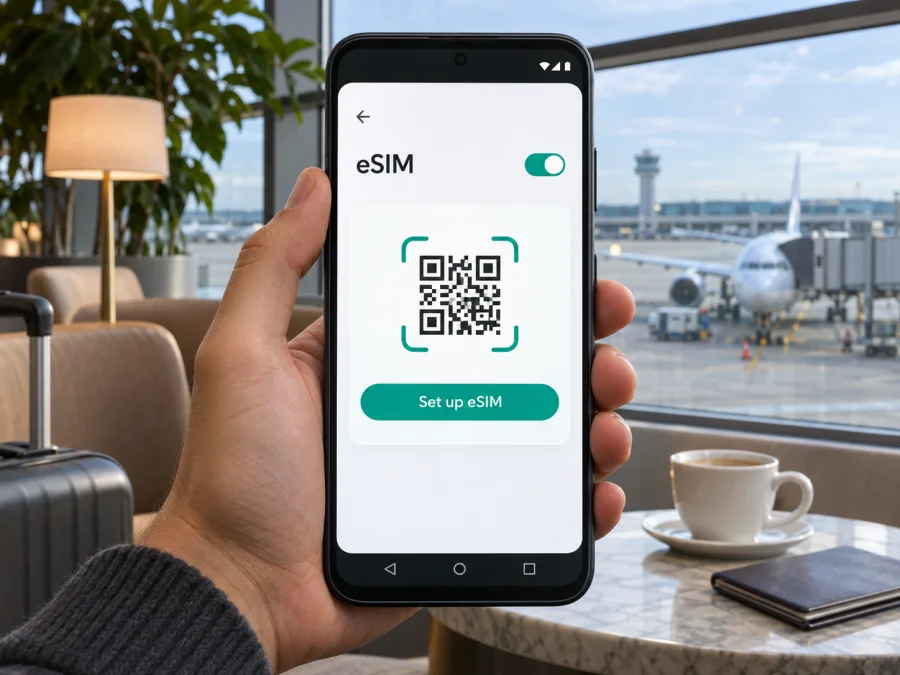
Oppo Reno14 Pro eSIM: compatibility, setup and travel guide
Quick answer: eSIM support on an Oppo Reno14 Pro depends on the regional hardware and software version. OPPO's official India specifications for the Reno14 Pro 5G identified as CPH2739 list a Nano-SIM/Nano-USIM plus eSIM configuration. The official China page identifies the Reno14 Pro as PKZ110 and lists dual physical Nano-SIM, with no eSIM listed. OPPO Global names CPH2739 on its international product page but does not specify SIM type there. So the name on a shop listing alone is not enough: check the model code and the phone's eSIM controls before buying a travel plan.
This guide explains what is confirmed, how to check your own phone, and what to do if the settings or activation behave differently. “Oppo Reno14 Pro” below means the device named in the question; OPPO's regional pages may style the international model as “OPPO Reno14 Pro 5G.” That naming difference should not be taken as proof that every regional variant has identical SIM hardware.
Oppo Reno14 Pro at a glance
| Item | What to know |
|---|---|
| Device named here | Oppo Reno14 Pro |
| International model shown by OPPO | OPPO Reno14 Pro 5G, model code CPH2739 |
| India SIM specification | Nano-SIM/Nano-USIM + eSIM |
| China model and SIM specification | PKZ110; dual Nano-SIM is listed, with no eSIM listed |
| Global SIM specification | Not stated on the global specifications page reviewed |
| Practical conclusion | Confirm the full model code, market and eSIM menu on the individual handset |
| System shown on OPPO's India specification page | ColorOS 15.0; actual software can change with updates |
These are SIM and software facts relevant to eSIM setup, not a promise that any particular carrier or travel plan will work. Even a phone with eSIM hardware can be locked to a carrier, restricted by a local variant, or unable to use a specific network band or roaming arrangement. Compatibility, network access and plan coverage are separate checks.
Does the Oppo Reno14 Pro support eSIM?
The best-supported answer is yes for at least the Indian CPH2739 specification, but no universal yes for every Oppo Reno14 Pro sold worldwide. OPPO India's official specification sheet identifies CPH2739 and explicitly lists “Nano-SIM card/Nano-USIM card + eSIM.” The Chinese specification sheet identifies PKZ110 and lists dual Nano-SIM, without eSIM. That distinction matters: closely related phones can share a family name while differing by market, model number, SIM tray, radio configuration or software support.
The official OPPO Global page also identifies its Reno14 Pro 5G as CPH2739, but the public specification page does not give a SIM-card type. The India page therefore gives clear evidence for an Indian CPH2739 configuration; the global page's omission is not confirmation for every CPH2739 sold in every country. If you purchased your phone elsewhere, do not infer its capability from another country's page. Ask OPPO support or the seller to confirm the exact SKU for the market where your handset was sold, and check the phone itself.
Before purchase, use all three identifiers where available: the retail market or country, the model code printed in Settings or on the box, and the carrier or seller's eSIM statement. If these do not match, pause and get clarification. A seller's generic specification copied from an international page may not describe the particular stock being shipped.
What to check before buying an eSIM plan
Use this short checklist before checkout:
- [ ] Check the exact model code. Open Settings → About device (the wording can vary) and look for Model or Model number. Compare it with the label on the box and the seller's regional listing. CPH2739 and PKZ110 are not interchangeable identifiers.
- [ ] Look for eSIM in mobile-network settings. Search Settings for “eSIM,” “Add eSIM,” “Download a SIM,” or “Add mobile plan.” Menu names vary with ColorOS version, language and market. A working “Add eSIM” flow is a useful sign, but do not proceed to a purchase if the option is absent or disabled.
- [ ] Check the EID. In Settings, search for EID or inspect About device / Status information. An EID (eSIM Identifier) is a device identifier associated with an eSIM component. Its presence is strong evidence that the handset has eSIM capability; record it privately and do not post it publicly. A missing EID alone is not conclusive if the system hides identifiers, so also check the add-eSIM menu and confirm with OPPO for your SKU.
- [ ] Confirm carrier unlock status. A carrier-locked phone may reject a profile from another provider even when eSIM hardware is present. Ask the original carrier to confirm that the handset is unlocked for travel eSIM use.
- [ ] Confirm the plan fits the destination and use case. Check country or regional availability, data allowance, validity, activation timing, supported network and any fair-use terms. A plan's destination list does not guarantee reception in every place.
- [ ] Keep another internet connection available for setup. A Wi-Fi connection or a second device is useful when downloading a profile, viewing a QR code, or troubleshooting after arrival.
How to find EID and the add-eSIM menu
The exact ColorOS labels can change after software updates, and some markets use different names. Start with these paths rather than assuming a menu has been removed:
- Open Settings and use the search field for eSIM. Check results such as “Add eSIM,” “Add mobile plan,” “Manage eSIM,” or “Download SIM.”
- If search gives no result, open Mobile network or SIM card & mobile data. Look for an option to add or download a SIM. If the phone only displays physical SIM slots, check that you are viewing the correct cellular menu and that your software is current.
- Open Settings → About device and look for Status, SIM status, or EID. On some software builds, status details appear under a more-information menu. You can also search Settings for “EID.”
- If you find an EID, compare the model code and confirm the eSIM menu is available. Do not share the EID in public posts or screenshots; support staff should request it only through an appropriate private channel.
- If neither an EID nor an add-eSIM option appears, restart the phone, install available official system updates, and check the exact regional model with OPPO support. Do not buy a plan on the assumption that a software update will add eSIM hardware.
For a quick guided check, check your device before choosing a plan. If the exact Oppo variant is not listed, treat the individual handset's EID, settings menu and manufacturer confirmation as the deciding checks. A compatibility checker is a helpful signal, not a substitute for verifying a regional SKU.
Installing an eSIM on Oppo Reno14 Pro
Only follow these steps after the handset shows an eSIM option and you have confirmed that the device is unlocked and compatible with the selected plan. ColorOS wording can vary, so the labels below describe the likely path rather than a guarantee that every version uses identical text. For broader instructions, see the Android eSIM installation guide and the iOS eSIM installation guide. The iOS instructions are included as a separate guide for readers setting up another Apple device; Oppo Reno14 Pro runs Android.
Before installation
- Connect to reliable Wi-Fi or another internet source.
- Keep the QR code visible on a different screen or printed, unless the service supports direct installation in its app.
- Read the selected plan's instructions and note when its validity begins. Some plans start on installation, some on first network connection, and others follow a schedule; use the terms shown for that plan.
- Avoid deleting a profile after installation unless support confirms it can be reinstalled. Many activation codes are single-use or tied to one handset.
- Keep access to the email or account where the QR code and plan details are stored.
Add the profile
- Open Settings on the phone.
- Tap Mobile network, SIM card & mobile data, or the closest equivalent in your ColorOS version.
- Choose Add eSIM, Add mobile plan, or Download SIM. If the option is missing, stop and recheck your model and market rather than trying to scan the code in an unrelated camera app.
- Choose the QR-code option. If your plan provides manual activation details instead, follow the plan's supported manual-entry flow.
- Scan the QR code from the purchase confirmation or account page. Keep the other screen bright and steady; do not crop or share the code publicly.
- Review the plan name shown by the phone and confirm the download. Wait for the profile to install. Keep Wi-Fi connected and do not close Settings if a progress screen is active.
- Give the new profile a clear label, such as “Travel data” plus the destination, so you can distinguish it from your home SIM.
- Leave the travel profile switched off or keep it from using mobile data until you are ready, if the plan terms allow delayed use. Check the plan's activation policy before changing its status.
Installation adds the profile to the phone; it may not mean that the plan is already using data or has registered on a local network. Profile installation, plan activation, and first data connection are separate events. Follow the plan's displayed instructions to determine which event starts validity.
Using eSIM for mobile data on a trip
Once the plan should be active, select the travel eSIM as the data line. Open the mobile-network or SIM settings and enable the eSIM profile. Set Mobile data to that profile. If the plan instructions require it, switch on Data roaming for the travel eSIM. Roaming here is a setting that lets the eSIM profile connect to partner networks abroad; it does not mean that your home SIM has to use roaming. Keep data roaming disabled on your home line if you want to avoid unintended home-carrier charges, and check with that carrier if you are unsure how its billing works.
If dual-SIM use is available, keep the home SIM for the functions you need and set the travel eSIM as the data line. Behavior varies by variant and software. Turn off automatic data switching if available. Data-only plans do not include a phone number, calls or SMS unless the plan explicitly says so; internet calls and messages can use apps.
Choose a plan around the trip
Think about where and how you will use data, then compare the plan terms that are shown at the time of purchase:
- One country: compare the plan’s data allowance and validity with likely use for maps, transport and messaging.
- Several countries: confirm that every stop is included; a one-country plan may not cover a neighboring destination.
- Longer trips or delayed arrival: check expiry, top-up and activation terms. An early installation may start validity for some plans.
- Work or hotspot use: allow for video calls and backups, and confirm that tethering is supported.
Kaspersky eSIM Store is an app and website where travelers can choose, arrange and activate an eSIM with a data plan for an international trip. Review the country or region, allowance, duration, activation terms and price displayed for the exact plan you select. To browse available destinations and current plans, visit the Kaspersky eSIM Store website. This is a general store page; it is not a country-specific plan or a claim of coverage in a particular location.
Troubleshooting: common eSIM issues
There is no “Add eSIM” option. Check the model code and sales region first. The China PKZ110 specification lists dual physical Nano-SIM, while OPPO India lists eSIM for the CPH2739 configuration. Verify the device with OPPO or the seller. Install official software updates and search Settings again, but do not assume an update can enable a missing hardware feature.
The QR code will not scan. Make sure the phone is connected to Wi-Fi, increase the brightness of the screen displaying the code, clean the camera lens and hold the code steady. If you are viewing the code on the same phone, open it on another device or use a manual-install option only if the plan supports one. Do not scan an expired or already-used code; contact the plan's support channel to check its status.
The plan cannot be added. Confirm the correct code, eSIM option and unlocked status. Some codes are single-use or the profile may already be installed. Save the error and contact support; do not post the activation code publicly.
The eSIM installs but shows no service. Check that you are at a destination included in the plan and that the activation date or first-use condition has arrived. Turn the eSIM line on, select it for mobile data, enable data roaming for that profile if instructed, then toggle Airplane mode on and off or restart once. Give the device a few minutes to register. Network selection may take time or require choosing an available network manually as directed by the plan.
There is no internet despite a connection. Select the travel eSIM for mobile data, confirm the profile and plan are active, and check remaining allowance. Change the APN only when the plan instructions specify a value. If needed, contact support with the model code, country and error details.
The home SIM is using data or roaming. Reopen SIM settings and inspect the selected data line. Disable data roaming on the home SIM, turn off automatic data switching if available, and verify the travel eSIM is selected for data. Keep the home line enabled only for the functions you need, and check its roaming charges with your home carrier.
No service at the destination. Recheck plan availability, activation and local network details. Confirm that the phone is unlocked and test where coverage is available; signal can vary indoors or in remote areas.
FAQ
Does every Oppo Reno14 Pro support eSIM?
No universal statement is supported. OPPO's India specifications for CPH2739 list eSIM alongside Nano-SIM. The China PKZ110 specifications list dual physical Nano-SIM and do not list eSIM. OPPO Global identifies CPH2739 but leaves SIM type unspecified on the page reviewed. Check the individual phone and its market.
Is the Oppo Reno14 Pro 5G the same device as Oppo Reno14 Pro?
The international OPPO page styles CPH2739 as OPPO Reno14 Pro 5G; the China page calls PKZ110 OPPO Reno14 Pro. These are official market-specific names and model codes. The 5G label or family name alone does not establish eSIM support. Match the exact code on the handset with the relevant regional specification.
What does an EID tell me?
An EID is an identifier associated with eSIM hardware. Finding it is a strong compatibility clue, but also check that the software exposes an add-eSIM option and that the phone is not carrier-locked. An EID is not the QR code, plan number or mobile phone number.
Can I keep my physical SIM active while using a travel eSIM?
Often the handset can keep a physical SIM available while the eSIM handles data, but dual-SIM behavior can vary by variant and software. Check the available SIM settings, select the travel profile for mobile data, and verify that the home SIM is not using roaming data unintentionally.
Does an eSIM data plan include a phone number, calls or SMS?
Do not assume that it does. Travel eSIM data plans are commonly data-only; voice calls and SMS are included only when the specific plan says so. Messaging and internet calls can use apps over mobile data.
Should I install the eSIM before leaving?
You can prepare it before travel if the phone and plan allow it, but check when the plan becomes valid. Keep the QR code and account access available, use Wi-Fi for installation, and avoid deleting the profile. If the plan offers scheduled activation, match it to your departure or arrival as appropriate.
What if the Oppo settings don't match this guide?
ColorOS menus differ across software versions and countries. Search Settings for “eSIM” and “EID,” check the phone's full model code, and consult OPPO's support for the market where it was sold. Do not use screenshots from another Reno14 Pro variant as proof that your phone has the same feature.
Before you travel: check the handset, then choose the plan
For Oppo Reno14 Pro, the decisive compatibility details are the full model code, regional specification and the controls available on your own phone. OPPO India lists eSIM for CPH2739, while the China PKZ110 page lists physical Nano-SIM only. The Global page leaves SIM type unstated, so check your region and handset.
Before paying, confirm that your phone has an EID or an add-eSIM option, ask OPPO or the seller about any uncertainty, and check that the handset is carrier-unlocked. Then compare the selected destination, data amount, validity, activation timing and network notes. Install over Wi-Fi, select the travel profile for mobile data, and verify roaming settings for each SIM separately. If the checks do not confirm eSIM support, use another compatible unlocked device or ask your home carrier about travel data options instead.
When your device is confirmed compatible, you can browse destinations and current eSIM plans in Kaspersky eSIM Store and choose a plan for your itinerary. Recheck its terms before purchase, since availability and plan details can change.


