Travel connectivity guide
OUKITEL WP30 Pro eSIM: compatibility and setup
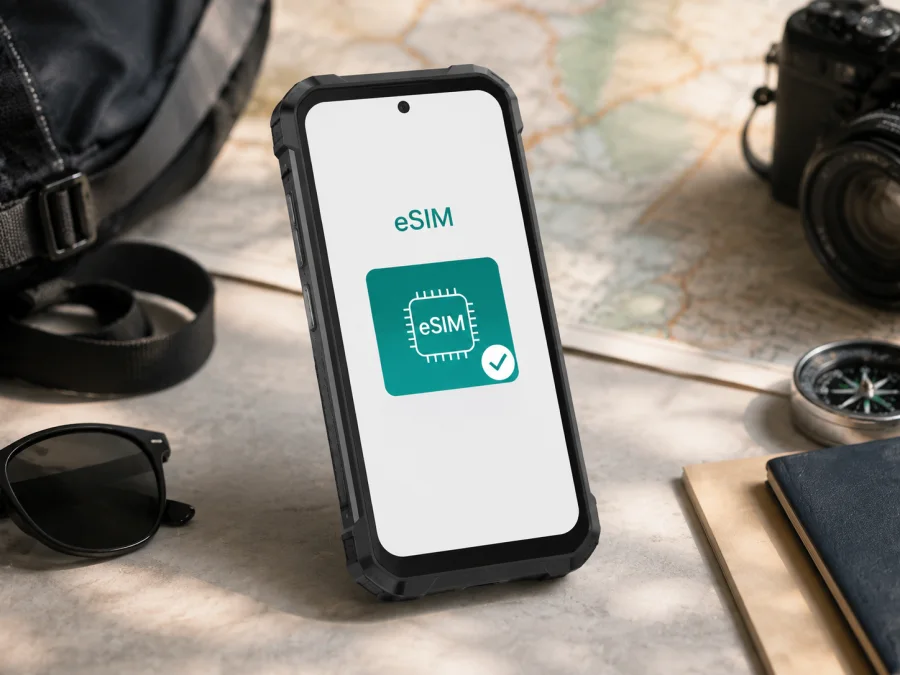
OUKITEL WP30 Pro eSIM: compatibility, installation, and travel setup
If you are checking whether the OUKITEL WP30 Pro can use a travel eSIM, the short answer is yes. OUKITEL’s current official specifications list the SIM mode as Nano+Nano/Nano+eSIM, and the official product page identifies eSIM support. In practice, the exact handset, sales region, firmware, and carrier still matter. Before buying a plan, confirm that your own phone shows an eSIM option or an EID.
For a trip, eSIM can provide mobile internet without removing your primary physical SIM. You can prepare the profile before departure, keep your usual number available for important calls or messages, and select the eSIM for data after landing. Kaspersky eSIM Store is an app and website that helps you choose, arrange, and activate an eSIM with a suitable mobile-internet plan for an international trip. Destination, traffic allowance, validity, and other terms depend on the plan you select.
Does OUKITEL WP30 Pro support eSIM?
Yes. OUKITEL’s official WP30 Pro information presents eSIM support and shows the two alternatives “Nano+eSIM” and “Nano+Nano.” The first means one nano-SIM can be used with one eSIM profile; the second is the two-physical-SIM configuration. This confirms the eSIM capability of the OUKITEL WP30 Pro model described here, but it does not guarantee that every seller’s stock or every regional firmware build exposes the same menu.
Key specifications related to the check
| Item | OUKITEL WP30 Pro information | Practical meaning |
|---|---|---|
| Device | OUKITEL WP30 Pro | Check the name on the box, invoice, and About phone screen. |
| Mobile platform | Android 13 | Menu names can vary after updates or by region. |
| Network generation | 5G | 5G support does not automatically mean eSIM support. |
| Physical SIM mode | Nano+Nano | Two physical SIMs are the alternative configuration. |
| Digital SIM mode | Nano+eSIM | One nano-SIM can be used with an eSIM profile. |
| Official memory listing | 12GB+12GB RAM, 512GB ROM | Useful for identification, but not a replacement for the EID check. |
“Supports eSIM” and “can activate this particular plan” are separate questions. The phone must also be unlocked, the plan must cover the destination, and the handset must reach the activation service. A carrier may restrict SIM use even when the hardware includes an eSIM.
Regional, seller, and carrier differences
Retail listings can come from different markets, and an imported, refurbished, or operator-branded device may have different software settings. A seller may also use “dual SIM” to mean two physical SIM cards without explaining the Nano+eSIM option.
Two phones with the same model name can therefore differ in practical setup because of:
- a different sales region or network configuration;
- a carrier lock or activation restriction;
- regional firmware that hides or renames the eSIM control;
- a software update that changes the location of mobile-network settings;
- destination networks or plan conditions that do not match the phone’s capabilities.
If your phone has no EID and no eSIM control, do not assume that a QR code, factory reset, or new plan will add the missing function. Ask the seller or carrier to confirm the exact variant and unlock status first.
How to check eSIM compatibility on OUKITEL WP30 Pro
The strongest on-device sign is an EID. This is the identifier associated with the embedded SIM hardware. You only need to confirm that the field exists; keep the full number private and do not post it with a QR code or activation code.
Check the device information
- Open Settings.
- Open About phone, Device information, or a similar section.
- Look for EID, eSIM, or SIM status.
- Return to network settings and look for Add eSIM, Add mobile plan, Download a SIM instead, or a plus sign in the SIM section.
- If neither an EID nor an add-eSIM control appears, pause before purchasing and confirm the variant with the seller or carrier.
On Android, the relevant controls may be under Settings → Network & internet → SIMs, Mobile network, or SIM cards & mobile networks. OUKITEL’s labels can vary by firmware. A different label does not matter if the function lets you add or download an eSIM profile.
Compatibility checklist
- [ ] The About phone screen identifies the device as OUKITEL WP30 Pro.
- [ ] OUKITEL’s specification for this model lists Nano+eSIM.
- [ ] An EID or an Add eSIM control is visible on your own handset.
- [ ] The phone is not locked to a carrier.
- [ ] The phone can connect to Wi-Fi during installation.
- [ ] The plan covers every country or region on your route.
- [ ] Traffic, validity, activation rules, and refund conditions fit your trip.
<a id="kesim-device-compatibility"></a>
For a final pre-purchase reminder, Check your device for the EID, eSIM menu, and carrier lock before selecting a plan. This check remains important even when the official model specification confirms eSIM support.
After those checks, use Kaspersky eSIM Store’s app or website to review the destination, traffic allowance, validity period, and activation details before arranging an eSIM plan. Options can vary by destination and time.
What to prepare before installation
Install the eSIM while you have a stable internet connection, preferably Wi-Fi. Keep the QR code or manual activation details available on another screen.
Before you begin, make sure the OUKITEL WP30 Pro has enough battery, the activation details are available, and you know when validity starts. Installation and activation can be separate events.
An eSIM plan for travel is normally for mobile internet, not a replacement phone number. Voice calls and SMS are not included unless the selected plan expressly says so. Keep your primary SIM for your ordinary number when needed, and use messaging or calling apps over the active data connection where appropriate.
How to install and activate an eSIM
The exact Android wording can change, but this sequence is a reliable starting point.
1. Confirm the conditions
Connect the OUKITEL WP30 Pro to Wi-Fi. Check the EID and Add eSIM option again. If the feature is missing, stop and verify the regional model rather than trying to force an installation.
2. Open mobile-network settings
Open Settings, then Network & internet, SIMs, or the equivalent section. Select the command for adding a mobile plan or eSIM. Do not remove a physical SIM unless you have decided that you no longer need it.
3. Scan the QR code
Choose the QR-code option and scan the code supplied with the selected plan. If the plan provides manual activation details, enter them carefully. Keep the code private. Some QR codes are single-use or tied to one installation.
4. Download the profile
Approve the prompts and wait while Android downloads the profile. This may take several minutes. Keep Wi-Fi connected and do not repeatedly rescan the code while the download is running.
5. Label the line
Name the profile Travel data or use the destination name. A clear label makes it easier to select the correct line when both the physical SIM and eSIM are enabled.
6. Select mobile data
When Android asks which SIM should provide mobile data, choose the travel eSIM when you are ready to use it. Keep the primary SIM for calls and SMS if required. To limit unexpected charges, review or disable mobile data and roaming on the primary line according to your normal operator settings.
7. Enable required roaming
Open the travel profile and confirm that it is enabled. Some travel plans require Data roaming on the eSIM because it connects through a partner network abroad. Enable it only for the intended profile and follow the plan’s instructions; roaming on the primary SIM can have separate charges.
8. Test the connection
Turn off Wi-Fi briefly and check for a mobile-data indicator. Open a light webpage or messaging app. If the plan is intended to start after arrival, install it before the trip but wait to enable data when the plan’s conditions say it is appropriate.
For additional Android steps, use the Android eSIM installation instructions. The OUKITEL WP30 Pro is an Android phone, so this is the relevant guide. If you also travel with an Apple device, the iOS eSIM installation instructions can help configure that separate device. Kaspersky eSIM Store helps with plan selection and activation flow; the phone’s own settings control the downloaded profile.
Using eSIM mobile data on a trip
The simplest arrangement is to keep the physical SIM available for your usual number and set the travel eSIM as the data line. This avoids swapping cards at an airport and makes it clear which profile is using traffic.
Arrival scenario
Before leaving, install the profile on trusted Wi-Fi. After landing, open Settings → SIMs, enable the travel eSIM, and select it for mobile data. Turn on data roaming for that profile if required. Switch off Wi-Fi for a short test, then use maps, tickets, translation, ride-hailing, and messaging. Check traffic or balance in the app or website when that information is available.
Short city break
Choose by route, validity, and expected data use, not by price alone. Check whether the plan covers one country, a region, or several destinations, and confirm when validity starts.
Multi-country route
Confirm that every country on the itinerary is included. A border crossing can change the partner network, and a 5G handset will not necessarily show 5G everywhere. Local coverage, supported bands, signal, and plan conditions determine the connection.
Troubleshooting
No EID or eSIM menu
Restart the phone, check About phone and SIM settings again, and install any available official system update. If the EID and add-eSIM control are still absent, treat that as a compatibility warning. Confirm the exact region, firmware, and carrier lock with the seller or operator before purchase.
QR code does not scan
Increase the brightness of the screen showing the code, clean the camera lens, and make sure the entire code is visible. If the code is displayed on the OUKITEL WP30 Pro itself, use a manual activation code or another screen when the plan allows it. Avoid repeated attempts if the code is single-use.
Profile will not download
Check Wi-Fi, date and time, available storage, and whether the SIM manager allows another profile. Confirm that the activation code belongs to the intended plan and has not already been used. If Android reports a carrier or regional restriction, save the exact message and contact support. Kaspersky eSIM Store support can help with the plan and activation flow, but it cannot remove a carrier lock or add eSIM hardware that is not available on the handset.
Profile is installed but there is no data
Open the eSIM profile and make sure it is enabled. Select it as the default mobile-data SIM and enable data roaming for that profile if required. Turn off Wi-Fi, restart the phone, and allow a few minutes for registration. Check destination coverage, plan status, and remaining traffic. With two SIMs enabled, verify that Android has not switched mobile data back to the physical SIM.
Calls or SMS do not work
The travel eSIM in this scenario is for mobile internet and does not automatically provide a separate number. Keep the physical SIM active for ordinary calls and SMS if needed, and check home-operator roaming terms. Do not infer voice support from the presence of an eSIM menu.
FAQ
Is the OUKITEL WP30 Pro eSIM-compatible?
Yes. OUKITEL’s current official specification lists Nano+Nano/Nano+eSIM, and the product information identifies eSIM support. Verify the EID or Add eSIM menu on your unit because region, firmware, seller, and carrier restrictions can affect the practical setup.
Can I install the profile after landing?
Usually, if Wi-Fi or another working connection is available. Installing before travel can reduce steps after arrival, but follow the plan’s activation and validity rules. Installation and the start of data use may be separate.
Can I move the eSIM to another phone?
Not necessarily. Some profiles are tied to the first installation or cannot be transferred after activation. Check the plan conditions before deleting, moving, or resetting anything.
Final device and trip check
OUKITEL lists the OUKITEL WP30 Pro as supporting Nano+eSIM, so the model can be suitable for a travel eSIM when your individual handset exposes the feature. Make the final decision using the phone in your possession: verify the EID or Add eSIM setting, confirm that the device is unlocked, and check the plan’s destination, traffic allowance, validity period, activation rule, roaming requirement, and refund conditions.
Before departure, connect to Wi-Fi, keep the QR code or activation details available, install the profile carefully, and label the travel line. On arrival, select that eSIM for mobile data, enable roaming only where required, and keep the primary SIM’s data settings under control. If you are ready to proceed, use Kaspersky eSIM Store’s app or website to choose and arrange an eSIM plan for the countries or regions on your itinerary. Kaspersky eSIM Store helps with selection and activation; the underlying mobile service, coverage, and network performance depend on the selected plan and local network conditions.
The safe sequence is: check the exact OUKITEL WP30 Pro, confirm the EID, choose a plan for the route, install it on a reliable connection, select the data line, and test it before relying on it. If a check fails, ask the seller, carrier, or support team to confirm the regional version.


