Travel connectivity guide
OUKITEL WP33 Pro eSIM: Compatibility and Setup
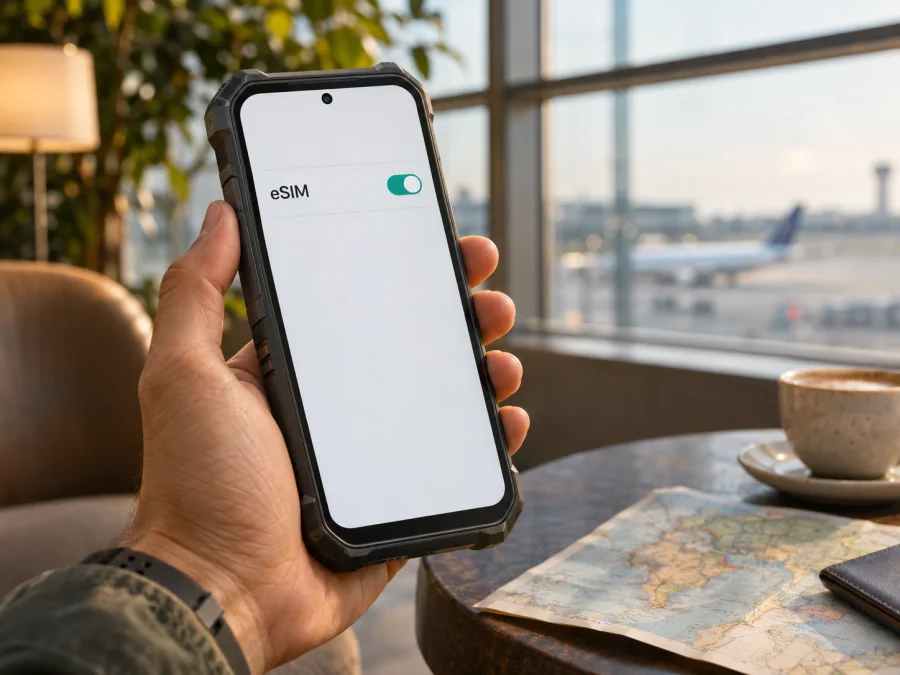
OUKITEL WP33 Pro eSIM: Compatibility and Setup Guide
The OUKITEL WP33 Pro is listed as supporting eSIM, but the exact SIM configuration should be confirmed on the handset you own or plan to buy. OUKITEL’s current product information describes the SIM mode as “Dual Nano SIM / Nano SIM + eSIM.” That confirms that eSIM is part of the WP33 Pro model line; it does not prove that every unit, sales region, firmware build, or carrier configuration exposes the same option.
Quick answer: the WP33 Pro can use an eSIM according to OUKITEL’s published specifications. Before paying for a travel plan, check the phone’s EID and look for an Add eSIM option in its own settings. Also make sure the device is unlocked and that the plan’s partner network accepts your exact handset and intended destination.
OUKITEL WP33 Pro eSIM compatibility at a glance
| Item | What is known |
|---|---|
| Exact model covered | OUKITEL WP33 Pro |
| eSIM status | OUKITEL’s current product page and specifications list “Nano SIM + eSIM” as a supported SIM mode. |
| SIM choices shown | The specification lists “Dual Nano SIM / Nano SIM + eSIM.” These are alternative configurations; they do not mean two physical SIM cards and an eSIM must all be active together. |
| Operating system listed | Android 13. Menu names can differ with software updates, localization, and the seller’s firmware. |
| Network generation | 5G is listed, but 5G support alone does not establish eSIM support or guarantee that a particular network will accept the phone. |
| Market and carrier caveat | The public specification does not map each configuration to a country, part number, firmware build, or operator. Verify the specific unit and the network you intend to use. |
The answer is therefore a qualified yes for the WP33 Pro model line. The manufacturer’s public listing is useful evidence, but your handset’s own EID and eSIM menu are the decisive practical checks. If neither appears, do not assume that a software update or a seller’s broad “WP33 Pro” description will add eSIM capability. Ask the seller or OUKITEL support to confirm the device’s exact regional model and firmware before purchasing a plan.
What the specification does—and does not—tell you
The wording “Dual Nano SIM / Nano SIM + eSIM” presents two ways to configure the SIM functions: two physical Nano SIM cards, or one Nano SIM together with an eSIM profile. This is a useful signal that the model family includes eSIM capability. It is not a promise that an individual phone can use two physical SIMs and an eSIM at once, nor does it tell you how many stored profiles the phone can keep or how many lines can be active simultaneously.
OUKITEL’s global product page and its Germany-market specifications both show the Nano SIM + eSIM option. Those pages do not identify a country-by-country matrix of WP33 Pro part numbers or say which exact retail batches use each configuration. It would be inaccurate to claim that a particular country definitely receives an eSIM-enabled or eSIM-disabled version based on the information published there. If you are shopping across borders, compare the seller’s exact model code and product description with the handset’s system information and ask for confirmation in writing.
There is a second distinction: a phone can have eSIM hardware yet still fail to add a particular profile. The device must be unlocked, its software must expose eSIM management, and the eSIM provider’s partner network must support the device and the destination. A carrier may also apply eligibility rules to its own service. These are separate checks from whether the WP33 Pro supports 5G, and they can vary by the operator market where a plan will be used. A plan that works in one country or network should not be assumed to work on every network in the same region.
The official listing is about the device’s SIM capability, not a guarantee of local coverage, a specific carrier’s approval, or a particular travel plan. For travel, check the destination and any transit countries against the selected plan’s terms. Where an operator name or supported network is shown in those terms, use that information for the actual country you will visit. If the plan does not identify a usable network or destination, ask the service’s support team before you buy rather than relying on a general “international” label.
Check the exact WP33 Pro before buying
Use the phone itself as the final compatibility check. The steps below are designed to avoid relying only on packaging, marketplace titles, or a general product-family specification.
1. Look for an EID
An EID is the identification number associated with the phone’s embedded SIM hardware. On many Android phones, you can open the Phone app and dial *#06#; a device that supports eSIM may display an EID alongside its IMEI numbers. You can also look in Settings under About phone, Status, or SIM status. The exact path varies by Android version and manufacturer software.
A visible EID is a strong sign that the handset has eSIM hardware. It does not by itself confirm that the phone is unlocked, that eSIM setup is enabled in the current firmware, or that a specific operator will accept the device. Do not post the EID publicly: share it only with the device seller, manufacturer, or service provider when they need it to check compatibility.
If the dial code opens a menu but shows only IMEI numbers, check Settings as well. Some Android builds do not show every identifier in the same place. If no EID appears anywhere, ask OUKITEL support or the seller to verify the exact unit using its model or part number. A missing EID is a reason to pause before buying, not a reason to try random activation codes.
2. Look for the eSIM controls
Open Settings and look for Network & internet, SIM cards, Mobile network, or a similarly named section. Select an option such as Add SIM, Add eSIM, Download a SIM, or Set up an eSIM. Android labels can differ, so search Settings for “eSIM” if the menu has a search field.
An available eSIM setup option is another positive check. If you see only controls for physical SIM cards, confirm that the phone is fully updated and restart it once, then check again. If the EID is present but the Add eSIM control is absent, the handset may have a firmware, market, management, or carrier restriction. Do not buy the plan until the seller or OUKITEL confirms how that exact unit can add an eSIM.
3. Confirm the lock and plan conditions
Ask the seller whether the WP33 Pro is network-unlocked. A lock on a device can stop it from using an eSIM profile from another provider even when eSIM hardware is present. Then review the plan’s destination, supported network, data allowance, validity period, activation timing, and any hotspot restrictions. Those details belong to the selected plan and can change; they are not fixed properties of the WP33 Pro.
Compatibility checklist
- [ ] The handset is specifically an OUKITEL WP33 Pro, with no different model name or suffix.
- [ ] An EID appears in the phone’s information or has been confirmed by OUKITEL or the seller.
- [ ] Settings includes an option to add or download an eSIM profile.
- [ ] The phone is unlocked for use with a different provider.
- [ ] The eSIM provider confirms that its service supports this device and the network market at your destination.
- [ ] The selected plan covers every country on your route and its terms fit the trip.
When you want to continue, check your device before choosing a travel plan. Kaspersky eSIM Store is an app and website where you can select, arrange, and activate an eSIM with a mobile-data plan for an overseas trip. Browse current destinations and available plans and check the current terms for your route; the homepage is a starting point for browsing, not a country-specific tariff.
Install and activate an eSIM on the WP33 Pro
The WP33 Pro uses Android SIM settings, though exact labels can vary by software version and localization. The provider may offer in-app installation, a QR code, or manual activation details; use the method supplied with your plan. See how to install an eSIM on Android for a general guide. The iOS installation guide is for Apple devices, not the WP33 Pro.
Before you start
- Confirm the EID, Add eSIM setting, and unlocked status on this handset.
- Connect to stable Wi-Fi or another working internet connection to download the profile.
- Keep the provider’s app, account, QR code, or manual activation details available.
- Read when the plan’s validity begins; installing a profile and starting data use are not always the same event.
- Keep the phone on and charged until setup finishes.
Step-by-step setup
- Open SIM settings. In Settings, open SIM cards or mobile networks and choose Add eSIM, Add SIM, or a similar option.
- Select an installation method. Follow the provider’s in-app flow, scan its QR code, or enter the manual activation details exactly as supplied. If the code is on the WP33 Pro screen, use another display or an in-app/manual option.
- Download the profile. Stay connected and wait for confirmation. Setup may take a few minutes; do not delete the profile or start another SIM change while it is processing.
- Name the profile. Use a label such as “Travel data” or the destination name to distinguish it from your regular SIM.
- Choose the data line. In SIM settings, select the eSIM for Mobile data when you want to use it. Keep your home line available for calls or SMS only if needed and after checking your home operator’s roaming charges.
- Follow the activation timing. If the plan begins on first connection in its destination, you may be able to install it before departure and enable it on arrival. If its validity starts earlier, follow the plan’s stated timing.
- Enable roaming only if the eSIM instructions require it. Some travel profiles need data roaming to register on a partner network. Confirm that the eSIM—not your home SIM—is selected for mobile data.
- Test the connection. On arrival, turn off Wi-Fi briefly and load a simple page or messaging app. Give the phone time to register before troubleshooting.
Using the WP33 Pro for travel data
For a short trip, you can prepare the profile over Wi-Fi before departure, then enable it when appropriate at your destination. First check whether installation itself starts the plan’s validity. Activation rules differ: the plan may start at purchase, installation, a scheduled time, or first connection to a supported network.
For a multi-country itinerary, read the destination list rather than assuming nearby countries are included. Confirm every stop, transit country, and island destination. Compare the data allowance and validity with your expected use of maps, messaging, email, work apps, and video. Limit background downloads or autoplay if you need to conserve data. Hotspot use depends on both the phone and plan terms.
A travel eSIM is generally for mobile data. Kaspersky eSIM Store plans do not include an ordinary phone number, calls, or SMS unless a specific plan explicitly says otherwise. You may keep a regular SIM for calls and texts while routing data through the travel eSIM, but check your home operator’s roaming terms. Internet calls and messages through apps use data.
The WP33 Pro’s 5G support and eSIM capability are separate. A 5G indicator is not required for eSIM to work; the phone may use 4G or another supported technology depending on the local network and plan. Coverage and speed vary with location, compatible radio bands, network conditions, and plan terms. A rugged handset cannot create a signal where the local network is unavailable.
Common problems and what to check
No EID or Add eSIM setting
Check both About phone/SIM status and the SIM settings search. Confirm the exact model code, firmware, and sales market with the seller or OUKITEL. If neither an EID nor eSIM setup control is available, treat eSIM as unconfirmed for that unit. Do not rely on a general WP33 Pro listing alone.
QR code will not scan or the profile will not download
Raise the brightness of the screen showing the code, clean the WP33 Pro camera lens, and hold it steady. Use a second screen if needed. Confirm the code belongs to your plan and has not already been used. For a stalled download, check the internet connection, date and time, battery, and any error message. Restart once if setup remains stuck, then ask the provider about the code before retrying repeatedly.
Profile is installed, but there is no service
Confirm the profile is enabled and selected for mobile data; check that airplane mode is off and the plan covers the country you are in. Enable data roaming on the travel profile only if the provider requires it. Wait a few minutes, restart the phone, and check the provider’s network instructions. Ask whether manual network selection is supported if automatic registration fails.
Connected, but data does not load
Turn Wi-Fi off briefly to test cellular data. Check that the eSIM is selected for data and that the plan has remaining data and is active in the current destination. Enter an APN only if the provider supplies exact settings; do not guess. If a VPN, private DNS, or data-saving feature is active, check whether it affects the connection and restore settings after troubleshooting.
Data is using the home SIM, or the profile disappeared
Open SIM settings and verify the line selected for Mobile data. Only the selected line carries data at a time. Review home roaming charges if that line remains enabled. After an update or reset, search Settings again and check the EID. Avoid a factory reset just to reveal eSIM; it erases data and may not change a hardware or market restriction. Before deleting a profile, ask the provider whether it can be reissued.
Practical examples
Weekend city break: Verify the EID, unlock status, and destination coverage at home. Install over Wi-Fi if the plan allows it, then select the eSIM for mobile data on arrival and test a simple page before relying on maps or bookings.
Work trip with a home number: Keep the regular Nano SIM for calls or texts if needed, set the travel eSIM as the data line, and check home roaming charges. Use messaging apps over data for internet calls.
Several countries: Confirm every country in the plan’s destination terms and check when validity starts. If the itinerary changes, recheck coverage before crossing a border; a profile can remain installed while the plan is unavailable in a new country.
Remote route: Download maps and essential travel details in advance, carry a charging option, and check the supported network in the area. If there is no local signal, move to a place with coverage or use another connection option.
Frequently asked questions
Does the OUKITEL WP33 Pro support eSIM?
OUKITEL’s current published specifications list Dual Nano SIM / Nano SIM + eSIM, so the model line supports eSIM. Verify the EID and Add eSIM control on your exact handset because the listing does not identify every regional or carrier configuration.
Can it use two Nano SIMs and an eSIM together?
The specification lists two alternative modes: Dual Nano SIM or Nano SIM plus eSIM. It does not promise that all three lines can be active together. Check the phone’s SIM manager and the exact unit information.
Does an EID guarantee that a travel eSIM will work?
No. The phone must also be unlocked, expose eSIM setup, and be accepted by the provider’s network partner in the destination. Check all three before purchase.
Does 5G mean eSIM works everywhere?
No. The features are separate, and a plan must cover your destination and use a network compatible with the phone. Service may use 4G instead of 5G where that is what the plan or local network supports.
Can I install before travel, and can I transfer it later?
Often you can install over Wi-Fi before departure, but the plan controls when validity begins. Do not assume that an installed profile can be moved or reused after deletion; ask the provider about timing, transfer, and reinstallation rules.
Does a Kaspersky eSIM Store plan include calls or texts?
It is intended for travel mobile data. Ordinary calls, SMS, and a phone number are not included unless the specific plan says otherwise. Use your regular line or internet messaging apps as appropriate.
Before you choose a travel eSIM
OUKITEL lists eSIM as one of the WP33 Pro SIM modes, making the model a candidate for travel data once your handset confirms that capability. Check the EID, find Add eSIM, verify that the phone is unlocked, and confirm that the provider accepts it on a supported network in your destination. If any check is unclear, ask the seller or provider before purchase.
Then compare the route, data allowance, validity period, and activation timing in the current plan terms. Kaspersky eSIM Store is an app and website where you can select, arrange, and activate an eSIM with a mobile-data plan for an overseas trip. Browse available destinations and current plan terms, then install the profile using the provider’s instructions and select it for mobile data when you are ready to connect.


