Travel connectivity guide
Pokhara eSIM: Mobile Internet for Your Nepal Trip
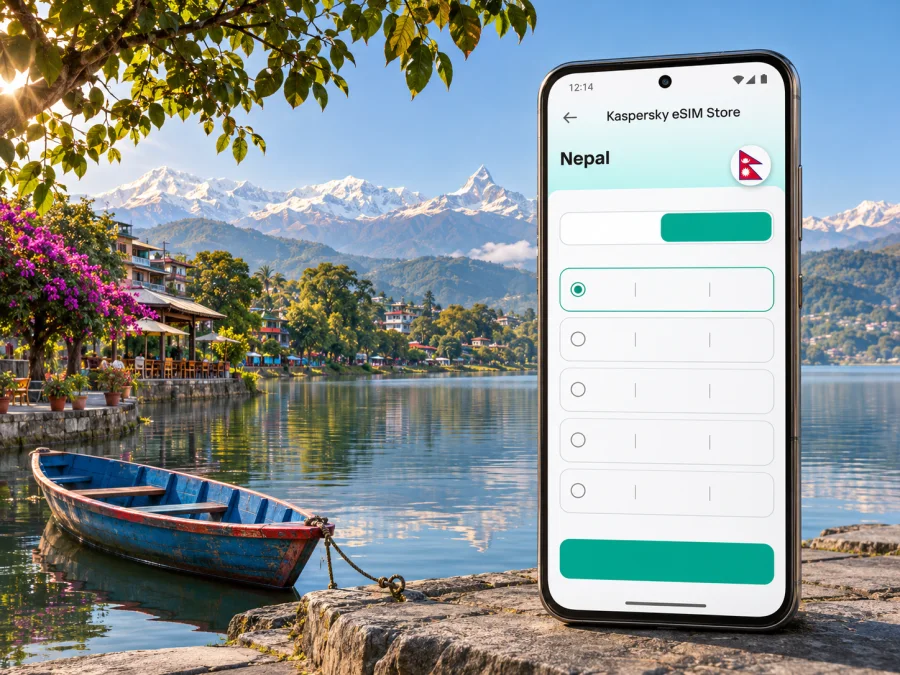
Pokhara eSIM for mobile connection and internet on your trip
Pokhara is a city in Nepal’s Gandaki Province, known for Phewa Lake and views toward the Annapurna range. It is also a starting point for journeys into the surrounding hills. A phone with mobile data can help you coordinate an airport pickup, find your hotel, check a booking, and share an updated route when plans change. An eSIM can be a practical way to prepare that data connection without replacing your physical SIM, provided your phone and the selected plan are compatible.
The details matter in Pokhara: a lakeside walk, an appointment in the city, a flight connection, and a trek beyond the valley all place different demands on your phone. This guide focuses on planning mobile internet around those real travel moments. Network availability, speed, and plan conditions vary by provider and location, so confirm current terms before you rely on a connection for navigation or communication.
Where mobile data helps around Pokhara
Visitors often divide time between Pokhara’s lakeside area, older neighborhoods, viewpoints, and day trips around the valley. A saved pin helps you find a meeting point; a live connection lets you check whether a driver or host has sent an update.
Phewa Lake is one of the city’s best-known landmarks, with the Annapurna range forming the wider backdrop. The Nepal Tourism Board also highlights Begnas and Rupa lakes, the Seti River, Davis Fall and Gupteshwar, Mahendra Cave, World Peace Pagoda, and Old Bazaar with Bindyabasini among places to see. These stops are spread across different parts of the valley. If you plan to visit several in one day, save their locations in advance and leave enough time for road travel rather than assuming that nearby attractions are a short walk apart.
A mobile connection is especially useful for practical tasks:
- confirming the hotel’s entrance or pickup point when a map pin is not precise;
- sharing your live location with someone meeting you near the lakefront;
- checking a reservation message after a change in arrival time;
- translating a short message or looking up opening details while out;
- contacting a local guide or driver if your meeting place changes;
- checking the next stage of a journey from Pokhara toward another part of Nepal.
It is still sensible to download an offline map of Pokhara and save essential addresses. A data plan is a helpful backup for changing details, not a substitute for a confirmed itinerary, printed permit information where required, or a guide’s instructions on a remote route.
Arriving in Pokhara and getting oriented
Pokhara International Airport (PKR) is the city’s current international airport. The Civil Aviation Authority of Nepal lists it approximately 2.57 km southeast of Amarsingh Chowk. That measurement gives a sense of its proximity, but it is not a guaranteed transfer time: the route, traffic, weather, and your exact destination all affect the journey. Check your flight and pickup arrangements before you land, especially if you are arriving late or continuing directly to a trek or another booking.
Do not assume that the word “international” means your itinerary has a direct international flight into Pokhara. Flight routes and schedules can change. Check the operating airline’s current itinerary and confirm whether your trip reaches Pokhara directly or connects through another airport in Nepal. If your plan includes a connection, keep your booking details and the next transfer address available offline as well as in your inbox.
At arrival, confirm the pickup point with your host, open your saved hotel pin, and check that data is assigned to the intended line. Keep the accommodation address written down in case your battery runs low.
If you are using a new eSIM, avoid making its first installation depend on uncertain airport Wi-Fi. Install it before departure when possible, following the plan’s instructions, and leave activation or data roaming settings in the state specified by that plan. If you prefer to install after arrival, make sure you have a reliable Wi-Fi option and enough battery before beginning. Do not delete a working profile while troubleshooting unless the provider’s instructions explicitly tell you to do so; some eSIM profiles cannot simply be downloaded again.
Lakeside, the city center, and short urban journeys
Many visitors use “Lakeside” to describe the visitor-oriented area along Phewa Lake, while other errands or appointments may take them toward the city’s commercial streets, Old Bazaar, or neighborhoods outside the waterfront. The name of a hotel or café may not be enough to identify its precise entrance, so ask for a map pin or a nearby landmark before setting off. A live map can then help you compare the route with the directions you received.
Download a map and itinerary before a relaxed day by the lake. Multiple bookings, navigation, video calls, and photo uploads use more data, so choose by expected use as well as trip length. Check hotspot terms before sharing data with another device.
A simple approach to getting around:
| Situation | Prepare before leaving | Use mobile data for |
|---|---|---|
| Walk around Lakeside | Save your lodging pin and a return point | Checking a changed meeting location or message |
| Visit Old Bazaar or a temple | Save the destination and opening details | Comparing a route and coordinating transport |
| Meet a guide or driver | Agree on a precise pickup point | Sending a location update if you are delayed |
| Travel to a viewpoint | Confirm the return plan and expected timing | Checking messages if weather or timing changes |
| Spend time by the lake | Download a map and useful booking details | Looking up information or contacting your host |
Navigation apps can suggest a route, but local road conditions, construction, and access rules may not be reflected immediately. Follow local signs and your driver’s advice where they differ from a screen. Keep an eye on battery use: GPS, bright displays, photo sharing, and a weak signal can drain a phone faster than ordinary messaging.
Choosing a plan for your Pokhara itinerary
Start with the full route. A plan intended for Nepal may suit a stay centered on Pokhara, but check the destination list and terms rather than inferring coverage from a city name or a product heading. If you will continue to Kathmandu, Chitwan, a trekking trail, or another country, verify that each part of the itinerary falls within the selected plan’s stated destination and service conditions. Coverage can vary between a city, a road, a valley, and higher terrain.
Then estimate what you will do online. A traveler who mostly uses messaging and occasional maps has a different data pattern from someone who makes video calls or uploads photos every evening. Treat the estimates below as planning prompts, not promises of a particular amount of data:
- Light use: messages, occasional route checks, and short searches. Download maps and media before going out.
- Regular use: frequent maps, ride coordination, web searches, and social updates. Check remaining data during the trip.
- High use: video calls, cloud backups, hotspot use, or large uploads. Confirm data allowance and hotspot terms carefully, and plan to use trusted Wi-Fi for heavy tasks where available.
Compare the plan’s destination, data amount, validity period, and start-of-validity rule. A plan that starts its validity at installation may behave differently from one that starts at first network connection. The displayed price and available options can change, so review the current checkout details and provider conditions before purchase. Avoid buying a plan based only on a headline such as “unlimited”; check any speed, fair-use, or hotspot restrictions stated in the terms.
When you are ready to compare current options for the destination, review eSIM plan options for Nepal. Kaspersky eSIM Store is an app and website where you can choose, arrange, and activate an eSIM with a suitable mobile-data plan for an international trip. The service does not itself operate Nepal’s mobile networks; the specific plan’s provider, coverage, and conditions are the details to verify.
eSIM, a local SIM, or roaming: what fits your trip?
An eSIM can suit a compatible, unlocked phone when you want to arrange data before travel. A local SIM may fit if you need a local number; home-SIM roaming may suit a short visit if its Nepal charges are acceptable. Compare conditions rather than choosing by format alone.
| Option | May suit you when | Check before relying on it |
|---|---|---|
| Travel eSIM | You want to prepare data before the trip and keep your physical SIM installed | Device support, carrier lock, destination, activation timing, data and hotspot terms |
| Local physical SIM | You need a local number or want to ask about a local operator’s offer | Purchase requirements, registration steps, store hours, and the exact package |
| Home SIM roaming | Your existing plan includes travel data or you value using your familiar number | Roaming price, data limits, daily fees, and whether Nepal is included |
| Wi-Fi only | Your needs are limited and your accommodation or venues provide suitable access | Availability away from the property and how you will navigate between places |
Nepal Telecom currently lists new prepaid eSIM registration as well as physical-SIM-to-eSIM conversion on its official service portal. This is a local-operator option, with its own registration and service conditions; do not assume every visitor is eligible. Confirm current requirements directly with the operator. A travel eSIM selected through a trip-planning service is a separate option, so check its named provider and plan terms.
A data-only eSIM may not include a standard local phone number, voice calls, or SMS unless the plan explicitly says otherwise. You can often use internet-based messaging and calling apps for communication, but these require a data or Wi-Fi connection and the other person must be reachable through that service. Keep your primary number available if you need calls or verification messages on it.
Check your phone before you buy
Not every phone supports eSIM, and support can differ between regional variants of the same device family. A model name alone may not settle the question. Check the manufacturer’s specifications for the exact model or regional version, look for an option to add an eSIM in your mobile settings, and confirm that the phone is not locked to a carrier that restricts other profiles. You can also check whether your device is compatible before choosing a plan.
eSIM support can differ between regional variants. On a dual-SIM phone, check data switching and whether your voice line can remain active. Keep access to email and account recovery options if SIM settings could affect verification.
Before checkout, confirm these items:
- the exact phone model and regional variant support eSIM;
- the device is unlocked or otherwise permitted to use the selected eSIM;
- the plan covers Nepal and the other destinations on your route;
- the validity start rule matches your installation and arrival timing;
- the data amount and any speed or tethering terms fit your expected use;
- you know whether the plan supports data only or also another service;
- you have a stable connection for installation and a way to reach support.
Installing and activating your eSIM
If your phone is compatible, set up the profile while you have a stable internet connection, ideally before travel. The exact steps vary by device and plan. Read the instructions supplied with the eSIM, and check whether scanning a QR code once is enough or whether the provider offers another installation method. Avoid taking a screenshot of a QR code as your only installation plan if you will need to scan it using the same phone; use the provider’s approved manual or in-app flow instead.
A careful setup sequence looks like this:
- Keep the installation details and QR code private and accessible on another screen or device if required.
- Connect to reliable Wi-Fi and open the device’s mobile or cellular settings.
- Add the eSIM using the method provided for your purchase.
- Label the profile clearly, such as “Nepal data,” so you can distinguish it from your primary line.
- Before departure, review which line handles mobile data and which line handles voice calls and SMS.
- At the point specified in the plan terms, enable the eSIM line and any required data-roaming setting for that profile.
- Check that the phone has registered on a supported network before depending on data for a transfer.
For device-specific steps, use the Android eSIM installation guide or the iPhone eSIM installation guide. Menu names differ by operating-system version and manufacturer, so follow the instructions shown for your model. Keep the eSIM installed during your trip unless the provider tells you that removal is safe; deleting a profile can make it unavailable for reinstallation.
A reliable connection routine for town and trail days
Pokhara works well as a base for trips beyond the city, but a connection that is useful around the lake should not be treated as guaranteed on a road or mountain route. Terrain, distance from a served area, weather, congestion, and the local network used by a plan can all affect service. For a trek or remote excursion, ask your guide about the route and communication plan. Before leaving Pokhara, download maps, booking and permit details, and emergency contacts; share your expected route and return time. Carry written lodging details, confirm pickups, and save tickets and addresses offline for road or air connections. Service may not continue throughout a journey, and schedules can change, so check with your carrier or airline as appropriate.
Troubleshooting when mobile data does not connect
If the eSIM is installed but data is unavailable, first check the basics rather than deleting the profile. Confirm that the eSIM line is turned on, that it is selected for mobile data, and that the plan is within its validity period and has remaining data. If the plan instructions require data roaming for that eSIM, enable it for the travel profile only. Check that airplane mode is off, restart the phone if appropriate, and give it a little time to register.
If the issue continues, follow the provider’s guidance and contact its support. Avoid changing network or access-point settings unless instructed. Use a saved map or ask your accommodation for directions while troubleshooting.
Common questions
Will an eSIM work everywhere in Pokhara?
No. Service depends on the provider, device, local coverage, and conditions. Check plan details and keep offline navigation.
Can I use the same eSIM on a trek?
Check that the plan supports the route; coverage can differ from Pokhara. Ask your guide about local communication and prepare offline information.
When should I install it?
Before departure is often easier. Check when validity begins; if installing after arrival, have dependable Wi-Fi available.
Can I keep my usual number?
If your phone supports dual SIM, you may be able to keep the primary line for calls and use the eSIM for data. Check roaming charges.
Does an eSIM include calls and SMS?
Do not assume so; check the plan terms. Internet calling apps require data or Wi-Fi.
How much data should I choose?
Estimate maps, messages, browsing, calls, uploads, and hotspot use. Downloading over Wi-Fi can reduce data use; review the plan’s allowance and validity.
A final check before checkout
Choose a plan by route, duration, and expected use; for travel beyond the valley, check each destination separately. Recheck current terms because availability, prices, and provider rules can change.
Get ready for Pokhara
Check device compatibility, compare the current destination and data terms, and follow the installation instructions before you leave. To choose an eSIM plan for your trip to Nepal, use Kaspersky eSIM Store on the web or in the app to review available options, arrange a suitable profile, and prepare mobile data for the journey.


