Travel connectivity guide
Qalqilya eSIM: Mobile Internet for Your Trip
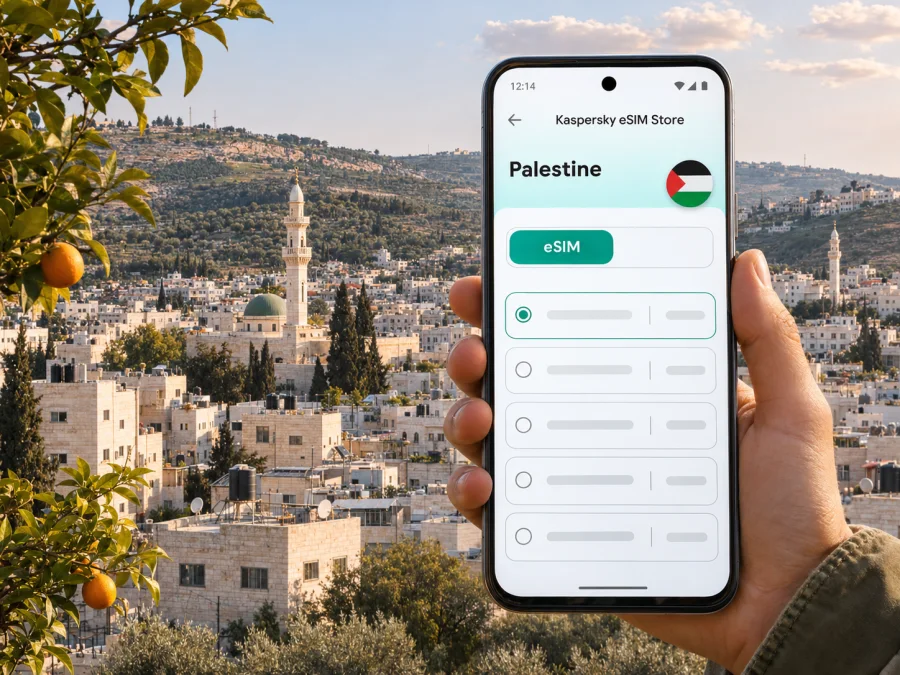
Qalqilya eSIM for mobile connection and internet
A visit to Qalqilya calls for the same practical preparation as any trip in the West Bank: plan your arrival, keep route details close at hand, and know how you will use maps and messages when you are away from reliable Wi-Fi. An eSIM can provide mobile data without replacing the physical SIM in your phone, if your device supports it and the selected plan explicitly covers your destination.
Qalqilya is a Palestinian city in the northwestern West Bank, near the Green Line and surrounded by a wider network of towns and villages. It is not an airport city. Your journey will include an arrival point elsewhere and a ground transfer, so online navigation can be useful before you reach your accommodation as well as while moving around town. Entry arrangements, roads, checkpoints and crossing conditions may change. Confirm your own route and eligibility through current official travel and local transport information before you set out; a data plan cannot guarantee that a road or crossing is open.
This guide focuses on the connection decisions that matter for a stay in Qalqilya: where mobile data can help, what to verify in a Palestine plan, how to prepare an eSIM, and what to do if the signal or itinerary changes.
When mobile data is useful in Qalqilya
The first need often comes during the transfer from your arrival point. You may need to message a host, confirm a pickup, check a meeting address, or compare a driver’s directions with the route saved on your phone. Having data available can make these small tasks easier without having to search immediately for public Wi-Fi.
Within the city, a map is useful for locating accommodation, shops, services and a meeting point. Keep in mind that a map app’s suggested route is a navigation aid, not a live confirmation of access. Follow local instructions and check current road conditions, especially when the route passes beyond the city or approaches a crossing.
If you plan to visit the Qalqilya National Zoo, save its map pin before you leave and confirm current opening and access information locally. A saved destination is useful for finding the entrance, but it does not confirm that the venue is open on the day.
A connected phone can also help with ordinary trip details:
- send a message if your arrival time changes;
- open a booking confirmation or save its address;
- translate a short message or read a place name in Arabic;
- check an updated pickup point with your host;
- share your location with someone you trust, when appropriate;
- look up opening hours before making a separate trip.
For work visits, the same connection supports email, calendar updates, document access and messaging between meetings. If you need to upload large files or join long video calls, estimate that data separately: a small travel package intended for maps and messages may not be suitable for sustained video or hotspot use.
Plan the arrival and the first hours
Because Qalqilya does not have a passenger airport, decide in advance how you will get from your actual point of entry to the city. Do not assume that a route shown by an app is currently available to every traveler. The West Bank has changing movement conditions, and the route can depend on your status, destination and the crossings open on the day. Check official advisories and coordinate with your host or transport provider close to departure.
Local reporting on 30 October 2026 described the closure of Qalqilya’s main eastern entrance that evening. That is a dated report, not live access information: do not assume the entrance remains open or closed. Confirm your route on the day with a current local source.
Before leaving your arrival point, save the following where you can access it offline:
- The exact accommodation address, including an Arabic version if your host can provide one.
- A contact number or messaging method for the host and driver.
- A map area covering Qalqilya and the transfer corridor you have been told to use.
- Booking confirmations, meeting details and any travel documents you are expected to carry.
- A backup plan for delays, such as a meeting point and a message that explains what to do if you lose data.
Treat saved map information as a backup, not as a substitute for current local advice. Offline maps do not show temporary restrictions reliably, and a downloaded route may be outdated by the time you travel.
Moving around town and nearby areas
Qalqilya is a compact urban destination in a region where a short drive can cross administrative and access boundaries. Use your phone to find a starting point and communicate, but verify the route with a local driver or host when you are unsure. Street names can appear in different transliterations, so compare the map pin, written address and a nearby landmark rather than relying on one spelling alone.
For a short city visit, organize places by area and group nearby errands together. That reduces the number of times you need to reroute and is useful if data becomes intermittent. Save the location of your accommodation and any important appointment as starred places. If a driver shares a pin, open it before departure and check that it corresponds to the destination you discussed.
Trips outside Qalqilya need more preparation. A map can estimate distance but does not establish whether a particular crossing, road or route is available to you at that moment. Check the day’s conditions before leaving, allow extra time for delays, and keep the address and contact details of your destination available offline. If plans change, ask your local contact to confirm a practical route rather than repeatedly following a navigation app’s automatic rerouting.
| Situation | What mobile data helps with | Useful backup |
|---|---|---|
| Transfer into Qalqilya | Messages, pickup coordination, map search | Saved address and driver contact |
| Getting around town | Pins, directions, updated meeting details | Offline map and written place name |
| Work appointment | Calendar, email, document links | Downloaded files and meeting address |
| Trip beyond the city | Checking messages and revised plans | Local confirmation of road and access conditions |
| Delayed or changed pickup | Reaching the host or driver | Agreed meeting point and phone number |
Navigation can reduce uncertainty, but it cannot verify permission, access or safety. Give yourself time to pause and confirm rather than making a quick turn based on a rerouting prompt.
Choosing an eSIM plan for Qalqilya
A city name is not always a separate coverage product. Qalqilya is in Palestine, so look for the country or regional coverage terms that explicitly include the place where you will use data. Read the plan details rather than assuming that a listing for a nearby market or territory also applies. If your itinerary crosses a boundary or includes travel beyond the West Bank, confirm each area separately.
Kaspersky eSIM Store is an app and website that helps you choose, arrange and activate an eSIM with a suitable data plan for an international trip. The Palestine page is a starting point for reviewing the currently listed options, but its destination label alone is not a promise about reception at a specific address, route or crossing. Check the plan’s network, validity, data amount, activation rules and geographic terms before checkout. If any point is unclear, confirm it with support before relying on the plan for an essential journey.
You can review the current options for a trip to Palestine and compare the listed conditions with the places on your itinerary. This is a country-level page, not a Qalqilya-specific coverage guarantee. Availability, included networks and plan terms can change, so use the details displayed at the time you choose.
Estimate how much data you need
Start with the activities you expect to do, not a generic daily allowance. Maps and messages usually consume less than frequent video calls, photo backups or streaming. If you plan to work remotely, account for your workday separately and check whether tethering is allowed before selecting a package.
A plan with a longer validity period is not necessarily better if it provides more data than you need, and a large data amount is not useful if the geographic terms do not match the trip. Compare validity and data together. Also check when validity begins: it may start at installation, first connection or another event specified in the plan terms.
Keep your home SIM active if you need its number for bank messages or calls, and set the eSIM as the mobile-data line only if that matches your needs. Travel data plans may be data-only and may not include a regular phone number, voice minutes or SMS. Use messaging and calling apps over data where suitable, while keeping another way to receive important account codes.
Device support and regional variants
Before you select a plan, confirm that your exact phone model supports eSIM and is not locked to a home carrier. A family name alone is not enough: manufacturers can sell regional variants with different SIM capabilities, and support can also depend on software, carrier settings and local product version. The eSIM feature on one version of a handset does not prove that every variant has it.
Check the model number in the phone settings or on its original packaging. Then consult the manufacturer’s current compatibility information and your carrier if the phone may be locked. You can also check whether your device is compatible before proceeding. Do not buy a plan based only on a general list of popular eSIM phones.
For an eSIM installation, keep a stable internet connection available during setup. If you are using a QR code, open it on another screen or use the manual details supplied with the plan. Avoid deleting a downloaded eSIM profile while troubleshooting unless the plan instructions or support team tells you to do so; some profiles cannot be installed again after removal.
Install and prepare the eSIM
You can set up the eSIM before travel if the plan permits installation in advance, then choose when to enable it according to its activation terms. If you prefer to install it after arrival, remember that you may need internet access to download the profile. Read the instructions for the selected plan first and keep a copy of the activation details somewhere you can reach without mobile data.
A careful setup sequence is:
- Check the device. Confirm eSIM support, carrier-unlocked status and enough battery.
- Read the plan terms. Verify Palestine is included, note validity and activation timing, and check whether data roaming must be enabled for the travel profile.
- Use a stable connection. Connect to Wi-Fi before downloading the eSIM, unless the supplied instructions specify another method.
- Add the profile. Follow your device’s prompts or scan the plan QR code. Do not share the QR code publicly.
- Label the line. Use a clear name such as “Travel data” so you can distinguish it from your home SIM.
- Choose data settings. Set the travel eSIM as the mobile-data line when you want to use it. Keep calls and SMS on your usual number if needed.
- Test before you depend on it. Check that the profile appears in settings and understand how to turn data roaming on or off for that line.
See the step-by-step guides for Android eSIM installation and iOS eSIM installation. Menu labels vary by manufacturer and software version. The instructions delivered with your plan take priority when they differ from a general device guide.
Installing a profile and connecting to a local network are separate steps. The eSIM can appear in settings before it has registered for service, and a successful installation does not demonstrate that a location has coverage. Once you reach a place where you can safely check, confirm the right line is selected for data and wait for registration. If it does not connect, use the troubleshooting steps below rather than deleting the profile immediately.
Manage data and avoid surprises
Keep track of the validity start and remaining data in the app or device settings where available. If the package expires during a longer stay, decide in advance how you will buy or activate another plan and what connection you will use to do so. Do not assume that topping up extends validity; the plan’s displayed terms determine what happens.
If the eSIM does not connect
When service is unavailable, first separate a setup issue from a coverage or access issue. A phone can have the correct eSIM installed while the selected plan is not usable at the current location, or while a network is temporarily unavailable.
Try these checks in order:
- Confirm that the eSIM line is switched on and selected for mobile data.
- Check that the plan is active and has remaining validity and data.
- Review the plan’s coverage and network information for the exact place you are in.
- Check whether the plan instructions require data roaming for this eSIM profile.
- Turn airplane mode on briefly, then off, or restart the phone if it is safe to do so.
- Move to a different location only when your host or local guidance says that is appropriate.
- Connect to trusted Wi-Fi and contact support if the profile or plan status remains unclear.
Do not keep changing every network setting at once. Note what you changed, the time and the approximate location; that makes it easier to explain the issue to support. Keep your home SIM available for essential calls if it has service, and tell your travel contact when you are temporarily offline. A second connection method is useful for important plans, but it should not be treated as a guarantee of access.
A practical checklist before departure
Use this short list when your visit is close enough to confirm the details:
- [ ] Check current official travel advice and entry requirements for your circumstances.
- [ ] Confirm the route from your arrival point to Qalqilya with a current local source.
- [ ] Save your accommodation, pickup and meeting details offline.
- [ ] Verify that your exact device variant supports eSIM and is unlocked.
- [ ] Read the plan’s Palestine coverage, validity, activation and hotspot terms.
- [ ] Install the eSIM over a stable connection if the terms allow advance setup.
- [ ] Keep the activation instructions and support contact accessible offline.
- [ ] Carry a charging cable and arrange a backup way to contact your host.
- [ ] Download an offline map, but confirm road access locally before setting off.
For a short visit, the most useful preparation is usually a working data plan, a saved address, a charged phone and a current route confirmation. No single app can replace those separate checks.
Common questions
Is Qalqilya covered by a separate city eSIM plan?
Usually, travel eSIM plans are described by country or region rather than by city. Check the Palestine or regional plan terms for explicit coverage and network details. A country listing does not guarantee reception at every street or on the route to the city.
Can I rely on an eSIM for the drive into Qalqilya?
Use it as one way to access maps and messages, not as confirmation that a route is open or available to you. Save directions and contacts offline, and confirm the current journey with a local transport provider or host.
Will the eSIM keep my usual phone number?
Your home SIM can remain in the phone if the device supports using both lines, but the travel eSIM may be data-only. Check your plan details and set the preferred line for calls, messages and mobile data separately.
Do I need Wi-Fi to install it?
Often a stable internet connection is needed to download an eSIM profile. Install it before departure where the plan permits, or arrange Wi-Fi at your arrival point. Follow the instructions provided for the specific plan.
What if the phone shows the eSIM but has no data?
Check the plan status, data-line selection, roaming setting required by the instructions, and stated coverage. If those are correct, reconnect to the network or contact support over Wi-Fi. Avoid deleting the profile unless support advises it.
Choose your travel setup
Before you leave for Qalqilya, compare the Palestine plan conditions with the full route and decide how much data your actual use requires. Confirm the device, activation timing and network terms, then keep the address and travel contacts offline as a backup. Kaspersky eSIM Store helps you choose, arrange and activate an eSIM with a suitable plan for an international trip; the service and reception remain subject to the selected plan and the local network.
Review the current eSIM options for Palestine and choose a plan only after checking its terms for your itinerary. Install it using the relevant device guide, test the settings when practical, and keep another way to reach your host if mobile data is unavailable.


