Travel connectivity guide
Realme 14 Pro+ 128GB eSIM Compatibility
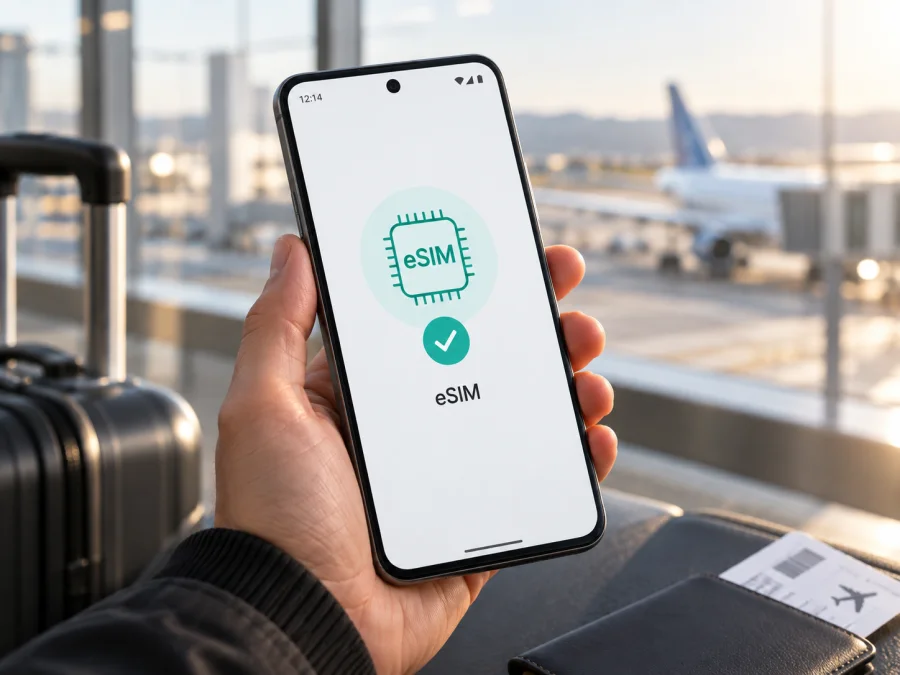
Realme 14 Pro+ 128GB eSIM: compatibility and setup
The short answer is: eSIM support is confirmed on realme’s official French specifications for the realme 14 Pro+ family, which lists eSIM compatibility alongside 128GB storage configurations. That is useful evidence, but it does not prove that every phone sold as Realme 14 Pro+ 128GB has the same radio hardware, software menu, or carrier status. realme’s China specification describes two nano-SIM slots and does not list eSIM. Before buying a travel plan, check the exact regional SKU on the phone itself and with the seller or carrier. Storage capacity alone does not identify the SIM configuration.
Use the checks below on the exact handset before choosing a travel plan; model names can look identical while regional versions differ.
At a glance
| Item | What to know |
|---|---|
| Device named here | Realme 14 Pro+ 128GB |
| eSIM evidence | Listed as compatible on realme’s French specifications for the family; other regional information is not identical |
| Practical verdict | Treat support as region-dependent until the exact handset shows an EID or an eSIM add option |
| Before purchase | Check the device, carrier lock status, destination coverage, and plan terms |
Does Realme 14 Pro+ 128GB support eSIM?
There is positive official evidence, but the answer needs a regional qualifier. realme’s French specification page for the realme 14 Pro+ 5G says “Compatible eSIM” in its cellular section and lists storage configurations including 128GB. It also lists two nano-SIM card slots. In contrast, the official Chinese specifications for the model describe 5G dual-SIM standby and a dual Nano-SIM tray without listing eSIM. The difference means a family-level “yes” is not a safe guarantee for every market unit.
“Realme 14 Pro+ 128GB” does not identify a country, model code, RAM amount, or sales channel. It cannot distinguish a European configuration from a China-market import. Neither 5G nor 128GB storage establishes eSIM support, and a carrier can restrict an otherwise capable phone.
For a 128GB handset, ask for its full model number and original market. Request confirmation for that unit, not just for a 5G dual-SIM phone, and ask to see its EID or eSIM menu. Listings can combine details from different markets.
Why regional versions can differ
Phones with the same family name can differ by market in network bands, SIM configuration, firmware, and eSIM provisioning. Imported phones may retain their original regional software after a language change or update. Check eSIM on the handset rather than relying only on the listing or warranty.
An eSIM profile is downloaded to an eSIM component in the phone. It is separate from the removable nano-SIM card. If the hardware or regional firmware does not expose eSIM management, scanning a QR code cannot add that capability. Likewise, seeing two physical SIM slots does not, on its own, rule out eSIM: some specifications list physical slots and eSIM support together. Confirm the exact variant rather than interpreting the tray alone.
“Dual SIM” also describes how lines may be used, not necessarily the number of profiles that can be stored or active at once. Supported combinations vary by hardware and software. Read the device’s SIM settings and the eSIM plan instructions before deciding which line to keep active.
Check compatibility before buying a plan
Check these points before purchase; request evidence for the exact unit if you cannot inspect it yourself.
- Find the exact model code. Open Settings and look under About device / About phone. Compare the code with the packaging, invoice, and official specifications for the market of sale.
- Look for an EID. Open the phone dialler and enter
*#06#. On many compatible phones, an EID appears with the IMEI numbers. You can also look under Settings → About device or SIM status; menu names vary by realme UI version and region. An EID is a strong sign that eSIM hardware is present, but still check that the phone is not carrier-locked. - Look for eSIM controls. Open Settings → Mobile network, SIM card & mobile data, or the closest equivalent. Look for “Add eSIM,” “Add mobile plan,” or “Download a SIM.” The wording and location may vary after software updates. If you only see physical SIM controls, update the system and check the exact regional support information before concluding.
- Check network unlock status. Ask the original carrier or seller whether the phone is unlocked for use with other networks. A device restricted to one carrier may reject a travel profile even when eSIM is available.
- Confirm the plan requirements. Check that the plan covers every country on your route, has enough data and validity, and supports the phone’s available network bands. Verify when the validity period starts and whether data roaming must be enabled.
- Keep a connection for setup. Install the profile over reliable Wi-Fi before departure unless the plan’s instructions say to wait until arrival. Keep the QR code or activation details accessible on a second screen or printed copy.
For a repeatable check, use check your device. If both EID and eSIM controls are missing, a plan cannot add that capability. Ask realme or the seller to confirm the SKU and firmware; if support remains unclear, use another compatible phone or a physical SIM.
How to install and activate an eSIM
Labels vary by realme UI, Android version, and region. Use Wi-Fi and follow both the on-screen prompts and plan instructions. QR codes may be single-use, so check reinstallation rules before rescanning or deleting a profile.
- Check the device and plan. Confirm eSIM availability, unlock status, system requirements, destination, allowance, validity, and activation trigger.
- Prepare your connection. Connect to stable Wi-Fi, charge the phone, and keep the QR code or manual activation information ready. If the QR code is displayed on the phone you are setting up, open the code on another device or use manual entry if offered.
- Open SIM management. In Settings, go to Mobile network or SIM card & mobile data, then choose Add eSIM / Add mobile plan. If it is missing, search Settings for “eSIM.”
- Add the profile. Scan the provider’s QR code or enter the activation details manually. Confirm the download and wait until the profile appears in the SIM list. Do not leave Wi-Fi or close the setup screen while the profile is being installed.
- Name and configure it. Label the profile “Travel” or with the destination. Keep your regular number enabled if needed and select the data SIM; check voice and SMS separately because data plans may not provide a number.
- Activate at the right time. Some plans start when installed, while others begin at first connection in the destination or at a stated date. Follow the plan’s timing instructions. If required, enable data roaming for the travel eSIM only. Keep roaming disabled on your primary SIM if you want to avoid unexpected charges.
- Confirm service. Once the plan should be active, turn off Wi-Fi briefly and check that the travel profile registers on a supported network and that a webpage loads. If you are still at home, the profile may remain installed without connecting until you reach a covered destination.
For a device-specific walkthrough, see the Android eSIM installation instructions or, if you are setting up an Apple device instead, the iOS eSIM installation instructions. The latter is not a Realme guide; the Android link is the relevant one for this phone. Follow the actual prompts shown by your device and plan.
Using the eSIM for mobile data while travelling
Before departure, decide which line should carry data and whether you need your regular number for calls or verification texts. A travel eSIM can provide data in the countries listed in its plan. Unless plan terms explicitly include voice and SMS, do not expect a new phone number or ordinary cellular calls and texts; messaging and calling apps can use the data connection.
A practical setup is to keep your home SIM available for important calls while selecting the travel eSIM for mobile data after arrival. Check your home carrier’s roaming charges and turn off data roaming on that SIM if you want to avoid charges. Enable roaming on the travel profile only if its instructions require it. Once you land, enable the travel profile, set it as the data SIM, and allow a few minutes to register. Confirm that the plan covers your current country and that validity has begun.
For a multi-country itinerary, verify every destination in the plan details; a regional plan can still have different partner networks or service conditions by country. At a border, the phone may take time to register on a new network. If needed, toggle airplane mode or restart after confirming the plan includes the destination. Avoid deleting an installed profile that appears inactive: some QR codes are single-use and removal may require provider assistance.
Kaspersky eSIM Store is an app and website where you can choose, arrange, and activate an eSIM with a mobile-data plan for an international trip. Compare the destination, data amount, duration, and activation rules. Kaspersky eSIM Store is not a mobile operator or network owner and does not itself provide mobile internet or guarantee local signal; connection depends on the chosen plan and partner coverage.
Common problems and what to check
There is no “Add eSIM” option. Confirm the model code and market version, install available system updates, restart, and search Settings for “eSIM.” Check for an EID using *#06# or the About device page. If both the EID and eSIM controls are absent, ask realme or the seller to confirm the exact SKU. Do not rely on another region’s specification.
The QR code will not scan or the profile will not download. Make the code bright and fully visible, clean the camera lens, and use another screen or manual entry if offered. Confirm the code is for this plan and has not already been used. For download errors, use stable Wi-Fi, check date and time and available storage, and follow the provider’s retry instructions. Do not remove a pending profile or request repeated scans until you know whether the activation code is reusable.
The profile is installed but there is no service. Confirm the profile is enabled, the destination is covered, validity has started, and the travel line is selected for mobile data. Check airplane mode, mobile data, and whether the plan requires roaming. Try automatic network selection first; use manual selection only as directed by the provider. A brief airplane-mode toggle or restart may refresh registration.
There is signal but no data. Check remaining allowance, mobile-data selection, and any APN instructions supplied with the plan. Enter a required APN exactly as provided; do not copy settings for another network. Turn Wi-Fi off to test cellular data. If service still fails, contact the plan provider with the status and order details.
The home SIM uses roaming or activation seems delayed. Check which line is selected for data and disable data switching if the phone offers it. Turn off data roaming on your home SIM if you want to avoid charges. For delayed activation, review whether the plan starts at purchase, installation, a scheduled date, or first connection in a covered location. Keep the profile installed while checking with the provider.
FAQ
Does every Realme 14 Pro+ 128GB have eSIM?
The storage name alone cannot confirm it. realme’s French specifications list eSIM compatibility for the family and include 128GB storage; the Chinese page lists two nano-SIM slots but does not list eSIM. Check the exact handset’s EID, SIM settings, regional model code, and lock status.
If there are two nano-SIM slots, can eSIM still work?
Possibly. realme’s French specification lists both two nano-SIM slots and eSIM compatibility. The tray alone is not decisive; check the EID and Add eSIM menu.
Does 5G mean eSIM is supported?
No. 5G describes network capability, not the presence of eSIM. Confirm eSIM separately and check that the phone is unlocked and the plan supports the destination.
Can I install the profile before leaving?
Often, but validity may begin at purchase, installation, or first connection. Check the plan’s activation rule before scanning the QR code.
Does a travel eSIM include calls and SMS?
Only if stated in the plan terms. Data-only plans do not provide a separate number or ordinary cellular calls and texts; internet messaging apps may use the data connection.
Final device check and trip eSIM
Before paying for a plan, verify that your exact Realme 14 Pro+ 128GB shows an EID or eSIM setup option, is unlocked, and has current software. Confirm that your destination is covered, the data amount and duration fit your itinerary, and you understand when activation begins and whether roaming must be enabled. Then choose an eSIM plan for your trip in Kaspersky eSIM Store after checking the plan details. The app and website help you choose, arrange, and activate an eSIM for mobile data abroad; the phone and local partner network determine whether it can connect. Save the installation instructions and activation details somewhere you can reach over Wi-Fi, and keep your main SIM settings as you intend to use them.


