Travel connectivity guide
Realme 14 Pro+ 8GB RAM eSIM
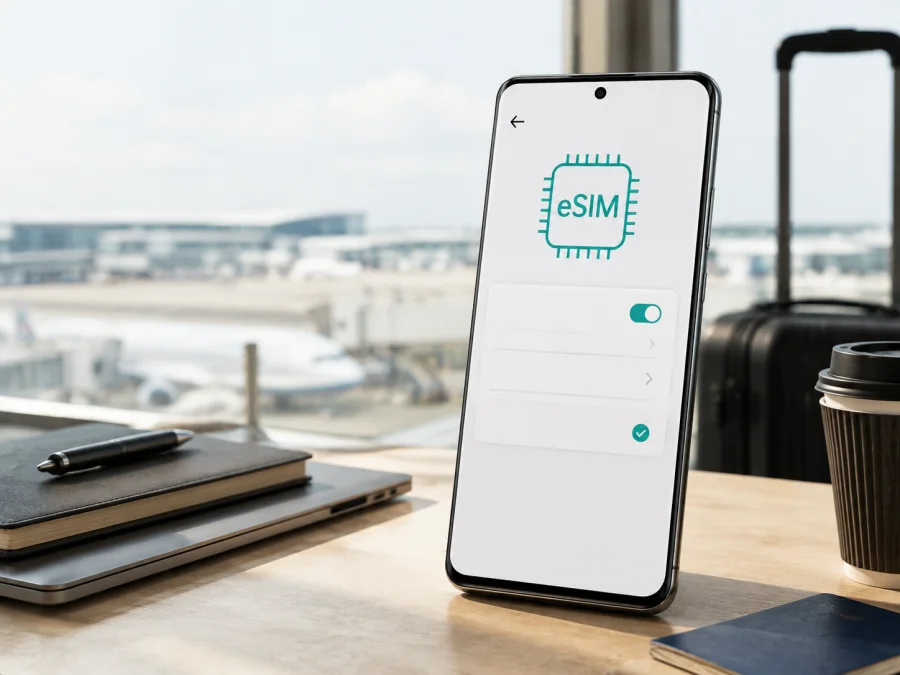
Realme 14 Pro+ 8GB RAM eSIM: compatibility and setup
Can Realme 14 Pro+ 8GB RAM use an eSIM? The accurate answer depends on the sales region. Current official realme specifications for France and Spain list eSIM compatibility for the realme 14 Pro+ 5G family, while the official India specification lists two nano-SIM slots and does not list eSIM. The 8GB RAM amount does not decide this feature. Your unit’s market, hardware, firmware, and mobile-network settings do.
This means you should not buy a travel eSIM from the model name alone. A phone can have the same family name and memory configuration but expose different SIM functions in another region. Check the handset in your possession, confirm that it is unlocked, and look for an EID or an option to add an eSIM before paying for a plan.
Quick answer for Realme 14 Pro+ 8GB RAM
The European evidence is positive: realme’s France and Spain product pages show 8GB/12GB RAM configurations, state that eSIM is supported, and also list two nano-SIM slots. The India product page also lists 8GB/12GB RAM and two nano-SIM slots, but makes no eSIM claim. That difference is enough to rule out a universal promise for every phone sold as Realme 14 Pro+ 8GB RAM.
For a European-market unit whose official listing says “Compatible eSIM”, eSIM use is plausible when the phone’s settings also expose the feature. For an India-market or imported unit, treat support as unconfirmed until the checks below succeed. If there is no EID and no Add eSIM or Add mobile plan control, do not assume that a software update or the phone’s 5G capability will create eSIM support.
Compatibility at a glance
| Item | Realme 14 Pro+ 8GB RAM | What it means |
|---|---|---|
| Exact page target | Realme 14 Pro+ 8GB RAM | Keep the memory modifier; it identifies this variant. |
| Family name in realme specifications | realme 14 Pro+ 5G | Regional pages may use the family name rather than the exact shop title. |
| Physical SIM | Two nano-SIM slots are listed | Dual nano-SIM does not by itself prove eSIM support or active-SIM combinations. |
| eSIM | Listed on France and Spain pages; not listed on India page | Check the market and the actual device before purchase. |
| 5G | Listed for the family | 5G and eSIM are separate functions. |
| Software reference | realme UI 6.0 based on Android 15 on the cited pages | Menu names can vary. |
The practical verdict is regional support, not universal support. Ask a seller for the original market and a screenshot of the SIM settings. Compare the model or region information on the box, invoice and About device screen.
What to check before buying an eSIM tariff
Run this checklist on the actual phone, whether it is new, used, imported or bought from a marketplace.
- Identify the unit and market. In Settings > About device, note the model name, model number and software information. Keep the box or invoice nearby and ask the seller where the handset was intended for sale.
- Look for an EID. An EID is the identifier associated with an embedded SIM. Its presence is strong evidence of eSIM capability; its absence is a warning. Check both the dial-code route and Settings because menus vary.
- Find the eSIM control. Search Settings for “EID” or “eSIM”. In the SIM manager, look for Add eSIM, Add mobile plan, Download a SIM or a plus sign.
- Check the operator lock. Look for a network or SIM-lock status, ask the seller for confirmation, and test with another operator when possible. An unlocked phone is essential for a travel profile.
- Update over Wi-Fi. Install the phone’s normal system update, restart, and search again. Never use unofficial firmware to force an absent feature.
- Prepare an internet connection. Downloading a profile normally needs Wi-Fi or another working data connection. Keep your physical SIM installed until the eSIM is tested.
- Read the plan rules. Check the destination, data allowance, validity, activation event, roaming requirement and tethering terms. A travel data eSIM usually is not a replacement for a regular number, voice calls or SMS.
How to find the EID
On many Android phones, entering *#06# in the dialer opens a panel with identifiers. An eSIM-capable unit may show an EID alongside IMEI numbers. This code does not place a call, but the result can vary by software. If the EID is not shown, close the dialer and use the Settings search field.
On realme UI, try Settings and search for EID, eSIM or SIM. Depending on the build, the information may be under About device, Status, SIM status or Mobile network. Confirm that the label says EID. An IMEI, serial number or ICCID is a different identifier; an ICCID identifies a physical or downloaded SIM profile and is not proof that the phone can add a new eSIM.
Keep the EID private. It confirms a device capability; it does not activate a plan.
Check your device before choosing a travel eSIM, especially if the phone was imported or the seller cannot identify its market.
How to install an eSIM on Realme 14 Pro+ 8GB RAM
Use the following sequence only after the phone shows eSIM controls or the matching regional specification is confirmed. Charge the phone, connect it to reliable Wi-Fi, and display the QR code on another screen. If the code was sent to the Realme phone, open it on a computer or a second device.
- Open mobile-network settings. Go to Settings, then Mobile network, SIMs, SIM card and mobile data, or the closest equivalent in your realme UI build.
- Choose the add option. Tap Add eSIM, Add mobile plan, Download SIM or Scan QR code. Read the activation prompt before continuing.
- Scan or enter the details. Scan the supplied QR code. If manual activation is offered, copy the activation code and server details exactly as supplied, including letter case.
- Wait for the profile. Stay on Wi-Fi and avoid repeated restarts. A QR code can be single-use, and a profile installed on another phone may not be transferable under the plan rules.
- Name the line. Use a label such as Travel data or the destination so you do not select the wrong SIM later.
- Enable it at the right time. If installing before departure, check whether the plan allows the line to remain disabled until the trip. Installation, enabling and the start of validity may be separate events.
- Set mobile data. In SIM preferences, select the travel eSIM for Mobile data. Keep the home SIM for calls or messages if needed, but verify which line handles data.
- Set roaming carefully. Travel eSIMs often require Data roaming on that profile. Enable it only when the plan instructions require it; leave roaming off for the home line unless you intend to use it.
- Test the line. Turn Wi-Fi off and try a simple webpage or data app. A plan limited to a destination may not connect at home, which does not necessarily mean installation failed.
For the installation flow, see the Android eSIM installation instructions and the iOS eSIM installation instructions. Kaspersky eSIM Store is an app and website that helps you choose, arrange and activate an eSIM with a mobile-data plan for an overseas trip. It is not a mobile operator, network owner or mobile-internet provider.
Using the eSIM for mobile data while travelling
The simplest setup is to keep your home line for the number-based services you need and make the travel eSIM the default data line. Before leaving, open SIM settings and confirm that the travel profile is enabled, Mobile data points to it, and roaming is enabled for it only if required. If the phone offers automatic data switching, turn that off to prevent an unexpected fallback to your home line.
Install before departure
While you have dependable Wi-Fi, confirm the EID, install and label the profile, and keep the physical SIM in place. Read the activation rule before enabling the travel line; installation does not always start validity. Save the confirmation securely and protect QR codes. If a first scan created a profile, check the SIM manager before scanning again.
Activate after landing
If the plan is intended to start on first connection, install it at the destination using airport or hotel Wi-Fi. Then select the travel eSIM for data and follow the roaming instruction. If Wi-Fi is slow, wait rather than repeating an activation request several times. A stable connection and charged battery help the download finish.
Common problems and checks
No EID or Add eSIM option
Confirm that you opened the correct SIM manager, complete the phone’s normal update, restart once and search Settings again. If neither an EID nor an add-profile control appears, compare the model and market with the seller’s documentation. For this device, a regional specification that lists two nano-SIM slots without eSIM should be treated as a serious warning. Do not attempt unofficial firmware changes.
The QR code does not scan
Increase the brightness of the screen showing the code, clean the camera lens, show the entire code and hold the phone steady. If the code is on the Realme phone, display it on a computer or another phone. Use manual entry only with values supplied by the plan. Do not repeatedly scan a single-use code without first checking whether a profile was created.
The download stops
Check Wi-Fi, free storage and any data-saving restriction. Keep the phone awake if possible. If the profile was already installed, deleted or activated, contact the service support team with order details rather than sharing the QR code publicly. Some profiles cannot be restored after deletion.
The eSIM is installed but there is no signal
Open the SIM manager and confirm the travel line is on and selected for data. Check airplane mode, automatic network selection and Data roaming for the travel profile. The plan may not work in the country where you are testing, its validity may not have started, or the destination may be outside its coverage. Local bands and network deployment also matter.
The wrong SIM uses mobile data
Return to SIM preferences and select the travel eSIM explicitly. Disable automatic data switching and confirm data roaming is off for the home line. Turn Wi-Fi off briefly and inspect the status bar. An installed travel profile does not prevent home-network roaming charges if the home line remains the data SIM.
Data stops or the carrier rejects the profile
Check the allowance, validity period and activation time, then review background data use and pause cloud backups or large downloads. If the phone is carrier-locked, an eSIM cannot bypass that restriction; ask the original carrier or seller to resolve it. After unlocking, repeat the EID and SIM-menu checks before buying another plan.
FAQ
Does Realme 14 Pro+ 8GB RAM support eSIM?
Some regional versions do. Official realme pages for France and Spain list eSIM compatibility for the realme 14 Pro+ 5G family and include an 8GB RAM configuration. The official India page lists two nano-SIM slots without an eSIM entry. Because the input does not specify a market, confirm the actual phone with its EID, SIM menu and regional information.
Is 8GB RAM enough for eSIM?
Yes, RAM is not the deciding specification. Hardware, firmware and market configuration determine whether the feature is exposed. An 8GB and 12GB version from one region may behave alike, while two phones with the same RAM from different regions may not.
Can two physical SIMs and an eSIM be active together?
Do not assume so. The official pages can list two nano-SIM slots and eSIM at the same time, but active-profile combinations are a separate device and software limitation. Check the SIM manager on your unit.
Can a travel eSIM replace my phone number?
Usually not. Kaspersky eSIM Store helps you choose and activate an eSIM plan for mobile internet during an overseas trip. Unless the plan says otherwise, it does not include a regular number, voice calls or SMS.
Conclusion: check the device, then choose a travel eSIM
For Realme 14 Pro+ 8GB RAM, eSIM is possible on some regional versions but cannot be certified from “8GB RAM” alone. The official realme pages show the reason: France and Spain list eSIM compatibility, while India lists two nano-SIM slots without an eSIM entry. Check the exact market, model information, EID and Add eSIM control on your own phone. If those checks do not confirm the feature, pause before purchase.
After compatibility is confirmed, choose the country, region or route, compare data allowance and validity, and check whether roaming or tethering is required. Kaspersky eSIM Store helps you choose, arrange and activate an eSIM with a suitable mobile-data plan for an overseas journey through its app and website; it is not a carrier or network. Install over Wi-Fi, select the travel line for data, control home-line roaming, and test the connection before relying on it.
Final device and trip checklist
- [ ] The phone is specifically Realme 14 Pro+ 8GB RAM, and its market or seller origin is known.
- [ ] Settings or *#06# shows an EID, and the SIM menu offers Add eSIM or an equivalent control.
- [ ] The phone is not operator-locked and its software is current.
- [ ] Destination, validity, data allowance and activation rule are checked.
- [ ] The eSIM is installed securely and labelled clearly.
- [ ] The travel eSIM is selected for data; home-line data roaming is disabled unless intended.
- [ ] Travel-profile roaming is enabled only if the plan requires it.
- [ ] Wi-Fi has been turned off for a short test in an expected coverage area.
If the EID or eSIM option is missing, do not assume every Realme 14 Pro+ 8GB RAM handset is identical. Verify the unit first, then choose the eSIM for your trip.


