Travel connectivity guide
Realme GT 7 256GB eSIM Compatibility
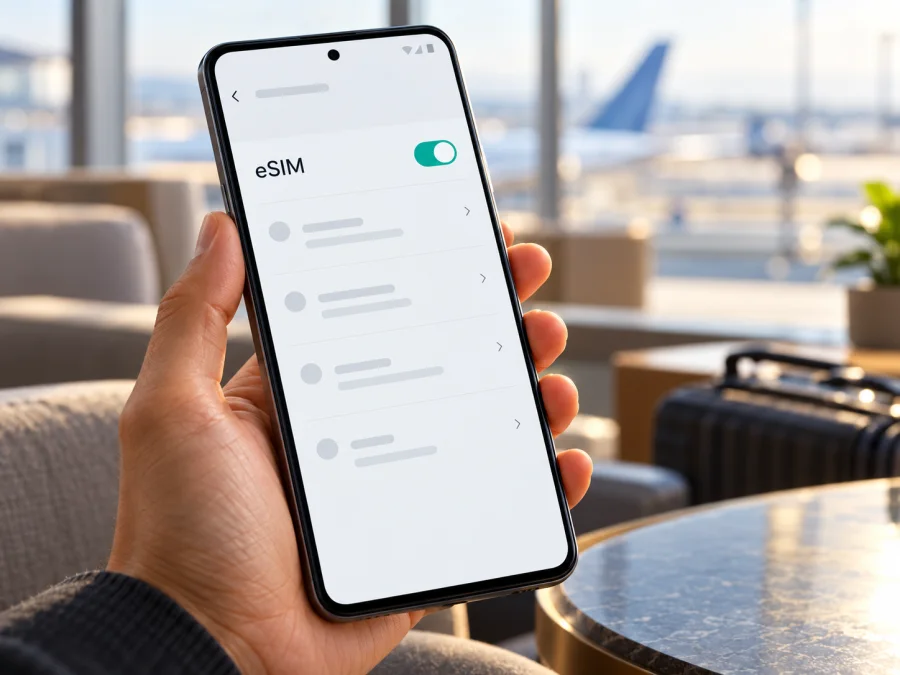
eSIM on Realme GT 7 256GB: compatibility and setup
Quick answer: Realme GT 7 256GB can support eSIM, but the storage size alone does not identify the phone’s regional hardware or software. realme’s Russian-market specifications list eSIM as an alternative to the second nano-SIM slot, and its European GT 7 specifications also list eSIM. The official China-market GT 7 page describes two nano-SIM slots and does not list eSIM. So treat compatibility as market- and SKU-dependent: check the exact model number and look for an EID or an eSIM setup option on the phone before choosing a travel plan.
This distinction matters if you bought the phone through an importer, marketplace, or a seller using the broad “global version” label. A 256GB listing does not prove that the phone contains an eSIM component, that the feature is enabled by its firmware, or that a particular mobile operator allows it. Use the checks below on the handset you will actually travel with.
Does Realme GT 7 256GB support eSIM?
The answer is yes for some market versions, but not guaranteed for every 256GB Realme GT 7. realme’s Russian specifications say eSIM can replace SIM slot 2, and its European specifications list eSIM. The China-market specifications list two nano-SIM slots and do not list eSIM. These pages confirm a regional difference, but storage size alone does not identify the exact phone.
A Russian or European retail version whose exact specifications include eSIM is a plausible candidate. Treat a China-market version as lacking confirmed eSIM unless the handset itself shows an EID and an add-eSIM function. Imported, carrier-customized, or different firmware versions may vary. “International,” “global,” and “unlocked” are not proof by themselves.
| Check | What it tells you | What it does not tell you |
|---|---|---|
| Listing says “256GB” | Storage capacity | eSIM hardware, market, or carrier status |
| Model code and sales region | Which realme specifications to check | Whether the phone is unlocked |
| EID in Settings | The phone reports an eSIM identifier | Whether a plan will work at your destination |
| “Add eSIM” in Mobile network | The software offers eSIM setup | Whether the plan or network is suitable |
| Two physical SIM slots | Physical SIM capacity | Whether eSIM is also available; on supported versions it may replace slot 2 |
If you are buying the phone, ask the seller for the exact model code, original market, and a photo of the actual unit’s eSIM settings. If you already own it, use the on-device check below. A general GT 7 product page is useful background, but the handset’s EID and settings are the more relevant checks for your unit.
Check the phone before choosing a plan
Start with the phone, not with a tariff. On Android, the menu wording can change with software version and region, so look in both the mobile-network settings and the device information screens.
- Check for an EID. Open Settings and look under About device / About phone, Status, or SIM status. Search Settings for “EID” if the menu has a search field. An EID is a long identifier associated with the eSIM hardware. If a value is shown, note that the phone reports an eSIM component.
- Look for eSIM setup. Open Settings → Mobile network (the wording can be Mobile data or SIM cards & mobile networks) and look for eSIM, Add eSIM, Add mobile plan, or a similar option. A visible setup option is a useful positive sign.
- Check both signs. Ideally, the phone shows an EID and offers an eSIM setup option. If neither appears, do not assume that a software update or a QR code will add eSIM capability to that regional device.
- Record the model code. Find it in About device or on the original box. Compare the full code and sales market with the appropriate realme support page or ask realme support. The family name alone may cover different configurations.
- Check the carrier lock. If the phone was sold by a mobile operator or bought on contract, ask that operator whether the device is unlocked for another eSIM profile. eSIM hardware can be present while a network lock still prevents use with a different provider.
If the EID is absent, the menu is missing, or the results conflict, pause before purchasing a plan. Restart the phone, install any available official system update, and repeat the search. If the option remains absent, send the model code and region to realme support or the seller and request a specific answer about eSIM for that unit. Do not share the full EID publicly; it is a device identifier and is only needed in an appropriate support process.
For a quick checklist, ask yourself:
- [ ] Is this the exact Realme GT 7 256GB unit I intend to use, rather than another GT 7-series model?
- [ ] Do I know the model code and original market?
- [ ] Can I see an EID in the phone’s settings?
- [ ] Is there an Add eSIM option in Mobile network settings?
- [ ] Is the phone unlocked for a separate travel profile?
- [ ] Do I have a stable Wi-Fi connection for installation and the plan’s activation details?
- [ ] Does the selected plan cover the country or region where I will use it?
A compatibility check answers whether the phone can add an eSIM profile. It does not determine which country or network a travel plan covers. Keep these questions separate: first confirm the handset’s market version and eSIM capability; then check the plan’s destination list, data allowance, validity, and network conditions for your itinerary. The destination is where you will use mobile data, while the sales region is where that particular phone variant was made available. One does not establish the other. If you cannot confirm the device variant, ask the seller or realme with the model code before payment.
Check your device before selecting a plan, and use the EID and Settings checks above alongside any compatibility result.
Prepare for a trip
Once the phone passes the checks, decide how you want to use the travel eSIM. A data eSIM is designed for mobile internet; it does not automatically add a regular phone number, voice calls, or SMS. Those features are included only if the conditions of a specific plan say so. You can usually keep your existing number available for calls or messages while selecting the travel eSIM for mobile data, subject to your home operator’s roaming settings and charges.
Before selecting a plan, check the destination coverage stated for that plan, its data allowance, validity period, price, and when validity begins. Some plans start when installed, while others start when they first connect to a supported network; follow the plan’s current terms rather than assuming one rule applies to all offers. For a trip through several countries, confirm that the plan covers each stop. A regional plan may be more convenient on a multi-country route, but its listed destinations and conditions still need to match your itinerary.
Kaspersky eSIM Store is an app and website that helps you choose, arrange, and activate an eSIM with a suitable mobile-data plan for an international trip. You can browse current travel plans and review the destination and plan conditions before choosing. Kaspersky eSIM Store is not a mobile operator, network owner, or mobile-internet provider; service availability and performance depend on the plan, local network, device, and destination.
For an easier arrival, install the profile over reliable Wi-Fi if advance installation is allowed. Keep the QR code on another screen if you need to scan it. Do not delete a profile to troubleshoot until you have checked whether the plan allows reinstallation or transfer.
How to install eSIM on Realme GT 7 256GB
Menu labels vary by realme UI version, region, and operator. First confirm compatibility and read the plan instructions. Connect to Wi-Fi and have the QR code or manual activation details ready; use a code only for this profile and device.
- Connect to Wi-Fi. Use a stable connection so the phone can download the profile. Keep Wi-Fi available until setup finishes.
- Open the eSIM menu. Go to Settings → Mobile network and choose eSIM or Add eSIM. If the option is missing, stop and recheck regional compatibility rather than continuing with a generic QR guide.
- Choose the QR setup option. Select the option to add or download a mobile plan. Point the camera at the QR code shown in your Kaspersky eSIM Store account or in the plan’s activation instructions. If the provider supplies manual details instead, enter them exactly as given.
- Confirm the download. Review the on-screen prompts and allow the phone to add the mobile plan. A profile name such as “Travel” can help you distinguish it from your home SIM. The name is only a label; it does not change the plan.
- Choose when to turn it on. If you are preparing before departure, you may be able to install the profile now and leave it switched off until the plan’s instructions say to activate it. If activation is required immediately, follow the instructions and check when the validity period starts.
- Set mobile data to the travel profile. In SIM or mobile-network settings, select the travel eSIM for mobile data. Keep your home SIM selected for calls or texts only if that matches your preferences and you understand any home-network roaming charges.
- Enable data roaming for the travel eSIM if required. Some travel profiles need data roaming switched on to connect to partner networks. Turn it on only for the travel profile and follow the plan’s instructions. Roaming on your regular SIM can create separate charges.
- Check the connection. When you are in a covered destination and the plan is active, allow the phone a few minutes to register. Confirm that mobile data is assigned to the travel profile and that the network name or data indicator appears.
For device-specific screenshots and current menu guidance, follow the Android eSIM installation instructions. If you manage the same travel plan on an Apple phone instead, see the iOS eSIM installation instructions. The iOS guide is not for installing eSIM on Realme GT 7 256GB; it is included for readers comparing setup across devices.
Installation and connection are separate: a profile can appear in Settings before it connects. At your destination, enable it, select it for data, and configure roaming as instructed by the plan.
Use the travel eSIM for mobile data
After arriving, open Settings → Mobile network and check three things: the eSIM profile is enabled, mobile data uses that profile, and data roaming is enabled for that profile if required. You can usually leave your home SIM installed. If you do, review its settings carefully: disable data roaming on the home SIM if you do not want it to use mobile data abroad, and check your home operator’s rates for calls or SMS.
For a short city break, a modest allowance may cover maps, messaging, and browsing. Remote work, video calls, hotspot use, and photo backups can consume more data; estimate your usage and check whether tethering is allowed. Use Android’s data-usage screen or an available warning to monitor consumption.
Check the plan’s terms before using hotspot, since some plans restrict tethering. Download maps and travel documents over Wi-Fi before leaving.
When you arrive, enable the eSIM according to its activation conditions, select it for mobile data, and enable roaming for that profile if required. Disable roaming on your home SIM if you want to avoid unintended data use. Open a webpage to confirm service, then check remaining data and validity in the app or account.
Network selection, frequency bands, and coverage vary by destination and operator. eSIM compatibility does not guarantee a signal everywhere. If data is unavailable, confirm the country is covered, the profile is active, and the correct data SIM is selected.
Common issues and what to check
There is no eSIM option in Settings. Search for “EID” and “eSIM,” check the model code and sales region, then restart and install any official update. If the option remains absent, ask realme or the seller about that SKU. A QR code cannot add missing eSIM hardware.
The phone has an EID but cannot add the profile. Check Wi-Fi, QR readability, and whether the profile or one-time code was already used. Confirm the plan permits installation on this device. Contact support with the error message, but do not post the QR or activation code publicly.
The QR code will not scan. Increase screen brightness, clean the camera, and fit the whole code in view. If it is on the phone being set up, display it on another device or use manual activation if available. Treat the code as private credentials.
The profile was added, but there is no signal. Confirm destination coverage and activation timing. Toggle the eSIM, restart the phone, and check automatic network selection. If the plan allows manual selection, choose a listed network and wait a few minutes.
The phone shows a network but apps have no internet. Select the travel eSIM for data and enable its roaming if required. Test with Wi-Fi off, check that mobile data is enabled, and confirm the plan has data remaining and has not expired.
The home SIM is still using data. Reopen SIM settings and make the travel profile the data SIM. Disable automatic data switching if the phone offers it, and turn off roaming data on the home profile if you want to avoid charges. Keep in mind that voice calls and SMS on the regular number follow your home operator’s terms.
The connection is slow or changes between 4G and 5G. Signal, congestion, coverage, bands, and the plan’s network affect performance. Move to an open area and retry automatic selection. A 5G indicator does not guarantee a particular speed or continuous 5G coverage.
You are asked to scan the QR code again after deleting the eSIM. Do not assume it can be reinstalled. Some profiles can be downloaded only once or cannot be transferred. Check the plan’s reinstallation rules and contact support before deleting a profile that is still needed.
When contacting support, provide the model code, software version, destination, and error text. Keep the QR code and activation credentials private.
Frequently asked questions
Does every Realme GT 7 256GB support eSIM?
No. Official realme specifications show that eSIM availability differs by market: Russian and European pages list eSIM, while the China-market page lists two nano-SIM slots and does not list eSIM. Storage capacity alone cannot identify the region or confirm a particular unit. Check the EID, eSIM menu, and exact model code on your phone.
Can I use two physical SIM cards and eSIM at the same time?
Do not assume that all three can be active together. realme’s Russian specifications describe eSIM as replacing SIM slot 2. Check the exact phone documentation and the SIM-management screen to see which combinations your regional version supports. Dual-SIM behavior may also depend on the selected network and software.
Does an EID guarantee that my travel plan will work?
No. The phone must also be unlocked, able to install the profile, and compatible with the plan’s destination and network.
Does the travel eSIM replace my regular number?
Usually it provides mobile data, not an ordinary number, calls, or SMS unless the plan says otherwise. Your home SIM may remain available, subject to your operator’s roaming charges.
Should I install the eSIM before travelling?
Often you can install it in advance over Wi-Fi, but activation timing varies by plan. Read the current instructions to learn whether validity begins at installation or at first supported-network connection. If uncertain, install only when you are ready to use the profile or ask plan support.
What if my phone is an imported or carrier-branded version?
Check the model code, market, EID, and eSIM menu. Ask the seller or carrier whether that SKU is unlocked and supports eSIM; “global version” is not enough.
Before you travel: verify, then choose
For Realme GT 7 256GB, eSIM is confirmed on some official market versions but should not be assumed from the name or storage size alone. Check for an EID and an Add eSIM option, confirm the model code and sales region, and make sure the phone is unlocked. If the checks do not agree, ask realme or the seller to confirm the exact unit before you choose a plan.
Then compare the destination, data allowance, validity, activation timing, and any tethering conditions for your trip. Kaspersky eSIM Store helps you select, arrange, and activate an eSIM with a suitable mobile-data plan for an international journey. Use the website or app to review current options for your destination, and complete the device compatibility check before payment. A few minutes spent confirming the handset and plan can prevent a setup surprise after you arrive.


