Travel connectivity guide
Realme GT 8 Pro 128GB 5G eSIM Compatibility
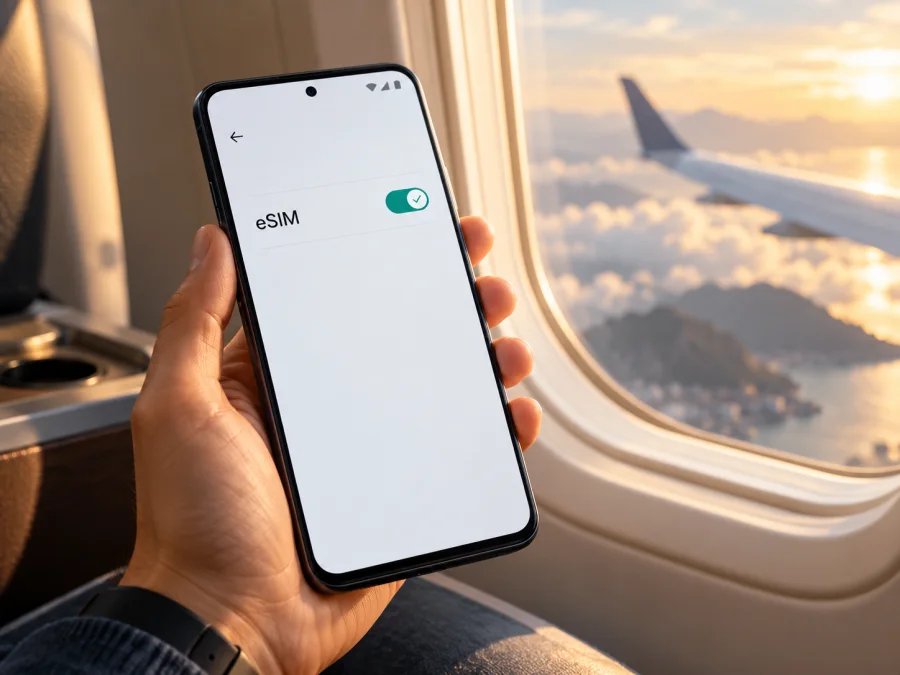
Realme GT 8 Pro 128GB 5G eSIM compatibility and setup
Short answer: eSIM support is not confirmed for the exact Realme GT 8 Pro 128GB 5G listing. Realme’s current GT 8 Pro specifications for several markets describe two Nano-SIM slots and do not list eSIM. The official pages I checked also do not identify a 128GB configuration. This means the exact variant in the product listing cannot be authenticated from the information in its name alone. Treat it as not verified for eSIM unless the phone itself shows an EID and an option to add an eSIM, and the seller confirms the regional model number in writing.
The “5G” label describes cellular network capability; it does not prove that the phone has an embedded SIM. Likewise, storage capacity does not establish eSIM support. A physical SIM tray, a 5G icon, or a listing that says “dual SIM” is not enough to make that determination. Check the exact handset before buying a travel data plan.
Does Realme GT 8 Pro 128GB 5G support eSIM?
There is no confirmed yes for this exact variant. Realme’s current GT 8 Pro specifications for its global, Indian and Spanish markets list two Nano-SIM slots and do not list eSIM or an EID. The official pages checked describe storage configurations as varying by region and up to 512GB; they do not identify a 128GB configuration. Treat the exact “Realme GT 8 Pro 128GB 5G” listing as not verified for eSIM until the handset itself shows an EID and an eSIM setup option, and the seller confirms its model code.
| Check | Verified information | What it means |
|---|---|---|
| GT 8 Pro SIM arrangement | Two Nano-SIM slots are listed on official regional pages. | The listed arrangement is physical SIM; eSIM is not stated. |
| Exact eSIM support | The pages checked do not list eSIM or EID. | Do not assume a profile can be installed. |
| 128GB capacity | Not shown on official pages checked; regional configurations may vary. | This exact SKU has not been authenticated. |
| 5G | 5G bands are listed. | 5G does not prove eSIM support. |
A 5G phone can use physical SIMs only. eSIM requires compatible hardware and firmware, and market or carrier configuration can matter. A software update cannot add missing eUICC hardware. Retailer titles can contain shorthand or errors, so ask for the full model/SKU, country of sale and confirmation of eSIM support for that precise unit.
Regional and carrier versions
Regional configurations may differ in SIM hardware, radio bands, firmware and regulatory features. Carrier-supplied phones can also be locked or have eSIM use restricted. The task name does not identify a sales country, so its specific market variant cannot be determined from the name alone. Realme’s pages say storage and RAM options vary by region; one market’s specification does not establish the features of an imported device. Ask the seller or realme support to confirm the exact model code, eSIM/EID and unlock status. The sales country also does not determine travel coverage: the plan must include the destination and the device must be able to register on a supported local network.
Check compatibility before choosing a plan
Check the actual phone, not just the product title. Menu labels vary by realme UI version; search Settings for “eSIM,” “SIM” or “EID” if needed.
- Open Settings → About device/About phone and note the full model number, software version and region.
- Enter
*#06#in the dialler and look for an EID. IMEI numbers alone do not establish eSIM support. - Open Settings → Mobile network or SIM cards & mobile networks. Look for Add eSIM, Download a SIM, Add mobile plan or a QR-code setup option.
- Confirm the phone is unlocked. A device with eSIM hardware can still reject another carrier’s profile if network-locked.
- Ask the seller or realme support to confirm the exact model code, region and eSIM support; keep the response with your receipt.
An EID together with an eSIM-add option is strong evidence that the phone can accept a profile. If both are absent, treat the handset as incompatible unless the manufacturer confirms otherwise. If the device, box and listing show different identifiers, ask the seller to resolve the discrepancy before purchase.
Check whether your device is compatible before selecting a travel plan. If this phone has no eSIM, consider a physical SIM where available, your home carrier’s roaming, or another handset with verified eSIM support. A travel eSIM cannot provide service on hardware that does not support it.
What to decide before purchase
After confirming eSIM support and unlock status, compare the plan’s included destinations, data allowance, validity and activation rules with your itinerary. For a multi-country trip, check every country rather than assuming a regional name covers every stop. Estimate usage: maps, translation and messaging are lighter than video, cloud backups and frequent hotspot use. Download maps and tickets on Wi-Fi and review background data settings.
Check when validity starts: installation, activation or first connection. Follow the plan’s terms, and do not delete a profile to troubleshoot unless its instructions or support team say to, since some QR codes cannot be reused.
Kaspersky eSIM Store is an app and website where travellers can choose, arrange and activate an eSIM with a mobile data plan for an international trip. It is not a mobile network operator; coverage depends on the selected plan and local network providers. Once compatibility is confirmed, you can browse current travel plan options.
How to install and activate an eSIM on Android
The exact menus can vary by realme UI version, country and carrier. Use this conditional walkthrough only if your Realme GT 8 Pro 128GB 5G shows an EID and an eSIM-add option. Keep a stable Wi-Fi connection available, and have the QR code or installation details from your plan ready on another screen or printed page.
- Confirm the profile and destination. In the Kaspersky eSIM Store app or website, open the purchased plan and check its supported destination, data amount, validity and activation instructions. Confirm again that the exact handset is eSIM-compatible and unlocked.
- Connect to Wi-Fi. Profile download needs an internet connection. Do not remove your home SIM if you still need it for calls, messages or account verification.
- Open mobile network settings. Go to Settings → Mobile network or SIM cards & mobile networks. Choose the option for adding or downloading a SIM/eSIM. If no such option exists, stop: do not scan a code using an unrelated QR scanner and assume installation will work.
- Scan the profile QR code. Use the phone’s built-in eSIM setup flow. If scanning is unavailable, use manual activation details only if the plan instructions provide them. Keep the QR code private; it can contain information that allows the profile to be installed.
- Review and download. Follow the confirmation screens and wait for the profile to finish downloading. Do not close Settings or disconnect Wi-Fi during setup. The phone may ask you to label the line, such as “Travel data.”
- Choose how each line is used. Keep your regular SIM selected for calls and SMS if required. Select the travel eSIM for mobile data when the plan is meant to provide data. If your home line remains active, review its roaming settings to avoid unintended charges.
- Activate at the right time. Enable the eSIM and data roaming only as directed by the plan. Data roaming may be necessary for a travel profile to connect to a partner network. The switch does not by itself guarantee a connection or remove charges from your home SIM.
- Test the connection. When the plan is valid and you are in a covered destination, turn Wi-Fi off briefly and open a simple webpage. Check the signal, selected data SIM and remaining allowance in the plan details. If it does not connect, use the troubleshooting checks below.
The Android eSIM installation guide explains the general profile flow. The iOS eSIM installation guide is included for travellers using a different compatible Apple device; it does not mean iOS steps apply to this Android phone. Follow the on-screen wording for your device and the activation instructions shown for your selected plan.
Using the eSIM for mobile data while travelling
If compatibility is confirmed, install the profile over Wi-Fi when allowed by its terms. At the destination, enable the eSIM, choose it as the mobile-data line and turn on data roaming for that profile only if the plan requires it. Keep your home SIM available for calls or SMS if needed, but check its roaming charges. Selecting the travel eSIM for data does not necessarily prevent the home line from using data; disable home-line roaming and automatic data switching if you want to avoid accidental use.
Short city break: choose a plan covering the destination for the full stay, label the profile “Travel data,” then test a map or message after arrival. Keep large downloads on Wi-Fi.
Multi-country route: confirm every stop is included, including transit destinations where you expect to connect. A country plan may stop working after a border crossing; compare regional plan terms, data and validity rather than relying on the plan’s name.
Work trip: if dual-SIM use is supported, retain the home SIM for important messages and select the travel eSIM for data. A travel data plan should not be assumed to include a phone number, ordinary calls or SMS unless its terms explicitly say so; internet calls and messages use data.
Common problems and checks
No eSIM option: search Settings and check *#06# for an EID. Confirm the full model code with the seller or realme support. If EID and the add-eSIM menu are both absent, do not buy a profile to test compatibility.
QR code will not scan: use the built-in eSIM setup flow, increase screen brightness on the device showing the code and avoid glare or cropping. If the code was used, expired or issued for another device, contact plan support instead of repeating attempts.
Profile download fails: check Wi-Fi, update the phone if appropriate, enable automatic date and time, and retry only as the plan permits. Do not factory-reset or delete the profile without guidance.
Profile installs but there is no service: confirm the destination is covered, the plan is active, the eSIM is enabled and selected for data. Toggle airplane mode, restart, and allow a few minutes. Return network selection to automatic unless instructions say otherwise.
Signal but no data: enable mobile data for the travel profile and data roaming if required. Check the plan’s validity, allowance and destination. Test with Wi-Fi off. Change APN settings only when the plan instructions specify the exact values.
Home SIM uses roaming or the device is locked: recheck the data-line selection, disable roaming on the home SIM if appropriate and turn off automatic data switching. A network lock cannot be fixed with APN settings; contact the original carrier or seller.
Profile disappears: check Settings and the account where the plan was issued, then contact support. Reinstallation rules vary. Keep purchase details private and never share the QR code publicly.
Frequently asked questions
Does Realme GT 8 Pro 128GB 5G definitely support eSIM?
Support is unconfirmed for this exact listing. Official GT 8 Pro pages checked list two Nano-SIM slots and do not state eSIM; they do not confirm a 128GB configuration. Verify the handset’s EID, eSIM menu and model code.
Does 5G mean eSIM will work?
No. 5G is a network capability. eSIM also requires compatible hardware, firmware and an unlocked device.
Can an update add eSIM?
An update cannot add eUICC hardware. If the EID or eSIM option is missing, ask realme about the exact regional model instead of assuming an update will enable it.
Can I keep my current number?
Possibly, if the exact device and carrier support dual-SIM use. Keep the home SIM for calls or SMS if needed and select the travel profile for data; check roaming charges first.
Does a travel data eSIM include calls and SMS?
Do not assume so. Check the plan terms. Internet calls and messaging apps use data.
When should I install the profile?
Follow the plan’s timing rules. Some validity periods begin at installation or first connection. If early installation is permitted, use Wi-Fi and leave the profile disabled until appropriate.
What if the phone has no EID?
Treat eSIM compatibility as unverified and ask the seller or realme support to confirm the SKU. Otherwise, consider a physical SIM, home-carrier roaming or a different verified eSIM phone.
Final check before your trip
For Realme GT 8 Pro 128GB 5G, the safe answer is that eSIM support remains unverified for the exact listing. The official GT 8 Pro specifications checked identify dual Nano-SIM slots and omit eSIM, while the 128GB configuration was not confirmed on those pages. Confirm the phone’s model code, EID, eSIM-add menu and unlock status before you select a plan. If those checks pass, compare the plan’s destination coverage, validity and data allowance, then install and activate it according to its instructions. If they do not, choose another verified way to connect before travelling.


