Travel connectivity guide
Realme GT 8 Pro 128GB eSIM Compatibility
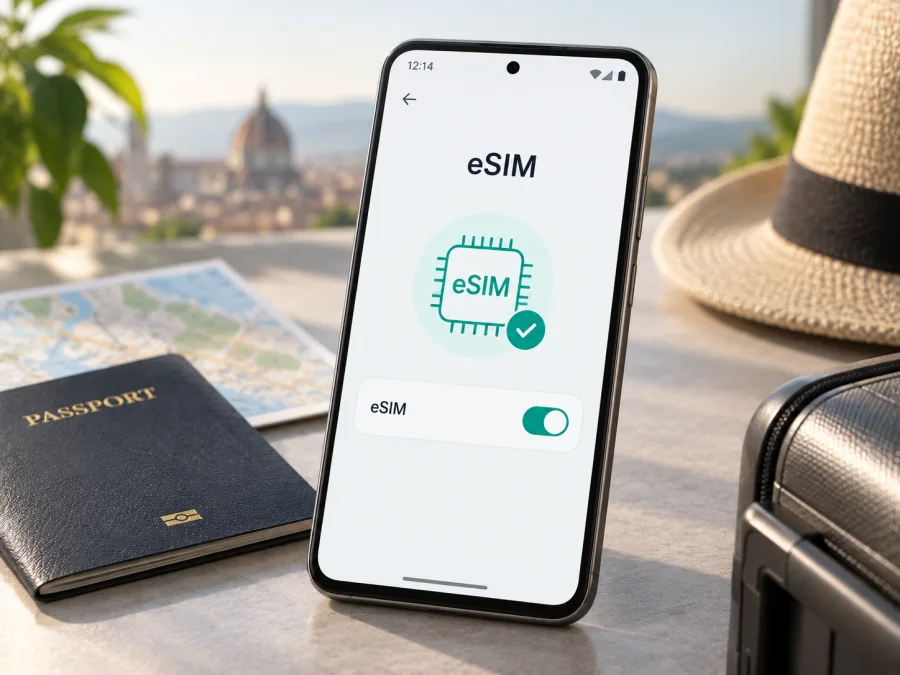
Realme GT 8 Pro 128GB eSIM: compatibility and setup guide
Does Realme GT 8 Pro 128GB support eSIM? The exact 128GB configuration cannot be confirmed from realme’s published regional specifications. realme explicitly lists eSIM for its Taiwan-market GT 8 Pro, while official specifications for China and India list two physical Nano SIM slots without confirming eSIM. Those regional pages also do not list a 128GB storage configuration. So the safe answer is: some GT 8 Pro versions support eSIM, but do not assume this unverified 128GB listing does.
If you own the phone, check for an EID and an Add eSIM option on that handset. If you are considering a purchase, ask for the exact model code and market of origin and request confirmation for that SKU. 5G capability, a dual-SIM label, or another regional GT 8 Pro’s specification does not prove that eSIM is available on your unit.
At a glance
| Item | What to know about Realme GT 8 Pro 128GB |
|---|---|
| eSIM verdict | Regional version matters; Taiwan-market GT 8 Pro officially lists eSIM. |
| 128GB storage | Not listed in the official regional configurations reviewed. Verify this listing’s SKU. |
| Other regional SIM details | China and India pages list two Nano SIM slots without confirming eSIM. |
| Check on your handset | EID, Add eSIM setting, carrier unlock, and plan compatibility. |
| Travel use | A compatible eSIM plan can provide mobile data subject to its terms and local coverage. |
What realme’s regional specifications establish
There is no single eSIM answer that safely covers every GT 8 Pro sold worldwide. realme’s Taiwan specifications explicitly include eSIM, and its Taiwan launch announcement also identifies eSIM support. The China specifications list Nano-SIM and Nano-USIM cards with dual-SIM operation; India specifications list two Nano SIM slots. Neither of those pages confirms eSIM. This is a regional distinction, not a reason to transfer one market’s feature list to another market’s handset.
The storage label needs checking as well. The official GT 8 Pro configurations reviewed start at 256GB, with higher capacities depending on market; they do not show a 128GB model. A retailer may have mistyped its title, confused storage with RAM, or be describing a particular sales channel not documented in those specifications. This does not prove no such listing exists, but Realme GT 8 Pro 128GB cannot be matched to a documented eSIM SKU by name alone. Verify the code on the device and box.
A physical SIM tray is not proof either way: some phones combine a physical SIM with an embedded one, while others use two physical SIMs and no eSIM. Firmware, modem provisioning, carrier restrictions and market can all affect what is available. A software update may change menu wording or fix a fault, but should not be expected to add missing eSIM hardware. Treat the Taiwan confirmation as evidence for the Taiwan version only until realme confirms the exact variant in your hands.
Check your exact phone before choosing a plan
<a id="kesim-device-compatibility"></a>
Menu wording can vary with realme UI and Android version. Use Settings search if the labels below differ.
- Look for an EID. Search Settings for “EID”; it may appear under About device or Status. You can also enter
*#06#in the dialler. A supported phone may display an EID alongside its IMEI numbers. Keep these identifiers private. - Find the eSIM controls. Open Settings → Mobile network or SIM card & mobile data. Look for eSIM, Add eSIM, or Add mobile plan. An EID is a useful sign, but confirm that an installation flow is available too.
- Confirm the model and region. Record the model number and software build from Settings → About device. Compare them with the box, invoice and seller’s stated market. A marketing name alone does not identify a regional configuration.
- Check carrier unlock status. The phone must be allowed to use another provider’s plan. Ask the original carrier or seller if this is unclear.
- Check the plan. Confirm Android eSIM support and destination coverage. Review data allowance, validity, activation trigger, hotspot terms and installation requirements.
If there is no EID and no Add eSIM control after checking settings, consider the handset unverified for eSIM. Confirm the exact code with realme or the seller; do not rely on a factory reset or a promised update to make it compatible. If an EID exists but profile installation fails, note the error and check the network connection, carrier lock and plan eligibility before deleting anything.
Compatibility checklist
- [ ] I know the handset’s model code, market and software version.
- [ ] The phone displays an EID.
- [ ] Settings on this phone offers Add eSIM or Add mobile plan.
- [ ] The phone is unlocked for another provider.
- [ ] The plan supports this device, Android and my destination.
- [ ] I reviewed the plan’s validity, activation timing and data allowance.
For another quick step, check whether your device is compatible before selecting a travel plan. If buying second-hand, complete the checks on the actual handset before payment.
Install and activate an eSIM
Proceed only after confirming that this particular phone exposes eSIM support and that the plan fits the trip. Use stable Wi-Fi for setup. Keep your regular line available if you need it for account verification. Activation codes and QR codes may be single-use, so keep them private and follow the plan’s instructions.
- Choose a plan. Select the destination or region and compare data allowance with the trip. Check when validity starts: installation, first activation, or connection to a supported network can have different effects. Review tethering and reinstallation conditions.
- Prepare the phone. Connect to Wi-Fi, keep the phone charged, set date and time automatically, and confirm carrier-unlock status. Have the QR code visible on another screen or the manual details ready.
- Open setup. Go to Settings → Mobile network → eSIM / Add eSIM / Add mobile plan. Choose QR scanning or manual entry if offered. Labels vary by software and region.
- Download the profile. Follow the prompts without interrupting the connection. Check the plan name before confirming. If installation remains pending, avoid repeated attempts and save any error message.
- Label the line. Name it “Travel data” or another clear label. Choose which SIM handles mobile data; you can usually change that setting later.
- Set activation and roaming. Follow the plan’s timing. Some plans can be installed before departure and switched on after arrival. If data roaming is required, enable it for the travel eSIM only. Keep it off for the home SIM unless you intend to use your home carrier’s roaming service.
- Test data. When the plan is active, select it for mobile data, briefly turn Wi-Fi off, and open a webpage. Confirm that the line is on and registered to a supported network.
For phone-specific steps, see the Android eSIM installation instructions. The iOS eSIM installation instructions are for Apple devices and may help if you are assisting someone with an iPhone. Deleting a profile may prevent reinstallation, so check the plan terms first.
Using a travel eSIM on a trip
For a holiday, you can often install the profile at home over Wi-Fi and leave the line off until the plan says to activate it. At your destination, turn the travel line on, select it for mobile data, and enable its data roaming if required. You may keep your usual SIM active for calls or account messages if your carrier allows it. Check data-line selection carefully to avoid unintended home-SIM roaming charges.
For a layover or a multi-country route, check that every destination is covered and that the plan lasts for the full itinerary. Regional plan names do not necessarily include every island, territory or stop. Estimate use for maps, tickets, messaging and ride-hailing, then choose an allowance that suits the trip. Download offline maps and key documents before departure as a backup.
For work, the travel eSIM can handle data while the home SIM remains available for calls, depending on the handset’s dual-SIM behavior and carrier settings. Do not assume a data plan includes a regular phone number, cellular voice or SMS unless its terms say so. Internet calling and messaging apps can use data when their accounts and connection are available. Hotspot use can consume data quickly and may be limited by plan terms.
While abroad, monitor usage in Android’s mobile network settings and, when available, in the plan account or app. Background sync, photo backup, video and updates can use an allowance rapidly. Use Wi-Fi for large downloads where convenient. Network availability and speed depend on local coverage, compatible bands, congestion and the plan’s partner network.
Kaspersky eSIM Store is an app and website where you can choose, arrange and activate an eSIM with a mobile-data plan for an international trip. Review the destination, allowance, validity and conditions shown for a plan before choosing it. The service runs over relevant local networks under the selected plan’s terms; coverage and speed vary. Kaspersky eSIM Store is not a mobile operator and cannot make an incompatible handset eSIM-capable.
Troubleshooting common issues
No EID or Add eSIM option: Search Settings and check the *#06# screen, then verify model code and market. Install available official system updates and restart. If both indicators are still missing, ask realme or the seller about that SKU rather than relying on a third-party app.
QR code will not scan or download: Check Wi-Fi, camera focus and code clarity. If the QR code is on the phone screen, display it on another device or use manual entry if allowed. Check that it has not expired or already been used. Do not delete a pending profile until the plan’s support team advises you.
Installed eSIM has no service: Confirm the line is enabled, its activation window has begun, and the destination is covered. Turn on roaming for that line if required, check automatic network selection, toggle airplane mode briefly, then restart. Use manual network selection only as instructed by the plan.
Service appears but data does not work: Select the travel eSIM as the data SIM, check remaining data and validity, and follow any APN instructions supplied with the plan. Turn Wi-Fi off for a short test. Do not change APN values at random; keep home-line roaming off unless you intend to use it.
Home SIM calls or messages stop: Check that the home line remains enabled and selected for the relevant service. Dual-SIM behavior can change during calls; international registration also depends on your home carrier. A data-only plan does not replace your usual number.
Seller says “dual SIM” but eSIM is absent: Dual SIM may mean two physical Nano SIM cards. Ask to see the EID and Add eSIM option on the exact phone, and confirm its market/model code against local realme information before paying. A photo of another GT 8 Pro is not verification of a 128GB listing.
If a problem continues, record the model code, software build, destination, plan name and error message. Hide personal identifiers in screenshots. Share QR codes, EID, IMEI and activation details only through an authenticated support process when specifically needed.
Frequently asked questions
Does Realme GT 8 Pro 128GB support eSIM?
The official regional specifications reviewed do not list a 128GB storage version, so eSIM support for that exact configuration cannot be confirmed by the listing name. Taiwan-market GT 8 Pro specifications explicitly include eSIM; China and India specifications list two physical Nano SIM slots without confirming it. Check the handset’s EID, Add eSIM setting and regional model code.
Does 5G mean eSIM will work?
No. 5G is a cellular network generation. It does not prove that the phone has an embedded SIM, an EID, is carrier-unlocked, or supports a particular plan.
Can a software update add eSIM?
An update may change menus or fix software behavior, but do not treat it as a way to add absent hardware. Ask realme about the exact model code.
Can I keep my regular SIM installed?
If the regional phone supports the physical SIM and eSIM together, you may be able to keep the home line active and use the travel eSIM for data. Available combinations vary, so check settings and your home carrier’s roaming terms.
Does a travel eSIM include calls and texts?
Not necessarily. Many travel eSIMs are for mobile data. A phone number, voice calls and SMS are included only when the selected plan explicitly says so. Internet-based apps can use mobile data.
When should I install the plan?
Follow its activation terms. Installing before departure over Wi-Fi can simplify setup, but the plan may start when installed, switched on or first connected. Check the start condition and avoid deleting a profile unless support instructs you.
Before you travel
Check the exact Realme GT 8 Pro 128GB handset, not just the GT 8 Pro family. Confirm the market and model code, find an EID, and make sure Settings offers an eSIM installation flow. Resolve the 128GB listing discrepancy with the seller or realme before paying for a plan. Then choose a travel eSIM for the countries on your itinerary, review its data allowance, validity and activation conditions, and install it using the provider’s instructions. If the handset cannot be verified as eSIM-capable, arrange a compatible device or another connectivity option before departure; do not assume a regional feature exists on a different version.


