Travel connectivity guide
Realme GT 8 Pro 5G eSIM: compatibility guide
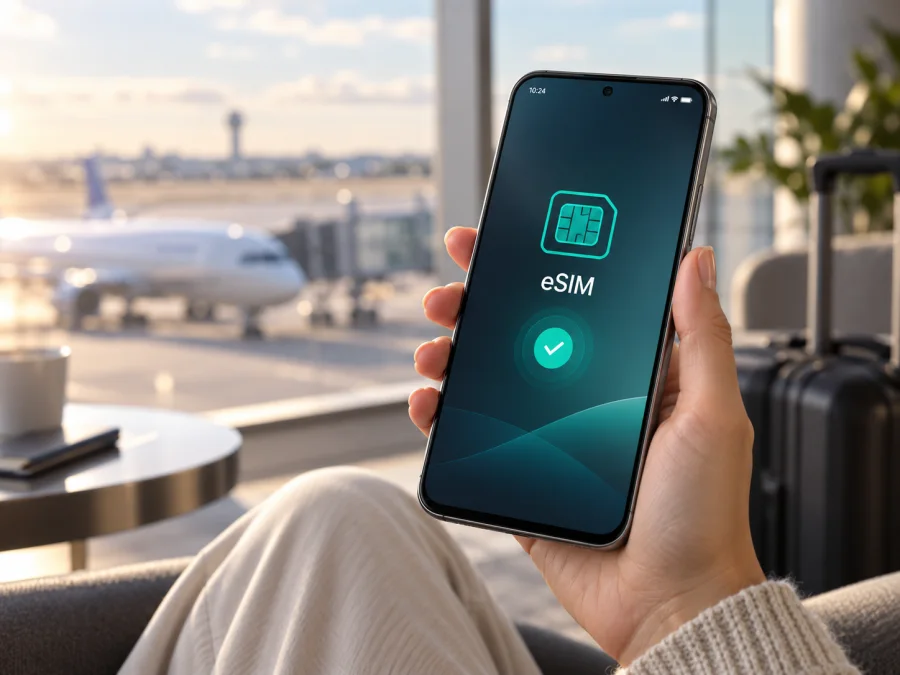
Realme GT 8 Pro 5G eSIM: compatibility and setup guide
If you are preparing a trip and want to use a travel eSIM with Realme GT 8 Pro 5G, the short answer is conditional: the model has official eSIM support in at least one regional version, but the feature is not documented identically in every market. The current realme Taiwan specification page explicitly lists eSIM support. The official China specification lists two Nano-SIM cards and does not list eSIM, while the Malaysia specification also describes two Nano-SIM slots without an eSIM entry. That difference matters more than the model name printed on a marketplace page.
For that reason, do not treat every phone sold as Realme GT 8 Pro 5G as automatically compatible. A Taiwan-market unit may be ready for an eSIM profile; a China- or Malaysia-market unit may be designed for physical SIM cards only, or may expose different functions after a regional firmware or carrier configuration change. Before paying for a data plan, verify the actual handset. The most reliable signs are an EID in the phone information and an available Add eSIM or Add mobile plan control in mobile-network settings.
Quick answer for Realme GT 8 Pro 5G
The safest conclusion is “supported on some regional versions; verify the individual phone before purchase.” A phone family can have different network hardware, SIM configuration or software menu in different countries.
The official regional specifications provide a useful comparison:
| Checkpoint | What the current official pages indicate | What it means for you |
|---|---|---|
| Taiwan version | The cellular section says eSIM is supported and also describes dual Nano-SIM standby | This is the clearest official indication that a regional Realme GT 8 Pro 5G can use eSIM |
| China version | The page lists Nano-SIM/Nano-USIM and dual-card standby; eSIM is not listed | Do not assume that a China-market phone can download an eSIM profile |
| Malaysia version | The page lists two Nano-SIM card slots; eSIM is not listed in the cellular section | Verify the handset directly instead of relying on the family name |
| Network service | Available bands and live-network functions depend on the local carrier | eSIM hardware alone does not guarantee service on every network |
This is regional, not a statement about every Realme GT 8 Pro 5G unit. If imported, ask for the market and model identifier. “Dual SIM” can mean two physical Nano-SIMs or an eSIM plus a physical SIM.
The manufacturer also notes that real-world network use depends on carrier deployment. Even on a confirmed eSIM version, the plan must cover the destination, the phone must be unlocked, the required bands must be available, and the profile must be installed correctly.
What to check before buying an eSIM plan
Make the decision on the phone you will take on the trip, while there is still time to contact the seller.
- Confirm the exact handset. Record the model number, sales region and realme UI version; do not compare only “GT 8 Pro” in an advertisement.
- Look for an EID. An EID is the identifier of an embedded SIM and is strong evidence that eSIM hardware is present.
- Look for an eSIM action. In mobile-network or SIM settings, find Add eSIM, Add mobile plan or Download a SIM. A screen with only two physical slots is a warning sign.
- Check the lock and plan. Confirm the phone is unlocked, the destination is covered, the allowance and validity suit the trip, and note whether data roaming is required.
- Keep Wi-Fi and activation rules in mind. Installation needs internet; some profiles start validity at installation and others on first connection.
Use this rule: EID present + Add eSIM available + no operator lock + destination covered = reasonable basis to continue. If either first signal is missing, pause the purchase.
Verify the actual device
<a id="kesim-device-compatibility"></a>
These checks inspect the phone in your hand. Menus can move after an update, so look for the same function under Mobile network, SIMs, Connections or Network and internet.
Check 1: find the EID
Open Settings and search for “EID” or “eSIM”. Depending on the software build, the identifier may be under About device, Status, SIM status or a detailed hardware-information screen. You can also open the phone-information screen with *#06#; on eSIM-capable Android devices, the result may include an EID alongside IMEI numbers. Do not publish or share the full EID: it is a device identifier and should be treated as private.
An EID is a strong positive signal, but you still need an unlocked phone, a supported destination and a provisionable profile. If no EID appears, confirm with the settings path and model documentation before deciding.
Check 2: find the add-profile command
Go to Settings → Mobile network or Settings → SIM card & mobile data. Look for a SIM list with an option such as Add eSIM, Add mobile plan or Download a SIM instead?. Open the option only far enough to confirm that the phone offers QR-code or activation-code setup; you do not have to scan a profile yet.
If the menu shows two physical card slots and no eSIM option, regard that unit as physical-SIM-only until realme or the seller confirms otherwise. A normal camera app can read a QR image, but it cannot install a protected eSIM profile.
Check 3: compare region and software
Record the region shown on the box, invoice or model information and compare it with the seller’s listing. Check for an official system update, restart the phone and repeat the EID and settings checks. An update can change menu wording, but it should not be assumed to add missing eSIM hardware.
For a final pre-purchase check, Check your device against the EID, settings, lock and destination checklist above. If unclear, ask the seller: “Does this exact regional unit have an EID and a working Add eSIM function?”
Choose a travel eSIM for mobile data
Once the handset passes the device check, use the travel scenario to choose a plan. Kaspersky eSIM Store is an app and website where you can choose, arrange and activate an eSIM with a plan for mobile internet during an international trip. It is not the mobile operator, network owner or direct provider of cellular coverage. The actual connection uses the networks and conditions associated with the selected destination and plan.
Start with the route rather than the phone brand. For a single-country holiday, a country plan may be enough; for a multi-country itinerary, compare regional coverage with separate country plans. Check data amount, validity, destination and activation conditions. Travel eSIM plans are generally data-only, so do not assume that a regular number, voice calls or SMS are included. Messaging and calling apps can work over the data connection.
Scenario: install before departure
While you still have your primary connection, confirm EID and Add eSIM, select a destination plan in Kaspersky eSIM Store, and install the profile on Wi-Fi. Label it with the country or trip name. Keep the everyday SIM for calls if needed, but set the travel eSIM as the data line only when ready. Confirm when validity starts.
Scenario: activate after landing
If the plan permits later activation, keep the QR code accessible and connect to trusted Wi-Fi. Add the eSIM, select it for mobile data, enable data roaming for that eSIM only if required, and give the phone a few minutes to register. Keep the primary SIM’s data roaming off unless you intend to use it.
Scenario: keep your usual number active
On a version that supports dual SIM operation, the physical SIM can remain enabled for calls or verification messages while the travel eSIM handles data. In SIM settings, name each line, choose the travel eSIM under Mobile data, turn off automatic data switching and disable roaming on the home line.
How to install and activate eSIM
Before starting, charge the phone, connect to reliable Wi-Fi, confirm it is unlocked, and have the QR code or activation details ready. See the Android eSIM installation instructions or the iOS eSIM installation instructions. The Realme phone uses Android; the iOS guide is relevant only if the same trip is prepared on a compatible Apple device. Follow the plan terms because a profile may not be transferable after activation.
1. Confirm compatibility and prepare the connection
Recheck the EID and Add eSIM control. Connect to Wi-Fi and keep the QR code on another screen; if it is on the Realme phone, use manual activation details or a laptop.
2. Open the eSIM setup
Go to Settings → Mobile network or SIM card & mobile data, choose Add eSIM or the closest option, and start the download. Labels depend on the realme UI build. If no eSIM command appears, stop and return to compatibility troubleshooting; unrelated software cannot add missing hardware.
3. Scan or enter the activation details
Scan the plan QR code, or enter the activation code manually if offered. Keep the code private and wait while the phone downloads and installs the profile.
4. Name and enable the profile
Give the line a clear name such as “Travel data” or the destination. If Android asks which line handles calls, messages and data, choose deliberately.
5. Set mobile data to the travel line
Open the SIM manager and select the eSIM under Mobile data. Turn off automatic data switching. If the plan requires it, enable Data roaming for the travel eSIM; this does not automatically enable roaming on your home SIM.
6. Test the connection
After landing, turn off airplane mode, wait a few minutes, and check the signal. Open a web page, review the mobile-data indicator and check the plan profile. If there is no connection, check the troubleshooting steps and activation conditions before deleting the profile.
Troubleshooting common problems
There is no EID or Add eSIM option
This most often means the unit is a regional physical-SIM variant, especially when the phone lists two Nano-SIM slots and no eSIM feature. Confirm the model and region, install any official system update, restart and check again. If the controls are still absent, do not purchase or attempt to install a travel profile on that unit. Ask the seller or realme support for a written confirmation tied to the exact model number.
The QR code will not scan
Increase the brightness of the screen displaying the code, clean the camera lens, and hold the phone steady at a moderate distance. Make sure you are using the eSIM setup scanner rather than the ordinary camera. If the code is on the same display, use another screen or choose manual entry. A QR code may also have an activation limit, so avoid sharing it publicly or testing it on several phones.
The eSIM is installed but there is no service
Confirm that the travel profile is enabled and selected for mobile data. Check the destination, APN instructions, data roaming requirement and network-selection setting supplied with the plan. Restart the phone, toggle airplane mode, and allow several minutes for registration. If manual network selection is available, return to automatic mode unless the plan’s instructions name a specific network. A supported eSIM does not override missing local coverage or unsupported bands.
Mobile data uses the wrong SIM
Open SIM settings and select the travel profile as the data line. Turn off automatic switching, and disable data roaming on the home SIM. Check the browser or app again after the change. Wi-Fi can make the connection look successful even when mobile data is still routed through the wrong line, so test with Wi-Fi disconnected.
The phone is locked to a carrier
An operator lock can prevent a profile from activating even when an EID is present. Contact the original carrier or seller before the trip; do not assume that a factory reset will remove a network lock. A reset can erase profiles and personal data without changing the lock status.
FAQ
Does every Realme GT 8 Pro 5G support eSIM?
No universal guarantee should be made. The Taiwan official specification lists eSIM support, while the China and Malaysia specifications describe physical Nano-SIM configurations without listing eSIM. Treat the phone as region-dependent and verify its EID and Add eSIM menu.
Is 5G proof that eSIM works?
No. 5G is a radio-network capability. eSIM depends on the regional hardware, firmware and carrier configuration. A phone can support 5G with two physical SIMs and no eSIM.
Can I use a travel eSIM alongside my normal SIM?
Possibly, if the regional version supports the required dual-SIM mode. Set the travel profile as the mobile-data line, keep home-line data roaming off, and confirm how calls and messages are handled. The precise combination can vary by region and software.
Should I install the eSIM before flying?
Usually, installation over reliable Wi-Fi is easier, but first read when validity starts. Keep the QR code and activation details available.
Final device check before the trip
For Realme GT 8 Pro 5G, finish with a real-device check, not a marketplace assumption. Confirm the regional model, find an EID, open Add eSIM, verify that the phone is unlocked, and check destination coverage. Save activation details and decide which SIM will provide mobile data.
If all checks pass, use Kaspersky eSIM Store as the app and website for choosing, arranging and activating an eSIM plan for mobile internet on your international trip. Review data, validity, activation rule and destination before installation. If the EID or menu is missing, get confirmation for the specific unit before buying.


