Travel connectivity guide
Rhodes eSIM for Mobile Internet in Greece
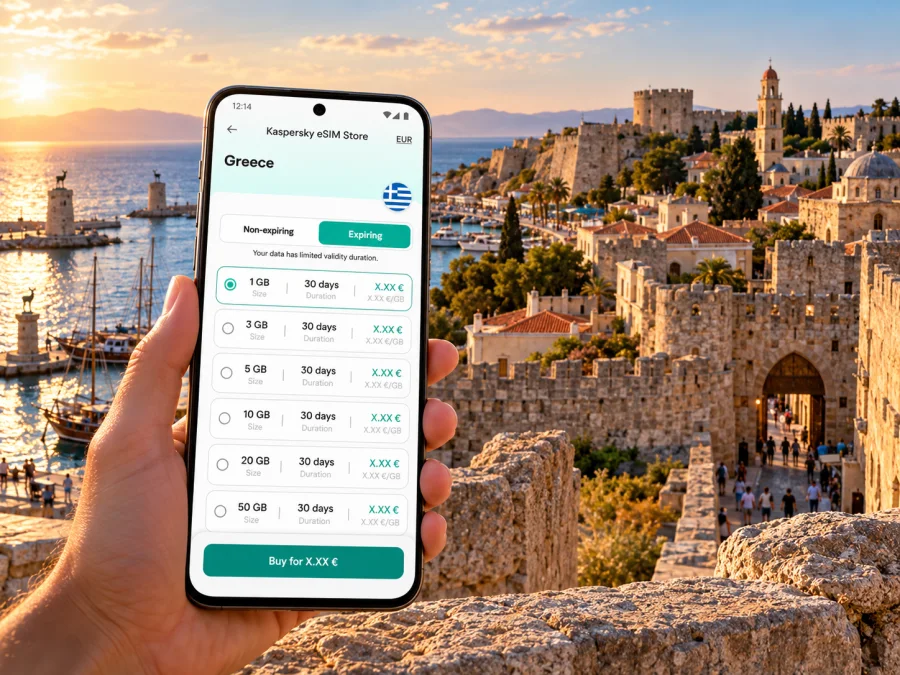
Rhodes eSIM: mobile connection and internet for your trip
Rhodes is both the name of a Greek island and its principal city. If your stay is based in Rhodes town, a mobile data plan can help you find your accommodation after landing, check a bus or taxi route, follow walking directions through the Old Town and keep bookings or messages close at hand. This guide focuses on the city first, then explains how to plan for trips elsewhere on the island.
An eSIM is a digital SIM profile that can be installed on a compatible, unlocked device. A travel eSIM plan is generally intended for mobile data; it does not automatically provide a Greek phone number, voice calls or SMS. Check the terms of the specific plan before purchase, and keep your regular SIM available if you need its number for calls or verification messages.
Rhodes city and Rhodes island: choose the right destination
Rhodes town lies at the northern end of Rhodes island. The Medieval City, the modern centre and Mandraki harbour are close enough to form a practical cluster for many visitors, but excursions to Lindos, beaches or villages take you beyond the city. “Rhodes” on a search page may refer to the island as a whole; for a mobile plan, the relevant destination market is Greece.
That distinction matters when you compare a plan with your itinerary. A country plan for Greece is the sensible starting point for a stay in Rhodes. If your route also includes another country, check whether that destination is included in the selected plan or whether you need a separate regional option. A plan page is not a guarantee of signal in every building, road or cove: the network used, coverage and service conditions depend on the specific offer and local operator.
Where mobile data helps on arrival
Rhodes International Airport, Diagoras, is in Paradisi, away from Rhodes town. After landing, a working data connection can help you confirm the pickup point, contact your host, check a current route and share your arrival time. Do not assume that airport Wi-Fi, a transfer desk or a driver will be available exactly when you need one. Save essential booking details offline before departure.
For the first trip into town, decide how you will travel before you exit the terminal. Check current bus or transfer information, or arrange a taxi through a channel you trust. Map apps can help you compare a route, but they do not replace posted signs or the instructions of your transport provider. If your accommodation is in the Medieval City, ask whether vehicles can reach the property or whether you need to walk the final stretch from a drop-off point; the historic lanes are not the same as a modern hotel forecourt.
Useful arrival tasks for a phone with mobile data include:
- opening the accommodation pin and saving its address in a readable form;
- checking a transfer confirmation, pickup instructions and a contact number;
- using a map to understand the route from the airport to your lodging;
- sending a message if a flight, luggage collection or transfer is delayed;
- looking up an updated bus departure or taxi pickup point;
- translating a short address or instruction when needed.
A small amount of preparation makes these tasks easier. Download an offline map of Rhodes before travel, keep your booking email accessible without a connection, and take a screenshot of the hotel address. Offline information is useful if a network is temporarily unavailable, a phone battery is low or you are still completing setup.
Getting around Rhodes town
The city is walkable in parts, but heat, luggage, uneven paving and the distance between attractions can change what feels comfortable. The Medieval City is best explored with a walking route and a little extra time; GPS may be less precise among narrow lanes and high stone walls. Set a recognizable meeting point, such as a named entrance or public square, instead of relying only on a blue dot on a map.
Mandraki harbour and the newer central streets offer useful orientation points. From there you can plan a walk to the historic centre, waterfront, shops or a bus stop. A map is most helpful when you use landmarks as well as turn-by-turn guidance: note the gate you entered, the nearest street name and the direction back toward the harbour. In a crowded lane, step aside before checking your screen.
Buses and taxis are practical for journeys beyond a comfortable walk. Timetables and seasonal service can change, so look up the current schedule close to travel rather than relying on an old screenshot. If you are heading to a beach or a village, check the return journey before setting out; the last departure can matter more than the outward route. For taxis, verify the pickup location and fare arrangement with the driver or booking service before you start.
| City situation | What to prepare | Why a data connection helps |
|---|---|---|
| Airport to accommodation | Address, pickup point and a backup route | You can check changes and contact your host |
| Walk through the Medieval City | Offline map and a clear meeting point | GPS can be less precise among tall stone buildings |
| Harbour or central-area visit | Saved pins for the next stop | You can adjust the route as plans change |
| Bus trip outside the centre | Current timetable and return option | Seasonal schedules may differ |
| Taxi pickup | A specific nearby landmark | A precise location can reduce confusion |
| Day trip to Lindos | Departure and return details | You can check directions and coordinate with companions |
Choose a plan for the real itinerary
Start with where the plan works, then consider how long you will stay and how you use your phone. A two-night city break with maps and messages has different data needs from a week of video calls, navigation and photo uploads. No fixed number of gigabytes suits everyone, and a plan’s validity period may start at installation, activation or first connection, depending on its terms.
Before selecting, check these details on the offer itself:
- Destination: confirm that Greece is listed and that the plan is intended for your travel dates and route.
- Data allowance: estimate navigation, messaging, browsing, work calls and media use. Video and cloud backups can consume more than map lookups.
- Validity: read when the validity period begins and when it ends. Installing early does not necessarily mean the plan starts early, but do not assume the opposite either.
- Network and restrictions: review any listed network, speed, hotspot or fair-use conditions. The exact terms belong to the selected plan.
- Top-up or renewal: check whether more data can be added and what happens when the allowance is used.
- Device and payment: verify that the device is compatible and unlocked, and that the payment method works for the purchase.
A useful estimate is based on habits, not a generic promise. If you mainly use maps, text messaging, email and web pages, your needs may be modest. If you upload many photos, stream video or join long meetings over mobile data, allow more headroom or use trusted Wi-Fi for large transfers. Turn off automatic photo backup and app updates over cellular data if you want to keep consumption predictable.
For Greece, Kaspersky eSIM Store’s site and app let you review available eSIM options and their displayed conditions before choosing one. Explore eSIM options for Greece when you are ready to compare the current destination offers. Availability, data amounts, validity, price and network details can change; rely on the terms shown for the plan you select, not on a general city description.
Check your device before buying
Support for eSIM depends on the exact device, its sales region and its software configuration. Two phones with the same family name can differ by market, and some devices are locked to their original carrier. Check the manufacturer’s specifications for your full model number and country variant, then confirm that the device is not carrier-locked. Check whether your device supports eSIM before paying.
For an iPhone, Apple’s current guidance includes checking the carrier lock under Settings, General and About; an unlocked iPhone displays “No SIM restrictions.” Menu wording can vary by software version. On Android, the relevant settings and support vary across manufacturers: look for an option to add an eSIM in mobile network or SIM settings, then confirm the exact model with the manufacturer or seller. The presence of a SIM settings menu alone is not proof that every regional model supports eSIM.
Also check that you can connect to Wi-Fi before installation, have access to the QR code or activation details, and can keep those details available while following the setup steps. If the phone is managed by an employer or locked to a carrier, ask the administrator or carrier whether another eSIM can be added. Do not delete an installed eSIM as a troubleshooting shortcut unless the plan instructions say it can be installed again.
When to install and activate
If you have a stable connection and time to troubleshoot, installing before departure lets you learn where the mobile-data controls are while you still have familiar Wi-Fi. If your plan’s instructions say to install near the destination or only shortly before use, follow those instructions. Activation rules differ by plan; read them carefully so you know whether installation, turning the line on or connecting to a supported network starts the validity period.
Keep your primary SIM enabled if you need calls or text messages on your usual number, and set the travel eSIM as the mobile-data line when you want to use it. Your phone may offer a setting for data switching between lines. Review it before travel: automatic switching can use the other SIM’s data and may create roaming charges under that line’s terms.
Install eSIM on iPhone or Android
Use the steps supplied with your selected plan. The general process is:
- Connect to reliable Wi-Fi and open the plan’s installation instructions.
- In the phone’s cellular or mobile-network settings, choose the option to add an eSIM.
- Scan the supplied QR code or enter the activation details using the method provided.
- Give the new line a clear label, such as “Travel data,” so it is easy to identify.
- Choose which line will be used for mobile data and review data-switching settings.
- Follow the plan’s activation directions. If data does not connect, check the selected line, APN instructions and any data-roaming requirement listed for that plan.
For step-by-step help, see the iPhone eSIM installation guide or the Android eSIM installation guide. The menu labels may differ by phone model and operating system version. Keep the QR code and plan instructions until you have confirmed that the eSIM works.
After installation, test data using a simple webpage or map. If it does not connect, avoid repeatedly deleting and reinstalling the profile. Confirm that the eSIM is switched on, selected for mobile data and configured as the plan requires. Toggle airplane mode once or restart the device if the instructions recommend it. If the issue continues, use the plan’s support channel and include the device model, location and the step where setup stopped; do not share account passwords or one-time codes.
Using the city and the island without losing your way
A city stay often turns into a broader Rhodes itinerary. The Old Town and Mandraki can fill a day at an easy pace; another day may involve a bus, rental car or organized excursion to a beach, archaeological site or village. Lindos is a settlement on the island’s southeastern side, not a district in Rhodes town. Build in travel time and check your return plan rather than assuming a short-looking map route will be quick.
Before leaving the city, save:
- the destination and meeting point;
- the return stop or parking location;
- a screenshot of your ticket, reservation or tour details;
- a contact number for the driver, host or tour organizer;
- an offline map covering the route;
- a battery-saving plan, such as reducing screen brightness and carrying a charged power bank.
On a road trip, use a passenger to manage navigation where possible. Do not handle the phone while driving. A data plan can help with route changes or a call through an internet app, but mobile data does not replace road signs, local instructions or checking access and opening information with the attraction itself. Remote stretches, indoor spaces and busy periods may affect mobile service. Download what you need in advance and keep a backup route.
Data habits for a city break or work visit
For a leisure trip, messaging, maps, ticket details and online bookings are usually the practical essentials. Set maps to offline mode where available and avoid sending large videos over mobile data if your plan has a small allowance. Hotel or café Wi-Fi can be useful for downloads, but check that you have joined the correct network and avoid relying on it for every time-sensitive task.
Common questions about eSIM in Rhodes
Does a Rhodes eSIM cover the whole island?
“Rhodes eSIM” is a useful search phrase, but plans are usually organized by country or region rather than city. Choose a plan that lists Greece and inspect its coverage and network terms. Signal can vary by location and building, so no city guide can promise service at every point on the island.
Will the eSIM give me a Greek phone number?
Not necessarily. Many travel eSIM plans are for data only and do not include a conventional phone number, voice calls or SMS. Check the selected offer. You can often use internet-based messaging and calling apps over data, while keeping your regular line for calls or texts if its roaming terms suit you.
Can I keep my usual SIM active?
Often, a compatible dual-SIM phone can keep more than one line available, but the exact capabilities depend on the model and regional variant. Choose the travel eSIM for mobile data if that is your intention, and check that data switching does not route usage through your regular SIM. Your home operator’s roaming charges may still apply to calls, messages or data on that line.
Should I turn on data roaming?
Follow the selected plan’s instructions. Some travel eSIMs require data roaming to be enabled for the eSIM line; others may specify different settings. Check the line carefully so you do not accidentally enable roaming data on your home SIM. If the instructions are unclear, ask support before changing settings.
Can I install the eSIM after I land?
Usually you need an internet connection to download a profile, so airport or accommodation Wi-Fi can help. However, the timing and activation rules depend on the plan. If you want connectivity immediately after landing, install in advance when the instructions allow it and test the line before travel, or prepare a reliable Wi-Fi fallback for setup.
What if my phone does not support eSIM?
Use your regular roaming option, a physical local SIM where available, or Wi-Fi for limited tasks. Check your exact device variant before purchasing; an eSIM-ready sibling model does not prove that your own phone supports it. If the phone is locked, ask the original carrier whether it can be unlocked.
A quick checklist before departure
- [ ] Confirm the plan destination is Greece and review the actual network, data, validity and hotspot conditions.
- [ ] Check the exact phone model and regional variant for eSIM support.
- [ ] Confirm the phone is unlocked and you can add another line.
- [ ] Read when installation and validity begin; follow plan-specific timing instructions.
- [ ] Save the Diagoras Airport transfer details, accommodation address and contact information offline.
- [ ] Download a Rhodes map and save key points for the Medieval City, Mandraki and any day trips.
- [ ] Decide which SIM will handle mobile data and check data-switching settings.
- [ ] Keep the eSIM QR code, setup instructions and support details accessible during installation.
- [ ] Check the return route before leaving Rhodes town for an island excursion.
Prepare mobile data for Rhodes
Kaspersky eSIM Store is an app and website where you can review eSIM options, choose a suitable plan, complete the purchase and activate it for an international trip. Compare the displayed Greece plan details with your travel dates, the amount of data you expect to use and the places on your itinerary. Confirm compatibility before purchase, and follow the installation and activation instructions for the specific plan you choose.
Review current eSIM options for Greece and select a plan whose terms fit your stay in Rhodes. Install it at the time recommended in its instructions, test the connection before relying on it for navigation, and keep offline copies of essential travel information.


