Travel connectivity guide
Asus ROG Phone 9 eSIM Compatibility & Setup
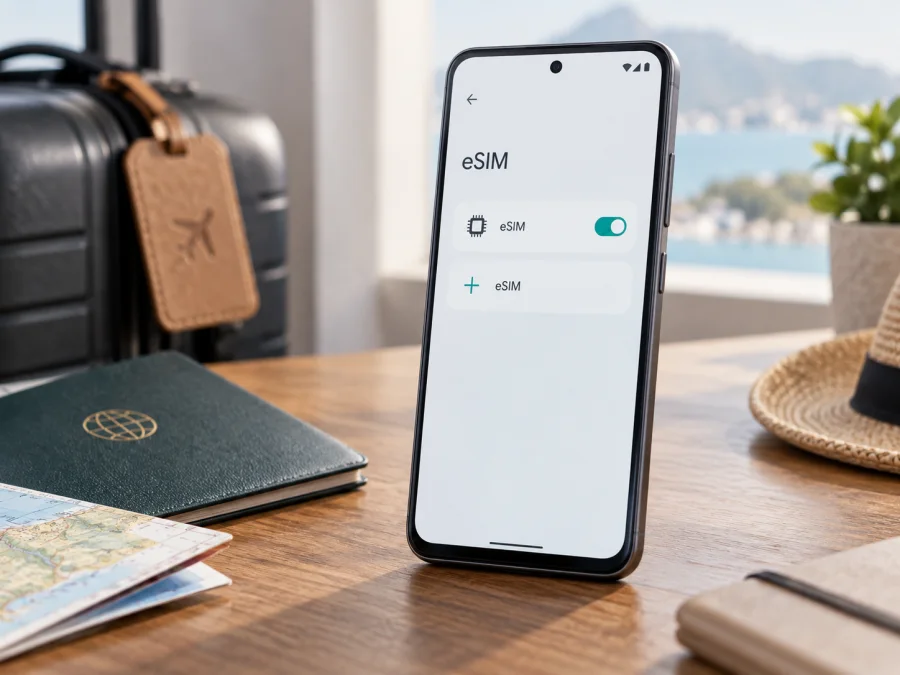
Does Asus ROG Phone 9 support eSIM?
Yes. ASUS lists the ROG Phone 9, model code AI2501, in its official eSIM setup and troubleshooting guidance. That guidance explains how to find the EID, add and enable an eSIM, and use it alongside a physical SIM. The practical answer is therefore that the ROG Phone 9 can support eSIM, provided the particular unit and its software expose the feature and the intended carrier or travel plan accepts the device.
That last check matters. ASUS says eSIM functions can vary by service provider, country or region, and device model. A phone sold under the same name can have different market configurations, software, or carrier restrictions. So treat the handset’s own EID and eSIM menu as the decisive check before buying a plan, rather than relying only on the model name in a listing.
ROG Phone 9 eSIM at a glance
| Item | What to know |
|---|---|
| Device covered here | Asus ROG Phone 9 |
| ASUS model code in eSIM guidance | AI2501 |
| eSIM status | Supported by ASUS for the listed AI2501 model; check your own regional unit |
| EID location | Settings → System → About phone → Status → EID |
| eSIM settings | Settings → Network & internet → SIM card → Switch SIM type |
| Physical SIM arrangement | ASUS describes physical SIM 1 + physical SIM 2, or physical SIM 1 + eSIM |
| Active eSIMs | One eSIM can be enabled at a time |
| Mobile data while traveling | Select the eSIM as the data SIM and follow the plan’s activation and roaming instructions |
| Main limitation | When eSIM mode is selected, the physical card in SIM 2 is disabled |
Menu wording can differ slightly by Android version, update, or language. If the names on your device do not match exactly, use Settings search for “EID,” “SIM,” or “eSIM.” ASUS also notes that its screenshots and steps may differ between software versions.
A quick distinction helps when comparing specifications. “Dual SIM” can describe two removable cards, while eSIM is a downloadable profile stored in the handset. The feature is useful for travel because a compatible plan can be prepared without swapping the home card, but only if the phone firmware exposes eSIM and the provider can provision it for that unit. The exact model and destination both matter.
What eSIM support means on this phone
An eSIM is a digital SIM profile stored in the phone. You install it using a QR code, activation code, or supported provider app. The profile gives the phone access to the mobile plan; it does not include a travel plan by itself. You still need a plan for your destination that accepts your exact handset.
ASUS documents the ROG Phone 9’s eSIM setup, but its FAQ also cautions that functions vary by provider, country or region, and device model. This means hardware support, plan eligibility, and access to a destination network are related but separate checks.
ASUS describes two physical SIMs or physical SIM 1 plus an eSIM. Selecting eSIM disables the physical card in SIM 2. Only one eSIM can be active at a time. If you rely on SIM 2 today, adjust your arrangement and test it before departure. A travel eSIM can be data-only; calls and SMS are included only when the plan explicitly says so.
Regional versions and carrier conditions
ASUS names ROG Phone 9 (AI2501) in its eSIM help article, but does not promise that every retail unit sold worldwide has the same configuration. It explicitly warns that region, device model, software, and provider can affect eSIM functions. Identify the model code on your phone or packaging, then verify the EID and eSIM menu on the device itself.
Carrier-supplied or imported units need an extra check. Confirm the phone is unlocked and that the intended provider accepts its model. Network-band compatibility is separate from eSIM support: even an installed profile needs a compatible local network and plan coverage at each destination. A 5G icon or two physical SIM slots cannot establish that by itself.
If the menu is missing, update using official system settings, restart, and search Settings for “EID” or “SIM.” If the EID still does not appear, ask ASUS or the seller about that exact regional variant. Do not buy a non-refundable plan assuming an update will add hardware support.
<a id="kesim-device-compatibility"></a>
Check compatibility before choosing a plan
Use this checklist on the ROG Phone 9 you will actually travel with:
- [ ] Confirm the model code and find an EID or eSIM control in Settings.
- [ ] Make sure the phone is unlocked and the provider accepts this model.
- [ ] Check plan coverage for every country on your route and the dates you will travel.
- [ ] Understand that eSIM mode disables physical SIM 2; decide which line should remain in SIM 1.
- [ ] Check whether the plan is data-only, whether it needs data roaming, and when its validity starts.
- [ ] Keep a working internet connection available for installation.
Check your device compatibility before you choose a plan. An EID shows that the phone has eSIM hardware, but it does not guarantee the carrier will accept the phone or that a plan covers your destination. Compatibility depends on the handset, regional configuration, provider rules, and destination network.
How to find the EID and eSIM menu
Open Settings → System → About phone → Status → EID. ASUS also lists Settings → Network & internet → SIM card → Switch SIM type, where eSIM can be selected. Menu names may vary with language and software, so search Settings if needed.
The EID is a device identifier for its eSIM chip; it is not the IMEI, phone number, or activation code. Share it only through the provider’s official enrollment process when requested. If neither EID nor the eSIM option appears, confirm the model, update and restart, and ask ASUS or the seller to verify the exact variant. Treat the device as incompatible until confirmed; a QR code cannot add missing eSIM hardware.
Install and activate an eSIM
Connect to Wi-Fi or another working data connection. Display the QR code on a second screen or print it; the phone cannot scan its own display. Check when validity begins before installing.
- Open Settings → Network & internet → SIM card and keep a working connection available through Wi-Fi or SIM 1.
- Open Switch SIM type and select eSIM. Read the notice that physical SIM 2 will be disabled in this mode.
- Tap Manage eSIM → Add eSIM → Set up an eSIM. Menu labels may differ slightly.
- Scan the provider’s QR code, enter its activation code manually, or follow the provider app flow if offered.
- Wait for the profile download to finish. Do not repeatedly scan the same code while the process is running.
- In Manage eSIM, enable the profile and give it a clear label such as “Trip data.” Only one eSIM can be enabled at a time.
- Select the travel eSIM for mobile data when you are ready to use it. Follow the plan’s directions about activation timing and data roaming.
- After arrival, confirm a network appears and test a web page or messaging app. Enable data roaming on this profile only if the provider requires it.
See the Android eSIM installation instructions for Android setup. The iOS eSIM installation instructions are for iPhone users and do not describe the ROG Phone 9’s menus.
Installation downloads the profile; activation may mean enabling it or the plan becoming usable under its terms. Do not delete it just because service is unavailable before travel.
Use the ROG Phone 9 for travel data
If your everyday number is on SIM 1, ASUS’s documented layout allows you to keep it alongside one travel eSIM. Choose the eSIM as the data line when you want the trip plan to carry internet traffic. You can retain voice or SMS on the home line if needed, but check its roaming charges and avoid selecting it accidentally for data.
After landing, turn off Airplane mode, confirm the eSIM is enabled, and select it for mobile data. Some travel plans require data roaming on the eSIM. Use the provider’s directions, and check the selected line before browsing. If the trip crosses borders, confirm every country is included rather than assuming a regional plan includes the whole itinerary. Allow time for registration when changing networks.
Check plan rules before using hotspot or tethering. Video calls, cloud backups, and game downloads can use data quickly, so download maps and media over Wi-Fi and monitor usage.
Kaspersky eSIM Store is an app and website where travelers can choose, arrange, and activate an eSIM with a mobile data plan for an international trip. Review the destination, allowance, validity, and price, then follow the plan setup details. Check the phone’s compatibility first.
Troubleshooting: what to check first
No eSIM menu or EID: Search Settings, check About phone → Status, install official system updates, and restart. Confirm the model code and ask ASUS or the seller about that regional unit. If the EID still is not visible, do not treat the phone as compatible without confirmation.
QR code will not install: Confirm internet access and that the clear code is unused and intended for this device. Try manual activation if supplied. Codes may be single-use, so ask the provider to check its status before requesting another.
Profile is installed but there is no service: Confirm eSIM mode is selected, the profile is enabled, Airplane mode is off, and the plan includes your location and has started. Select the eSIM for data; turn on data roaming only if the plan requires it. Restart and allow time for registration.
Data still uses the home SIM: Select the travel eSIM as the preferred data line. You can disable data on the home SIM while preserving voice access; data selection does not change all voice and roaming preferences.
SIM 2 stopped working: This is expected while eSIM mode is selected, according to ASUS. The documented eSIM combination uses physical SIM 1 plus eSIM. Return to physical SIM mode if you need both physical cards instead.
Not enough space, already downloaded, or in use: Stored profile capacity varies, and only one eSIM can be active. Ask the provider to check status if the code is already downloaded or linked elsewhere. Do not delete a current profile until you know how to reinstall it; removal may not cancel the plan.
Connected but no data abroad: Verify destination coverage, plan validity, selected data SIM, and provider-specific roaming or APN instructions. If there is no network, check that the phone is unlocked and compatible with a local partner. ASUS recommends checking the eSIM selection, enabled status, software, and restarting before contacting the provider.
Avoid clearing profiles as a routine fix. ASUS notes that a removed profile may not be recoverable from the phone, and removing it does not itself cancel the associated plan. Before repair or reset, ask the provider how to protect or reactivate the eSIM.
Practical travel scenarios
Keep a home line and add trip data: Leave the everyday physical SIM in slot 1 and install one travel eSIM. Label both, select the eSIM for data on arrival, and check home-line roaming conditions. Remember physical SIM 2 is disabled in eSIM mode.
Currently use two physical SIMs: Decide which line matters most before switching. Move the essential physical SIM to slot 1 if appropriate, or use another data option. Make the change early enough to test calls and data before departure.
Visit multiple countries: Check included countries and validity before purchase. Save the instructions offline; at each border, confirm the data SIM and allow time to register on a supported network.
Frequently asked questions
Is eSIM supported on every Asus ROG Phone 9?
ASUS lists the ROG Phone 9 (AI2501) in its eSIM support guide, while warning that support can vary by model, region, software, and provider. Check the EID and menu on your handset, then confirm carrier eligibility.
Can I use two physical SIMs and an eSIM together?
ASUS documents SIM 1 plus eSIM or two physical SIMs. eSIM mode disables SIM 2, and only one eSIM can be active.
Should I find the EID before buying a plan?
Yes. ASUS says the EID indicates whether the phone has an eSIM chip and that its absence means the phone does not support this feature. Confirm provider eligibility as well, particularly for imported or carrier-supplied phones.
Does installation start the plan?
Not always. Installation downloads the profile; when the plan starts depends on its terms. Check the provider’s instructions before scanning the code.
Do travel eSIMs include calls and SMS?
Only when stated in the plan terms. Many are data-only; internet calling and messaging apps can work over data.
Should data roaming be enabled?
Follow the plan instructions. If roaming is needed, enable it for the travel eSIM and check that the home SIM is not carrying mobile data unintentionally.
Final device check before the trip
Before choosing a plan, confirm that your exact Asus ROG Phone 9 shows an EID and an eSIM option, that the model and regional software are supported, and that the device is not carrier-locked. Check the destination list, plan validity, data allowance, roaming instructions, and whether tethering is allowed. Remember that eSIM mode disables the physical SIM 2 slot and only one eSIM can be active at a time.
Once those checks are complete, use Kaspersky eSIM Store as the app and website for choosing, arranging, and activating an eSIM plan for mobile data on your international trip. Match the plan to your route and dates, install it at the right time, and keep the setup instructions available. A few checks before departure help you arrive knowing which SIM supplies data and what to do if registration takes longer than expected.


