Travel connectivity guide
Rotorua eSIM: Mobile Data & Travel Guide
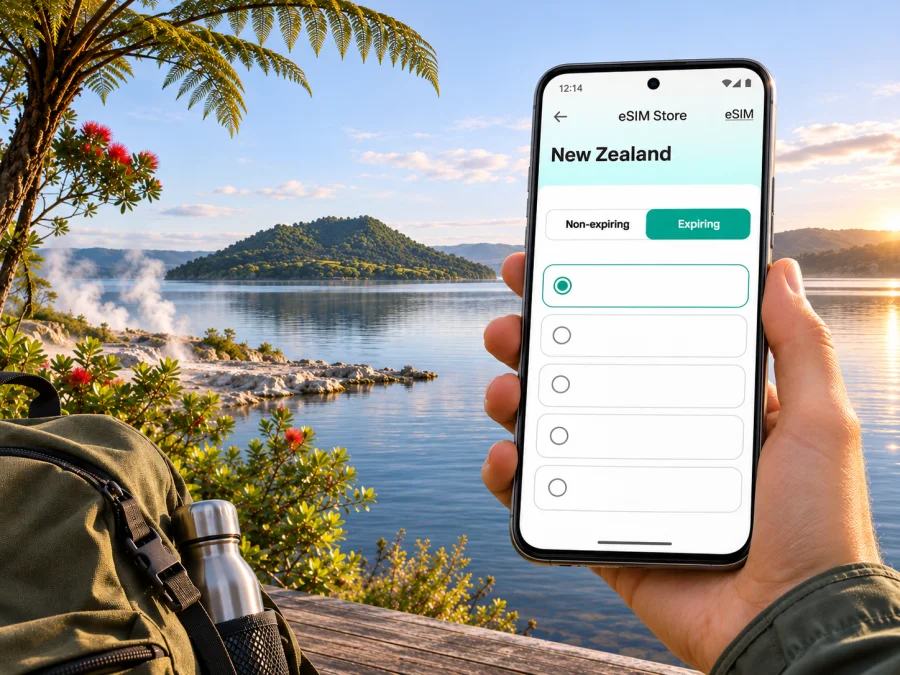
Rotorua eSIM: mobile connection and internet for your New Zealand trip
Rotorua is a compact city on the southern shore of Lake Rotorua, known for geothermal landscapes, forest trails and Māori culture. A mobile connection can make the practical parts of a visit easier: finding your accommodation after landing, checking a bus journey, arranging a transfer, or saving a route before heading out to a lake or forest. An eSIM is one way to prepare mobile data for New Zealand without changing the physical SIM in your phone.
This guide focuses on staying connected around Rotorua and planning data for the places people actually visit: the city centre, the lakefront, Whakarewarewa Forest, and day trips beyond town. Reception and speed depend on the local network, terrain, device and selected plan. A travel eSIM should therefore be treated as a useful connection option, not a promise of signal at every stop.
What an eSIM can help with in Rotorua
An eSIM is a digital SIM profile installed on a compatible device. For a trip, it can provide a separate mobile-data option while your usual SIM remains in the phone. You can use that data for maps, transport information, bookings, translation, messaging apps and other online tasks. The specific services available depend on the selected plan and its terms.
Many visitors use Rotorua as a base for a mix of central sights and outdoor activities. That means your phone may be useful in several different situations during the same day:
- At arrival: confirm a pickup point, open a map, or message your host while leaving Rotorua Airport.
- Around the centre: walk between accommodation, restaurants, the lakefront and Government Gardens, checking opening details as you go.
- On a bus or in a rental car: review stops, turn-by-turn directions and the next leg of your itinerary.
- Outside the centre: keep booking information and downloaded maps available when visiting a forest, geothermal attraction or lakeside area.
- For work: join a call or check messages from your hotel, while remembering that video calls use data quickly and mobile signal varies by location.
An eSIM plan offered through Kaspersky eSIM Store is intended for mobile internet. It does not include a regular local phone number, voice calls or SMS unless the terms of the specific plan say otherwise. You can keep your home number active for calls and texts if your device and home operator allow it, and use internet-based messaging over data. Check roaming settings and charges for your primary SIM before travel.
Arrival: getting from Rotorua Airport into town
Rotorua Airport is on the shore of Lake Rotorua and is about a ten-minute drive from the city centre. Its scheduled domestic connections include Auckland, Wellington and Christchurch; routes and flight times can change, so confirm your itinerary with the airline. If Rotorua is not your first stop in New Zealand, you may arrive through another city and continue by air, coach or car.
Once you land, mobile data can help you check the address of your hotel, compare the transfer options you have already researched, or let someone know when you are on your way. Do not rely on an eSIM to replace a confirmed transfer booking or offline directions. Save the accommodation address and any pickup instructions before departure, especially if your flight arrives late or you have a tight connection.
Rotorua has an urban bus network. Use the regional operator’s current timetable and journey planner to see whether a service fits your flight time, and confirm the operating day, stop location and payment requirements before relying on it. If you have luggage, are travelling outside service hours or need a direct trip to accommodation, compare a pre-booked shuttle, taxi, rideshare availability and rental-car pickup. Check live details where possible, but keep a backup plan in case your connection is delayed or your phone is offline.
Moving around the city and choosing where to stay
Rotorua’s central streets are arranged in a grid, and the centre is walkable for many short trips. The lakefront, Eat Streat, Government Gardens and Kuirau Park are among the places visitors can combine with a stay near the centre. Use a map to estimate distances from your accommodation rather than assuming that every attraction is next door; the wider district extends well beyond the central blocks.
| Base or destination | How mobile data may help | What to prepare |
|---|---|---|
| City centre | Walking directions, restaurant details, booking messages | Save your lodging pin and nearby meeting points |
| Lake Rotorua waterfront | Finding an entrance, checking a meeting place, sharing photos | Download a local map and keep the return route visible |
| Government Gardens and nearby sights | Checking current hours or directions between stops | Confirm access and opening information before setting out |
| Whakarewarewa Forest / The Redwoods | Locating a trailhead or visitor information point | Download a route, note your return time, and carry a power bank |
| Attractions beyond the centre | Directions, tickets and pickup coordination | Check transport arrangements and offline details in advance |
The centre suits visitors who want to walk to dining and lakeside sights. For accommodation farther out, check the exact location and confirm parking, check-in and transport arrangements with the property.
For public transport, use the current Bay of Plenty bus information or journey planner on the day of travel. Route maps can be helpful for orientation, while live tracking can help you adjust when a service is running. Fares, card rules and schedules change; check the current conditions rather than relying on a remembered price. If you are travelling to an attraction outside the urban network, ask the venue how visitors typically get there and whether a return ride needs to be arranged in advance.
Data use beyond the city centre
Mobile data can help with directions, booking details and transport updates, but Rotorua outings often extend into lakeside and forest environments. Reception may differ from what you experience in town: terrain, buildings, vegetation, the exact device and local network conditions all matter. A coverage map is an indication, not a guarantee for every track or shoreline.
Before leaving town, download maps and attraction details, save your return plan, and carry a charged phone. For a route beyond Rotorua, check that your chosen plan covers each stop and remains valid for the full journey. A city name in an itinerary does not by itself establish where a plan has service.
If you are ready to compare the available terms for your New Zealand trip, review the eSIM options for New Zealand. Kaspersky eSIM Store is an app and website that helps you choose, order and activate an eSIM with a suitable plan for mobile internet while travelling abroad. Review destination, data allowance, validity and activation conditions for the option you select; availability and terms can change.
Pick a plan around the way you travel
Choose an allowance based on trip length, Wi-Fi access and how you use your phone. Maps and messages generally use less data than video calls or large uploads; the table is a planning aid, not a usage guarantee.
| Travel pattern | Typical data use | Planning approach |
|---|---|---|
| Short city break | Maps, messages, bookings, occasional searches | Estimate the number of days and keep maps available offline |
| Outdoor-focused visit | Directions, attraction information, photos and transport coordination | Expect gaps in reception and download key information beforehand |
| Remote work in Rotorua | Email, documents, messaging and possible calls | Check whether the plan supports your work needs; use Wi-Fi for large files |
| Multi-stop New Zealand journey | Navigation, accommodation and transport updates across several places | Confirm country coverage, validity and total trip duration |
| Family or group trip | Several devices may share or use data independently | Check hotspot rules and estimate data for each connected device |
If the plan permits tethering, a phone may be able to share its data connection, but hotspot support and restrictions vary by plan, device and local network. Verify the terms before relying on one phone to connect a laptop or multiple travel companions. A separate plan for each traveller may be more convenient if people will split up or need navigation independently.
To manage data, download maps, limit cellular photo backups and use Wi-Fi for large downloads. Check your phone’s data-usage screen during the trip.
Before you buy: device and plan checks
Not every phone supports eSIM, and regional versions of the same device can differ. A handset may also be locked to its original carrier. Check the exact model variant and confirm that it is unlocked before purchase; a model family name alone is not enough to establish compatibility. Check whether your device supports eSIM and consult the manufacturer or original carrier if you are unsure about a regional variant or network lock.
Then review the plan itself. Confirm the destination is New Zealand, the plan is active for the dates you need, and the data allowance fits your expected use. Read how validity begins: it may start at a defined point such as installation, first connection or another event stated in the plan conditions. Do not install early if the terms could start the validity period before you travel. Also check whether data roaming must be enabled for the eSIM profile and whether tethering is allowed.
A quick pre-purchase checklist
- [ ] My phone supports eSIM and is not carrier-locked.
- [ ] I checked the exact regional device variant, not only the product family.
- [ ] The selected plan includes New Zealand for the dates and route I need.
- [ ] I understand the data allowance, validity period and when validity starts.
- [ ] I know whether the plan is data-only and have another way to make ordinary calls if needed.
- [ ] I have reliable internet access available for installing the eSIM.
- [ ] I know how to select the eSIM for mobile data and how to return to my usual SIM settings.
Install and activate before the first journey
If possible, install the eSIM while you have stable internet and enough time to read the on-screen instructions. Keep the QR code or activation details available on another screen or device if you need to scan them. Follow the instructions for your phone’s operating system: eSIM installation instructions for Android or eSIM installation instructions for iOS.
A general preparation sequence is:
- Confirm that your phone is compatible and unlocked.
- Open the purchase or profile details and read the activation conditions.
- Add the eSIM in your phone’s mobile or cellular settings by following the device-specific steps.
- Label the profile clearly, for example “New Zealand data,” so it is easy to identify during the trip.
- Choose which SIM should handle mobile data. Keep your home line selected for calls or texts only if that matches your roaming preferences and charges.
- When the plan instructions require it, enable data roaming for the travel eSIM. This setting is separate from roaming charges on your home SIM, so check both profiles carefully.
- After arrival, allow the phone time to register and confirm that the selected profile is being used for data.
The exact settings differ between Android devices and iPhones, and labels can vary with software version. Do not delete an eSIM profile as a troubleshooting shortcut unless the plan instructions or support team tells you to do so; reinstalling may not be possible under every plan’s conditions. If activation does not complete, check the selected data line, roaming setting, airplane mode, device restart and the plan’s activation instructions before changing other settings.
If mobile data does not work as expected
Start with the simplest checks. Confirm that mobile data is enabled, the correct eSIM profile is selected for data, and the plan has reached the point at which it should work. If the instructions require data roaming, make sure it is enabled on the travel profile. Toggle airplane mode off and on or restart the phone, then wait briefly for network registration. Avoid repeatedly deleting or reinstalling the profile.
If the phone shows signal but apps cannot load, check whether a data limit or app-level restriction is active. If there is no signal, move to an open area and try again later; terrain, buildings and local network conditions can affect reception. Coverage is not uniform across New Zealand, and a service interruption may have more than one cause. Keep important addresses, reservations and transport details available offline so a temporary loss of data does not derail your plan.
Contact the eSIM service’s support channel if the plan appears active but you still cannot connect after following its instructions. Include your device model and operating-system version, the time and place where the problem occurred, and the steps you have tried. Do not share passwords or one-time security codes in an ordinary support message.
Common Rotorua travel scenarios
- Late arrival: Save your accommodation address and pickup details before departure. Check the current transfer options after landing; do not rely on an old bus timetable.
- City plus Redwoods: Use data in town for directions, then download forest and return-route information before leaving. Keep your phone charged and do not assume reception on every trail.
- Work trip: Test your internet-calling app before a meeting, use Wi-Fi for large files and keep another contact method available. A data-only eSIM does not automatically provide a local number.
- Next-day onward travel: Confirm the next destination is within the plan’s coverage and validity, and save directions and bookings offline.
Frequently asked questions
Is an eSIM useful for a Rotorua city break?
It can help with maps, bookings, messages and transport information without swapping your physical SIM. Suitability depends on compatibility, plan terms, route and Wi-Fi access.
Will an eSIM work throughout Rotorua and the surrounding lakes?
No plan should be assumed to work everywhere. Signal depends on the underlying local network, the exact location, terrain, buildings, device and network conditions. Check the provider’s current coverage information for the places on your itinerary and keep essential directions available offline.
Does a travel eSIM include a New Zealand phone number?
Not necessarily. Plans selected for travel data may be data-only and may not include a local number, voice calls or SMS. Review the exact plan conditions. Internet calling and messaging apps can work over data, but they are not a replacement for emergency-service calling or a regular telephone service in every situation.
Can I use the eSIM in Rotorua and then travel elsewhere in New Zealand?
That depends on the plan. Confirm coverage for every stop and check that its validity covers your full stay.
Should I install the eSIM before flying?
Installing before departure gives you time to follow instructions on a stable connection. First check when validity begins and wait if the plan terms require it.
Can I keep my usual number active?
A compatible dual-SIM phone may keep more than one line available, but settings and home-operator charges differ. Choose the travel eSIM for data and check possible roaming charges on your usual SIM.
What should I do if I lose reception outdoors?
Use downloaded maps and saved attraction details, move to a suitable open area if it is safe, and retry later. Follow marked paths and local instructions. If your outing depends on a pickup or transport connection, confirm the return arrangement before you set off rather than relying on a live signal at the destination.
Prepare your Rotorua connection
Before travelling, check the exact phone variant, read the plan’s New Zealand coverage and validity conditions, and decide how much mobile data your Rotorua itinerary may require. Install the profile over a reliable connection when the plan rules allow it, then save maps, addresses and bookings for offline access. These steps make it easier to navigate from the airport, move between central sights and plan days beyond town while keeping a fallback for areas where reception may vary.
Use the Kaspersky eSIM Store app or website to choose an eSIM plan for your New Zealand trip, review its terms, and follow the device-specific installation steps. Pick an option that fits your route and travel dates, then keep essential Rotorua information available offline as well.


