Travel connectivity guide
Samsung Galaxy A35 eSIM: Compatibility & Setup
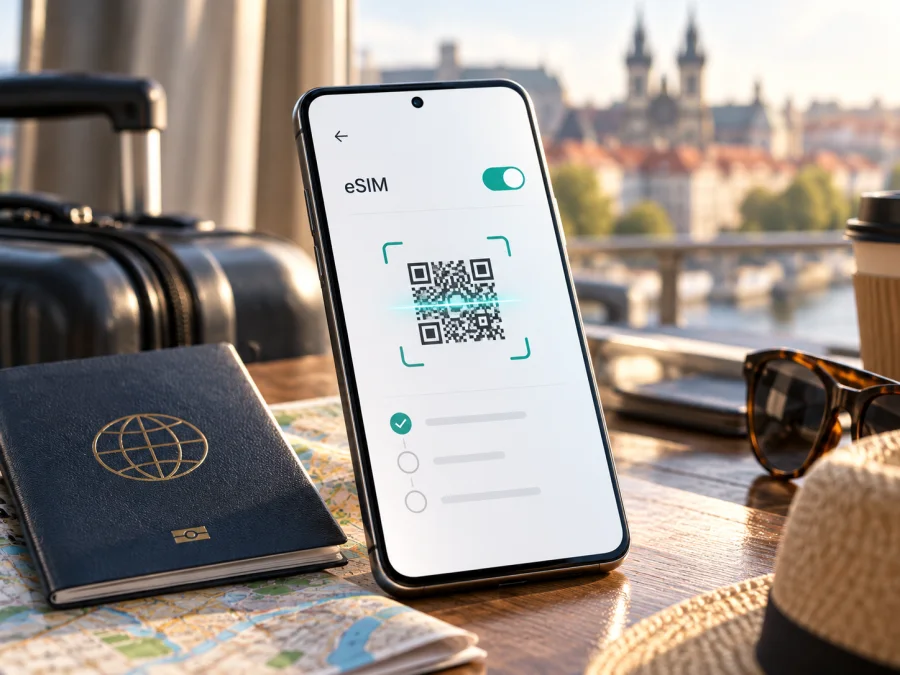
Samsung Galaxy A35 eSIM: compatibility and setup guide
The short answer
Some regional versions support eSIM, but the supplied name Samsung Galaxy A35 is not enough to guarantee it. Samsung lists Galaxy A35 5G support in Europe, North America and Korea, and describes the US feature as Hybrid eSIM. Samsung also warns that country of origin can affect availability.
Check Settings → Connections → SIM manager for Add eSIM, and look for an EID in About phone or SIM status. Confirm the model code and unlock status with Samsung or the seller, then check the eSIM provider’s destination and activation requirements.
| Check | Samsung Galaxy A35 | What to verify |
|---|---|---|
| Device support | Some regional versions support Hybrid eSIM. | Exact model code, origin market, EID and Add eSIM menu. |
| Operator eligibility | Depends on the carrier or eSIM provider. | Unlock status, destination and activation method. |
| Travel use | Often a data-only profile. | Data allowance, validity, roaming and included destinations. |
Does Samsung Galaxy A35 support eSIM?
Some regional Galaxy A35 versions do; support is not guaranteed for every phone. Samsung’s current device list names Galaxy A35 with a qualification for Europe, North America and Korea. Its US setup guide identifies the Galaxy A35 5G as Hybrid eSIM capable, while Samsung warns that country of origin can change availability.
The exact input contains no country, model code, carrier or “5G” modifier, so this guide keeps the name Samsung Galaxy A35 unchanged. Samsung’s pages may use “Galaxy A35 5G”; compare their details with the model code on your phone or box before applying them to your unit.
A physical SIM tray does not rule out eSIM: a Hybrid eSIM version can use a physical SIM and a digital profile. But hardware support and service eligibility are separate. A carrier or travel eSIM provider must support the device and destination, and a carrier lock may prevent another provider’s profile.
Region, variant and operator are different checks
A regional variant is the version configured for a market. Model codes, firmware and SIM features can differ within a retail family. Samsung’s regional list does not mean every Galaxy A35 works with every operator there, and it says nothing about a specific destination’s current coverage or tariff.
The operator market is a separate check: the operator or travel eSIM provider must issue a profile for the device and destination. A carrier lock may block another provider’s profile even when eSIM hardware is present. Ask about the exact model code and unlock status. eSIM is the digital profile format; 5G is a network technology. Check the plan and local network conditions rather than inferring 5G from eSIM support.
Check compatibility before you buy
Menu names may vary by Android and One UI version. Check the handset before ordering:
- [ ] Open Settings → Connections → SIM manager and look for Add eSIM.
- [ ] Search Settings for EID, or check Settings → About phone → Status information or SIM status. An EID is strong evidence of eSIM hardware; also confirm the add-profile option.
- [ ] Find the full model code in About phone or on the box. Ask Samsung or the seller whether that code and original market support eSIM.
- [ ] Confirm the device is unlocked and the provider accepts its model for the destination.
- [ ] Check the plan’s country list, validity, data allowance and setup method. Have Wi-Fi available for download and a second screen or printout for the QR code.
If you cannot tell whether the phone is a regional variant, use more than one identifier. The model code shown in About phone is more useful than the marketing name on a sales listing; compare it with the box label and the country where the handset was originally sold. A seller can confirm whether the unit is imported and whether its carrier software restricts eSIM. Do not publish the full EID or share it with an unofficial checker: it is a device identifier, not a compatibility certificate. An EID without an add-profile menu still calls for confirmation, and a visible menu does not guarantee that every provider will accept the device.
Remember the distinction between the phone’s geography and the plan’s operator market. Samsung’s region list concerns variants sold or supported in those markets. The operator or travel plan has a separate supported-country list and activation policy. Verify both before purchase, especially if the device was imported or your itinerary crosses borders.
Before payment, save a note of the exact model code and the provider’s compatibility response. If the phone was bought from a carrier, ask whether it is unlocked for an eSIM from another company. If you are buying from a retailer, request confirmation for the actual handset rather than the product family. These checks help separate a phone capability issue from a plan or operator eligibility issue.
Check your device before choosing a plan. If EID or Add eSIM is missing, confirm the model code instead of relying on a generic compatibility list. Software or carrier settings can affect the menu; if the variant is confirmed unsupported, use a physical SIM or another compatible unlocked device.
Choosing a travel eSIM plan
After the handset passes the device checks, choose a plan around the trip. Confirm that every destination, including stopovers, is listed; a plan for one country may not cover its neighbors. Compare the data allowance and validity period with your travel dates, and check whether validity starts at purchase, installation or first connection. Check hotspot rules if you plan to share data.
Kaspersky eSIM Store is an app and website where you can choose, order and activate an eSIM with a mobile-data plan for travel abroad. Review the destination, data amount, validity and setup instructions before ordering. The store cannot add eSIM hardware to an incompatible phone. Browse Kaspersky eSIM Store to review current travel options. Plan availability and terms can change, so rely on the details shown for your selected plan.
Travel eSIMs are often data-only; unless the plan says otherwise, do not expect a regular number, standard voice calls or SMS. You may keep your regular SIM enabled for calls or verification and select the travel profile for data, but check the home carrier's roaming terms. Disable data roaming on the home line if you do not want it used for data.
How to install eSIM on Samsung Galaxy A35
Install over stable Wi-Fi before departure if the plan permits. QR codes may be limited to one device or installation; follow the plan’s instructions. Menu wording varies by One UI version. For Samsung’s general steps, see How to install your eSIM on Android. The iOS guide is also available at How to install your eSIM on iOS for travelers setting up a different device.
- Prepare. Confirm the plan covers your destination and connect to Wi-Fi. Display the QR code on another screen or print it.
- Open SIM settings. Go to Settings → Connections → SIM manager. If Add eSIM is unavailable, recheck regional compatibility.
- Add the profile. Tap Add eSIM → Scan QR code or the provider’s specified alternative. Do not guess manual activation details.
- Download. Scan the code, review the displayed plan, and confirm. Keep Wi-Fi on until installation finishes; use a manual code only if the provider supplies one.
- Label it. Use a name such as “Travel data” so it is easy to identify in SIM manager.
- Select data line. When the plan permits, enable the profile when needed and choose it for Mobile data. Keep the home line for calls or texts only after checking its roaming terms.
- Apply network settings. Enable Data roaming for the travel eSIM if required. Profiles usually set the APN automatically; if the provider gives one, enter that exact value under Settings → Connections → Mobile networks → Access Point Names.
- Test. Allow several minutes to register. Toggle airplane mode or restart if instructed, then load a web page with Wi-Fi off.
Installation and activation can be separate: validity may start at installation, a scheduled time or first network connection. Check the plan’s trigger before scanning, and do not delete the profile unless the provider confirms it can be reissued.
Keep your main SIM and travel data clear
SIM combinations depend on the regional phone version and software. In Settings → Connections → SIM manager, set default lines for calls, messages and mobile data. A data-only eSIM can handle maps and internet messaging while the regular number remains available, subject to the home carrier’s terms. Select the travel eSIM for data; optionally disable mobile data roaming on the home SIM to avoid unintended data use. Consider whether you still need the main line for calls, SMS verification or emergency contacts.
Using the eSIM for mobile data during a trip
Install before departure if permitted, but check the plan’s activation trigger first. Save plan details and support instructions for offline access. At arrival, enable the profile, select it for mobile data and enable its data roaming setting if required. If activation starts on the first covered network, wait until you reach that destination before enabling it.
For multi-country travel, verify each country in the plan’s coverage list. A signal icon alone does not confirm the plan is active or selected for data; check SIM manager and test a web page with Wi-Fi off. Download maps and documents over Wi-Fi, check data use, and confirm hotspot support in the plan details. Keep activation details private and do not delete a profile unless it can be reissued.
Troubleshooting common problems
“Add eSIM” is missing
Confirm the exact model code in Settings → About phone or on the box. Restart and install any official software update, then check Settings → Connections → SIM manager again. If EID is missing too, the regional variant may lack eSIM support. Ask Samsung or the seller to confirm support for that code and its original market. A reset cannot add unsupported hardware.
The QR code will not scan or download
Use stable Wi-Fi, display the full code on another screen or print it, and reduce glare. Check that it has not expired or already been used. If the download fails, retry only if permitted; use a manual code only when supplied. Do not delete a profile unless it can be reissued.
The profile is installed but there is no service
In SIM manager, confirm the profile is enabled and selected for mobile data. Check that airplane mode is off, the destination is covered and mobile data is on. Enable data roaming on the travel profile if instructed. Allow a few minutes to register, then toggle airplane mode or restart once. Follow the provider’s network-selection guidance or keep automatic selection enabled.
The phone connects but data does not work
Turn Wi-Fi off to test mobile data. Confirm the plan is active, has allowance remaining and is within its validity period. Check that the travel eSIM is selected for data. Only change the APN if the provider gives an exact value, then check it carefully. If unresolved, contact support with the destination, model code and error message; do not share activation credentials publicly.
Data is going through the wrong SIM or activation is delayed
Choose the travel eSIM for mobile data and turn off mobile data switching if available. Review home-line roaming separately. If activation is delayed, follow the plan’s timing instructions and ask the provider to check the profile before removing it.
Frequently asked questions
Is eSIM guaranteed on every Samsung Galaxy A35?
No. Samsung lists the Galaxy A35 family for eSIM in selected regions and warns that country of origin can affect support. Check EID and Add eSIM on your phone, then confirm the model code.
Does a physical SIM tray rule out eSIM?
No. Samsung describes supported versions as Hybrid eSIM. The tray alone does not establish compatibility; regional version, carrier and allowed SIM configuration matter.
What if I see an EID but no “Add eSIM” option?
Treat compatibility as unconfirmed. Update and restart the phone, then ask Samsung or the seller whether eSIM is enabled for that exact model code and market.
Can I keep my regular number while using a travel eSIM?
Possibly, if the phone version supports the combination and your home carrier allows it. A data-only travel eSIM can be selected for data while your regular line remains active, but roaming charges may apply.
Will a travel eSIM include calls and texts? Should data roaming be on?
Do not assume a phone number, ordinary calls or SMS are included. Some travel profiles require data roaming on the eSIM to connect. Follow the plan’s instructions and keep the home line from being selected for data if you want to avoid its data roaming.
Can I move the eSIM to another phone?
That depends on the profile provider. Check its rules before changing phones, resetting the Galaxy A35 or deleting the profile; some profiles cannot be reinstalled after removal.
Final check before your trip
For Samsung Galaxy A35, check Add eSIM, EID, model code and unlock status on the actual handset. Confirm that the provider supports the destination and that plan validity, data allowance and activation steps fit your trip. Install over Wi-Fi, select the travel profile for mobile data, and enable its data roaming only if required. Kaspersky eSIM Store’s app and website let you browse and activate a travel data eSIM; review the selected plan details before purchase.


