Travel connectivity guide
Samsung Galaxy A54 256GB eSIM: check and setup
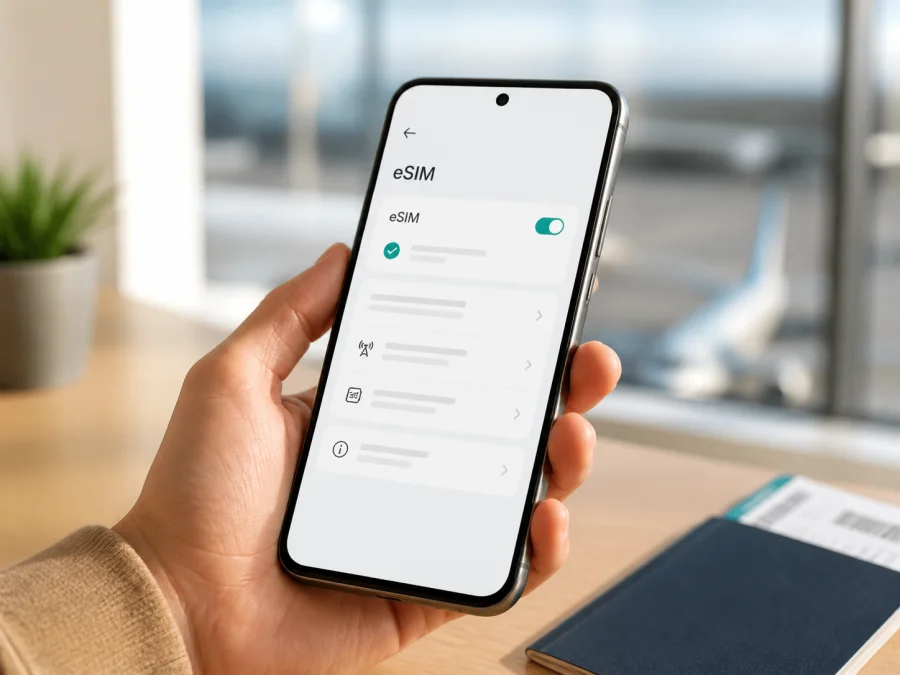
Samsung Galaxy A54 256GB eSIM: compatibility and setup guide
If you are preparing for a trip and want mobile internet without changing the physical SIM card, the first question is whether your particular Samsung Galaxy A54 256GB has an eSIM built in. The answer is not identical for every phone sold under this name. Samsung used different regional configurations, and the 256GB version may either include an embedded SIM or offer only a physical nano-SIM slot. Check the phone itself before you choose or activate a travel eSIM.
The short answer
Samsung Galaxy A54 256GB can support eSIM in some regional versions, but eSIM is not guaranteed for every 256GB device. Samsung’s official product information for a 256GB version sold in Spain lists an embedded SIM and a hybrid physical-SIM/eSIM arrangement. Samsung’s official 256GB product information for Mexico lists a nano-SIM and a SIM 1 + microSD tray instead. Those are different regional configurations, so the storage capacity alone does not prove compatibility.
The most reliable answer for your phone comes from two checks: look for an EID in the phone’s status information and look for an option such as Add eSIM or Add mobile plan in SIM manager. If neither appears, treat the phone as not compatible with an eSIM profile, even if another Samsung Galaxy A54 256GB listing supports it.
Samsung’s regional product pages and support guidance were checked on 3 September 2026. Menus can vary by country, firmware and carrier.
What the regional difference means
The Samsung Galaxy A54 family is sold with similar exterior design and storage options, but a product family is not the same thing as one hardware configuration. A phone’s model code, sales region, SIM tray and firmware determine which cellular features are available. A 256GB phone from a market where Samsung lists an embedded SIM may show an eSIM menu. A 256GB phone from a market where Samsung lists only a nano-SIM may have no eSIM hardware, and a software update cannot add a missing eSIM component.
There can also be a carrier difference. Even on a compatible phone, the provider must support eSIM and an operator-locked phone may reject another provider’s profile. Samsung’s current support guidance says availability can depend on country, provider and model, so a generic seller statement is not enough.
Specification snapshot
| Item | What applies to this page |
|---|---|
| Exact device name | Samsung Galaxy A54 256GB |
| Storage | 256GB as specified in the device name |
| RAM | Not specified in the input; confirm it in About phone or on the box |
| eSIM | Regional: present on some 256GB configurations, absent on others |
| Physical SIM | Usually a nano-SIM; the tray arrangement depends on region |
| microSD | May share the hybrid tray on versions that include it |
| Mobile data | Choose one active profile as the data line in SIM manager |
| Final compatibility test | EID plus Add eSIM/Add mobile plan in the phone’s settings |
How to check eSIM compatibility on the phone
Perform this check while connected to Wi-Fi; you do not need to buy a plan first.
- Open Settings.
- Tap About phone, then Status information or Status, depending on the One UI version.
- Look for an EID. It is a long identifier associated with the embedded SIM. If an EID is present, that is strong evidence that the phone has eSIM hardware, although the selected provider and region can still affect activation.
- Return to Settings and open Connections.
- Open SIM manager. Look for Add eSIM, Add mobile plan, Add mobile network plan or a similar option.
- Open the option only to view the available setup methods if you are not ready to install a plan. Do not remove an existing SIM or confirm a download by accident.
Use both checks. An EID without an add-eSIM control can indicate a carrier or firmware restriction. A menu label alone is less conclusive if it opens an unavailable flow, so note any warning and check the phone’s model code. Take a screenshot of the relevant page for your own records before travelling.
What to check before choosing a travel eSIM
<a id="kesim-device-compatibility"></a>
Do these checks before purchasing a data package for a trip:
- EID: confirm that the phone displays an EID.
- SIM manager: confirm that an eSIM can be added, not just that two SIMs are mentioned in a specification.
- Model code: match it with the version sold in your country and with the version supported by the provider.
- Network lock: verify that the phone accepts another provider’s profile. A device restricted to one operator may not connect to a travel plan.
- Software: install available official updates, restart the phone and check the menu again. An update can change labels, but it cannot add missing hardware.
- Wi-Fi: have a stable connection for downloading the profile.
- Plan conditions: read the destination, data allowance, validity period, start condition, top-up rules and refund terms before confirming.
- Data use: check whether the plan is for mobile data only. A travel eSIM normally does not replace your regular phone number, voice service or SMS unless the specific plan says otherwise.
- Backup line: decide whether your physical SIM will remain enabled for calls and messages, and understand any roaming charges from that line.
Use the Check your device checklist before choosing a plan.
If you cannot see an EID or an eSIM option, pause the purchase. A QR code cannot make an incompatible phone compatible. Kaspersky eSIM Store can help you select and activate a suitable travel data plan after compatibility is confirmed.
How to install an eSIM on Samsung Galaxy A54 256GB
Install the profile over Wi-Fi using the activation details provided with your selected plan. Keep the QR code on another screen or printed.
- Open Settings > Connections > SIM manager.
- Tap Add eSIM, Add mobile plan or the closest available option.
- Choose Scan QR code or Scan carrier QR code.
- Point the camera at the activation QR code and wait for the profile information to load.
- Review the plan name and confirm the download only when they match the intended trip.
- Wait for installation to finish. Do not lock the phone, remove the Wi-Fi connection or repeatedly scan the same code during the download.
- Name the profile, for example “Travel”, so that it is easy to distinguish from your personal SIM.
- If the phone asks which line should handle calls, messages or data, make a deliberate selection. For a data-only travel plan, select it for Mobile data and keep the personal line for calls or messages only if that is what you want.
If QR installation is not offered, choose Add using activation code or a similarly named option and enter only the server address and activation code supplied with the plan. Do not invent an SM-DP+ address or share activation details publicly.
Samsung’s official Galaxy eSIM guidance describes the same paths: add a mobile plan in SIM manager, scan a provider QR code or enter an activation code. Screens and menu names may vary by model and software version. For a visual walkthrough, use the Android installation instructions. For Apple users, see the iOS installation instructions.
How to activate and use the eSIM for mobile data
Installation and use are related but not identical: a profile can be downloaded while turned off, and a plan can have its own rule about when validity begins. Follow the plan’s activation timing.
After the profile is installed:
- Open Settings > Connections > SIM manager.
- Turn on the travel eSIM and give it a clear name.
- Select the travel eSIM under Mobile data or Preferred SIM for mobile data.
- If prompted, allow data roaming for the travel eSIM. Many travel data plans need roaming enabled because the profile uses a partner network outside its home market. Enabling roaming on the travel profile is not the same as enabling roaming on your personal line.
- To avoid unexpected charges, turn off Mobile data for the personal SIM or disable data roaming on that line, unless you intentionally need it.
- Leave automatic network selection enabled first. If the plan instructions name a manual network, select it only after automatic registration fails.
- Turn Wi-Fi off briefly and open a simple webpage or messaging app to test data. Then check the phone’s data-usage screen to see that the travel profile is being used.
Three useful travel scenarios
Before departure. Confirm EID, install the profile over home Wi-Fi and leave the travel line disabled if the plan starts on activation. On arrival, enable it, select it for mobile data and test a map or message. Follow the plan terms about advance installation.
At arrival. If the plan begins on first connection, install it before leaving Wi-Fi or after landing as instructed. Disable data on the personal SIM, enable the travel eSIM and check the selected data line before using navigation or ride-hailing.
Across several countries. Confirm that the plan covers the whole route. Keep the profile installed between destinations if permitted, monitor validity and data usage, and remember that Kaspersky eSIM Store is an app and website that helps you choose, arrange and activate a travel eSIM data plan. It is not a mobile operator or the source of network coverage.
Troubleshooting common problems
There is no Add eSIM option
Check the EID first. If it is missing and SIM manager offers only physical SIM controls, the 256GB phone is likely a non-eSIM regional configuration. Check the model code against Samsung’s page for the country where the phone was sold. If an EID is present but the menu is missing, install official updates, restart the phone and ask the original carrier whether the device is restricted. Do not assume a factory reset will add the feature.
The QR code will not scan
Increase the QR-code display brightness, clean the camera lens and use stable Wi-Fi. If the code was already used, expired or issued for another device, contact the plan’s support channel. Manual activation is an option only when the provider supplies the correct details.
The profile downloads but there is no connection
Confirm that the travel eSIM is enabled and selected for mobile data. Enable data roaming on that profile when required, while keeping roaming on the personal SIM off if you want to avoid charges. Toggle airplane mode, restart and follow the provider’s network or APN instructions.
The phone says the plan cannot be activated
The device may be locked, the QR code may have reached its installation limit, or the provider may not support this regional model. Confirm the model code, EID and plan conditions with support. Do not delete an installed profile until support confirms that it can be reissued.
Mobile data uses the wrong SIM
Open SIM manager, select the travel profile as the mobile-data SIM, turn off automatic data switching if needed, disable roaming on the personal SIM and test with Wi-Fi off.
Calls or SMS behave differently
A travel eSIM may be data-only. Your normal number remains associated with the physical SIM unless you move or deactivate it. Messenger calls can use travel data, while ordinary calls and SMS follow the selected line and plan terms.
FAQ
Does every Samsung Galaxy A54 256GB support eSIM?
No. Samsung’s own regional specifications demonstrate the difference: one 256GB listing includes an embedded SIM, while another 256GB listing specifies nano-SIM plus microSD. Check the EID and SIM manager on the exact phone.
Does 256GB storage mean the phone has eSIM?
No. Storage capacity does not determine the cellular component. Two phones with 256GB can have different model codes, SIM trays and eSIM availability.
Can a software update add eSIM?
No. An update can change menu wording, but it cannot add eSIM hardware. If there is no EID, ask Samsung or the seller about the exact regional model.
Can I keep my physical SIM and use the travel eSIM?
On a compatible configuration, you may keep the nano-SIM for calls and use the eSIM for data. The simultaneous-use rules depend on the regional model, firmware and carrier.
Will the eSIM give me a new phone number?
Not necessarily. Many travel eSIM plans are for mobile internet and do not include an ordinary number, voice calls or SMS. Read the selected plan’s conditions.
Where can I choose a plan?
After confirming compatibility, Kaspersky eSIM Store helps you choose a destination and arrange an eSIM plan for mobile internet during an overseas trip. You can manage installation and activation through the app or website; plan conditions depend on the selected plan.
Final device check and travel eSIM choice
Before you pay, run the check one more time: Settings > About phone > Status should show an EID, and Settings > Connections > SIM manager should offer Add eSIM or Add mobile plan. Confirm the phone’s model code, regional version, carrier-unlock status and software version. Then review the destination, route, data allowance, validity, activation timing, roaming requirement and data-only limitations of the plan.
If those checks pass, choose an eSIM plan that matches your trip, install it over Wi-Fi and set the travel profile as the mobile-data line when you arrive. If the EID or add-eSIM control is absent, do not buy on the assumption that all Samsung Galaxy A54 256GB phones are alike; ask the seller or provider for a compatible alternative. Once compatibility is confirmed, Kaspersky eSIM Store can help you select, arrange and activate the eSIM for mobile internet on your journey.


