Travel connectivity guide
Samsung Galaxy A55 5G eSIM: setup guide
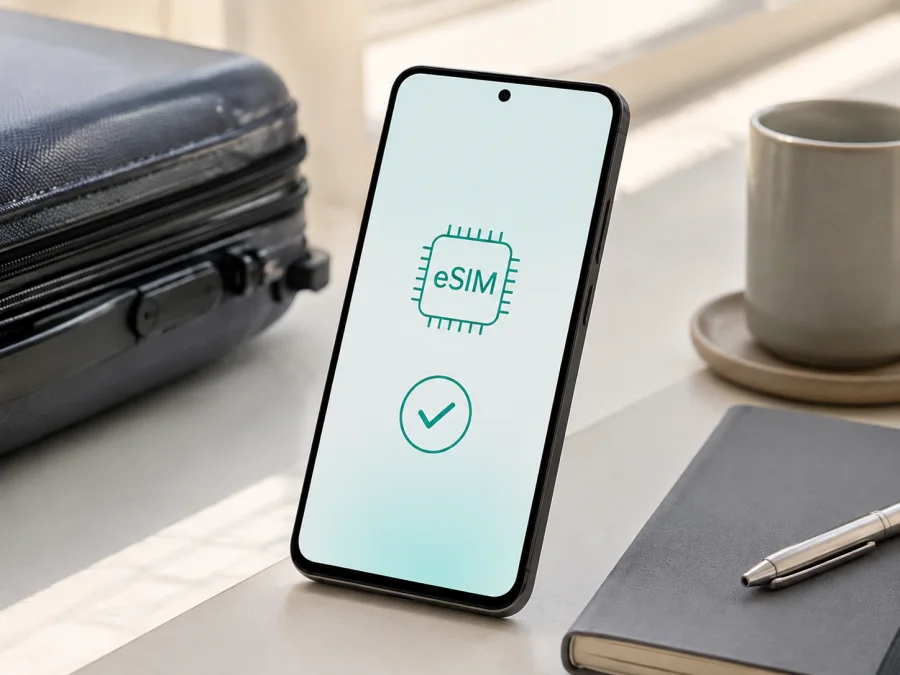
Samsung Galaxy A55 5G eSIM: compatibility and setup
The Samsung Galaxy A55 5G can use eSIM in supported regional variants. Samsung’s current regional specifications list an embedded SIM for this model, and Samsung’s regional compatibility guidance includes the Galaxy A55 5G. That does not mean every phone sold under the same name has identical software or carrier support. Before purchasing a plan, check the actual handset: an EID and an Add eSIM option in the SIM manager are the most useful signs.
An eSIM is a digital SIM profile stored in the phone instead of on a removable card. For travel, it can provide mobile data while your physical SIM remains available for calls or messages, subject to operator charges. A travel eSIM normally has no regular number, voice service, or SMS; unless the plan says otherwise, treat it as prepaid data for the destination.
Quick answer: does Samsung Galaxy A55 5G support eSIM?
Yes, a compatible regional version of Samsung Galaxy A55 5G supports eSIM. Samsung’s official specifications for several regional versions show Nano-SIM (4FF), Embedded-SIM and describe a physical SIM plus a hybrid physical-SIM/microSD arrangement or an embedded SIM. Samsung also notes that eSIM menus and supported steps can vary by regional device.
The model name alone is not enough: 5G describes cellular capability, not whether eSIM is enabled. Imported, refurbished, or operator-configured phones may expose different controls.
| Item | What to expect on a supported Samsung Galaxy A55 5G | Why it matters |
|---|---|---|
| eSIM hardware | Regional specifications identify an Embedded-SIM | The phone can store a digital SIM profile |
| Physical SIM | Nano-SIM may also be available | You may keep your everyday line in the phone |
| SIM arrangement | Dual-SIM and microSD combinations vary | An eSIM can change which physical-SIM or card-slot options are available |
| 5G | 5G Sub6 bands are listed for relevant markets | Network bands and eSIM support are separate checks |
| Software | The SIM manager should expose eSIM controls | Menus provide the practical test of your handset |
| Carrier status | An unlocked phone is the safer starting point | An operator lock can reject another profile |
“Embedded-SIM” is not a promise that every plan will connect everywhere. The phone must support the plan’s network, the destination must be covered, and the handset must be unlocked. Coverage and services depend on the selected plan and its underlying network.
Why regional and operator versions need a separate check
Samsung sells the Galaxy A55 5G in multiple markets, with different model codes, firmware, bands, and carrier configurations. Official specifications in the United Kingdom, India, and Australia list Embedded-SIM, while settings can differ by carrier or update. Support should therefore be stated for supported regional versions, not every unit.
Two phones labelled Samsung Galaxy A55 5G may differ in sales country, model code, network lock, One UI build, or bands. Storage, colour, and a bundle are not proof of eSIM support. A physical SIM tray is not proof that eSIM is absent; active-line and microSD combinations may still be limited.
If you are buying the phone, ask for a screenshot of Settings → Connections → SIM manager and, where appropriate, the EID screen. “It is a 5G model” or “it has two SIMs” is not sufficient. If the market is unknown, treat compatibility as unconfirmed.
Check your exact phone before buying a plan
Perform this check while connected to Wi‑Fi or another working data connection; internet access may be needed to download the profile later.
Find the EID
Open Settings → About phone → Status information. On a compatible unit, an EID may appear alongside identifiers such as IMEI. EID means eSIM Identifier; it is not a plan QR code or password, so do not publish it.
The location can vary with One UI. Use Settings search for EID or SIM manager if necessary. An EID is a strong sign, but also confirm Add eSIM and check that the phone is not carrier-locked.
Find Add eSIM
Open Settings → Connections → SIM manager. Look for Add eSIM, Add mobile plan, or similar wording. The name can differ by language and region; this control starts a scan or activation flow.
If both are present, the handset passes the device-side check. If neither appears, do not buy a plan yet. Check for an update, restart the phone, and confirm the regional model with the seller or Samsung support. A missing menu can indicate a non-eSIM version, carrier restriction, firmware difference, or another menu path. Resolve it before payment.
Confirm lock and plan conditions
Ask the original operator or seller whether the phone is unlocked. A phone can have eSIM hardware and still reject a profile because it is restricted to one operator. Read the plan’s destination coverage, data allowance, validity, activation rule, tethering policy, and fair-use conditions. Choose an option that covers the whole route.
Compatibility checklist
- [ ] Samsung Galaxy A55 5G is the exact handset you intend to use.
- [ ] An EID appears in status information or through Settings search.
- [ ] Settings → Connections → SIM manager includes Add eSIM or equivalent.
- [ ] The phone is not locked to the original operator.
- [ ] The phone can connect to Wi‑Fi during installation.
- [ ] The plan covers every relevant country or region on the route.
- [ ] Data amount, validity, activation timing, and roaming requirements fit the trip.
- [ ] You know which line will handle calls and SMS, if you keep one active.
- [ ] The QR code or activation information is saved securely.
Once the checklist confirms your handset, check your device compatibility and then choose a plan for the destination. Kaspersky eSIM Store is an app and website that helps you select, order, and activate an eSIM with a mobile-data plan for an overseas trip. It is not a mobile operator, network owner, or provider of the mobile internet connection.
How to install an eSIM on Samsung Galaxy A55 5G
The labels follow the usual Samsung Galaxy path; a carrier build or One UI update can move them. Use Settings search for SIM manager if needed. See the Android eSIM installation instructions for a broader walkthrough.
1. Check the prerequisites
Confirm EID and Add eSIM. Connect Samsung Galaxy A55 5G to Wi‑Fi and display the QR code on another screen or print it.
2. Open SIM manager
Open Settings, tap Connections, then SIM manager. Choose Add eSIM or its equivalent. If it is missing, revisit compatibility instead of changing random network settings.
3. Scan and download the profile
Choose the QR-code option and scan the code supplied with your order or account. Keep it private, review the plan label and destination, then confirm the download over Wi‑Fi.
4. Name and select the line
Give the profile a clear label such as Travel data. In SIM manager, select it under Mobile data and review the call and message preferences for your regular line.
5. Configure roaming and test
Open the travel eSIM’s settings and enable Data roaming if required. A travel profile may use a partner network. Leave roaming off for the home line when you want to avoid unintended charges. Test at the time allowed by the plan: some start on installation, others on first connection in the destination.
For an iPhone companion, see the iOS eSIM installation instructions. Do not assume a profile can be transferred; that depends on the plan.
Using the eSIM for mobile internet while travelling
The cleanest setup separates roles: keep the home line for an expected call or message, and assign the travel profile to mobile data. On Samsung Galaxy A55 5G, confirm in SIM manager that Mobile data points to the travel eSIM and Data roaming is enabled for it when required.
Scenario: install at home, connect after landing
At home, confirm compatibility, choose a plan, and install the eSIM over Wi‑Fi according to its activation conditions. Before take-off, label the profile. After landing, turn it on, select it for mobile data, wait for registration, and test a simple webpage before relying on navigation.
Scenario: keep your home number available
Leave the physical home SIM enabled for calls and SMS only if you understand its roaming terms. Turn off its data roaming and automatic data switching if available. Incoming calls or SMS can still incur charges under the home operator’s rules.
Scenario: a multi-country route
Choose coverage for the complete route, not just the first airport. Before crossing a border, verify the next country is included and validity has not ended. Registration with a local partner can take time; use manual network selection only when the plan or support team recommends it.
Troubleshooting common eSIM problems
The QR code will not scan
Use stable Wi‑Fi, increase the code’s screen brightness, and keep the entire code visible without glare. If scanning fails, look for manual activation in the order instructions. Check the plan before requesting a replacement, because some codes are single-use.
Add eSIM is missing
Search Settings for EID and SIM manager, install an available update, and restart. Check the regional model and operator lock with the seller. If both remain absent, treat the unit as unconfirmed until Samsung or the seller verifies it. Another person’s A55 screenshot is not proof for your version.
The profile installs but shows no service
Check that the travel eSIM is on and selected for mobile data. Confirm coverage, enable Data roaming when required, and turn off Airplane mode. Wait several minutes and restart once if needed. Use manual network selection only according to the plan instructions.
Data uses the wrong line
Open SIM manager and set the travel eSIM as the mobile-data SIM. Turn off automatic data switching if present, then inspect the home line’s data-roaming setting. If needed, disable home-line mobile data while travelling.
The connection is slow or drops
Move to an area with better reception, check the plan’s network type, and make sure the device has not selected an unsuitable network manually. Buildings, transport, congestion, and local coverage affect performance. A 5G phone can fall back to 4G; that is not automatically an eSIM fault.
The plan seems inactive
Check the plan’s start condition and validity. Some start at installation, others at first connection in the destination. Confirm that the travel eSIM is the data line and that a test connection passes through it. If usage does not update, wait and contact support with order details; do not share your EID or full QR code publicly. Do not delete a profile as a troubleshooting shortcut, since removal can be irreversible and may affect refund eligibility.
FAQ
Is Samsung Galaxy A55 5G eSIM-compatible everywhere?
No single statement covers every regional unit. Samsung’s current specifications and support guidance confirm supported versions, but market, firmware, and carrier settings affect the menu. Check EID and Add eSIM on your exact phone.
Does an eSIM replace the physical SIM?
Not necessarily. A supported Samsung Galaxy A55 5G can have a Nano-SIM and an embedded profile, but active-line and microSD combinations depend on the version. Review SIM manager first.
Can a travel eSIM make normal calls and send SMS?
Usually not. It is intended for mobile internet and normally has no ordinary number, voice calling, or SMS. Use internet-based apps or keep your home line available after checking charges. Rely on calls or SMS only when the plan includes them.
Do I need Data roaming for a travel eSIM?
Sometimes yes. A travel profile may need Data roaming to register on a partner network. Enable it for that profile according to the plan instructions, and review the home line separately.
What is Kaspersky eSIM Store?
Kaspersky eSIM Store is an app and website for choosing, ordering, and activating an eSIM with a suitable mobile-data plan for an overseas trip. It is not a mobile operator, network owner, or provider of the underlying connection.
Conclusion: verify first, then prepare the trip eSIM
Samsung Galaxy A55 5G is a viable eSIM phone when the particular regional version exposes the embedded-SIM function. Samsung’s official regional specifications support that conclusion; the device’s EID and SIM manager are the practical final check. Confirm both, the operator lock, and destination coverage before paying.
Then use Kaspersky eSIM Store to select a suitable eSIM plan for your route, review its conditions, and activate it through the app or website. Install over Wi‑Fi, assign it to mobile data, and enable Data roaming only for that profile when required.
Final device-check and trip eSIM block
Before purchase: confirm the exact Samsung Galaxy A55 5G unit, find its EID, open Settings → Connections → SIM manager, and verify Add eSIM. Check the operator lock, destination coverage, data, validity, activation timing, and tethering conditions.
Before departure: install the profile according to the plan rules, save the order information, label the line, and decide which SIM handles calls, SMS, and mobile data.
After arrival: turn on the travel eSIM, select it for mobile data, enable its Data roaming if required, wait for registration, and test a connection. If anything fails, recheck the data line, roaming setting, coverage, and plan status before reinstalling or deleting the profile.
These checks leave you ready to choose an eSIM for the trip with a clear understanding of what Samsung Galaxy A55 5G supports and what depends on the region and plan.


