Travel connectivity guide
Samsung Galaxy A56 eSIM: Compatibility and Setup
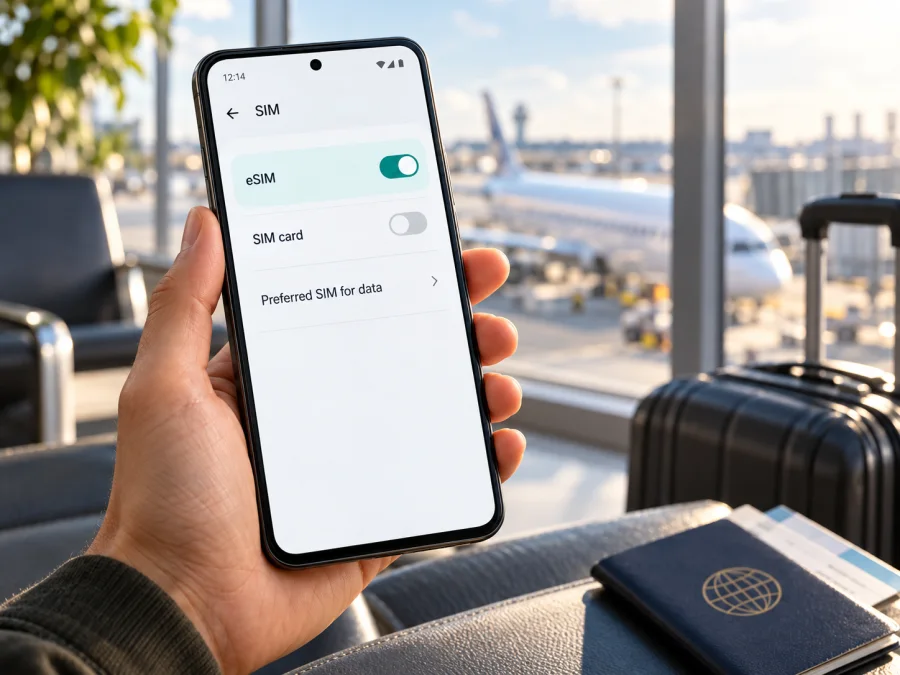
Does Samsung Galaxy A56 support eSIM? Compatibility and setup guide
If you are considering a travel eSIM, the short answer is: Samsung Galaxy A56 can support eSIM, but confirm the exact regional and carrier variant in your hand before buying a plan. Samsung’s official Galaxy A56 5G setup guide describes an embedded eSIM and dual SIM use with one physical SIM. Samsung’s Australian compatibility list also includes Galaxy A56 5G. The device name supplied here is “Samsung Galaxy A56”; Samsung’s support pages use “Galaxy A56 5G.” That evidence applies to the A56 model family, but the name alone does not identify your phone’s sales region, model code, carrier status, or software build.
That distinction matters. A model family may be eSIM-capable while a particular unit, carrier build, or local operator arrangement does not expose or activate the feature. For a reliable answer about your own phone, look for an EID and an “Add eSIM” option in Settings, then confirm that the operator or travel plan you intend to use accepts that device and its region. If either device check is missing, pause before paying for a plan.
Quick compatibility summary
| Question | What is known | What you should check |
|---|---|---|
| Does the Galaxy A56 family support eSIM? | Samsung’s A56 5G setup material documents an embedded eSIM and a physical SIM + eSIM configuration. | Verify that your exact unit exposes eSIM controls. |
| Is support identical in every country? | Samsung’s compatibility guidance is market-specific; the Australian list names A56 5G and is expressly for Australian variants. | Check the model code and Samsung support page for the country where the phone was sold. |
| Does every mobile operator activate it? | No. Samsung says some carriers may not yet support the phone’s eSIM capability. | Ask the specific operator or travel eSIM provider about this exact model and market. |
| Can the name “Samsung Galaxy A56” identify the version? | No. It does not include a model code or sales region. | Find the model number in Settings and compare it with the box or purchase record. |
| What is the safest buying decision? | Treat the family as eSIM-capable, not every individual unit as confirmed. | Check EID, “Add eSIM,” carrier lock status, and the destination plan’s conditions before purchase. |
The most useful distinction is between device capability and service availability. The phone needs an eSIM component and software menu; the operator must also issue a compatible profile and allow the device to register on its network. One does not guarantee the other. A phone can show an eSIM menu while a particular operator does not offer eSIM for that model, and a provider’s travel plan cannot overcome a device variant that lacks eSIM support.
Why region and operator can change the answer
Samsung’s public material gives a positive model-family answer, but its pages carry market boundaries. The Australian support list includes Galaxy A56 5G and says that its information is intended for Australian variants, with settings and steps varying by device. Samsung’s US A56 setup page explains the eSIM feature and how to activate it, while also warning that some carriers may not support it. Those are useful confirmations of the feature and its dependencies; they are not proof that every A56 sold worldwide has the same radio configuration, firmware, SIM manager, or carrier eligibility.
A regional version is a phone manufactured for a particular sales market. Its product code and firmware may differ from versions sold elsewhere. A carrier version may also include operator-specific software or restrictions. These differences can affect whether the eSIM menu appears, which SIM combinations are enabled, and whether an operator accepts a profile. The intended operator market matters too. A phone bought unlocked in one country may be used with a travel eSIM elsewhere, but the eSIM provider’s compatibility rules, local network arrangements, and any device lock still matter. For a domestic SIM, ask the home operator. For an international travel plan, ask the plan provider and check the destination and device conditions shown at checkout. Do not interpret “unlocked” as proof of eSIM hardware: unlocking removes a network restriction, but it cannot add a missing eSIM component.
Check your exact phone before purchasing
Use more than one check if possible. Menu names can vary slightly by One UI version, and an absent menu may reflect software, region, or device configuration. The EID and the live SIM manager are stronger practical indicators than a product listing alone.
- Find the model number. Open Settings → About phone and write down the model name and model number. Compare those details with the label on the box or the original sales record. Keep the full code; do not remove letters or digits.
- Look for the EID. In Settings → About phone → Status information (wording can vary), look for an EID entry. Some versions also show it under About phone → Status. You can check the original box label as well. EID is the identifier for the embedded SIM hardware; do not post it publicly.
- Check SIM manager. Go to Settings → Connections → SIM manager. Look for Add eSIM, Add mobile plan, or an equivalent eSIM action. If the phone has a working eSIM profile already, the manager should list it alongside physical SIM controls.
- Check whether the device is locked. Ask the seller or original operator whether the handset is carrier-locked. A lock can prevent use with another provider even if eSIM hardware is present.
- Confirm the specific service. Ask the operator or travel eSIM provider if it supports eSIM on your exact model code and in the market where you plan to use it. Confirm any activation, identity, or network restrictions before paying.
- Update and recheck. Install pending official system updates, restart, and review SIM manager again. A software update can change menus, but it cannot turn a hardware-incompatible unit into an eSIM model.
Check your device before selecting a plan. If the EID appears but “Add eSIM” is absent, ask Samsung support about the model code and sales region; then confirm the operator’s policy. If neither the EID nor the eSIM control appears, do not assume that a reset or QR scan will enable the feature. Have the seller or Samsung verify the unit first.
Compatibility checklist
Before buying, make sure you can answer “yes” to the relevant checks:
- [ ] The phone’s full model number and original sales market are known.
- [ ] An EID is visible in Settings or on the handset’s original packaging.
- [ ] SIM manager offers an eSIM or mobile-plan installation option.
- [ ] The device is not locked in a way that blocks the intended profile.
- [ ] The specific operator or travel plan accepts this device and destination.
- [ ] You have Wi‑Fi available for installation and the activation instructions.
If you cannot verify the first three items, wait before buying. If the device checks pass but the provider cannot confirm its rules, treat service compatibility as unconfirmed and choose another confirmed connection option for the trip.
Install and activate an eSIM on Samsung Galaxy A56
Have the provider’s installation details ready before you start. Depending on the provider and software version, you may receive a QR code, an activation code, or an option to download a pre-assigned plan. Keep the phone connected to Wi‑Fi, and do not scan a QR code that was issued for another device or already used unless the provider says it can be reused.
- Open Settings → Connections → SIM manager. If this is the first setup, you may also see an eSIM option during the phone’s initial setup wizard.
- Tap Add eSIM or Add mobile plan. If the provider supports automatic discovery or a pre-assigned profile, follow the on-screen prompts.
- For a QR installation, select the option to scan a QR code and point the camera at the provider’s code. If prompted, enter the manual activation details supplied by the provider instead.
- Wait for the profile to download. Keep the screen open and the phone on Wi‑Fi until setup completes. The exact confirmation message varies by software and provider.
- Give the profile a clear label, such as “Travel data,” so you can distinguish it from your regular SIM. Enable the eSIM line if it is not enabled automatically.
- In SIM manager, choose which SIM should handle Mobile data. For a travel data eSIM, select that profile for data when you are ready to use it. Keep your regular number selected for calls or messages if you still need it and the settings allow both lines to remain active.
- At the destination, follow the plan’s instructions for data roaming. Some travel profiles require roaming to be enabled for that eSIM to connect. If so, enable roaming for the travel line only, and review your home SIM’s roaming setting to avoid unexpected charges.
- Confirm that the status bar shows a network connection, open a web page, and check that mobile data is routed through the intended line. If the plan starts only after first network connection, install it in advance but wait to enable or connect it until the provider’s stated start conditions are met.
For step-by-step platform guidance, see the Android eSIM installation instructions and the iOS eSIM installation instructions. The iOS guide is for Apple devices; Samsung Galaxy A56 uses the Android flow. Menu labels can vary by One UI version, language, and carrier build, so follow the options currently shown on your own phone.
An eSIM profile and a data plan are related but not identical. Installing the profile adds the digital SIM to the phone; the provider may require a separate activation action or a supported network connection before data works. Read the provider’s start date, destination, validity, and data conditions carefully. Do not delete a profile as a troubleshooting shortcut: some QR codes are single-use, and you may need the provider to issue a replacement.
Using Samsung Galaxy A56 for mobile data on a trip
A travel eSIM can be a convenient way to prepare mobile data without removing the physical SIM you use at home. Before departure, check the destination and travel route, choose a plan whose coverage area and validity fit the itinerary, and review how the provider defines the activation moment. A multi-country itinerary may call for a regional option; a single-country visit may need a local destination plan. Availability and plan details can change, so use the current terms shown when selecting your destination.
Kaspersky eSIM Store is an app and website where you can choose, arrange, and activate an eSIM with a mobile-data plan for an international trip. It helps you review current destination options and manage the selected plan. The mobile service itself is provided through the relevant network arrangements; Kaspersky eSIM Store is not a mobile operator or network owner. Compare the plan’s destination, data amount, validity, and activation conditions with your travel schedule before confirming.
Three common travel scenarios
Short city break. Install the profile over Wi‑Fi before departure. Check whether validity starts on installation or first supported network connection; if it starts on arrival, keep the profile inactive until then. At your destination, select it for mobile data and test a web page.
Several countries on one itinerary. Confirm that the plan explicitly includes every country where you need data; a regional label does not guarantee coverage in every nearby country. Review exclusions and current conditions. After a border crossing, allow time for network registration and follow the provider’s troubleshooting steps if needed.
Keep a home number reachable. Leave the physical SIM installed and confirm in SIM manager which line handles calls, messages, and data. Disable data roaming on the home SIM if you want to avoid accidental roaming charges, while following the travel plan’s own roaming instructions for the eSIM. Calls, voicemail, or SMS on the home SIM may still incur charges depending on your operator and plan.
Troubleshooting: what to check first
There is no “Add eSIM” option. Confirm the complete model number and original region, update the phone, restart it, and search Settings for “eSIM.” Check for an EID. If both are missing, contact Samsung or the seller with the model code. Do not repeatedly reset the phone or buy a plan hoping the menu will appear.
The QR code will not scan or the profile will not download. Connect to stable Wi‑Fi, increase screen brightness on the device displaying the QR, and ensure the code is intended for this phone and has not expired or been used. If your Galaxy A56 is scanning its own screen, display the code on another device or use the provider’s manual activation method if available. Avoid sharing the QR publicly because it may allow installation of your profile.
The profile installs but shows no service. Make sure the eSIM is enabled, the correct line is selected for mobile data, and the destination is included in the plan. Check that the plan is active and that its start condition has been met. If the provider requires data roaming, turn it on for the travel eSIM. Then toggle airplane mode, wait for registration, and restart if needed.
The phone shows signal but apps cannot connect. Confirm mobile data is enabled and routed to the eSIM, turn off Wi‑Fi briefly to test cellular data, and check any provider instructions for an access point name (APN). Do not enter an APN from an unrelated plan. If a VPN, private DNS, or data-saving setting is enabled, temporarily test without it and restore your preferred settings afterward.
The home SIM loses service or calls use the wrong line. Reopen SIM manager and verify each line’s labels and defaults for calls, messages, and data. Some combinations depend on the operator and firmware. If the home SIM is locked or roaming is disabled by its carrier, contact that operator; changing the travel eSIM settings cannot remove those restrictions.
The plan was removed or the phone was replaced. Do not assume an installed profile can be restored from the same QR code. Contact the plan provider and ask whether reissue or transfer is available. eSIM transfer depends on the provider and profile; deleting the old profile can make the original activation code unusable.
Frequently asked questions
Is Samsung Galaxy A56 eSIM-compatible?
Samsung’s official setup material for Galaxy A56 5G describes an embedded eSIM, and Samsung’s Australian compatibility list includes A56 5G. This supports a “yes” for the model family in the documented markets. Your exact Samsung Galaxy A56 still needs an EID and eSIM control check because the input name does not specify a regional model code or carrier version.
Does every Samsung Galaxy A56 sold worldwide support eSIM?
Do not assume that. Samsung’s eSIM information is market-specific, and operator support can differ. A model family listing is not confirmation for every regional or carrier unit. Check the exact code, Settings menu, and intended operator before purchase.
Can I use a travel eSIM and a physical SIM together?
Samsung documents dual SIM use with one physical SIM and one eSIM for Galaxy A56 5G. The available combinations and simultaneous use can vary by software and operator configuration. Set each line’s purpose in SIM manager and check the behavior on your specific phone.
Where do I find the EID?
Look in Settings → About phone → Status information or Settings → About phone → Status; the wording depends on software. The EID may also be printed on the original package. If the EID is unavailable, ask Samsung to check the model code before you buy an eSIM plan.
Will installing the plan start its validity period?
It depends on the provider and plan. Some plans start when installed, while others start at a specified time or on first connection to a supported network. Read the current plan conditions and follow the stated installation timing.
Is an unlocked phone automatically eSIM-compatible?
No. Unlocked means the phone is not restricted to one operator; it does not confirm that an eSIM component and software controls are present. Check EID and SIM manager separately.
What if the phone has an EID but my operator rejects it?
The EID indicates embedded SIM capability, but it does not guarantee that a particular operator supports the model, market, or plan. Give the operator the exact model code and ask about its eligibility rules. If it is not supported, use a compatible plan or another confirmed connectivity option.
Before you choose a travel eSIM
Samsung Galaxy A56 belongs to a model family with documented eSIM capability, but your exact handset’s compatibility depends on its model code, sales market, software, and operator. Confirm the EID and “Add eSIM” control on the phone, make sure it is unlocked for the intended service, and verify the provider’s destination and activation conditions. Do this before paying for a plan.
When those checks pass, choose a data allowance and validity that match the trip, install the profile using Wi‑Fi, and set the eSIM as the data line only when you intend to use it. If you are still confirming which destination plan fits, browse current eSIM options on Kaspersky eSIM Store. It is the site and app for selecting, arranging, and activating a travel eSIM plan; check the terms displayed for your own destination and device before proceeding.


