Travel connectivity guide
Samsung Galaxy Fold eSIM: Compatibility and Setup
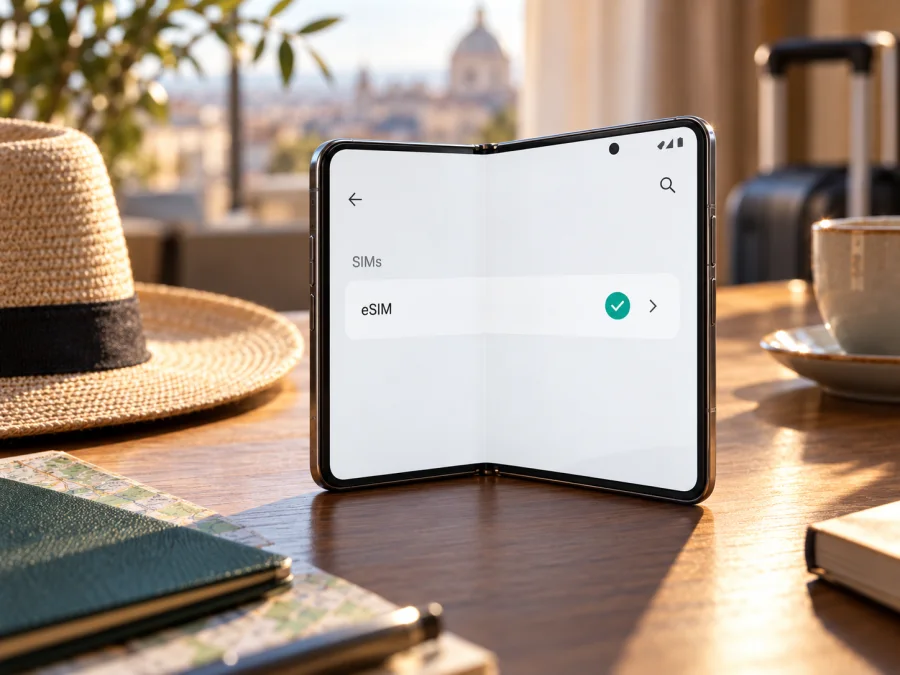
Samsung Galaxy Fold eSIM: compatibility and setup
The original Samsung Galaxy Fold can support eSIM, but the name alone is not enough to confirm that a particular phone will. Samsung’s current Australian compatibility guide includes Galaxy Fold in its supported-device list; Samsung also cautions that eSIM availability can depend on a device’s country of origin, model, software and carrier. Treat support as variant-specific: check your own Fold before choosing a plan.
If your phone has an EID and its SIM settings offer an option such as Add eSIM or Add mobile plan, it is a strong sign that the eSIM hardware and software are available on that unit. If both checks fail, do not assume an update or travel plan can add eSIM capability. Confirm the exact model number with Samsung or the seller first.
Quick compatibility summary
| Item | What to know |
|---|---|
| Device covered here | Samsung Galaxy Fold, the original foldable phone—not every later Galaxy Z Fold model |
| eSIM support | Available on compatible market variants; confirm the exact unit rather than relying on the family name |
| Regional differences | Samsung’s Australian guide lists Galaxy Fold, but the manufacturer notes that country of origin can affect availability |
| Carrier differences | A device may support eSIM while a particular carrier, plan or activation method does not |
| First checks | Look for an EID and an eSIM option in SIM settings; verify the model number in About phone |
| Travel use | A compatible, unlocked unit can use a travel eSIM for mobile data where the plan is valid |
| Before buying | Confirm device support, carrier lock status, destination coverage, data allowance and validity period |
Does Samsung Galaxy Fold support eSIM?
Sometimes, yes. Samsung’s Australian support guide includes Galaxy Fold in its eSIM-compatible list and says the guide applies to Australian variants. Samsung also warns that availability may depend on the country of origin, model, software and carrier. The accurate answer is therefore conditional: some Galaxy Fold versions support eSIM, but the name alone does not confirm that an individual phone does.
The original Samsung Galaxy Fold was sold in different markets and channels. Identical retail names can hide differences in model code, SIM configuration, firmware or carrier restrictions. An imported or carrier-sold phone may expose different SIM options. eSIM hardware in the handset also does not guarantee that every operator or plan in the country where you intend to use it will accept that device or activation method.
Do not treat Samsung Galaxy Fold as interchangeable with Galaxy Z Fold2 or later generations. Samsung lists generations separately, and a feature supported by a newer Fold is not proof about the original.
Use this rule of thumb:
- An EID plus an eSIM option in SIM Manager is a good sign that your unit can install a profile; still check carrier lock and plan support.
- If the option is missing, confirm the model code and market with Samsung or the seller before buying. A software update may change menus, but it cannot add missing eSIM hardware.
- If the eSIM option exists but setup fails, check the QR code, internet connection, activation method and carrier restrictions. One failed download does not prove the phone is incompatible.
Regional model and operator distinctions
Open Settings → About phone and record the full model number. Compare it with the box or seller’s listing. Check that code in Samsung’s specifications for the same sales market and look for Embedded-SIM or an explicit eSIM reference. A support page for another region or another Fold generation is not enough.
A carrier lock is a separate issue: an unlocked phone can still lack eSIM support, and an eSIM-capable phone can still be locked to its original operator. Ask the original carrier or seller if you are unsure. Also verify that the operator or travel plan supports your exact phone and destination.
Check your Galaxy Fold before buying a plan
Check the device itself as well as Samsung’s model information. The device compatibility check is a useful starting point, but the phone in your hand is the final unit to verify.
- Find the model number. Open Settings → About phone and note the complete model code.
- Look for an EID. Enter
*#06#in the dialler. An eSIM-capable phone may show an EID alongside its IMEI numbers. You can also check Settings → About phone → Status information; labels vary by software. An EID is a strong clue, not a substitute for checking the SIM menu. - Open SIM Manager. Go to Settings → Connections → SIM manager and look for Add eSIM, Add mobile plan or similar. Do not delete an existing profile just to test the menu.
- Confirm the exact model specification. Samsung’s support page for your model and market should identify an Embedded-SIM where applicable.
- Check the operator and plan. Confirm the phone is unlocked and that the plan supports its model and activation method.
If the EID or menu is missing, ask Samsung or the seller before purchase. A software update can address software issues but cannot add eSIM hardware.
Compatibility checklist
- [ ] The full model code matches the phone you have.
- [ ] An EID is shown or Samsung’s exact model specification confirms Embedded-SIM.
- [ ] SIM Manager offers an eSIM addition option.
- [ ] The phone is not carrier-locked against the intended service.
- [ ] The plan covers your destination and supports your activation method.
- [ ] You have internet access for installation and have checked data allowance and validity.
Resolve any uncertainty at home, while you can still contact Samsung, the seller or the plan provider.
What to know about a travel eSIM
An eSIM is a digital SIM profile stored in the phone, so it can be installed without inserting another plastic card. For a trip, it can provide a way to use mobile data under the terms of the selected plan. Coverage, available networks, speed and service depend on the destination, local network, plan and device; an eSIM is not a promise of service in every place.
Travel data plans are often designed for internet access rather than a second everyday phone number. Check the plan description before purchase: do not assume that it includes ordinary voice calls or SMS. You can keep your regular physical SIM in the Galaxy Fold for calls and messages if your setup allows it, and select the travel eSIM for data. Messaging and calling apps can use the data connection, subject to each app’s requirements.
Kaspersky eSIM Store is an app and website where you can choose, arrange and activate an eSIM with a suitable mobile-data plan for an international trip. It is not a mobile operator and does not own the networks that carry the connection. You select a destination and review the plan’s coverage, data allowance, validity and activation conditions before purchase.
How to install and activate eSIM on Samsung Galaxy Fold
Before starting, confirm compatibility, check that the phone is unlocked, and connect to Wi‑Fi. Keep the QR code or activation details visible on another screen. Some activation codes are single-use, so follow the provider’s steps rather than scanning repeatedly after an error.
Step-by-step setup
- Prepare the plan. Find the QR code or manual activation details in the provider’s account or confirmation. Check when the plan’s validity begins.
- Open SIM settings. On the Fold, go to Settings → Connections → SIM manager. The button may say Add eSIM or Add mobile plan.
- Choose a method. Select the eSIM option and scan the provider’s QR code. If manual entry is offered and your provider gave you an activation code, enter it exactly as supplied.
- Download the profile. Keep Wi‑Fi connected and follow the on-screen prompts. Downloading can take several minutes.
- Label the line. Use a name such as “Travel data” to distinguish it from your regular SIM.
- Set the data line. In SIM Manager, select the travel eSIM for mobile data when you are ready to use it. Keep your regular SIM selected for calls or messages if desired and supported.
- Check roaming instructions. Some plans require data roaming on the travel eSIM. Follow the plan’s instructions and check that your home SIM is not selected for roaming data.
- Wait for network registration. After arrival, allow the eSIM time to connect to a supported local network.
Samsung menu wording varies by software and market. See the Android eSIM installation instructions for the setup flow. The iOS eSIM installation instructions are for people setting up an iPhone; they are not the Galaxy Fold steps.
Installing a profile and using it for data are separate. If you want to wait until landing, keep the line off until the plan’s start conditions are met. Plans may begin at installation, activation or first network connection, so check the individual terms. Do not remove or reset a profile unless the provider confirms that it can be installed again.
Using Galaxy Fold for mobile data on a trip
A travel eSIM can provide mobile data without replacing the physical SIM. Many travel plans are data-only, so check whether the plan includes a phone number, ordinary calls or SMS. Messaging and calling apps can use data, subject to their own requirements.
Kaspersky eSIM Store is an app and website where you can choose, arrange and activate an eSIM with a suitable mobile-data plan for an international trip. It is not a mobile operator and does not own the networks that carry the connection. Before choosing, review the destination, data amount, validity period and activation conditions.
Before departure
- Verify the exact Fold variant, EID, SIM Manager option and carrier-unlock status.
- Confirm that the plan includes every country on your route.
- Choose data and validity that fit your use; video streaming and large uploads can consume more data than navigation or messaging.
- Check when validity starts and whether the plan requires roaming.
- Install over reliable Wi‑Fi if advance installation is allowed. Keep setup details accessible.
- Review your home SIM’s data and roaming settings to avoid unexpected charges.
On arrival
- Turn on the travel eSIM and select it for mobile data.
- Enable roaming on that line only if the plan instructions require it.
- Turn Wi‑Fi off briefly and open a simple web page to check the connection.
- Check the plan account for usage, where available.
For a short city trip, set up at home and activate the data line at the plan’s stated start time. On a work trip, keep your regular SIM for calls or verification messages if needed and use the eSIM for data; home-operator charges still apply. On a multi-country route, confirm every destination is covered and allow time for network registration after a border crossing. Service depends on local network conditions.
Common problems and what to check
“Add eSIM” is missing
Check the full model code and market first. Look for an EID and check Samsung’s specification for that exact variant. Install available software updates and restart once, but do not assume an update can add eSIM support. If neither an EID nor an eSIM menu appears, pause and ask Samsung or the seller before purchasing.
The QR code will not scan or the profile will not download
Use a bright, clear QR display, clean the camera lens and confirm that the code belongs to this plan. If it is on the Fold’s own screen, open it on another device or use manual entry if supported. For download errors, use stable Wi‑Fi, check that date and time are automatic, and verify the code has not already been used. Ask the provider to check a single-use code before trying again.
The eSIM installed, but mobile data does not work
Confirm that the profile is enabled and selected for mobile data. Check that the current destination is covered, the plan is active and data roaming is set as instructed. Toggle Airplane mode briefly or restart, then allow time to register. If automatic network selection fails, ask the provider which supported local network to select.
Data is using the wrong SIM or the carrier rejects activation
Review the preferred data line and Auto data switching in SIM Manager. Disable data roaming on your home SIM if you want to avoid unintended use. If activation is rejected, check for a carrier lock and ask the original operator about unlocking. A lock, unsupported plan or activation method can prevent setup even when the phone has an EID.
Coverage or speed is different than expected
Check that the destination and local network are included in the plan, then consider signal strength, location and remaining data. Coverage and speed vary with local conditions; the Fold’s form factor does not guarantee a particular performance level. Contact the plan provider if service remains unavailable in a covered destination.
FAQ
Can every Samsung Galaxy Fold use eSIM?
No. Samsung lists Galaxy Fold in its Australian compatibility guide, but support depends on the exact model and market. Check the EID, SIM Manager and model specification before buying.
Where do I find the EID?
Enter *#06# in the dialler and look for an EID, or check Settings → About phone → Status information. If it is absent, confirm the model code with Samsung or the seller.
Does a travel eSIM replace my physical SIM or include a number?
Not necessarily. A compatible Fold may use a physical SIM and eSIM together, depending on its configuration. Many travel eSIMs provide data only; review the selected plan’s terms for voice and SMS.
Should I install before travelling?
It can be convenient if advance installation is allowed and you have reliable Wi‑Fi. First check whether the plan’s validity starts at installation, activation or first connection.
What if an EID is present but setup fails?
Check for a carrier lock, supported activation method, valid QR code, internet access and plan restrictions. Ask the provider to check the profile before deleting it.
Final check: verify first, then choose a trip plan
Before purchasing, confirm that your exact Samsung Galaxy Fold has an EID, offers an eSIM option in SIM Manager, and is not locked against the service you plan to use. Then check that the plan covers your destination, that its data allowance and validity suit the trip, and that you understand when it starts and whether data roaming is required.
When those checks are clear, use the Kaspersky eSIM Store website or app to choose and arrange an eSIM with a mobile-data plan for your international trip. Review the plan conditions, install the profile over a reliable connection and select it for data when you are ready. This simple order—verify the phone, choose the destination plan, then activate—helps you prepare with fewer surprises.


