Travel connectivity guide
Samsung Galaxy Note 20 128GB eSIM Support
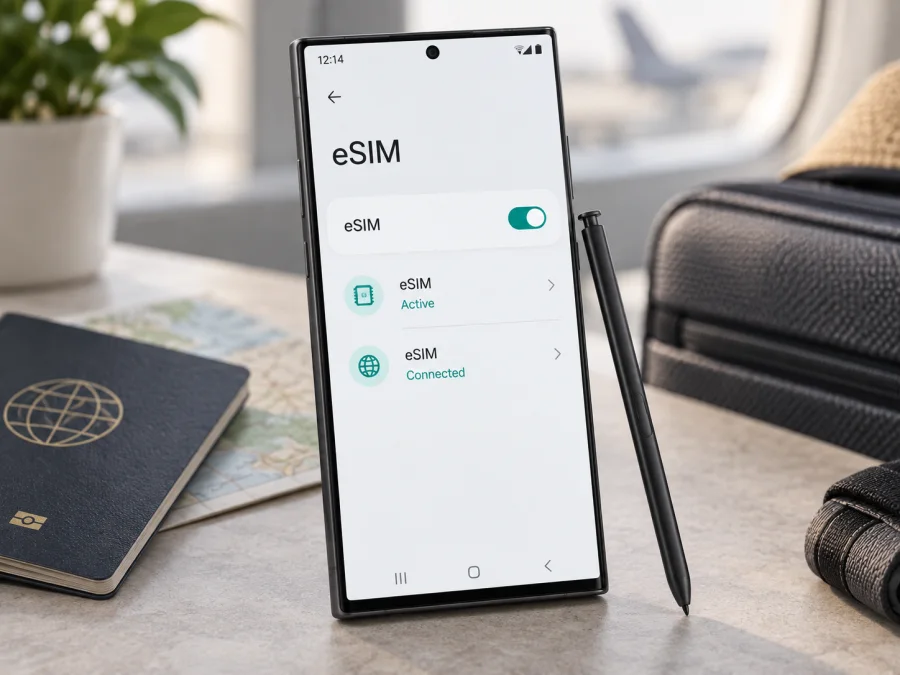
Samsung Galaxy Note 20 128GB eSIM: compatibility and setup
Quick answer: Samsung Galaxy Note 20 128GB may support eSIM, but the storage capacity does not identify the regional hardware or prove that eSIM is enabled. Samsung lists Galaxy Note20 among eSIM-compatible Australian variants, while its Japanese SIM compatibility guide does not list the standard Note20 as an eSIM model. Treat this exact 128GB device as compatible only after checking its model number, EID and SIM settings. Carrier restrictions and software can also affect availability.
The 128GB figure describes internal storage. It does not tell you whether the phone was made for a market that enables eSIM, whether a carrier has restricted the feature, or whether the handset is unlocked. Two phones sold under the Galaxy Note20 name can therefore offer different SIM options. If you are buying one used or preparing it for a trip, check the actual handset rather than relying on a product title or a general model-family list.
Does Samsung Galaxy Note 20 128GB support eSIM?
The accurate answer is sometimes, depending on the regional model and software. Samsung Australia’s eSIM compatibility guide, updated May 26, 2026, includes Galaxy Note20 and says the guide applies to Australian variants. Samsung Japan’s SIM compatibility guide, updated August 18, 2026, lists current supported eSIM devices separately and does not include the standard Note20 there. These official regional lists show why a broad “yes” or “no” can be misleading for a device sold simply as Samsung Galaxy Note 20 128GB.
Samsung’s Galaxy setup guidance also explains how to add an eSIM on supported Galaxy phones and notes that screens and availability can vary by model, software and carrier. That guidance describes the setup process; it does not confirm that every Note20 128GB sold worldwide contains an enabled eSIM. Use the settings on your phone and its full model code to make the final decision.
| Item | What it means for this device |
|---|---|
| Exact variant in this guide | Samsung Galaxy Note 20 128GB |
| 128GB | Internal storage capacity; not an eSIM indicator |
| eSIM status | Available on some regional Note20 variants; confirm on the handset |
| Model and market | The full model code and country of sale may change SIM features |
| Carrier status | A carrier-sold or locked phone can have different options or restrictions |
| Best proof before purchase | EID in Settings, plus an “Add eSIM” option in SIM Manager |
This result concerns the standard Galaxy Note20 only. Do not use it as confirmation for the Note20 Ultra, another storage size, or a different generation. A listing that says “128GB” may omit the regional suffix and carrier status that matter for eSIM. Ask the seller for the full model number and a photo of the relevant settings page, or inspect the phone in person.
Check the exact phone before buying a plan
Start with the handset itself. Menu names differ slightly by Android and One UI version, but these checks usually take only a minute. Before choosing a plan, confirm each item:
- [ ] The full model number matches the actual phone and its market of sale.
- [ ] An EID appears in Settings or on the original box.
- [ ] SIM Manager offers Add eSIM or Add mobile plan.
- [ ] The phone is unlocked and the intended provider accepts this variant.
- Open Settings and tap About phone. Record the model name and model number. The code is more useful than the retail name because it identifies the regional or carrier variant.
- Look for an EID. On many Galaxy versions, open Settings → About phone → Status information and find EID. You can also search Settings for “EID.” Samsung says the EID may also appear on the phone’s box. Do not post the full number publicly; share it only with a provider or support team that needs it.
- Open Settings → Connections → SIM manager. Look for Add eSIM, Add mobile plan, or a similar option. On some software versions, the button appears only after connecting to Wi-Fi or opening SIM Manager.
- Check the device’s status with the original seller or carrier. Confirm it is network-unlocked and that eSIM is enabled for this specific model code and software version.
- If you are buying remotely, ask the seller to confirm both the EID and the eSIM menu. A generic specification page or another owner’s Note20 does not verify your unit.
An EID is a strong sign that the phone has an embedded SIM identity, and the add-eSIM option is useful confirmation that the software exposes setup. If neither is present, do not assume an update will add the required hardware or regional support. Ask Samsung support or the carrier using the full model number before purchasing an eSIM plan. If both checks are present, also confirm the device is unlocked and the provider accepts that model.
Check your device before choosing a plan. The destination, data allowance and validity period matter only after the phone can install the profile and connect to a supported local network.
What can vary between 128GB versions?
The 128GB figure is storage, not a regional identifier. A Note20 sold in one country may have different SIM settings from one sold elsewhere, and a carrier-locked handset may restrict profiles. Check the country of sale, full model code, unlock status and software version independently. A “dual SIM” label, SIM tray or 5G badge does not prove eSIM support. Samsung’s Australian list applies to Australian variants, so use the actual phone’s EID and SIM Manager rather than extrapolating from another market.
Prepare for installation
Before installing a travel eSIM, make sure you can complete setup without losing access to the instructions or QR code:
- Connect the Note20 to reliable Wi-Fi. Downloading a profile usually requires an internet connection.
- Install available Samsung and Android updates while you still have a stable connection, then restart the phone. Updates can improve stability, but do not use them as proof that a regionally unsupported device has become compatible.
- Check that the handset is unlocked. If it is locked, ask the original carrier whether it can be unlocked and whether third-party eSIM profiles are allowed.
- Read the plan details: supported country or region, data amount, validity, activation trigger, hotspot rules and whether a local network selection is automatic.
- Keep the QR code available on another screen or print it. Most QR codes are single-use, so do not scan it as a test or remove the profile casually.
- Keep access to your usual SIM and messages during setup. A data-only travel eSIM generally does not replace your existing phone number.
How to install and activate an eSIM
On many Galaxy phones, open Settings → Connections → SIM manager → Add eSIM (sometimes called Add mobile plan). Search Settings if the labels differ.
- Choose and review a plan. Kaspersky eSIM Store is the app and website where you can choose, arrange and activate an eSIM with a mobile-data plan for an overseas trip. Check destination, validity and activation conditions.
- Connect to Wi-Fi and keep the QR code on a second screen, or have the manual activation code ready.
- In SIM manager, tap Add eSIM. Choose Scan QR code, enter the supplied activation code, or use an assigned plan if the phone offers it. Use the method in your plan instructions.
- Confirm the download and wait for the profile to appear. Label it “Travel data” if the phone allows. Keep your usual line active for calls or texts if needed.
- Follow the plan’s activation timing: validity may begin at installation or first supported network connection.
- At your destination, turn on the eSIM and select it for mobile data. Enable data roaming for that profile only if the plan instructions require it; leave roaming off on your home line to avoid unwanted charges. Allow a few minutes for network registration.
For the detailed Android flow, see Android eSIM installation instructions. The iOS eSIM installation instructions are available for a second device or another traveller’s iPhone; they are not the setup path for Samsung Galaxy Note 20 128GB.
Using the Note20 eSIM on a trip
A typical arrangement is to keep your home SIM available for calls or messages and use the travel eSIM for mobile data. The exact dual-SIM combinations depend on the regional phone and software. Verify which lines are active and which one is selected for data before travelling.
At your destination, open Settings → Connections → SIM manager. Turn on the travel profile, set it as the mobile-data SIM, and check that mobile data is enabled. If instructions for the plan say to enable data roaming, switch it on for the travel profile. That setting allows the eSIM to connect to partner networks in some arrangements; it does not mean you should enable roaming indiscriminately on every line.
For a short city break, estimate how much data maps, messaging, email and ticket apps may use, then compare that with the plan allowance and validity. For a multi-country itinerary, confirm every destination is included in the plan’s coverage area before departure. A plan for one country may not cover a neighbouring stop, even if the phone can technically register on local networks.
Common problems and what to check
“Add eSIM” is missing. Search Settings for “EID” and “SIM manager,” restart after installing updates, and check the full model number. If there is no EID and no add-profile option, the regional variant may not support eSIM. Ask Samsung or the original carrier to confirm before buying a plan.
The QR code will not scan. Increase screen brightness, clean the camera lens and hold steady. Confirm the code belongs to this plan and has not been used; enter supplied manual details exactly. Do not share the QR code publicly.
The profile download fails. Confirm stable Wi-Fi, plan eligibility and the activation window, then retry once. If the code is marked used or the error persists, contact support rather than repeatedly scanning.
The profile is installed but there is no data. In SIM Manager, turn on the eSIM and select it for mobile data. Follow plan instructions for roaming, restart, wait and confirm destination coverage. If instructed to select a network manually, choose one listed for the plan.
The phone shows signal but apps are offline. Check the data line, airplane mode, mobile data and data limit; test a web page with Wi-Fi off. If an APN is required, use only the value in the setup instructions. Check balance and validity.
The travel eSIM works, but the home SIM has unexpected charges. Review the home line’s data roaming and mobile-data settings. Choose the travel profile as the only data line if that matches your plan. Calls and texts may still use the home SIM, depending on your choices and carrier terms.
The phone is locked or the carrier refuses the profile. A locked phone can reject an otherwise valid eSIM. Ask the original carrier about unlocking and restrictions for the exact model. Do not remove or reset profiles as a first troubleshooting step; doing so may make reinstallation require a new code.
Frequently asked questions
Does every Samsung Galaxy Note 20 128GB have eSIM?
No. Samsung’s Australian guide lists Galaxy Note20 for Australian variants, while Samsung Japan’s current compatibility list does not identify the standard Note20 as an eSIM model. The 128GB capacity does not resolve the difference. Check the specific model code, EID and SIM Manager on the phone.
Can I keep my regular SIM in the phone?
Often, a supported Galaxy configuration can use a physical SIM and eSIM, but exact dual-SIM behavior depends on model, region and software. Check SIM Manager and decide which line handles mobile data. Your home carrier may charge for roaming, calls or texts according to its own terms.
Will the travel eSIM provide calls and text messages?
A data-only plan normally provides mobile internet rather than a conventional number, voice service or SMS. Review the selected plan’s conditions. Messaging and internet calls may work through apps when data is available.
When should I install the profile?
Follow the stated activation conditions. If the plan can be installed in advance without starting its validity, setting it up on Wi-Fi before departure gives you time to troubleshoot. If installation starts the validity period, wait until the timing suits your trip.
Final device check and travel eSIM
Before you choose a travel plan, confirm that this exact Samsung Galaxy Note 20 128GB has an EID and an Add eSIM option, identify its regional model code, and make sure it is unlocked. Samsung’s regional guidance shows that eSIM support is not universal across every Note20 variant, so a model-family name or 128GB listing is not enough by itself.
Once compatibility is confirmed, compare plans for your destination or route by data allowance, validity and activation timing. Kaspersky eSIM Store is the app and website where you can choose, arrange and activate an eSIM with a suitable mobile-data plan for an overseas trip. Keep the setup instructions available, select the travel profile for mobile data when appropriate, and check the destination coverage before you leave.


