Travel connectivity guide
Samsung Galaxy Note 20 256GB eSIM: setup
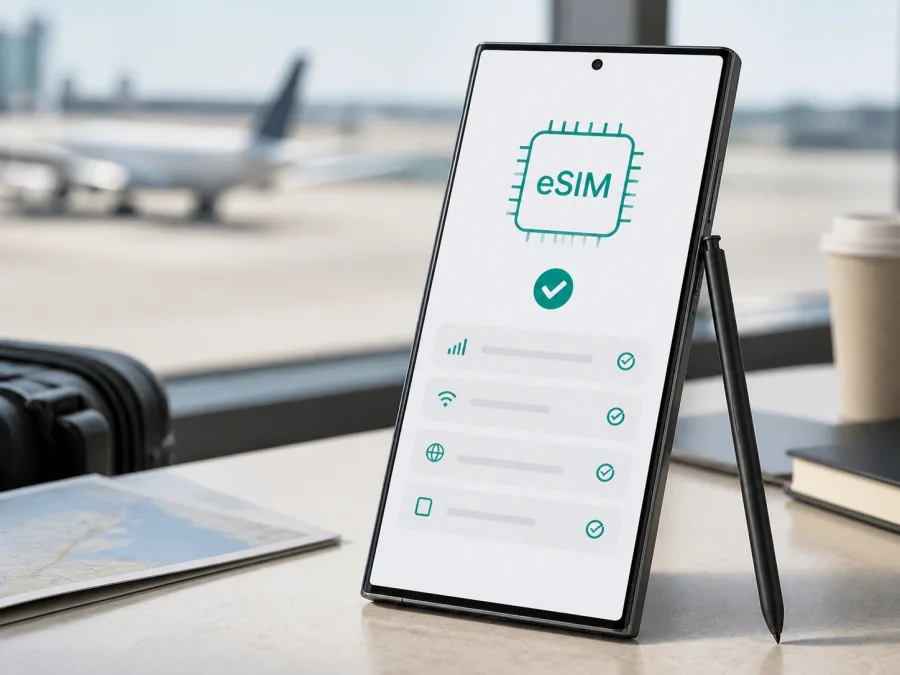
Samsung Galaxy Note 20 256GB eSIM: compatibility and setup
If you are checking whether Samsung Galaxy Note 20 256GB can use an eSIM for mobile data abroad, the careful answer is: it can on supported regional versions, but the storage label alone does not guarantee eSIM access. Samsung lists the Note20 family among Galaxy phones that support eSIM and documents adding a mobile plan from the SIM manager. Samsung also notes that eSIM availability can be enabled by a software update or disabled in some markets, while the available eSIM plan depends on the carrier.
That distinction matters because “Samsung Galaxy Note 20 256GB” is a retail description, not a complete model identifier. It does not state 4G/LTE or 5G, model code, sales region, firmware, or operator status. Samsung’s specifications for supported 256GB Note20 versions show embedded SIM, but a similar retail name does not guarantee the same menu. Check the device before choosing or paying for a travel eSIM.
Quick answer for Samsung Galaxy Note 20 256GB
The 256GB capacity is compatible with eSIM in supported Note20 regional variants; capacity alone neither adds nor removes the function. Confirm an EID in status information and an Add mobile plan, Add eSIM, or similar option in SIM manager. If neither appears after an official update and restart, treat the unit as not ready until Samsung or the seller confirms its model and market.
What the name tells you—and what it does not
| Item | Confirmed by the supplied name | Check on the actual phone |
|---|---|---|
| Device | Samsung Galaxy Note 20 | Model name and model number |
| Storage | 256GB | Free space after pre-installed software |
| eSIM | Possible on supported regional versions | EID and eSIM-addition menu |
| Network generation | Not stated | LTE/4G or 5G model |
| RAM | Not stated | Specification for the model code |
| SIM configuration | Not stated | Single/dual SIM, tray, and eSIM status |
| Market and firmware | Not stated | Original sales region, software, and lock |
Does Samsung Galaxy Note 20 256GB support eSIM?
Yes, a supported regional version can support eSIM. Samsung’s current support information includes Galaxy Note20 among compatible Galaxy phones, and its guidance gives Settings > Connections > SIM manager > Add mobile plan. Samsung specifications for a 256GB version identify nano-SIM plus embedded SIM. These confirm support for relevant markets, not every retail unit.
The word “can” is essential. Samsung’s own notes say eSIM use may be enabled by an update or disabled in some markets where the device was purchased. The eSIM plan must also be supported by the carrier. An imported phone may therefore differ from a locally sold phone with the same name and storage. Operator firmware, a single-SIM configuration, or a market policy can hide the controls you expect to see.
Why regional and operator versions differ
Samsung makes Note20 phones for multiple markets. Network bands, 4G or 5G radios, SIM trays, firmware, and operator requirements can differ. Software for one market may expose eSIM while another release does not, and an operator can limit activation or require approval.
In practice, check four layers: eSIM hardware, an eSIM menu in current firmware, no operator lock, and a plan that can activate on the device in the destination. A regional model may have different hardware or firmware; an operator version may be locked or require approval; an unlocked phone is not automatically eSIM-compatible. Samsung’s market and carrier caveat means a generic compatibility list is only a starting point.
What to check before buying a travel eSIM
Use this checklist while you have the phone in hand. It is more dependable than a marketplace filter or shortened product title.
1. Confirm the model identity
Open Settings > About phone and note the model name, model number, and software information. Keep the exact code with your purchase records. If imported or used, ask where it was first sold and whether its software was changed.
2. Find the EID
Open Settings > About phone > Status and look for EID. Samsung also states that the EID may be printed on the original box. An EID is a useful sign of eSIM identity, but it does not promise that every carrier or plan will activate. If it is missing, do not buy a non-refundable travel plan until the seller or Samsung explains why.
Menu names vary by software version. Keep your full EID, IMEI, activation code, and QR code private.
3. Look for the eSIM control
Go to Settings > Connections > SIM manager. A compatible regional phone normally shows Add mobile plan, Add eSIM, or an equivalent option. It should offer a method such as scanning a QR code, downloading a pre-assigned plan, or entering activation details manually.
If the option is absent, install the latest official software, restart, and check again. If it is still absent, record the model code, EID status, software version, and original market. Do not force the menu with unofficial firmware.
4. Check the lock and plan conditions
Ask the original operator whether the phone is unlocked for another network. A device can show an eSIM menu and still reject a plan because it is locked. Check whether the travel plan is data-only, which countries or regions it covers, when validity starts, whether tethering is allowed, and whether the profile can be reinstalled. In Kaspersky eSIM Store, review the destination, data allowance, validity, and price shown for the selected option before completing the order.
5. Prepare an internet connection
The phone needs Wi‑Fi or working mobile data to download a profile. Install before departure or save the activation details for arrival. A QR code displayed on the same phone usually cannot be scanned by that phone’s camera; use another screen or manual entry if supported.
Check your device compatibility before selecting a travel eSIM. This is especially important when the phone was imported, bought used, or listed without a model code.
Installing an eSIM on Samsung Galaxy Note 20 256GB
The labels follow Samsung’s documented Galaxy workflow, although One UI wording may differ. Keep activation details private.
Step 1: Connect to the internet
Connect the Samsung Galaxy Note 20 256GB to stable Wi‑Fi. Charge the phone and keep the QR code, activation code, or in-app installation screen ready.
Step 2: Open SIM manager
Open Settings, tap Connections, then tap SIM manager. Choose Add mobile plan or Add eSIM. If the choice is missing, stop and repeat the compatibility checks instead of treating a failed scan as the main issue.
Step 3: Choose an installation method
Select Add using QR code when the plan provides one and scan it from a second screen. If automatic assignment is supported, follow the download prompt. If offered, choose Add using activation code and enter every value exactly as supplied.
Step 4: Download and name the profile
Review the plan name and destination before adding it. Do not scan an unknown code. After download, label the line “Travel data” or with the destination name.
Step 5: Select mobile data
When asked which SIM should handle mobile data, select the new eSIM only when you are ready to use it. Keep calls and messages on your regular line if needed, and confirm the preferred SIMs in SIM manager. The travel eSIM normally supplies mobile data; it does not automatically provide a regular number, voice calls, or SMS unless the plan’s terms expressly include them.
Step 6: Activate at the right time
Some plans start validity when the profile is installed; others start when the eSIM connects to a covered network. Follow the conditions shown for the chosen plan. If installing at home, leave the travel line off until arrival when the plan rules allow it. Disabling a line does not necessarily pause validity.
For device-specific help, use the Android eSIM installation instructions and the iOS eSIM installation instructions. The Android page is relevant to this Samsung phone; the iOS page is useful only if you also manage an iPhone or help a companion.
Using the eSIM for mobile data while travelling
Before departure, choose which line remains your everyday number and which carries travel data. In Settings > Connections > SIM manager, select the travel eSIM under mobile data. On arrival, turn it on and allow data roaming for that eSIM if the plan requires it. This does not mean the primary line must use roaming data. Open a webpage or messaging app and confirm the data counter changes on the travel line. Disable automatic data switching if you need firm control; backups, video, updates, and hotspot use can consume data quickly.
Three practical travel scenarios
Short city break. Install on Wi‑Fi before leaving, activate data when the plan should start, select the travel line at the airport, and watch the counter.
Multi-country route. Check that one plan covers every country or choose a regional option. Crossing a border does not automatically change the plan; label profiles clearly.
Work trip with a hotspot. Verify tethering is allowed, select the travel eSIM first, set a password, and stop large downloads because a hotspot can use data quickly.
Kaspersky eSIM Store is an app and website where you can choose, arrange, and activate an eSIM with a suitable mobile-data plan for an overseas trip. It helps you review destination, data amount, validity, and price. It is not a mobile operator, network owner, or provider of mobile internet; service and coverage depend on the selected plan and its local operator arrangements.
Troubleshooting eSIM problems
The Add eSIM option is missing
Check EID under Settings > About phone > Status, confirm the model code and market, install the latest official software, restart, and revisit Connections > SIM manager. If both EID and the menu are absent, the handset may be a regional or operator version without enabled eSIM. Ask Samsung or the seller to verify it; a factory reset will not add unsupported functionality.
The QR code will not scan
Raise the display brightness, clean the camera lens, and show the complete code on a second screen. Try manual activation if offered. A used, expired, or device-specific code may be rejected even when the phone is compatible.
The profile downloads but there is no service
Check that the eSIM is on, selected for mobile data, and covered in the country you are visiting. Confirm any access-point instructions, toggle airplane mode briefly, restart, and allow data roaming when required. Avoid repeatedly changing advanced settings.
Mobile data uses the wrong SIM
Open SIM manager and set the travel eSIM as the mobile-data SIM. Disable automatic data switching if you want that profile to be the only data line. If the home SIM is still using data, turn off mobile data for it or ask the home operator about roaming controls.
The plan is active but traffic does not work
Check destination, validity start, remaining data, and network registration. Move if the signal is weak and do not delete the profile. If the plan is data-only, test with a browser or messaging app rather than voice calls or SMS. Contact support with model code, country, time of failure, and completed checks.
The operator refuses activation
An eSIM menu cannot override a carrier lock. Ask the original operator whether the phone is unlocked and eSIM activation is allowed. Resolve a used-phone lock before buying another plan, and keep EID and IMEI private.
FAQ
Does every Samsung Galaxy Note 20 256GB support eSIM?
No. Supported regional versions can use eSIM, but the retail name and 256GB storage do not identify market, firmware, network generation, SIM configuration, or carrier status. Confirm EID and the Add eSIM or Add mobile plan control on the phone.
Does 256GB mean the phone has 8GB RAM or 5G?
Not from the supplied name alone. Note20 network and memory specifications vary by market. Check the model code rather than adding “5G” or a RAM value to the device name.
Can the eSIM replace my regular SIM for calls?
Usually not in this travel-data scenario. The selected plan is generally for mobile internet, not a normal number, calls, or SMS. Keep the primary line for those services if needed.
Should I install the travel eSIM before leaving?
Often that is convenient because of reliable Wi‑Fi, but check when validity begins. If installation starts validity, install close to departure or after arrival according to the plan conditions.
Final check before your trip
For Samsung Galaxy Note 20 256GB, eSIM is realistic only after the handset confirms it. Before paying, verify the model code, find the EID, open Settings > Connections > SIM manager, and look for Add mobile plan or Add eSIM. Update the phone, confirm it is not carrier-locked, and check every destination. If the menu is missing or the market is uncertain, ask Samsung, the seller, or the operator to confirm.
Once it passes, use Kaspersky eSIM Store—the app and website—to choose and arrange an eSIM with a suitable tariff for mobile data abroad, then follow the activation steps. Review data allowance, validity, coverage, roaming-data and hotspot rules, and whether it is data-only. Install with a reliable connection, select the travel eSIM for data on arrival, and keep the regular SIM under control. Checking first can prevent an unusable profile.


