Travel connectivity guide
Samsung Galaxy Note 20 Ultra 5G 12GB RAM eSIM
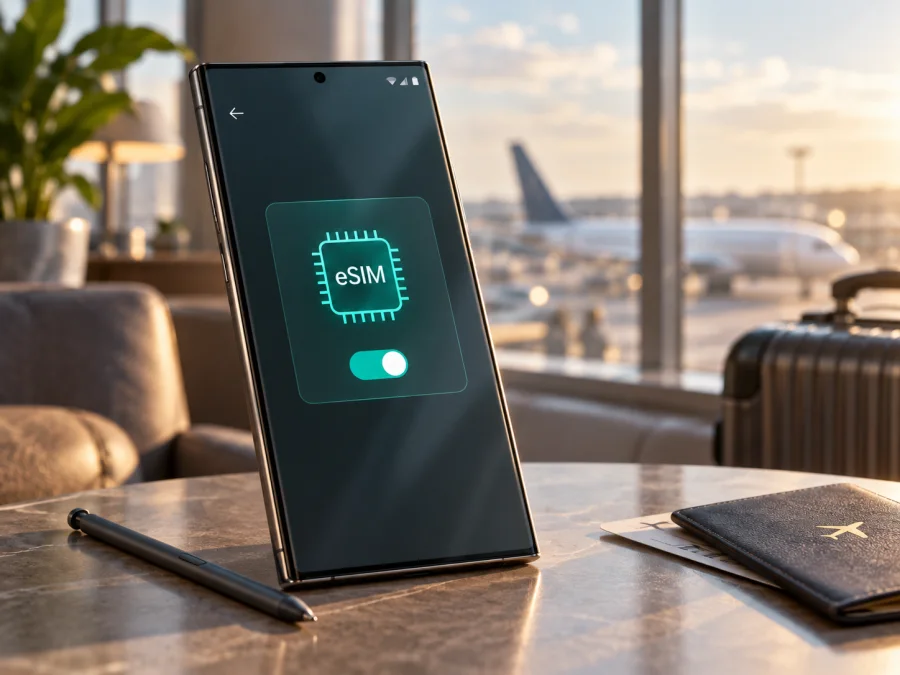
Samsung Galaxy Note 20 Ultra 5G 12GB RAM eSIM: compatibility and setup
If you are checking whether Samsung Galaxy Note 20 Ultra 5G 12GB RAM can use a travel eSIM, the answer is usually yes for the supported single-SIM variants, but it is not a blanket promise for every phone sold under the same family name. Samsung’s own product and support information describes eSIM availability for this generation, while also warning that use can be enabled by a software update or disabled in some markets. Your phone’s settings are therefore the final practical check.
The name Samsung Galaxy Note 20 Ultra 5G 12GB RAM identifies the family and memory configuration, not one universal regional SKU. Before buying a plan, confirm that your handset shows an EID and an option such as Add eSIM or Add mobile plan in the SIM manager.
Quick answer: does Samsung Galaxy Note 20 Ultra 5G 12GB RAM support eSIM?
Samsung lists eSIM functionality for compatible Galaxy Note20 Ultra variants, and official regional listings for 5G 12GB configurations include single-SIM models with eSIM. That is a strong indication that Samsung Galaxy Note 20 Ultra 5G 12GB RAM can support eSIM. The accurate answer for your handset is conditional: yes, when the regional model, carrier configuration, and installed software expose the eSIM hardware and menu.
Do not infer compatibility from 5G, 12GB RAM, storage size, color, or a dual-SIM tray. The US carrier version, an imported device, and an unlocked international model can behave differently. Samsung notes that screens vary by model, provider, and software, and that not every carrier supports eSIM on every Galaxy device.
The safest decision is to inspect the phone before you pay for a plan. If the EID is present and the SIM manager offers an eSIM action, the phone is ready for the next compatibility checks. If neither appears, treat that specific handset as not confirmed, even if another Samsung Galaxy Note 20 Ultra 5G 12GB RAM sold in a different market supports eSIM.
What the exact variant tells you
The requested device name is Samsung Galaxy Note 20 Ultra 5G 12GB RAM. “12GB RAM” and “5G” are meaningful variant details, but they do not identify the market-specific model code. Samsung’s specifications show that memory, SIM configuration, and availability can vary by market and operator.
| Item | What to understand before using eSIM |
|---|---|
| Device | Samsung Galaxy Note 20 Ultra 5G 12GB RAM |
| eSIM status | Supported on compatible regional and software configurations; verify on the handset |
| Physical SIM | The tray and single- or dual-SIM arrangement vary by market and SKU |
| EID | The most useful device-level sign that an eSIM radio/profile function is available |
| Software | Menu names and eSIM activation methods can change with One UI, Android, and carrier firmware |
| Carrier | The mobile provider must issue or accept an eSIM profile for the chosen plan |
| Travel data | A compatible data-only eSIM can be used for mobile internet if the plan covers the destination |
Use the model code, EID, and SIM-manager options together. A listing that says “Single SIM + eSIM” is evidence for that listed SKU, not a guarantee for every imported or carrier edition.
Check eSIM compatibility on your phone
The following checks are more reliable than a marketplace title. Complete them while connected to Wi-Fi, especially if the phone is refurbished or was purchased abroad.
1. Find the EID
Open Settings, choose About phone, and look for Status or Status information. On a supported configuration, an EID entry may appear alongside IMEI information. Some software versions also show the EID on the original box or in the phone information screen. An EID is a strong sign that the handset contains the eSIM identity needed to download a profile, but it is still sensible to confirm the add-eSIM menu and carrier eligibility.
If you see only IMEI numbers and no EID, check for an update, confirm the model code with the seller, and ask the carrier about that regional SKU. A missing EID is a reason to pause rather than guess.
2. Look in SIM manager
Go to Settings > Connections > SIM manager. A supported phone may show Add eSIM, Add mobile plan, or a similar action. Samsung’s instructions use this area for scanning a QR code, downloading a pre-assigned plan, or entering activation details manually. The exact wording can differ between software builds.
If the action is missing or greyed out, compatibility is not verified for this handset.
3. Check the model and software context
In Settings > About phone, record the model number and software version. Compare them with the seller’s description and ask whether the phone is carrier locked. An unlocked phone can still have a regional limitation, while an eSIM-capable phone may need a firmware update.
4. Confirm the plan and destination
The plan must cover your country, region, or route, and its activation window and validity must fit your dates. Check whether it is data-only, requires data roaming, or allows tethering.
Compatibility checklist
- [ ] The phone is exactly Samsung Galaxy Note 20 Ultra 5G 12GB RAM, with its model code recorded.
- [ ] An EID appears in the phone information or status screen.
- [ ] Settings > Connections > SIM manager includes an eSIM or mobile-plan option.
- [ ] The phone is not carrier locked, or the lock terms explicitly allow the intended plan.
- [ ] The software is updated and the handset has a stable Wi-Fi connection.
- [ ] The eSIM plan covers every country or region on the itinerary.
- [ ] The plan’s data allowance, validity, activation rule, and refund terms suit the trip.
- [ ] You know whether the eSIM requires data roaming and whether hotspot use is allowed.
If an essential item is uncertain, verify it before buying. A 5G label or 12GB RAM specification cannot replace an EID and SIM-manager check.
How to install and activate an eSIM
1. Prepare the phone
Update the software if an update is available. Connect the Samsung Galaxy Note 20 Ultra 5G 12GB RAM to Wi-Fi and make sure the device has enough battery. Do not delete your current physical SIM while testing the new profile.
2. Open the eSIM menu
Go to Settings > Connections > SIM manager and choose Add eSIM, Add mobile plan, or the closest available wording. If this option is absent, return to the compatibility checks rather than trying to force an installation through an unrelated SIM menu.
3. Choose the installation method
Select the QR-code option when provided and follow the on-screen confirmation. If an activation code is supplied, choose the manual option and enter it exactly. Some carriers can push a pre-assigned plan after identifying the phone’s EID; choose the detected plan and confirm the download.
Samsung’s menu labels differ by software and region. For additional guidance, see the Android eSIM installation instructions or the iOS eSIM installation instructions. The phone steps here remain specific to the Samsung Galaxy interface.
4. Name and enable the profile
Give the line a label such as “Travel data.” Keep your regular line for calls and messages if needed. In SIM manager, set the eSIM as the Mobile data line when ready, and make sure the regular line is not selected for data.
5. Configure data roaming carefully
Some travel eSIMs require Data roaming to be enabled on the eSIM for the profile to register on a partner network. This setting does not mean that your primary line must incur roaming charges; it means the selected eSIM is allowed to use the partner network named in its plan. Check the plan instructions first, then open Settings > Connections > Mobile networks and adjust the setting for the travel profile if necessary.
6. Activate and test
Turn on the eSIM, select it for mobile data, and wait several minutes for registration. If validity begins on first use in the covered country, installation before departure may not start the period; the plan terms control that moment. Open a webpage and confirm that data is moving on the intended line.
Kaspersky eSIM Store is an app and website where you can choose, arrange, and activate an eSIM with a suitable mobile-internet plan for an international trip. It is not a mobile operator and does not own the network or guarantee coverage; service depends on the selected plan and its local carrier arrangements.
Using eSIM for mobile internet while travelling
The most practical setup is to keep the regular number for essential calls or SMS and use the travel eSIM for data. In SIM manager, select the travel profile as the mobile-data line. If the phone offers an option to switch data automatically between SIMs, disable it when you want predictable usage; otherwise, the device may move data to the primary line when the travel profile has weak coverage.
Before leaving, download maps and important files over Wi-Fi. After arrival, turn on the eSIM, enable data roaming for that profile if required, and check the network name and signal. Allow a few minutes for registration before testing again.
Scenario: a short city break
For a few days in one country, choose a plan whose validity and data allowance match navigation, messaging, ride booking, and light browsing. Install it at home, label it clearly, and select it for data when you are ready to use it.
Scenario: a multi-country route
Confirm that the plan covers the whole region or every country. Read the destination list and fair-use conditions. At a border, allow time for the eSIM to register with a new partner network; coverage can vary by place and network availability.
Remember what a typical travel eSIM provides. It is generally intended for mobile internet and does not automatically include a new phone number, ordinary voice calls, or SMS. Those features are included only when the chosen plan says so. Internet calling and messaging apps can work through data, subject to the app, network, and local conditions.
Troubleshooting and settings checks
The eSIM option is missing
Confirm the model code and install available software updates. Reopen Settings > Connections > SIM manager after restarting. If there is still no EID or add-eSIM option, contact the seller or Samsung support for the exact regional SKU. Do not rely on a listing for a different Samsung Galaxy Note 20 Ultra 5G 12GB RAM configuration.
The QR code will not scan
Increase screen brightness on the other device, hold the code flat and fully visible, and confirm that it belongs to this plan. If manual activation details were provided, use the manual method. Some QR codes are single-use.
The profile downloads but has no service
Check that the eSIM is enabled and selected for mobile data. Verify the destination, roaming requirement, and network selection. Toggle airplane mode, restart, and enter only the APN values supplied for this plan.
Data goes through the wrong SIM
Return to SIM manager and set the travel eSIM as the mobile-data line. Turn off automatic data switching and disable data on the regular line if you want to avoid accidental roaming. Check the data icon after every change.
The connection is slow or unstable
Move to a clearer-signal area and wait for the phone to select a partner network. Check the plan’s speed or fair-use conditions. A 5G-capable handset may use 4G when local coverage or the plan does not provide 5G; that alone does not show that the eSIM failed.
FAQ
Is Samsung Galaxy Note 20 Ultra 5G 12GB RAM eSIM-compatible?
Compatible regional variants can be. Samsung documents eSIM for the Note20 generation and lists 12GB 5G single-SIM + eSIM configurations in official regional material. Market, carrier, and software differences mean you should confirm the EID and Add eSIM option on your own phone before purchase.
Should I install the travel eSIM before flying?
Usually, installing it over Wi-Fi before departure is convenient, provided the plan terms explain when validity begins. Keep the profile disabled or leave data on your regular line until you are ready to use the travel plan, if that is consistent with the activation instructions.
Does Kaspersky eSIM Store provide the network?
No. Kaspersky eSIM Store is an app and website that helps you choose, arrange, and activate an eSIM plan for mobile internet during an international trip. Network access and coverage come from the service and local carrier arrangements attached to the selected plan.
Final device check before your trip
Before selecting an eSIM plan for Samsung Galaxy Note 20 Ultra 5G 12GB RAM, verify the exact model code, find the EID, and open Settings > Connections > SIM manager to confirm that an eSIM action is present. Check for a carrier lock, update the software, and make sure the plan covers your destination, validity dates, expected data use, and any data-roaming or hotspot requirements.
Once those checks pass, choose a suitable eSIM for the countries or regions on your route, install it over a reliable connection, and label it for easy selection. Keep the primary line’s data under control, test the travel line before relying on it, and remember that coverage depends on the selected service and local network conditions. If the EID or add-eSIM menu is missing, pause the purchase and confirm the regional variant first. That small check is the most dependable way to avoid buying a plan that this particular Samsung Galaxy Note 20 Ultra 5G 12GB RAM cannot use.


