Travel connectivity guide
Samsung Galaxy Note 20 Ultra 5G 256GB eSIM
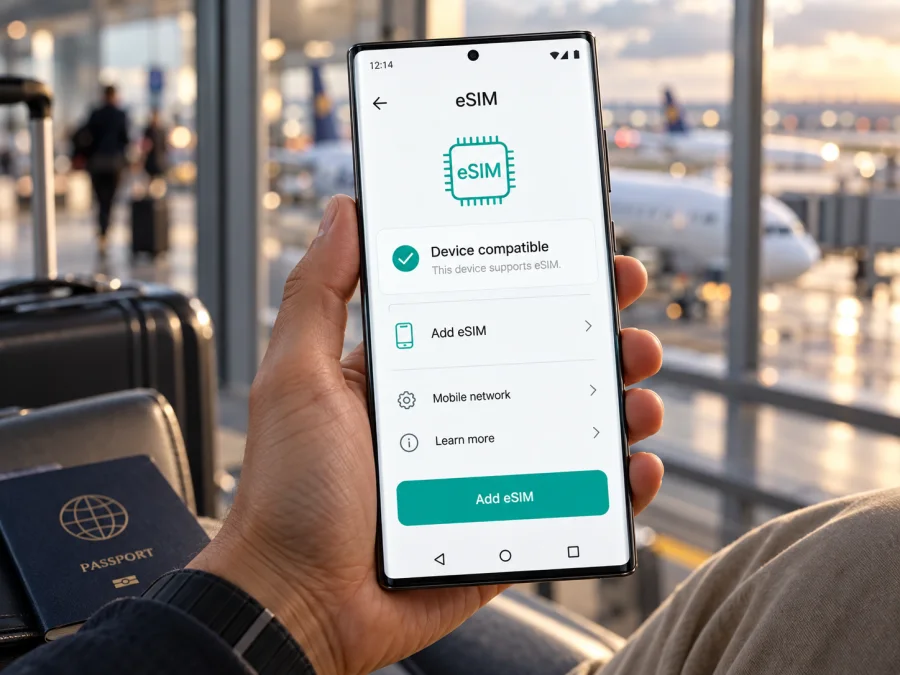
Samsung Galaxy Note 20 Ultra 5G 256GB and eSIM: compatibility and setup
If you are checking whether the Samsung Galaxy Note 20 Ultra 5G 256GB can use an eSIM for mobile data on a trip, the safest answer is conditional: Samsung lists eSIM as a capability for some Galaxy Note20 Ultra versions, but availability depends on the exact regional or carrier variant and its software. The storage size and “5G” name alone do not prove that a particular handset has an active eSIM function. Check the phone itself before choosing or paying for a travel plan.
Does Samsung Galaxy Note 20 Ultra 5G 256GB support eSIM?
Some versions do; others may not. Samsung’s launch specifications state that eSIM use on Galaxy devices may be enabled through a software update or disabled in some markets where the device is purchased. Samsung’s regional product specifications for certain Galaxy Note20 Ultra 256GB models list an embedded SIM alongside the physical Nano-SIM. At the same time, Samsung’s published specifications distinguish models by market, carrier, SIM configuration and memory. This means the product name “Samsung Galaxy Note 20 Ultra 5G 256GB” is not enough to give a universal yes for every handset carrying that name.
Treat eSIM as supported on your individual phone only when you can confirm an EID and see the option to add an eSIM in its settings. If neither appears, do not assume an update, a QR code, or a travel plan can add eSIM capability to a hardware or regional version that lacks it. Contact Samsung support or the seller with the complete model code and country of purchase if the result is unclear.
| Item | What to know |
|---|---|
| Device named in this guide | Samsung Galaxy Note 20 Ultra 5G 256GB |
| eSIM verdict | Available on some regional/software variants; verify the individual handset |
| Physical SIM | Nano-SIM; tray and dual-SIM arrangement vary by variant |
| 5G | Radio support and bands vary by market and carrier; 5G branding does not confirm eSIM |
| Storage configuration | 256GB is one storage option; it does not identify the region or SIM hardware |
| Best first checks | Model code, EID, and Settings → Connections → SIM manager → Add eSIM |
| Travel use | A compatible, unlocked handset may use a travel eSIM for mobile data where the plan is supported |
The table summarizes the specific distinction that matters: the phone family can include embedded-SIM configurations, while the precise handset needs to be checked. It does not certify an uninspected phone based on its retail title.
Why regional and carrier versions matter
Samsung sells regional and carrier versions with different model codes, firmware, network bands and SIM arrangements. SM-N986B, North American SM-N986U/U1 and Korean SM-N986N are examples of distinct Note20 Ultra 5G families; check the complete code on your phone rather than assuming their eSIM features match. Samsung notes that specifications and SIM availability can vary by model, market and carrier.
The country where you use the phone does not change the regional configuration it was made for. Some markets may enable eSIM by software update, while others may disable it. A carrier lock is separate: an eSIM-capable phone may still reject another provider’s profile until it is unlocked. Network bands also matter for service abroad.
Find the full model code in Settings → About phone → Model number. Give it and the country of sale to Samsung support or the seller if you need confirmation. Do not share your IMEI publicly.
How to check EID
Do these checks before you buy. Menu names can vary with Android and One UI, so use Settings search if needed.
- Record the model code. Open Settings → About phone → Model number and note the full suffix.
- Look for an EID. Open Settings → About phone → Status information (or Status) and look for EID. On supported devices, entering
*#06#in the dialler may also display it with the IMEI. EID identifies the eSIM capability; it does not confirm plan coverage. - Check SIM Manager. Go to Settings → Connections → SIM manager. Look for Add eSIM or Add mobile plan.
- Interpret the result. An EID and active add-eSIM option are good signs for this configuration. If the EID or option is absent, disabled or errors, check the model code and ask Samsung or the seller. A software update may address a software issue, but cannot add eSIM hardware to a variant without it.
The decisive check is on the handset, not the listing’s “256GB” or “5G” label.
Compatibility checklist before purchase
- [ ] The model code is recorded in full and matches the phone in your hand.
- [ ] An EID appears in Status information or in the supported device identifier view.
- [ ] SIM Manager offers Add eSIM or an equivalent eSIM setup option.
- [ ] The phone is not restricted by an operator lock or an account activation rule.
- [ ] The eSIM plan is valid for the country or region on your itinerary.
- [ ] The plan’s data allowance, validity period, activation timing and tethering terms meet your needs.
- [ ] You have a stable internet connection for downloading the profile and access to the QR code or activation details.
- [ ] You know which line will be selected for mobile data and whether data roaming must be enabled for that eSIM.
If any device check fails, pause before checkout and confirm with the seller or Samsung. It is easier to resolve a regional-variant question before purchase than after you arrive at your destination. For another quick review, check your device before you proceed.
Installing and activating an eSIM
Install with reliable Wi-Fi, keep the phone charged and have the QR code or activation details ready. Some QR codes are single-use. Read when plan validity begins before scanning, and do not remove a profile unless the plan provider says it can be reinstalled.
- Confirm compatibility and unlock status. Check EID, SIM Manager, destination coverage and the plan’s activation instructions.
- Connect to Wi-Fi. A stable connection is needed to download the profile.
- Open the eSIM setup. Go to Settings → Connections → SIM manager → Add eSIM.
- Add the profile. Choose Scan QR code and scan the code supplied for your plan. If available, use manual activation only with details supplied by the provider.
- Wait for download. Follow on-screen prompts; restart if requested. Do not close the setup while the profile is processing.
- Label and select the line. Name it “Travel data.” When you are ready to use the plan, select it under mobile data in SIM Manager. Keep your regular SIM for calls or texts if you wish, after checking its roaming charges.
- Set data roaming as directed. Some travel plans require roaming for their eSIM. Enable it for that line only if the plan instructions say so, then test mobile data after arrival.
For platform guidance, see the Android eSIM installation instructions and iOS eSIM installation instructions. This Samsung phone runs Android; the iOS page is for a separate compatible Apple device.
Kaspersky eSIM Store is an app and website where you can choose, arrange and activate an eSIM with a suitable plan for mobile internet on an international trip. Compare the destination, data allowance, validity, activation timing and usage limits shown for the selected plan. Kaspersky eSIM Store is not a mobile operator or network owner; connectivity uses networks covered by the selected plan.
Using the eSIM for mobile data while travelling
In Settings → Connections → SIM manager, select the travel eSIM for mobile data. Keep your home line for calls or texts if useful, but disable automatic data switching if the phone might fall back to it. Check home-carrier roaming charges separately.
Before departure, check whether installing the profile starts its validity or whether the plan starts on first connection in the destination. At your destination, enable the travel line and data roaming only as directed by the plan. Let the phone select an available network first; manually select one only if the plan’s instructions list it. Coverage and speed depend on location, local network, supported bands and plan terms. A 5G label does not guarantee 5G service abroad.
Choose data according to how you travel. Maps, messaging and bookings use less data than video calls, uploads or hotspot sessions. Check tethering terms, download maps over Wi-Fi, limit background updates and monitor remaining data in the plan account. Regional or multi-country travel requires a plan that explicitly covers each destination.
A data-only travel eSIM normally does not provide a regular phone number, calls or SMS unless the plan says otherwise. Internet calling and messaging apps can work over data. Keep your home SIM if you need its number and review any roaming charges.
Practical travel scenarios
Installing before a flight: Check when validity starts. If the plan permits, install at home and leave the line off until the trip. Save instructions for offline access.
Landing and needing maps: Turn on the travel eSIM, select it for data, and wait for network registration. Check Airplane mode, mobile data and required roaming settings.
Keeping your regular number: Keep the home SIM enabled if needed, set the eSIM as the data line, and check the home carrier’s roaming terms.
Crossing a border or using a hotspot: Confirm every country is covered and tethering is allowed before relying on the plan. Estimate extra data for laptop use.
Common problems and what to check
“Add eSIM” is missing
Check for an EID and confirm the complete model code. Restart and install available official updates. If the option remains absent, ask Samsung or the seller about the variant and market; QR codes cannot create eSIM support.
The QR code will not scan or download
Increase screen brightness, hold the phone steady and check that the code is for the selected plan and has not expired or been used. Use manual entry only if provided. For download failures, reconnect to stable Wi-Fi and confirm date/time are automatic. Ask the plan provider before deleting a partially installed profile.
The eSIM is installed but there is no signal
Make sure the line is enabled, Airplane mode is off, the destination is covered and the eSIM is selected for mobile data. Enable roaming for that line if required. Restart or briefly toggle Airplane mode, then allow time to register. Follow plan instructions for manual network selection.
The phone connects but webpages do not load
Check mobile data assignment, plan validity and remaining allowance. Turn off Wi-Fi briefly to test cellular data. Enter an APN only if the plan provider supplies one, and check whether a data-saving or VPN setting affects the connection.
The wrong SIM is using data or the phone is locked
Set the travel eSIM as the mobile-data line and disable automatic data switching if available. An EID does not mean the handset is unlocked: ask the original carrier about restrictions. Check data usage and roaming on the home line.
Speed is lower than expected or the profile was deleted
Reception, local network, bands, plan terms and device variant affect speed; 5G is not guaranteed. Do not assume a removed profile can be reinstalled with the same code. Check the plan conditions and contact its provider before requesting or buying another profile.
Frequently asked questions
Is every Samsung Galaxy Note 20 Ultra 5G 256GB eSIM compatible?
No universal guarantee applies. Samsung lists embedded SIM on some configurations but says availability can vary by software and purchase market. Check EID, SIM Manager and model code on your phone.
Does 256GB mean the phone has eSIM?
No. Storage is not a SIM specification; regional and carrier versions can differ despite sharing that capacity.
Can I use a physical SIM and eSIM together?
Some variants support it, but combinations depend on model and software. Check SIM Manager; a hybrid tray can also affect whether a second physical SIM or memory card is used.
Does a travel eSIM include a phone number, calls or SMS?
Usually a travel data plan is for mobile internet. Check its terms for voice or messaging; internet apps can work over data.
Should I enable roaming, and can I install before travel?
Enable data roaming for the travel profile only when its instructions require it. Install before travel only after checking when validity starts.
Will the phone get 5G abroad, or can I transfer the eSIM?
Neither is guaranteed. Network bands, local service and plan terms affect 5G; some profiles are bound to the first device. Check the plan before changing phones.
In short: verify first, then choose a travel eSIM
The Samsung Galaxy Note 20 Ultra 5G 256GB may support eSIM in a compatible regional and software configuration, but its storage size and 5G branding do not establish that support for every unit. Confirm the complete model code, find the EID and check for Add eSIM in SIM Manager. Then verify that the phone is unlocked and that the plan covers the countries on your itinerary, its validity timing fits your departure, and its data and tethering conditions fit how you travel.
Once those checks are complete, Kaspersky eSIM Store is an app and website where you can choose, arrange and activate an eSIM with a suitable plan for mobile internet on an international trip. Review the plan details before purchase, install the profile using the Android steps, and select it for mobile data when you are ready to use it. A few checks at home can make the first connection abroad easier to manage.


