Travel connectivity guide
Samsung Galaxy Note 20 Ultra 5G 8GB RAM eSIM
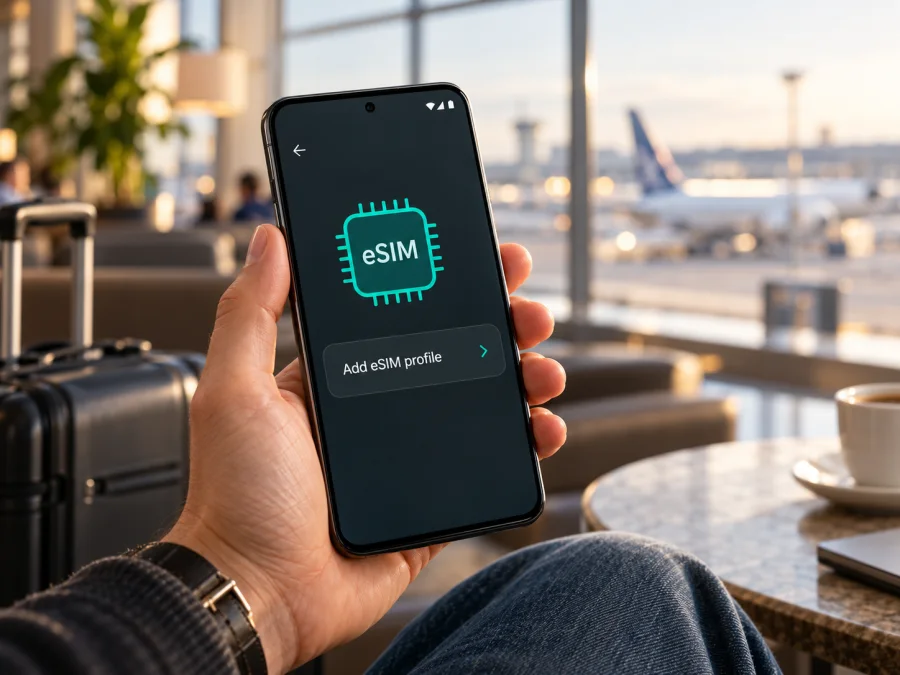
Samsung Galaxy Note 20 Ultra 5G 8GB RAM eSIM: compatibility and setup
Short answer: some regional versions of the Samsung Galaxy Note 20 Ultra support eSIM, but the exact name “Samsung Galaxy Note 20 Ultra 5G 8GB RAM” does not identify a confirmed Samsung SKU. Do not assume this particular 8GB configuration supports eSIM based on the listing title. Check the full model code, EID and SIM Manager on the handset before choosing a travel plan. A “5G” label indicates a network capability; it does not confirm eSIM support.
Does Samsung Galaxy Note 20 Ultra 5G 8GB RAM support eSIM?
The accurate answer is possibly, depending on the actual model number, original sales region, carrier software and firmware. Samsung’s Australian eSIM compatibility guide, updated 21 September 2026, lists Galaxy Note20 Ultra among eSIM-capable Australian-variant phones and cautions that settings and availability vary. A Samsung Australia product list identifies an 8GB/256GB Note20 Ultra as model SM-N985F and describes it as single SIM plus eSIM; that is the LTE model, not proof for a 5G handset with the same memory. Samsung’s US launch announcement lists its Galaxy Note20 Ultra 5G with 12GB RAM. These market-specific examples cannot establish a universal specification.
This matters because the input combines modifiers that do not match the regional Samsung records we could verify. The device may be a mislabeled listing, a variant for a market not covered by the examples, or a phone whose details differ from those shown by the seller. Samsung’s public regional sources reviewed here do not confirm a globally sold “Galaxy Note 20 Ultra 5G 8GB RAM” configuration. Treat this exact SKU as unverified until you inspect the handset or obtain its full model code from the seller. Support on an eSIM-capable Ultra sold in one market does not prove support on another regional or carrier-branded unit.
| Item | What is established |
|---|---|
| Exact input name | Samsung Galaxy Note 20 Ultra 5G 8GB RAM |
| Exact Samsung SKU | Not identifiable from the name alone; request the complete model code |
| eSIM in the Note20 Ultra family | Some regional variants support it; Samsung Australia includes Note20 Ultra in its compatibility guide |
| Exact 8GB + 5G combination | Not confirmed by the official regional sources reviewed |
| “5G” in the name | Does not prove eSIM, destination network compatibility or 5G access abroad |
| Best pre-purchase check | Model code, EID, “Add eSIM” menu, unlock status and plan eligibility |
Check compatibility before buying a plan
Use this checklist on the actual phone where possible. Android and One UI versions can change menu labels slightly.
- [ ] Read the model code. Open Settings → About phone → Model number. Record the full code, including its suffix, and compare it with the box or seller documentation.
- [ ] Look for an EID. Check Settings → About phone → Status information or SIM card status. On supported firmware, the dialler code
*#06#may also show an EID. Do not post this identifier publicly. Its presence is strong evidence of an eSIM identity, but does not guarantee that a carrier or plan will activate. - [ ] Check SIM Manager. Go to Settings → Connections → SIM card manager (sometimes called SIM manager). Look for Add eSIM, Add mobile plan or an option to scan a QR code.
- [ ] Check Samsung’s specification for the exact SKU. Look for “Embedded-SIM” under Network/Bearer or SIM-size details for the model code and original market.
- [ ] Confirm the network lock status. Ask the original carrier or seller whether another provider’s profile can be used. Unlock status and eSIM hardware are separate checks.
- [ ] Confirm destination-plan eligibility. Ask whether the exact model can use the plan and connect to its local partner network. A carrier’s automatic eSIM setup may differ from installing a travel profile by QR code.
- [ ] Prepare the software and connection. Install available Samsung updates and use stable Wi‑Fi to download a profile.
If Add eSIM is missing, restart the phone, check for software updates and verify its full model code. Ask Samsung or the original carrier whether that SKU and firmware enable eSIM. Do not try to force support by changing CSC settings or flashing unofficial firmware: it can erase data or affect network features and support.
Region, carrier and destination: three separate checks
Compatibility has three layers:
- Phone capability: the hardware and firmware must expose an EID and allow an eSIM profile to be added.
- Device restrictions: the phone must be unlocked for the profile, and carrier firmware must not block activation.
- Destination service: the plan must cover your destination and work with the device’s supported network bands and local service.
Passing one layer does not guarantee the others. A phone can show an EID but remain locked. An unlocked phone can lack eSIM support. A profile can install but fail to connect if the plan does not cover the location or the handset cannot use the relevant local network. 5G access abroad also depends on supported bands, network availability and plan terms; LTE may be the available service even on a 5G handset.
Ask the seller for the original sales market and complete model code, not simply the country where the phone is now being sold. For a refurbished phone, request a photo of About phone → Model number and the SIM Manager screen. When buying remotely, check the return conditions if the handset differs from the listing or lacks the expected menu. An IMEI lookup alone does not replace Samsung’s SKU information or a live menu check.
Kaspersky eSIM Store is an app and website where you can choose, arrange and activate an eSIM with a mobile-data plan for an international trip. It is not the mobile operator or the owner of a network. The local network and selected plan determine actual service. Review the displayed conditions for your route rather than assuming that a country label or 5G logo guarantees service at every stop.
Check whether your device is compatible before selecting a travel eSIM. Check the exact handset you own, rather than relying on the Note20 name or a different memory configuration.
How to install an eSIM on Samsung Galaxy Note 20 Ultra 5G 8GB RAM
Install only after confirming the phone supports eSIM and the plan covers your destination. Keep a stable internet connection available for download. Samsung Australia’s Galaxy instructions give the general menu path as Settings → Connections → SIM card manager → Add mobile plan; QR setup is available on compatible devices. Names can vary by software and region.
Install from a QR code
- Prepare the phone. Connect to Wi‑Fi, charge the battery and install any available system update. Display the QR code on another screen or print it.
- Open the eSIM menu. Go to Connections → SIM card manager. Depending on the software, choose Add mobile plan or Add eSIM.
- Scan the code. Select Scan carrier QR code or Scan QR code, then follow the prompts. If scanning is unavailable, use manual entry only if the plan issuer supplied an activation code and the phone offers that option.
- Wait for download. Keep Wi‑Fi connected and do not repeatedly scan while installation is in progress. Some QR codes are single-use; follow the issuer’s steps if the profile fails or says the code was used.
- Label the line. Name it “Travel data” or the destination. Set which SIM is used for mobile data, calls and texts. If keeping your home SIM, check its data roaming setting.
- Choose when to enable it. You may be able to install before departure and switch the profile on later. Follow the plan’s start and validity rules: installing a profile and starting service are separate events for some plans, but not all.
- At the destination, select the travel line. Enable the profile and set it as the mobile-data SIM. Turn on data roaming for that eSIM only if the plan instructions require it. Keep roaming off for the home line if you want to avoid its data charges.
- Test the connection. Briefly turn off Wi‑Fi and open a simple page. If it fails, check the selected line, plan status, local availability, roaming setting and any APN instructions before reinstalling.
For Samsung menu examples, use the Android eSIM installation instructions. The iPhone eSIM installation instructions are for an Apple device, such as a companion’s phone, and are not the menu steps for this Samsung. Follow the instructions provided for your specific plan if they differ from a general guide.
Use eSIM mobile data while travelling
Installing the profile at home over Wi‑Fi can make arrival simpler. Check the plan’s start trigger first: validity can begin at purchase, installation, activation or first connection, depending on the plan. “Activate” can mean either adding the profile or starting service, so use the plan’s own explanation. Keep the QR code or setup details secure until the installation succeeds.
At your destination, turn on the travel profile and select it for mobile data. If required, enable data roaming on that line. Leave roaming off for your home SIM if you do not want it to use data abroad. Android may have an automatic data-switching option; check it so a weak travel signal does not send data through your home line unexpectedly. Calls and SMS defaults are separate from the mobile-data choice.
Kaspersky eSIM Store lets users browse destinations, review displayed plan conditions, arrange an eSIM and manage a travel data plan through its app and website. The service does not own the local network or provide network coverage. Check current destinations and conditions on the Kaspersky eSIM Store website before deciding; this homepage is a starting point for browsing, not a claim that a specific country tariff is available or suitable.
Quick travel scenarios
- One-country visit: install on home Wi‑Fi, then enable the profile after arrival if the plan’s start rules allow it. Choose it for mobile data and keep home-line data roaming off.
- Several countries: check that every stop is included in the regional plan; do not assume that one country’s coverage extends across a border.
- Home number still needed: leave the physical SIM available for calls or verification texts if your carrier permits it, but select the travel eSIM for data and check roaming charges.
Common problems and checks
There is no Add eSIM option
Restart the phone, update its software and check for an EID. Verify the full model code against Samsung’s specification for the original sales market. If both the EID and SIM Manager option are absent, ask Samsung or the original carrier to confirm support for that code and firmware. Do not buy a plan based only on support for another Note20 Ultra variant.
The QR code will not install
Check that Wi‑Fi works, the code is readable and it belongs to the selected plan. Confirm it was not already used or assigned to another device. Use SIM Manager’s built-in scanner unless the plan’s instructions say otherwise. If the code is in an email, increase screen brightness or display it on a second device. Save the exact error and ask the issuer whether the code can be reissued before removing a partially installed profile.
The eSIM appears, but there is no service
Make sure the profile is on and selected for mobile data. Check destination coverage, plan validity and remaining data. Enable roaming on the travel profile if required, then check Airplane mode and restart. Allow time for registration on a supported local network. Try automatic network selection first. 5G may not be available even when the phone and plan support it; LTE can be normal depending on local conditions.
Signal appears but data does not load
Turn Wi‑Fi off while testing, confirm mobile data is enabled and check which SIM is selected. Review APN instructions if the plan supplied any. Check whether a VPN, private DNS or data-saver setting is interfering. If it still fails, give support the model code, location and error message. Do not send your activation code or EID in a public forum.
Data is using the wrong line
Set the travel eSIM as the preferred SIM for mobile data and consider disabling automatic data switching. Set calls and texts separately; choosing the travel eSIM for data does not necessarily change their default line. Confirm the line label in SIM Manager before using a browser or hotspot.
The seller says unlocked, but activation fails
Ask the original carrier to confirm the lock status and Samsung to confirm eSIM support for the complete model code. “Unlocked” and “eSIM compatible” describe different things. The plan can also have an activation restriction or be assigned to another device. Give the error to the plan issuer through its support channel before resetting the phone or deleting the profile.
You need to move the eSIM to another phone
Do not erase the old profile or scan the QR code on a second device until you have checked the transfer rules. Many travel profiles cannot be moved after activation. Contact the issuer first; replacing a lost or damaged handset may require a new profile.
Frequently asked questions
Does every Samsung Galaxy Note 20 Ultra 5G support eSIM?
No. Samsung lists support for some regional Note20 Ultra versions and says availability can vary by country and carrier. Verify the actual model code, EID and Add eSIM option.
Is the 8GB RAM version definitely 5G?
The name alone does not establish that. Samsung Australia’s product list identifies an 8GB/256GB Note20 Ultra, model SM-N985F, as LTE with eSIM. Samsung’s US launch information identifies its 5G Ultra as 12GB RAM. Other markets can differ, so request the full SKU. This article preserves the requested device name without treating it as a verified Samsung configuration.
If I see an EID, can I use any eSIM plan?
No. The phone can still be locked, its firmware may limit activation, or the plan may not support its regional version or destination. Check the plan terms and device eligibility.
Does a travel eSIM include phone calls and SMS?
Do not assume so. Many travel plans are data-only. Check the selected plan’s conditions; internet messaging and calls may work over data, while ordinary calls and texts require a supported service.
Should I install before departure?
Often this is convenient, but only if the plan’s activation rules allow it. Confirm when validity begins. Keep the phone connected to Wi‑Fi and the activation details private until installation is complete.
What if there is no EID and no eSIM menu?
Treat the handset as incompatible unless Samsung or its original carrier confirms support for that exact code and firmware. A software update may expose a menu on a supported model, but cannot be assumed to add eSIM hardware to a variant that lacks it.
Before you choose a travel eSIM
Start with the handset, not the listing headline. For a Samsung Galaxy Note 20 Ultra 5G 8GB RAM, record the full model code, check for an EID, open SIM Manager and look for Add eSIM, then confirm Samsung’s regional specification for that code. If the phone is still with a seller, ask for this evidence before purchase. If its identity or eSIM status remains uncertain, choose a verified eSIM-compatible phone or use another option such as its supported physical SIM, a portable hotspot or trusted Wi‑Fi.
Once eSIM support is verified, confirm that the handset is unlocked and compare the plan’s destination, data allowance, validity and activation trigger with your route. Set the intended line for mobile data on arrival, check roaming settings and test service before relying on it for maps or bookings. In Kaspersky eSIM Store, browse current destinations and review the displayed terms to choose and activate a suitable data plan for an international trip. The selected plan and local network determine availability, so check the current details before checkout.
Compatibility information checked 1 November 2026. Samsung’s regional configurations and guidance may change; verify the exact model code and current phone settings before purchase.


