Travel connectivity guide
Samsung Galaxy S20 Ultra 12GB RAM eSIM
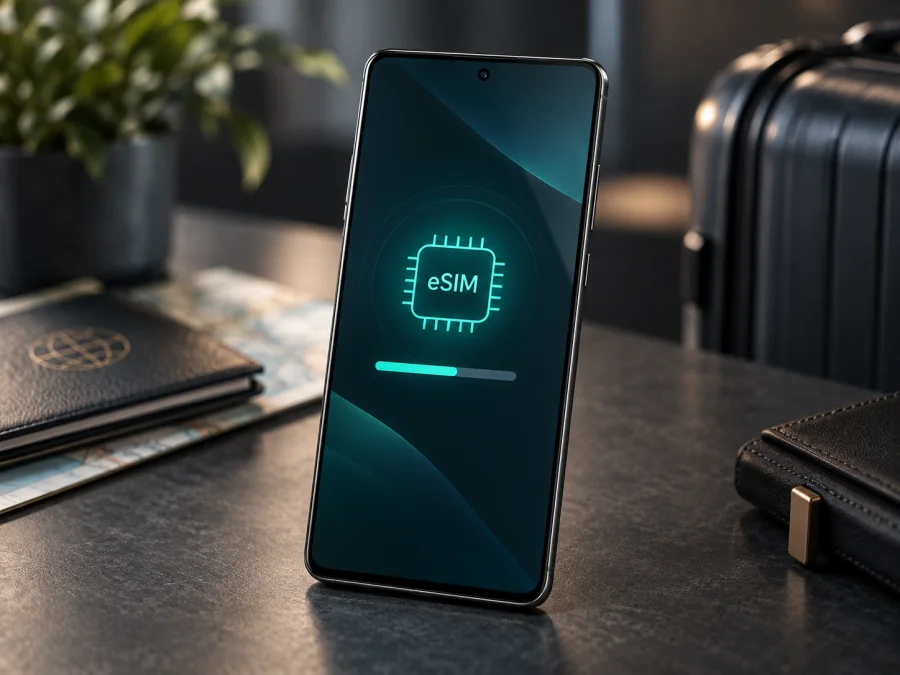
Does Samsung Galaxy S20 Ultra 12GB RAM support eSIM?
The short answer is: the Galaxy S20 Ultra family includes eSIM-capable versions, but the name “Samsung Galaxy S20 Ultra 12GB RAM” alone cannot guarantee that a particular handset has working eSIM. Samsung’s product information for the S20 generation says eSIM is supported on the S20 Ultra, and Samsung’s current regional help pages include the S20 Ultra among compatible Galaxy devices. Samsung also cautions that eSIM availability can depend on country and carrier. Some market-specific documentation lists S20 Ultra variants for physical SIM only. The exact model number, original sales region, carrier software and installed firmware therefore matter.
RAM does not identify the SIM configuration; regional variants can differ in hardware or software. Before selecting a travel data plan, check the handset itself: look for an EID and an option to add an eSIM in Settings. If neither is present, treat the device as unconfirmed even if another S20 Ultra works with eSIM.
Compatibility at a glance
| Item | What to know about Samsung Galaxy S20 Ultra 12GB RAM |
|---|---|
| eSIM support | Available on supported S20 Ultra versions; not guaranteed from the 12GB RAM label alone |
| Main variable | Model number and market or carrier variant, plus software configuration |
| First checks | EID in the phone information and “Add eSIM” in SIM Manager |
| Connection needed to install | Wi-Fi or another working internet connection is recommended |
| Typical travel use | Keep the home SIM for its usual number and use a travel eSIM for mobile data, subject to device and plan settings |
| Before buying | Confirm eSIM is available on this individual handset and check that it is not carrier locked |
What the 12GB RAM variant tells you—and what it does not
The 12GB RAM label does not identify a unique regional SKU. Retailers can use the same product name for devices intended for different countries, and used phones may be imported or refurbished. Check the model number in Settings or on the packaging.
Samsung’s official material documents eSIM on the S20 Ultra family, but not as a universal promise for every unit. Regional support pages differ: some list Galaxy S20 Ultra as eSIM compatible, while market-specific SIM information may show a version with nano-SIM only. A series-level list is not proof for an individual handset.
Menu labels can vary between Android and One UI releases, and carrier software may be customized. An official update may change the menu, but cannot be assumed to add eSIM to every variant. Do not rely on unofficial firmware or a seller’s description. If the EID and eSIM menu disagree, ask Samsung or the carrier to check the full model number.
An EID does not guarantee that a plan will work: network and activation rules still apply. A phone may also show eSIM settings while locked to its original carrier. Check capability and carrier restrictions before travel.
Check the exact phone before you buy a plan
- Find the model number. Open Settings → About phone and note the model name and model number. Compare the full number with the purchase record, box label or Samsung support for the country where the phone was originally sold. Do not identify the regional variant from “12GB RAM” alone.
- Look for an EID. In Settings → About phone → Status information (the wording may differ), check whether an EID is displayed. On some software versions the EID may appear under SIM status or another device-status screen. It is a long identifier associated with the embedded SIM. You may also find it on the original box. Do not post the full EID publicly.
- Check SIM Manager. Go to Settings → Connections → SIM manager. Look for Add eSIM, Add mobile plan or a similar option. Confirm that the phone can download a profile and is unlocked for the intended plan.
- Check the current software. In Settings → Software update, install available official updates over a reliable connection, restart the phone, and look again. Avoid unofficial firmware as a way to force a menu to appear.
- Ask for a variant-specific answer if uncertain. Give Samsung support or the original carrier the complete model number and country of sale. Ask whether that exact version supports downloading a third-party eSIM profile, not only carrier eSIM transfer. If buying second-hand, ask the seller to show the EID and SIM Manager screen on the device before payment.
<a id="kesim-device-compatibility"></a>
Compatibility checklist for Samsung Galaxy S20 Ultra 12GB RAM
Use this checklist before purchasing a travel plan:
- [ ] The phone displays an EID in its settings or has another clear manufacturer-confirmed eSIM identifier.
- [ ] SIM Manager includes an option to add or download an eSIM profile.
- [ ] The phone is not carrier locked, or the carrier confirms that the intended eSIM is allowed.
- [ ] The exact model number and original region have been checked if the EID or menu is missing or ambiguous.
- [ ] The phone has a current official software version and can connect to Wi-Fi for setup.
- [ ] The destination and intended network are supported by the travel plan, and its device requirements have been reviewed.
Check whether your device is compatible before choosing a plan. If the EID and “Add eSIM” option both appear, that is strong evidence the handset can install a profile. If one is missing, ask Samsung or the original carrier to verify the full model and market variant; the 12GB RAM name alone is not proof.
Install and activate an eSIM
Use stable Wi-Fi and keep the QR code on another screen, or use manual entry if supplied. Menu wording varies by software.
- Choose the plan for the trip. Check destination coverage, data allowance, validity and when the plan starts. Confirm it provides data if you need internet rather than a phone number.
- Open the eSIM setup menu. On Samsung Galaxy S20 Ultra 12GB RAM, go to Settings → Connections → SIM manager → Add eSIM or the similarly named option. If the option is not present, stop and complete the compatibility checks above.
- Add the profile. Choose the available QR-code, automatic download or manual entry method. Scan the provider’s QR code when prompted, or enter the supplied activation details carefully. Do not scan an old or already-used code unless the plan provider confirms that it can be reused.
- Confirm the download. Follow the on-screen prompts and wait for the profile to finish installing. Avoid closing Settings or switching off the phone during the download. Wait for the profile to appear in SIM Manager; restart if needed.
- Name the line. Give it a clear label such as “Travel” so that it is easy to distinguish from the home SIM.
- Set the data line. In SIM Manager, choose the travel eSIM for mobile data when the plan should be used. Keep calls and texts assigned to the home SIM if you need your usual number and understand any home-carrier roaming charges.
- Apply the plan’s roaming instructions. Some travel eSIM profiles require data roaming to be enabled for that eSIM. Follow the plan instructions; enabling roaming on the travel profile does not mean you should enable it on your home SIM.
- Test at the right time. If the plan activates only when it first connects in the destination, install it before departure but wait to enable the line or data roaming until the provider’s stated start point. If activation starts at installation, follow the plan’s timing rules instead. When you arrive, allow the phone to register and test a webpage or messaging app.
For additional device-specific guidance, see the Android eSIM installation instructions and iOS eSIM installation instructions. The iOS guide is for Apple devices; the Android guide is the relevant walkthrough for Samsung Galaxy S20 Ultra 12GB RAM. Follow the specific plan instructions because provider steps can differ.
Kaspersky eSIM Store is an app and website where you can choose, arrange and activate an eSIM with a mobile-data plan for an international trip. Check device compatibility first, then select a destination and compare each plan’s data allowance, validity and activation terms. The plan is for mobile data; it does not include a regular number, calls or SMS unless its terms say otherwise. Messaging and internet calls can use data.
Using the phone on a trip
Keep your usual number while using travel data
Keep the home SIM enabled for its number and assign mobile data to the travel eSIM. Check home-carrier roaming charges and disable automatic data switching if it could move data back to the home SIM.
Install before departure, connect when appropriate
Installing over home Wi-Fi can make arrival easier. Keep the QR code until setup is complete. If validity starts on first connection in the destination, leave the line off until then; other plans may start earlier, according to their terms.
A multi-country itinerary
For a multi-country route, verify every country and the full travel period; regional plans do not necessarily cover every destination. After a border crossing, allow time to register and check remaining data before video, hotspot or large downloads.
Using navigation and messaging
Download maps over Wi-Fi before travel, then use the eSIM for navigation, bookings and messaging. It does not automatically provide a local voice number. Check hotspot support and any fair-use terms before sharing data.
Troubleshooting: when the eSIM does not work
“Add eSIM” is missing. Check the model number, install official updates, restart and look for an EID. If both EID and menu are absent, ask Samsung or the original carrier about that variant before buying a plan.
The QR code will not scan. Brighten the screen displaying the code and hold the phone steady. Confirm the QR is for eSIM setup and unused. Use manual entry only with matching details from the provider. Keep the code private.
The profile downloads but shows no service. Make sure the eSIM is on, selected for data, active and covered at your destination; follow its data-roaming instructions. Move to a stronger signal, wait, then toggle airplane mode or restart.
The phone has signal but no data. Select the travel line for data, enable mobile data and enter any required APN exactly as provided. Check allowance and validity, then test with Wi-Fi off. Use manual network selection only if instructed.
The home SIM is using data. Check SIM Manager’s data assignment and disable automatic data switching if present. Home-SIM calls, texts or data may still incur roaming costs under its carrier terms.
The eSIM installed but cannot be moved. Some profiles are one-time installs and cannot be transferred. Do not delete one as a troubleshooting shortcut; first ask whether reinstallation is supported.
A plan appears active but the internet is slow. Check signal, local congestion, allowance and any speed policy. Moving or restarting may help. A phone’s network capability does not guarantee a particular local speed.
Frequently asked questions
Does every Samsung Galaxy S20 Ultra 12GB RAM have eSIM?
No. Samsung documents family-level support, but availability can differ by country, carrier and software. Check the exact handset’s EID and SIM Manager.
Does 12GB RAM confirm that it is the eSIM version?
No. RAM is a memory specification and does not identify the eSIM hardware or regional software. Use the model number, EID and eSIM settings as the checks.
Can the phone keep a physical SIM and an eSIM active?
Some variants offer dual-SIM configurations, but combinations depend on model and software. Check available lines in SIM Manager and confirm the full model number before relying on two active lines.
Does eSIM give me a regular local phone number?
Not necessarily. A travel data eSIM is often intended for mobile internet only. Voice calls and SMS are not included unless the individual plan states that they are. You can generally keep using internet messaging apps over data, subject to their requirements.
Should I install the eSIM before travelling?
It can be convenient over Wi-Fi, but check whether validity starts at purchase, installation or first connection.
What if I can see an EID but cannot add a plan?
Install official updates, restart and review carrier restrictions. Ask Samsung or the carrier about the complete model number; an EID alone does not confirm plan eligibility.
Can I delete and reinstall the profile if troubleshooting fails?
Do not delete it until the plan provider confirms reinstallation is possible. Some QR codes are single-use, and deleting a profile can make the remaining plan unusable on that device.
Before you travel: check the device, then choose the plan
For Samsung Galaxy S20 Ultra 12GB RAM, treat eSIM as supported only after the exact handset passes its own checks. Confirm the EID, find Add eSIM in SIM Manager, verify that the phone is unlocked for the intended plan and resolve any regional uncertainty using the full model number. The 12GB RAM label identifies memory capacity; it does not prove eSIM availability.
Once the device is confirmed, choose an eSIM plan for the countries on your itinerary and compare data allowance, validity, activation timing and any roaming instructions. Kaspersky eSIM Store’s app and website help you choose, arrange and activate an eSIM data plan for an international trip. Install it using the provider’s directions, select the right line for mobile data and test the connection when the plan should be active. This sequence gives you a clear compatibility decision before purchase and a practical setup path for travel.


